
You turn on the TV, switch to your cable box, game console or streaming stick, and get a “No Signal” message instead of a picture. The problem may be a simple connection or input issue rather than a hardware failure.
Quick answer: To fix HDMI no signal on a TV, make sure the connected device is on and awake, then use the TV’s Source or Input button to select the exact HDMI port the cable is plugged into. Reseat the cable at both ends, power-cycle the TV and the device for at least 10 seconds, and try another HDMI port and cable. Many Samsung TVs also have a built-in HDMI cable test under Self Diagnosis.
This guide is part of our series on fixing TV and monitor screen problems.
1. Turn on the source device
A TV may show “No Signal” when the connected device is off or asleep. Check that the cable box, console or computer is actually on. A laptop or PC connected to the TV also must not be in sleep or hibernate mode.
2. Match the TV’s input to the port
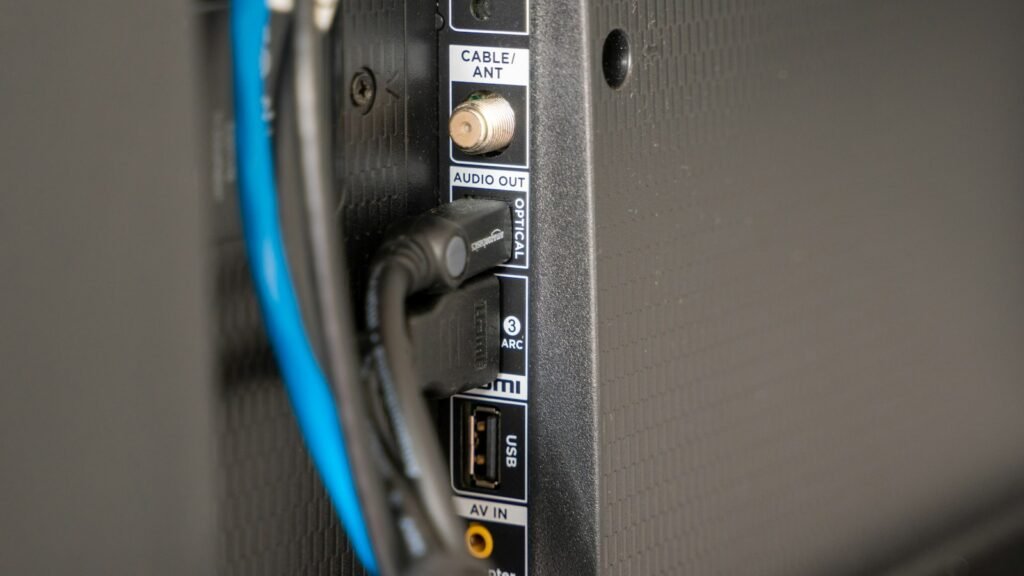
- Look at the back or side of the TV and note the number printed next to the port, such as HDMI 2.
- Press Source or Input on the remote.
- Choose that same HDMI number from the list.
If the Home menu appears, the display works, but an HDMI port or input circuit could still be faulty.
3. Reseat the cable and power-cycle both devices
- Turn off the TV and the connected device.
- Unplug the HDMI cable at the TV and the device, wait about 10 seconds, and plug it back in firmly.
- Unplug the TV and the device from the wall for at least 10 seconds.
- Plug both back in, turn on the device first, then the TV.
These are the steps Samsung recommends when a TV doesn’t detect an HDMI device, and they apply to most brands.
4. Try another port and another cable
- Move the cable to a different HDMI port on the TV and select the new input.
- Try a known-good HDMI cable certified for the resolution and refresh rate you need.
- Remove HDMI switches, splitters, wall-plate extensions and soundbars from the chain for now, and connect the device straight to the TV.
5. Run the TV’s HDMI test
On many Samsung TVs, press Home and go to Settings > Support > Device Care > Self Diagnosis. Depending on the model, look for HDMI Troubleshooting or Signal Information > HDMI Cable Test, and test each connected port. Samsung says its cable test is designed for cables under 6 feet and may be inaccurate with longer cables, and it isn’t on every model. If your TV has HDMI diagnostics, consult its manufacturer’s support instructions.
6. Check resolution and refresh rate
If a PC or game console is set to a resolution or refresh rate the TV can’t accept, the TV may show “No Signal” or “Mode not supported.” Connect the device to another screen, lower its output setting (for example to 1080p at 60Hz), then connect it to the TV again. On a Windows PC, also press Windows key + P and select Duplicate or Extend. Some TVs also need an enhanced HDMI mode turned on for a specific port before they accept 4K at higher refresh rates; the setting name varies by brand.
7. Update the TV and the device
Install any software update for the TV and for the connected device. Updates sometimes fix HDMI handshake problems between brands.
8. Narrow down the faulty part
Use a known-good, compatible HDMI cable for all tests.
| Test | If it works | If it fails |
|---|---|---|
| Same device, different TV | Likely TV-side or compatibility issue | Possible device or output-setting issue |
| Different device, same TV port | Likely original device or output-setting issue | Possible TV input or compatibility issue |
If every port fails with known-good devices, compatible cables and supported output settings, contact the TV manufacturer.
If the TV shows a picture but you hear nothing, see no sound from your TV over HDMI. If you hear sound but the screen stays black, see TV black screen with sound. A computer monitor showing the same message is covered in monitor says no signal.
Frequently asked questions
Why is my TV suddenly saying no signal?
The connected device may be off or asleep, the TV may have switched to a different input, or a cable may have worked loose. A recent update on either device can also change output settings.
How do I reset my TV’s HDMI?
Unplug the HDMI cable and both devices’ power cords for at least 10 seconds, then reconnect everything and turn on the source device before the TV.
How do I know if my HDMI cable is bad?
Swap it for a cable you know works. If the problem goes away, the original cable may be damaged or incompatible. Some Samsung TVs can also test the cable in Self Diagnosis.
What causes no HDMI signal?
The most common causes are the wrong input, a device that’s off or asleep, a loose or damaged cable, and an output setting the TV doesn’t support.
How we researched this guide
This guide draws on Samsung’s support articles on HDMI detection and no-picture problems, reviewed on November 17, 2026. We did not test these steps on a device. Menu names and diagnostic tools vary by TV brand, model and software version.

Louis Mugan writes how-to and troubleshooting guides for EasyTechLife, covering Android phones, iPhones, laptops, Chromebooks, headphones and everyday software.
He aims to base each guide on official manufacturer documentation and support pages, and to link the sources so readers can check the steps for themselves. Questions or corrections? Use the contact page.


