
You add a widget on your Galaxy phone, and after a restart, an update or a few days it’s gone again. Samsung phones have some settings of their own that affect widgets, on top of the usual Android causes.
Quick answer: If your Samsung widgets keep disappearing, first check your other home screen pages and try adding the widget again. Restart the phone, update its software and apps (including in the Galaxy Store), then clear the cache of One UI Home and check the default launcher. Use Safe mode for further troubleshooting. Work profile widgets may be restricted by your organization.
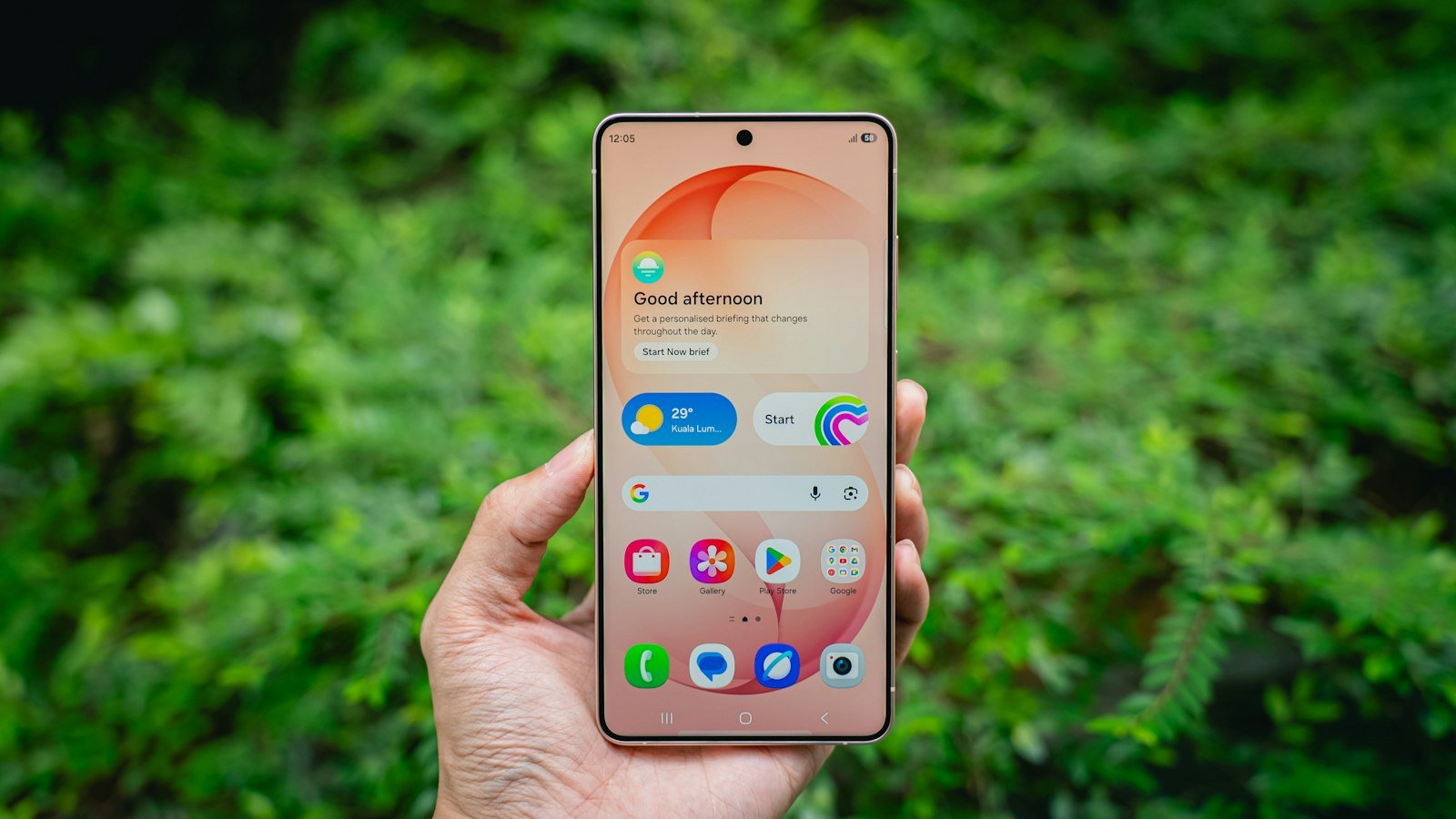
First, swipe through every home screen page; the widget may have moved. Then touch and hold an empty area, tap Widgets, find the app and add its widget again.
For the general Android steps, start with widgets disappeared on Android. On an iPhone, see iPhone widgets disappeared.
What Samsung says to check
Samsung’s support article on widgets that disappear or do not work notes that widgets may not be available for all apps and that work profiles managed by your company may restrict widgets. It also advises checking for software and app updates and, if you can’t add a widget, starting the phone in Safe mode.
1. Restart, then update the phone and its apps
Restart your Galaxy phone before trying anything more involved.
- System: go to Settings > Software update.
- Apps: update in the Play Store and in the Galaxy Store. Samsung’s own apps and their widgets are often updated through the Galaxy Store.
2. Clear the One UI Home cache
- Open Settings > Apps.
- Find One UI Home. Turn on the option to show system apps if you don’t see it.
- Tap Storage, then Clear cache.
- Restart the phone.
Samsung moderators give this advice in the Samsung Community. Clear cache removes temporary launcher files and normally preserves your layout. Don’t select Clear data: it can reset the home screen arrangement, including widget placement.
3. Make sure One UI Home is still the default
Go to Settings > Apps > Choose default apps > Home app. If another launcher is selected, switch back to One UI Home and check whether your previous widgets are still there. Different launchers keep separate home screen layouts. Good Lock’s Home Up module also changes home screen behavior; if you use it, try turning it off to see whether the problem stops.
4. Check Easy mode and the layout lock
- Easy mode changes the home screen layout and may make your previous widget arrangement look different. Check whether it was turned on in Settings > Display > Easy mode.
- Lock Home screen layout stops items being added, moved or removed. If you can’t put a widget back, turn it off in the home screen settings. See what to do when you can’t add a widget.
5. Test in Safe mode
Before entering Safe mode, take a screenshot of your home screen, because some widgets may disappear temporarily. Safe mode disables downloaded apps. Check the built-in widgets, restart normally, and look at recently installed apps if the problem seems related to third-party software.
6. If the widget is visible but blank
A widget that’s on the screen but blank, frozen or out of date is a different problem. Open its app, check that the app works and has the permissions it needs, then see Android widgets not updating.
7. Work profile widgets
If the missing widgets belong to work apps, your organization’s device-management policies may restrict them. Contact your IT administrator to confirm whether widgets are permitted.
If it started after a One UI update
If widgets repeatedly disappear after a One UI update, check for further software updates and report the issue through the Samsung Members app. See widgets disappeared after an Android update, and for other changes to the screen, our Samsung home screen guide.
Frequently asked questions
Why do my widgets keep disappearing on Samsung?
Possible causes include an outdated app, a One UI Home glitch, a different default launcher, a work profile restriction or a bug in a recent update.
How do I restore missing widgets on Samsung?
Touch and hold an empty home screen area, tap Widgets, select the app and add its widget. If the widget isn’t listed, update the app and check whether it still offers one.
Does clearing One UI Home’s cache remove my widgets?
Clearing the cache generally doesn’t change the layout. Clearing data does reset it.
Why are some widgets missing from the widget list?
Not every app offers a widget, and an app that’s disabled or not set up may not show one.
Should I factory reset to fix widgets?
Treat that as a last resort. It erases the phone and isn’t guaranteed to fix a software bug.
How we researched this guide
This guide draws on Google’s Android Help pages and Samsung’s support article on widgets, reviewed on November 17, 2026. We did not test these steps on a device. Menu names and available options vary by phone brand, launcher and Android version.

Louis Mugan writes how-to and troubleshooting guides for EasyTechLife, covering Android phones, iPhones, laptops, Chromebooks, headphones and everyday software.
He aims to base each guide on official manufacturer documentation and support pages, and to link the sources so readers can check the steps for themselves. Questions or corrections? Use the contact page.


