
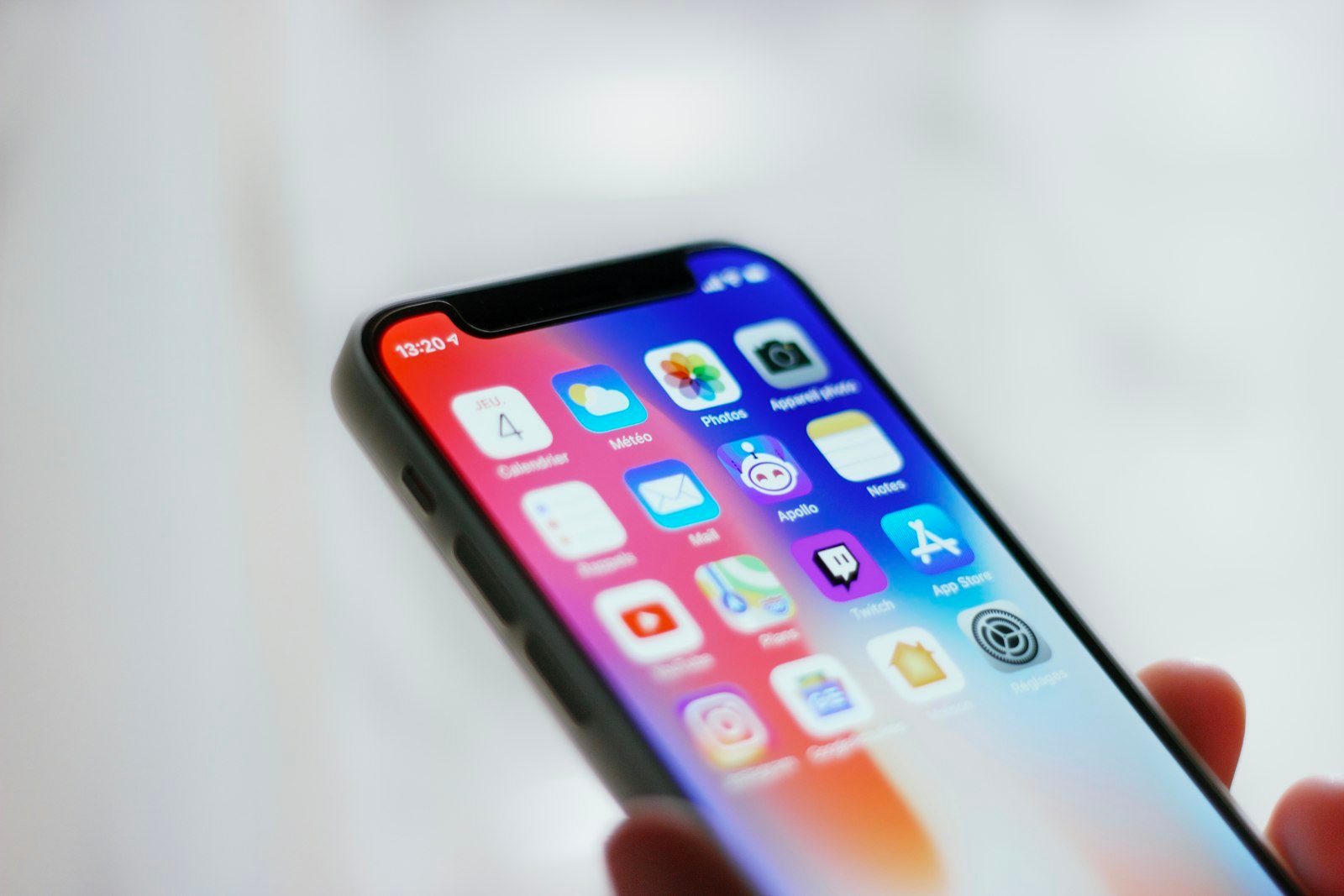
You installed an iOS update and the Home Screen doesn’t look like yours anymore. Icons look glassy or dark, things seem see-through, and settings you knew have moved. Apple changed the iPhone’s appearance across recent iOS versions. You can adjust many of the visual settings, but you can’t completely recreate an older iOS interface.
Quick answer: You can’t go back to the previous iOS version from Settings, but you can adjust many of the visual changes, including icon colors, transparency, display size and wallpaper. Set the icon style and size in Edit > Customize, tone down Liquid Glass in Settings > Appearance > Liquid Glass (iOS 27), turn on Reduce Transparency in Accessibility, and check Display Zoom and text size.
If your apps moved or went missing instead, start with our guide to getting your iPhone Home Screen back to its original layout.
What changed, by iOS version
| Version | Home Screen changes people notice |
|---|---|
| iOS 18 | Icon styles (light, dark, tinted), large icons without labels, and the option to hide apps |
| iOS 26 | The Liquid Glass design, with translucent controls, Dock and folders, and a Clear icon style |
| iOS 27 | A new Appearance section in Settings with a Liquid Glass slider; some display settings moved there |
1. Restore the standard Home Screen icon appearance
Apple’s iPhone User Guide covers the Customize menu:
- Touch and hold the Home Screen background until the icons jiggle.
- Tap Edit, then Customize.
- Select Small to show app names under the icons. Large icons hide the names.
- Tap Light for the standard colors, and switch away from Clear or Tinted if the icons look see-through or single-colored.
- Tap outside the menu to finish.
2. Tone down Liquid Glass
- iOS 27: go to Settings > Appearance > Liquid Glass. Drag the slider right for a more tinted, opaque look, or left for more transparency.
- iOS 26.1 and later iOS 26 versions: open Settings > Display & Brightness > Liquid Glass and choose Tinted.
- Any recent version: go to Settings > Accessibility > Display & Text Size and turn on Reduce Transparency.
If the Liquid Glass control is unavailable, check Settings > Accessibility > Display & Text Size. Reduce Transparency or Increase Contrast may affect the control; turn them off temporarily to adjust Liquid Glass, then restore the accessibility settings you prefer. The Liquid Glass paths above come from published walkthroughs of iOS 26.1 and iOS 27. Even at the most tinted setting, the design keeps some of its glass look.
3. Fix size and zoom
- Display Zoom: on iOS 27, go to Settings > Appearance > Display Zoom. On earlier versions, check Settings > Display & Brightness > Display Zoom. If everything looks unusually large, select the default display size instead of an enlarged option, if available.
- Text Size: on iOS 27, open Settings > Appearance > Text Size and adjust the slider. On earlier versions, check Settings > Display & Brightness > Text Size.
- Accessibility Zoom: if the screen is magnified, double-tap with three fingers, then turn it off in Settings > Accessibility > Zoom.
4. Check the wallpaper and Focus
Open Settings > Wallpaper to review the Home Screen background. If the look changes at certain times of day, a Focus linked to a different Lock Screen or to specific Home Screen pages may be the reason. Open Control Center, tap Focus and see whether one is active; turn it off for a moment to check whether your usual pages return. See how to show or hide Home Screen pages.
5. Find apps and widgets that moved
An app missing from the Home Screen isn’t necessarily deleted. If something is missing, swipe left past your last page to App Library and search for the app, check whether a page is hidden, and look in the Hidden folder if you hid an app on iOS 18 or later. See why apps disappear and what to do when widgets disappear.
What you can’t change back
The overall design of each iOS version is built in. There’s no setting that returns an iPhone to the previous version’s interface, and Apple doesn’t offer a way to roll back from Settings. Installing later updates is the practical route, since Apple has added more controls over time, such as the iOS 27 slider.
On Android instead? See what to do when an Android home screen changed after an update.
Frequently asked questions
How do I go back to classic view on my iPhone?
There’s no classic mode. Set icons to Light and small in Customize, move Liquid Glass toward tinted and turn on Reduce Transparency for the most traditional look.
Can I change my iPhone back to the old layout?
You can rearrange apps and widgets by hand and change icon style, transparency and size. To return to Apple’s default app arrangement, use Settings > General > Transfer or Reset iPhone > Reset > Reset Home Screen Layout. That removes folders and lists downloaded apps alphabetically after the built-in ones; it won’t bring back a custom arrangement or an older iOS design.
Why are my icons dark or one color?
The icon style is set to Dark, Tinted or Clear. Change it in Edit > Customize.
How do I get my iPhone Home Screen back to normal?
For the familiar look, choose Small and Light under Edit > Customize, adjust Liquid Glass and check Display Zoom. Reset Home Screen Layout is different: it changes how apps are arranged, removing folders, and doesn’t affect the Liquid Glass appearance.
Why did my iPhone change my Home Screen?
An iOS update can introduce new icon styles, transparency effects and display settings. If apps or pages are missing, also check App Library, hidden pages and Focus settings.
Did the update delete my apps?
That’s unlikely. Check App Library and the Hidden folder first.
How we researched this guide
This guide was researched using Apple documentation and published iOS walkthroughs, reviewed on November 15, 2026. We did not test these steps on an iPhone. Available settings and menu names vary by iOS version.

Louis Mugan writes how-to and troubleshooting guides for EasyTechLife, covering Android phones, iPhones, laptops, Chromebooks, headphones and everyday software.
He aims to base each guide on official manufacturer documentation and support pages, and to link the sources so readers can check the steps for themselves. Questions or corrections? Use the contact page.


