
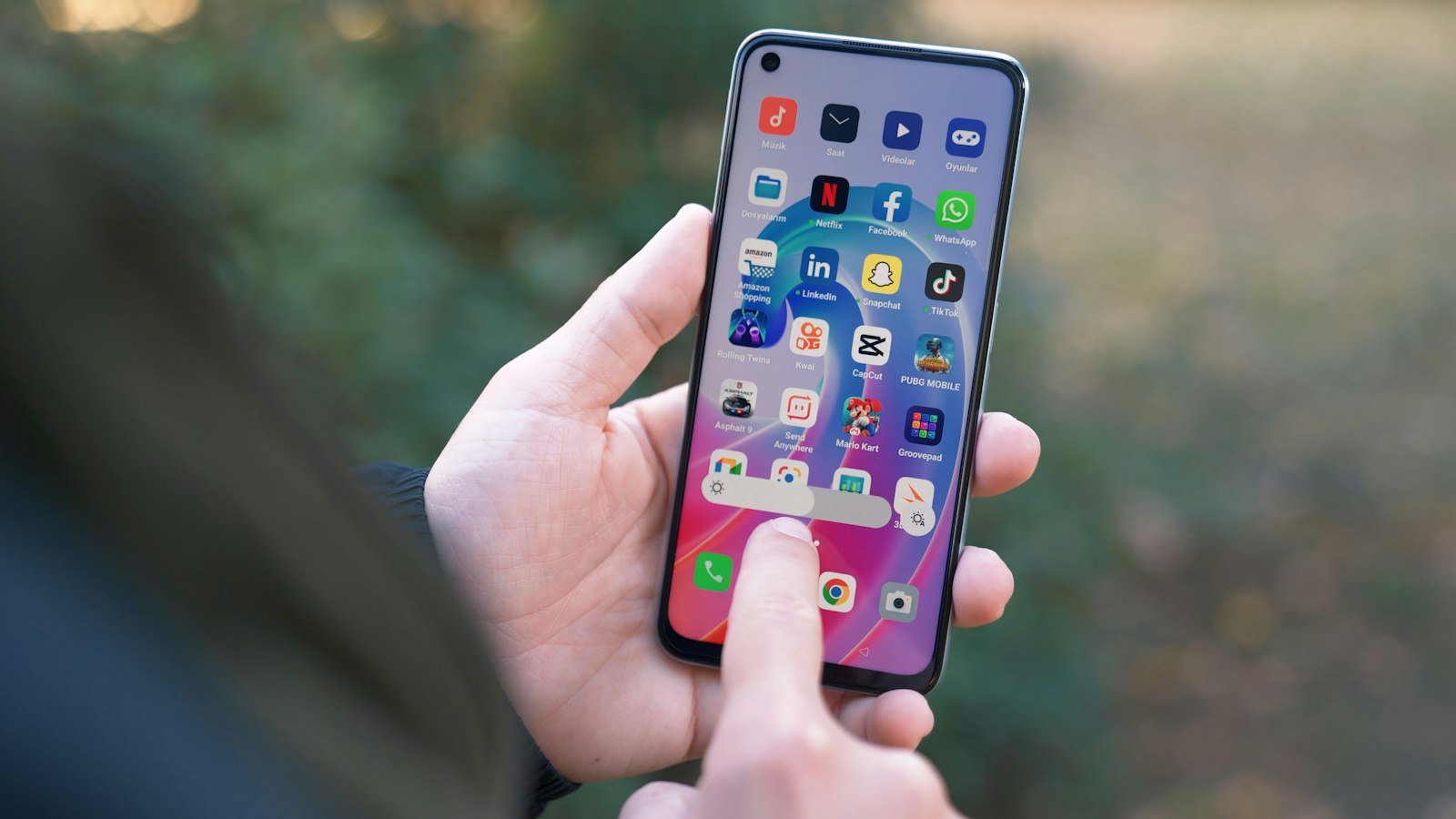
You didn’t touch anything, yet your Android home screen looks different. Icons are bigger, apps have moved, the app drawer is gone, or the whole thing has a new style. Home screen changes usually have an identifiable cause, such as a software update, a launcher change or an accidental settings adjustment, so the fix starts with working out which one you’re dealing with.
Quick answer: An Android home screen usually changes for one of eight reasons: a system update, a different launcher app, a simplified “easy” mode, a new theme, a different user or work profile, an accidental edit, a restore from backup, or a display size change. Match what you see to the table below, then follow the linked fix.
For the full set of fixes in one place, see how to restore your Android home screen.
Match the symptom to the cause
| What changed | Likely cause |
|---|---|
| Everything looks different after a software update | System update |
| New style, new menus, sometimes ads | A different launcher app is in control |
| Very large icons and text, fewer apps | Easy mode or Simple View |
| New colors, icon shapes or wallpaper | Theme or wallpaper style |
| Your apps and accounts seem to be missing | Guest, second user or work profile |
| One or two icons or widgets gone or moved | Accidental edit |
| New phone doesn’t look like the old one | Backup restored without the layout |
| Everything is slightly bigger or smaller | Display size or font size setting |
1. A system update
Android and manufacturer updates can change icon styles, the app drawer, the search bar and available grid sizes. If the change appeared right after a software update, the update may be responsible. Some layout changes can be adjusted in settings, but an update can also remove options you used before. See what to do when your home screen changed after an update.
2. A different launcher took over
The launcher is the app that runs your home screen. If you installed one, or another app included one, it may have become the default. Go to Settings > Apps > Default apps > Home app and select your phone’s built-in launcher. On Samsung, use Settings > Apps > Choose default apps > Home app. Menu names vary by model. Full steps are in how to change the default launcher, and this guide shows how to remove the app responsible.
3. Easy mode or Simple View is on
Some phones have a simplified home screen with large icons. On Samsung, go to Settings > Display > Easy mode and turn it off. Supported Pixel phones have a similar option called Simple View; go to Settings > Accessibility > Simple View and turn it off. Galaxy owners can follow our Samsung home screen guide.
4. A theme or wallpaper style was applied
Themes change colors, icons and sometimes fonts. On Pixel and many other phones, look in Settings > Wallpaper & style. On Samsung, open Settings > Themes and reapply the default theme.
5. You’re in a different profile
Depending on your device, Android may support guest accounts, secondary users or a separate work profile. Guest and secondary users can have their own home screen layout and apps. A work profile usually separates work apps and data without replacing the whole home screen. Swipe down twice from the top of the screen and look for a user icon, or check Settings > System > Multiple users. If you’re in a guest or secondary user, switch back to the owner account. If work apps are missing, check whether the work profile is paused. Not every phone supports multiple users.
6. An accidental edit
A long press in a pocket or by a child can move or remove an icon, delete a widget or create a folder. If only the shortcut was removed, the app should still be installed. Open the app drawer, touch and hold the app and drag it back. See why apps disappear from the home screen and how to get widgets back. To prevent a repeat, lock the layout.
7. A backup restored your apps but not your layout
When you set up a new or reset phone, Android may offer to restore supported apps and settings from a previous backup. Home screen layouts don’t always transfer, especially between different brands or launchers. You may need to rebuild it by hand.
8. Display size or font size changed
If everything is simply bigger or smaller, check Settings > Display > Display size and text (on Samsung, Screen zoom and Font size and style). Display size changes how large things appear; the number of icons per row also depends on your launcher and grid settings.
Still not sure? Do these three checks
- Open Settings > Apps > Default apps > Home app and confirm the built-in launcher is selected.
- Open Settings > System > Software updates (or Settings > About phone) to see your current version and any recent update information. Not every phone shows a full update history.
- Touch and hold an empty part of the home screen and open the home screen settings to review layout, grid and lock options.
Then work through our main guide to getting your Android home screen back to normal.
Frequently asked questions
Why did my Android home screen change by itself?
There’s normally a trigger. Common ones are an overnight system update, an app that set itself as the launcher, or a setting such as Easy mode switched on by accident.
Can a virus change my home screen?
Some unwanted apps can change your default launcher, alter the home screen or show unexpected ads. Check recently installed launcher and utility apps before assuming the phone has malware, remove any you don’t want and switch back to the built-in launcher.
How do I undo home screen changes on Android?
Find the cause in the table above, then reverse that setting. There is no single undo button for the home screen.
Will a factory reset fix it?
A factory reset erases your personal data and restores the phone’s current software defaults. It won’t bring back a layout from an older Android or One UI version. Try the launcher, mode and layout settings first.
Why did my Samsung home screen layout change after an update?
One UI updates can change grid options and icon arrangements. Touch and hold an empty area of the home screen, tap Settings and check Home screen grid and Home screen layout.
How do I get my Android back to its original launcher?
Open Settings > Apps > Default apps > Home app and select the phone’s original launcher. On Samsung, look under Choose default apps.
How do I stop my home screen icons from moving?
On Samsung Galaxy phones, touch and hold an empty area of the home screen, tap Settings and turn on Lock Home screen layout. Some other launchers offer a similar option.
How we researched this guide
We based this guide on Google’s Android and Pixel help pages and Samsung’s support pages for Easy mode and the Home screen, reviewed on November 15, 2026. We did not test these steps on a device, and menu names vary by brand, model and Android version.

Louis Mugan writes how-to and troubleshooting guides for EasyTechLife, covering Android phones, iPhones, laptops, Chromebooks, headphones and everyday software.
He aims to base each guide on official manufacturer documentation and support pages, and to link the sources so readers can check the steps for themselves. Questions or corrections? Use the contact page.


