
Vertical lines on a monitor come from one of three places: the screen itself, the cable and ports that carry the picture, or the computer that sends it. The fastest way to tell which is to open your monitor’s own settings menu. If the lines run across that menu, that strongly suggests a fault inside the monitor. If the menu looks clean, the cable, the port or the computer is the more likely cause, and those are usually things you can fix yourself.
This guide gives you three quick tests to locate the fault, then the fixes for each cause, easiest first. It covers external monitors connected to Windows 11, Windows 10 and Mac computers, with a short section for laptop screens.
Quick answer
- Open the monitor’s on-screen menu. Lines on top of the menu point to a monitor fault, so skip to Repair or replace.
- If the menu is clean, unplug the video cable at both ends, plug it back in firmly, then try a different cable and a different port.
- Lower the refresh rate to 60 Hz and set the resolution marked Recommended.
- Update the graphics driver, or roll it back if the lines started after an update.
- Connect the monitor to a second device to confirm which side is at fault.
Find the cause first: three quick tests
Changing settings before you know where the fault is wastes time. Each one takes a few minutes.
Test 1: Open the monitor’s on-screen menu
Press the menu button or joystick on the monitor. The monitor draws this menu itself, without help from your computer.
ViewSonic’s support guidance puts it plainly. Lines that appear over the menu point to a hardware or panel failure. Lines that stay behind the menu mean the monitor is healthy and the problem lies with the cable, the graphics card or the PC.
A clean menu is strong evidence, not proof. Confirm it with the next test, and with a second device if you have one.
Test 2: Unplug the video cable
Leave the monitor switched on and pull out the HDMI, DisplayPort or USB-C cable. Most monitors then show a “No Signal” message.
LG’s troubleshooting page says that if the No Signal screen shows vertical lines in the same place, the monitor needs inspection by a technician.
Some brands go further. Dell monitors include built-in diagnostics for this exact situation, and the steps are in each model’s user guide. Dell’s rule is simple: if the fault shows during the self-test, contact support. If it doesn’t, the monitor is working normally and the video source is the place to look.
Test 3: Take a screenshot
A screenshot captures the image your computer rendered. It doesn’t photograph the physical screen, so viewing it on another device helps separate problems in the image itself from problems further along the display connection. On Windows, press Windows + PrtScn (our guide on how to screenshot on an HP laptop or desktop covers the other methods). Then open the image on a different screen: email it to yourself, open it from cloud storage or copy it to your phone.
- Lines appear in the screenshot: the problem is on the computer side. It could be an app, the graphics driver or the graphics card itself.
- Lines on the monitor but not in the screenshot: the picture was fine when it was created, so look further along, at the graphics output, the cable, any adapter and the monitor.
This test is a logical check, not a manufacturer procedure, and neither result is conclusive on its own. Treat it as a strong hint and confirm with the other two.
What your results mean
| What you see | Most likely cause | What to do |
|---|---|---|
| Lines cross the monitor’s menu or No Signal screen | Monitor panel or its internal electronics | Go to Repair or replace |
| Menu is clean, and the screenshot has no lines | Cable, port, adapter or graphics output | Fixes 1 to 3 |
| Lines appear in the screenshot | Software, graphics driver or graphics card | Fix 4 |
| Lines appear in only one app or game | That app or its graphics settings | Update the app, then Fix 4 |
| Lines follow the monitor to a second device | Monitor or its cable | Fix 2, then Repair or replace |
Still unsure? Swap devices
Connect the monitor to a different laptop, PC or game console. If the lines follow the monitor, the monitor or its cable is at fault. If your computer shows lines on a second screen too, the computer is the cause.
How to fix vertical lines on a monitor
Work through these in order. Stop as soon as the lines disappear.
Fix 1: Power-cycle the monitor and restart the computer
Turn the monitor off, unplug its power cord for a minute, then plug it back in. Restart the computer too. This clears temporary glitches on both sides and costs nothing.
Fix 2: Reseat, inspect and swap the cable and port
A poor connection is the first thing to rule out.
- Unplug the video cable at both ends and push it back in firmly.
- Look inside each connector. LG advises checking the pins for damage or debris and replacing the cable if you find any.
- Try a different port on the monitor and on the computer.
- Swap in a cable you know works on another setup.
- Remove anything between the computer and the monitor, such as an adapter, a dock, a KVM switch or an extension cable, and connect directly.
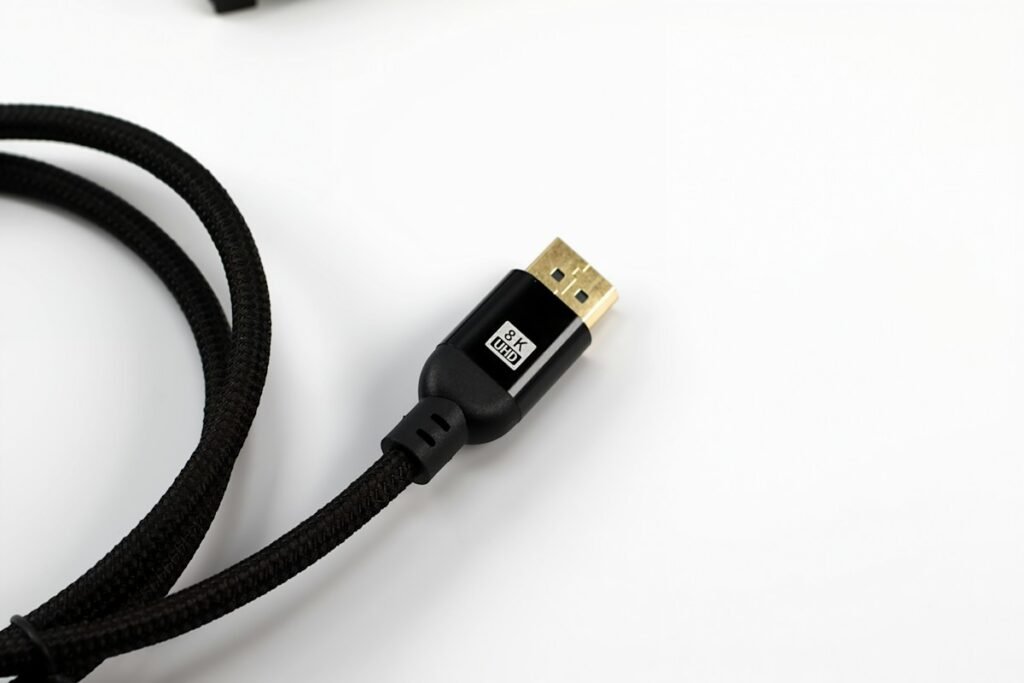
LG also warns that a cable that doesn’t meet the monitor’s specifications can cause picture noise. If you use a high-resolution or high-refresh-rate monitor, check that the cable and ports support the display mode you’ve selected, and try a compatible cable you know works if you suspect the connection.
On an older monitor connected by VGA, run Auto Adjust from the monitor’s menu after reseating the cable.
Fix 3: Lower the refresh rate and check the resolution
A signal that is too demanding for the cable or port can break up into lines.
Windows 11: go to Start > Settings > System > Display > Advanced display, then pick a lower value next to Choose a refresh rate. These are the steps on Microsoft’s refresh rate page. Windows 10 uses the same route, with the last item named Advanced display settings.
Mac: choose Apple menu > System Settings > Displays, select the external display, and choose a fixed rate from the Refresh Rate menu, as Apple describes.
Try 60 Hz. If the lines vanish at 60 Hz and return at 120 Hz or 144 Hz, check that the cable, the port and any adapter support your monitor’s resolution and refresh rate, then repeat Fix 2 with a cable rated for it. If the lines still return with a suitable cable and on a second computer, the monitor itself may be responsible.
While you’re in Display settings on Windows, set Display resolution to the option marked Recommended.
Fix 4: Reset, update or roll back the graphics driver
Start with the quick reset. Press Windows + Ctrl + Shift + B. Microsoft lists this shortcut for blank screens. You should hear a beep or see the screen flicker as the graphics driver resets. The screen may go black for a moment. Microsoft doesn’t document it as a fix for lines, but it takes two seconds to try.
If that doesn’t help, follow Microsoft’s Device Manager steps:
- Right-click Start and select Device Manager.
- Expand Display adapters.
- Right-click your graphics card and select Update driver, then let Windows search automatically.
If the lines started right after a driver or Windows update, roll back instead. Right-click the graphics card, choose Properties, open the Driver tab and select Roll Back Driver. You need an administrator account for this.
If Windows finds nothing newer, check the official Intel, AMD or NVIDIA site, or your computer maker’s support page, for a driver that matches your graphics hardware and Windows version. Microsoft advises downloading drivers only from the manufacturer’s official site. Avoid third-party “driver updater” tools.
Fix 5: Reset the monitor to factory settings
Open the monitor’s menu and look for Factory Reset, All Reset or Memory Recall. The name varies by brand. This rules out a picture setting that the monitor is handling badly.
Fix 6: Rule out heat
LG notes that excessive heat can cause display problems, including vertical lines. Make sure the vents on the back of the monitor aren’t blocked and that it isn’t pushed against a wall or sitting in direct sun.
Extra checks on a Mac
The tests and fixes above apply to a Mac with an external monitor too. Work through these in order:
- Unplug the display from the Mac, wait a few seconds and plug it back in.
- Try a different cable, and connect without a USB-C hub or adapter if you can. If you need an adapter, test another one.
- Open Apple menu > System Settings > Displays, select the external display, and check its resolution and refresh rate.
- Connect the monitor to another computer to see whether the lines follow it.
- Install any pending update under System Settings > General > Software Update.
What different kinds of vertical lines usually mean
The pattern is a clue, not a diagnosis. Use it to decide which test to run first.
| What the lines look like | What it usually points to | First step |
|---|---|---|
| One thin line, fixed in place, in a single color such as red, green, pink, white or black | Often a failed column of pixels in the panel | Menu test, then warranty |
| Many colored or rainbow lines across the screen | A signal problem; LG says to reconnect the cable first | Fix 2 |
| Lines only at 120 Hz, 144 Hz or higher | A cable, port or adapter that can’t carry the signal reliably, or the monitor itself | Fix 3, then a suitable cable |
| Lines at power-on that fade after a few minutes | Reported with high refresh rates and with aging monitor hardware | Fix 3, then the No Signal test while the lines are visible |
| Lines that started after a knock or pressure on the screen | Physical panel damage | Service |
| Faint lines on plain gray or single-color backgrounds | Could be the panel or the signal | Run the monitor’s self-test, then Fix 2 |
Why a single line usually can’t be fixed with settings
An LCD panel controls its pixels in columns and rows. When the connection that drives one column fails, every pixel in that column sticks, which shows as one perfectly straight line from top to bottom, often in a single color. If the line is still there on the monitor’s menu or self-test, that is the likely cause, and no driver, cable or setting can restore it. Confirm it with the tests above before you assume the panel needs replacing. “Stuck pixel” videos and apps are aimed at individual pixels, so don’t expect them to clear a full-height line.
Don’t press, tap or heat the screen
You’ll find videos that claim to fix lines by pressing along the edge of the screen. Don’t. Dell’s monitor care guidance warns against putting pressure directly on the LCD screen because it can crack it beyond repair.
ViewSonic notes that lines which flicker or change under pressure on the frame point to physical panel damage. Treat that as a diagnosis, not a repair, and don’t press on the screen to test it.
Repair or replace?
If the lines still show on the monitor’s own menu, No Signal screen or built-in self-test with the video cable disconnected, an internal hardware problem is likely. Try the factory reset in Fix 5 and any diagnostic the manufacturer provides, then contact support about repair or replacement.
- Check the warranty first. Find the model and serial number on the back label and contact the manufacturer. Tell them the lines appear on the menu with no cable connected. That result is what the manufacturers’ own guides use to identify a hardware fault.
- Out of warranty? A panel fault usually means replacing the panel, which isn’t a home repair. Ask for a repair quote and compare it with the price of an equivalent new monitor before you decide.
- In the meantime, a monitor with a stable, isolated line may remain usable while you decide. Stop using it if you see cracks, smell burning or notice it running unusually hot.
Vertical lines on a laptop screen
Connect the laptop to an external monitor or TV. If the external screen is clean and the built-in screen has lines, the laptop’s display, its internal cable or the display connection is the leading suspect. Run the manufacturer’s built-in display test, if your model has one, before you arrange a repair. If both screens show similar lines, the computer side is the likely cause, so look at the graphics driver, the display settings and the graphics hardware, starting with Fix 4.
If your lines run side to side instead, see our guide to horizontal lines on a monitor.
Frequently asked questions
Can an HDMI cable cause vertical lines on a monitor?
Yes. A loose, damaged or under-specified cable can corrupt the signal. Reseat it, check the pins, then test with a cable that works on another setup.
Do vertical lines mean my monitor is dying?
Not always. Lines that disappear when you swap the cable or lower the refresh rate have nothing to do with the panel. Lines that sit on top of the monitor’s own menu with no cable attached point to a hardware fault, and settings won’t remove them.
Can the graphics card cause lines on only one of my two monitors?
Yes. Each monitor uses its own port and cable, and often a different refresh rate. Swap one thing at a time. Exchange the two cables first and keep the ports the same. If the lines follow one cable, that cable is the leading suspect, so confirm with a replacement you know works. If not, switch the ports. If the lines stay on the same screen through both swaps, test that monitor’s menu.
Does the color of the line matter?
Not much on its own. A red, green, pink, white or black line that stays in one place gets the same tests as any other. A single-color line that never moves is often one column of the panel. Many lines in mixed colors can come from the signal or from hardware, and LG’s guide says to reconnect the cable first.
Why do the lines show at startup and then disappear?
In forum reports of this symptom, lowering the refresh rate is a commonly suggested fix, so try Fix 3 first. If that doesn’t help, catch the monitor while the lines are visible and run the No Signal test. Lines that show there point to the monitor’s hardware.
The short version
Run the menu test before anything else. A clean menu makes a cable, port, refresh rate or driver problem more likely, and Fixes 1 to 4 cover those. Lines on the menu point to the monitor’s hardware, so check the warranty.
How this guide was put together: every step was checked against the linked Dell, LG, ViewSonic, Microsoft and Apple support pages in November 2026. The steps were not tested on a specific faulty monitor.

Louis Mugan is a seasoned technology writer with a talent for turning complicated ideas into clear, practical guidance. He focuses on helping everyday readers stay confident in a world where tech moves fast. His style is approachable, steady, and built on real understanding.
He has spent years writing for platforms like EasyTechLife, where he covers gadgets, software, digital trends, and everyday tech solutions. His articles focus on clarity, real-world usefulness, and helping people understand how technology actually fits into their lives.
Outside of his regular columns, Louis explores emerging tools, reviews products, and experiments with new tech so his readers don’t have to. His steady, friendly approach has made him a reliable voice for anyone trying to keep up with modern technology. get in touch at louismugan@gmail.com