
You can’t use a Roku Stick on a laptop the way you use it on a TV. The stick needs a screen with an HDMI input, and almost every laptop’s HDMI port is an output. That port sends the laptop’s picture to a TV or monitor. It doesn’t accept a picture coming in.
So if you plug a Roku Streaming Stick into your laptop, nothing happens. There’s no picture, no sound and no new device in Windows. That’s expected, not a fault with your stick or your laptop.
You still have good options. The right one depends on what you’re actually trying to do, so start with the table below.
Which option do you need?
Most people asking how to connect a Roku Stick to a laptop want one of six things. Find yours, then jump to that section.
| What you want to do | What works | Extra hardware | The catch |
|---|---|---|---|
| Watch Netflix, Hulu, Prime Video or YouTube on your laptop | The service’s own website or app | None | You sign in to each service separately |
| Watch The Roku Channel on your laptop | The Roku Channel website | None | Web streaming is limited to the US, Canada and the UK |
| Show your Windows laptop’s screen on a Roku TV | Wireless screen mirroring (Windows key + K) | None | Your laptop must support Miracast |
| Show your MacBook’s screen on a Roku TV | Apple AirPlay | None | Only AirPlay-compatible Roku models |
| Use the Roku Stick without a TV | A computer monitor with an HDMI input | Speakers or headphones if the monitor has none | The monitor must support HDCP |
| See the Roku Stick’s own picture on your laptop | A USB HDMI capture card | Capture card | Video playback usually stops with an HDCP error |
If you only want to watch services you subscribe to directly, you probably don’t need the Roku Stick at all.
Why you can’t plug a Roku Stick directly into most laptops
HDMI ports only carry video one way. A TV or monitor has HDMI inputs that receive a picture. A laptop has an HDMI output that sends its own picture out to a bigger screen.
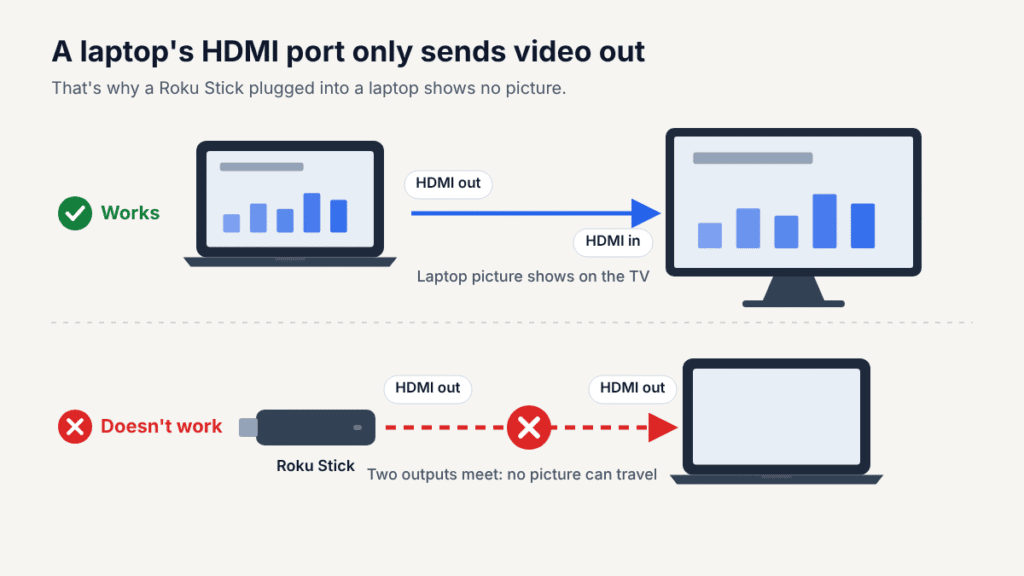
When you connect a Roku Stick to a laptop’s HDMI port, you’re joining two outputs. No picture can travel between them. The stick’s light may still turn on if it’s getting power, but the laptop won’t detect it as a device or a display. Roku’s community experts give the same explanation: a laptop’s HDMI port is output-only.
No driver, setting or app can change this, because the port isn’t built to receive video. These common workarounds fail for the same reason:
- A different HDMI cable or an HDMI-to-HDMI adapter. It still links an output to an output.
- An HDMI-to-VGA adapter. A laptop’s VGA port is also an output. VGA doesn’t carry audio, either.
- A USB-C or Thunderbolt video adapter. On nearly all laptops, these ports send video out, not in.
- A Roku app for PC. Roku doesn’t make one. Its old Windows app was only a remote control, and it was removed from the Microsoft Store years ago.
The rare exception is a laptop with a dedicated HDMI input. Very few models have one. Unless your laptop’s manual or spec sheet says “HDMI in,” assume the port is an output.
How to watch Roku content on a laptop
Your laptop is already a streaming device, so you don’t need the Roku Stick to watch on it. Many popular services on Roku, including Netflix, Prime Video and YouTube, also run in a web browser. Availability varies by service, and some Roku apps have no desktop version. A Roku community expert points out that most content is available directly on the channel’s or provider’s website.
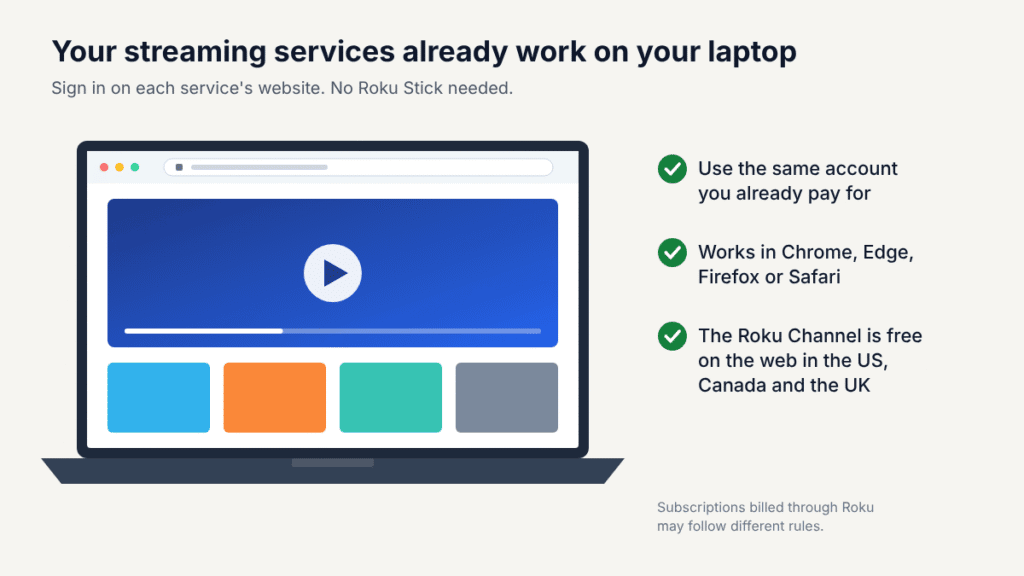
Watch your streaming subscriptions in a browser
- Open Chrome, Edge, Firefox or Safari on your laptop.
- Go to the service’s website, such as netflix.com, hulu.com, primevideo.com or youtube.com.
- Sign in with the same account you use on your Roku.
If you subscribe to a service directly, you can usually sign in on its website with the same account, within your plan’s screen limit. If you pay through Roku instead, access outside Roku depends on the provider’s rules.
The one thing that doesn’t carry over is the Roku home screen itself. Roku doesn’t make a version of its TV software for computers, so you open each service separately.
Watch The Roku Channel in a browser
The Roku Channel is Roku’s own free, ad-supported service. It offers on-demand movies and shows plus live TV channels, and it works on a laptop without any Roku hardware.
- Go to therokuchannel.roku.com.
- Sign in with your Roku account if you’re asked. Creating an account is free.
- Pick a title from the home page, or open the Live TV tab to see what’s streaming now.
Keep two limits in mind:
- Availability depends on your country. Roku says The Roku Channel works on the web in the United States, Canada and the United Kingdom. Its library and features vary by region.
- Not everything is free. Some titles need a premium subscription, which Roku offers only in the US. The site labels free and paid content so you can tell them apart.
How to mirror a Windows laptop to a Roku TV
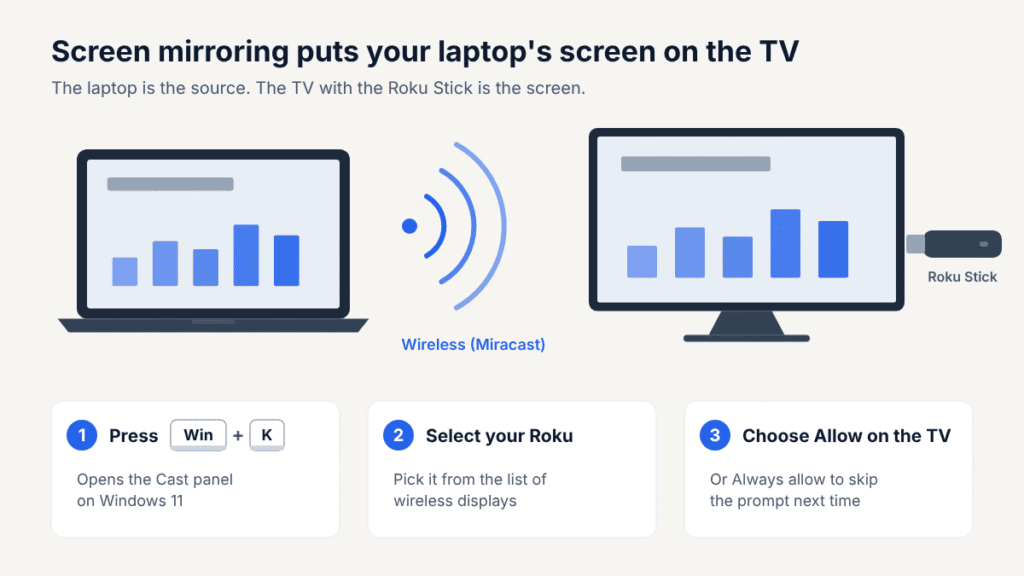
Screen mirroring is the main wireless way to connect a laptop to a Roku Stick. It works in the opposite direction from what many people expect: the laptop is the source, and the TV with the Roku is the screen. It uses Miracast, a wireless display standard built into Windows, so you need no cable or extra software.
Before you start
- A Roku that supports mirroring. Most current Roku players and Roku TVs do. Exceptions include the Roku Express 3700 and Express+ 3710. Find your model under Settings > System > About.
- A laptop that supports Miracast. Most Windows 10 and 11 laptops with built-in Wi-Fi do. If Windows says your PC doesn’t support wireless display, an HDMI cable to the TV is the reliable fallback.
- The same network, when possible. Miracast can link the laptop and Roku directly, so a shared network isn’t strictly required. Putting both on the same network, and avoiding guest networks, makes the Roku easier to find and troubleshoot.
Step 1: Let the Roku accept mirroring requests
- Press Home on your Roku remote.
- Go to Settings > System > Screen mirroring.
- Set Screen mirroring mode to Prompt or Always allow. The exact labels vary by model.
- Open the list of screen mirroring devices and make sure your laptop isn’t blocked.
Step 2: Connect from your laptop
Windows 11: Press Windows key + K to open the Cast panel, wait a few seconds, then select your Roku. If the shortcut doesn’t respond, open Start, type Cast and choose Connect to a wireless display.
Windows 10: Press Windows key + K, or open Action Center and select Connect. Then select your Roku from the list.
Step 3: Approve the request on the TV
A mirroring request appears on the TV with your laptop’s name. Choose Allow to connect once, or Always allow to skip the prompt next time. Your laptop’s screen should appear within a few seconds.
To use the TV as a second screen instead of a copy, press Windows key + P and choose Extend. To stop, press Windows key + K and select Disconnect, or press Home on the Roku remote.
What to expect
- A little lag. Mirroring suits slides, photos and web pages better than games or fast action.
- Possible black screens in streaming apps. Some services block protected video while mirroring. If that happens, open the service’s own app on the Roku instead.
- A laptop that must stay awake. Plug it in and stop it from sleeping during long sessions.
Roku’s screen mirroring guide has the full list of supported models.
How to share a MacBook screen with Roku using AirPlay
Macs don’t use Miracast, so the Windows steps won’t work on a MacBook. Instead, compatible Roku devices support Apple AirPlay, which lets you mirror your Mac’s screen wirelessly.
What you need
- An AirPlay-compatible Roku. Roku’s compatibility list includes the Roku Streaming Stick 4K (3820), Streaming Stick+ (3810), Express 4K (3940) and many Roku TVs. Some older models need Roku OS 10 or later.
- A Mac running macOS Mojave 10.14.5 or later.
- Both devices on the same Wi-Fi network.
Steps
- On the Roku, go to Settings > Apple AirPlay and HomeKit and make sure AirPlay is set to On.
- On your Mac, click Control Center in the menu bar, then click Screen Mirroring.
- Select your Roku from the list.
- If a code appears on the TV, type it into the prompt on your Mac.
Your Mac’s screen should appear on the TV. To stop, open Control Center > Screen Mirroring again and deselect your Roku.
If your Roku doesn’t appear in the list, check that both devices are on the same network and that AirPlay is turned on. If your model isn’t on Roku’s compatibility list, AirPlay won’t work on it.
How to use a Roku Stick with a computer monitor
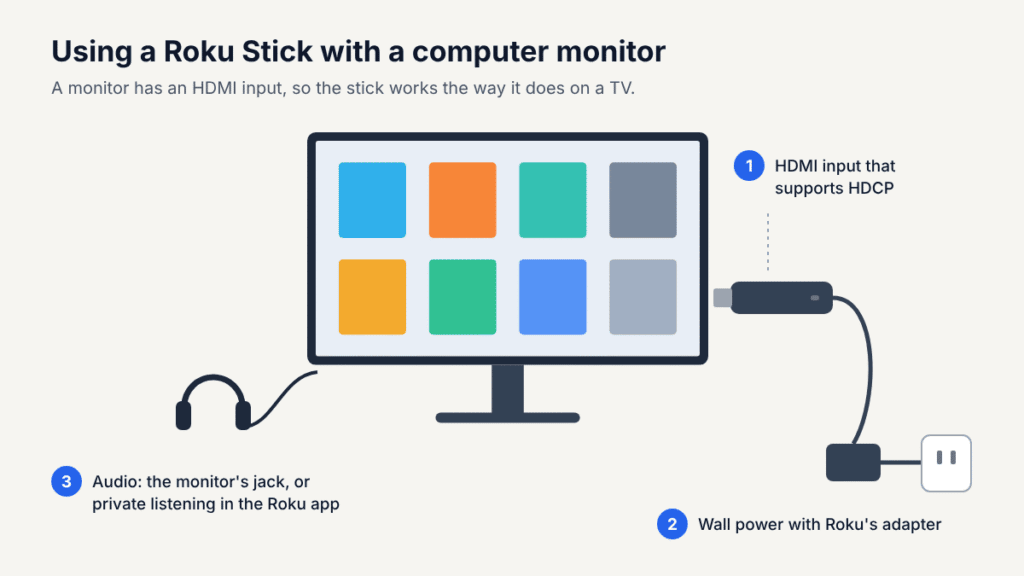
If you want to use your Roku Stick at a desk without a TV, plug it into a computer monitor. Unlike a laptop, a monitor has an HDMI input, so the stick works on it the same way it works on a TV.
What your monitor needs
- An HDMI input. If your monitor only has DisplayPort or VGA, you’d need a powered converter. Copy-protected video often won’t play through one, and VGA carries no sound.
- HDCP support. Streaming apps require this copy protection. If the monitor or cable doesn’t support it, Roku shows an “HDCP Error Detected” message or a purple screen. Check your monitor’s spec sheet for HDCP.
- A way to hear audio. Many monitors have no speakers. Plug headphones or speakers into the monitor’s audio jack if it has one. Otherwise, use private listening in the Roku mobile app to hear the sound through headphones connected to your phone.
- Enough power. A Roku Stick can run from a USB port, but a monitor’s port may not supply enough. If you see a low-power warning, Roku recommends its USB cable and power adapter plugged into a wall outlet.
How to set it up
- Plug the stick into the monitor’s HDMI input and connect its power adapter.
- Switch the monitor’s input source to that HDMI port.
- Follow the on-screen setup. Roku’s setup guide marks the step that teaches the remote to control a TV as optional, so you can skip it on a monitor. You’ll need a phone or tablet nearby to verify your email during activation.
- If the picture looks wrong, go to Settings > Set display type and choose Automatic.
The remote’s TV power and volume buttons may not control a monitor. Adjust the volume on your speakers or headphones instead.
Can a capture card connect a Roku Stick to a laptop?
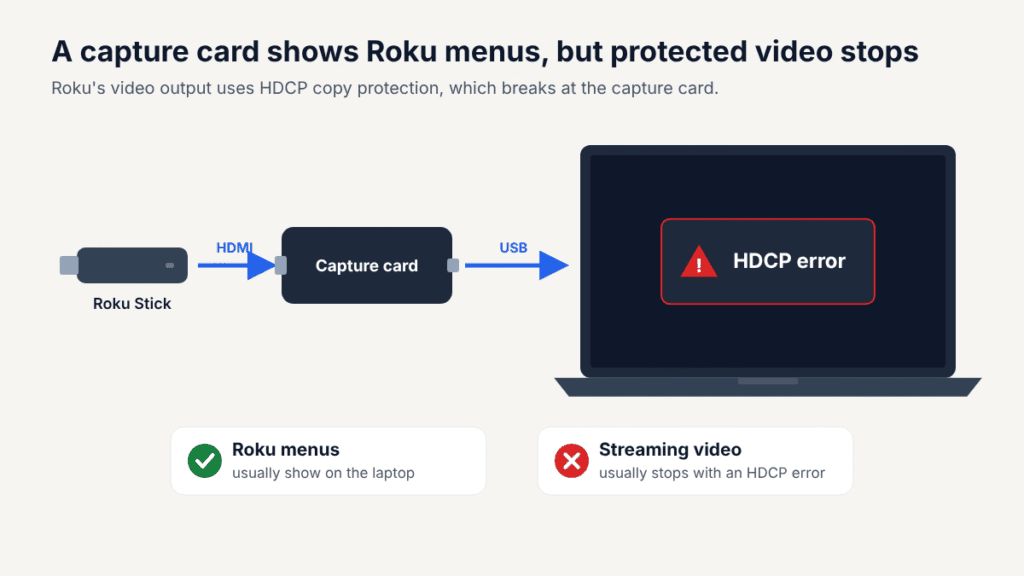
Yes, but only partly. A compatible USB HDMI capture card can display the Roku Stick’s output on a laptop screen. You’ll usually see the Roku menus, but protected video in streaming apps often won’t play.
How it works
A capture card is a small adapter with an HDMI input on one end and a USB plug on the other. It turns the Roku’s HDMI signal into a video feed your laptop treats like a webcam. A Roku community expert describes viewing it in the laptop’s camera app or in free software such as OBS Studio.
- Plug the Roku Stick into the capture card’s HDMI input.
- Power the stick from its wall adapter.
- Plug the capture card into a USB port on your laptop.
- Open OBS Studio and add the capture card as a Video Capture Device.
Why streaming usually fails
Roku protects its video output with HDCP, and a capture card can’t be part of that protected chain. In one case on Roku’s developer forum, a developer testing their own channel this way got an HDCP error screen as soon as video played. Roku staff replied that turning off HDCP isn’t supported.
Devices that strip HDCP do exist. Bypassing copy protection can break streaming services’ terms and, in some countries, the law, so we don’t recommend it.
A capture card makes sense if you develop Roku channels or need to show the Roku interface in a presentation. For watching shows on a laptop, the browser options above are free and work better.
What to do if Roku screen mirroring isn’t working
Most mirroring failures come from an unsupported model, a blocked device or a network mismatch. Start by restarting both devices: on the Roku, go to Settings > System > Power > System restart, then restart your laptop. If that doesn’t fix it, find your symptom below.
| Symptom | Likely cause | What to do |
|---|---|---|
| Roku doesn’t appear in the Windows Cast list | Your Roku model doesn’t support mirroring, or mirroring is set to block requests | Check your model under Settings > System > About, then set Screen mirroring mode to Prompt |
| Windows says your PC doesn’t support wireless display | Your laptop’s Wi-Fi hardware or driver lacks Miracast support | Update your Wi-Fi and graphics drivers; if that fails, use an HDMI cable |
| Roku appears, but the connection fails | Your laptop was blocked during an earlier attempt | Go to Settings > System > Screen mirroring, open the device list and unblock your laptop |
| Roku still doesn’t appear after checking its settings | Laptop and Roku are on different networks, such as a guest network | Check the Roku’s network under Settings > Network > About and join the same one |
| Mirroring connects, then drops | Weak signal, or another device is mirroring | Move the laptop closer and disconnect other phones or PCs from the Roku |
| Menus show, but streaming video goes black | The service blocks protected video during mirroring | Open that service’s app on the Roku instead |
| Picture lags or stutters | A busy Wi-Fi network | Pause large downloads; use mirroring for slides and photos, not fast action |
| Mac can’t find the Roku in Screen Mirroring | AirPlay is off, or your model doesn’t support it | Go to Settings > Apple AirPlay and HomeKit and turn AirPlay on |
For more model-specific steps, see Roku’s screen mirroring guide and Microsoft’s wireless display help.
Frequently asked questions
Can I plug a Roku Stick into my laptop’s HDMI port?
You can plug it in, but nothing will show up. Almost all laptop HDMI ports are outputs, and the Roku Stick needs an HDMI input. Only a laptop with a dedicated “HDMI in” port can display it.
Can I connect a Roku Stick to a laptop with a USB cable?
No. The USB cable that comes with a Roku Stick only supplies power. It doesn’t carry video to or from your laptop.
Is there a Roku app for Windows or Mac?
Not one that streams. Roku’s old Windows app was only a remote control, and it’s no longer in the Microsoft Store. The official Roku mobile app runs on iPhone and Android, where it works as a remote and plays The Roku Channel.
Can I watch Roku on my laptop without a Roku device?
Yes. In the United States, Canada and the UK, you can watch The Roku Channel free in a web browser. Many paid services, such as Netflix or Hulu, also work on their own websites with your existing login.
Why isn’t my laptop detecting my Roku Stick?
If the stick is plugged into the laptop’s HDMI port, that’s expected, because the port is output-only. If you’re trying to mirror wirelessly, check that your Roku supports screen mirroring, that it isn’t blocking your laptop and try putting both devices on the same network.
Can I use a Roku Stick on a monitor without speakers?
Yes. Connect headphones or speakers to the monitor’s audio jack if it has one. Otherwise, turn on private listening in the Roku mobile app and listen through headphones connected to your phone.
The bottom line
You can’t use a Roku Stick on a laptop by plugging it into the HDMI port, because that port only sends video out. For most people, that’s fine: Netflix, Prime Video, YouTube and many other Roku services also play in a laptop’s browser. The Roku Channel is free on the web in the US, Canada and the UK.
To make the two work together, mirror your laptop to a Roku TV with Windows key + K, or use AirPlay on a Mac. To use the stick without a TV, plug it into an HDMI monitor that supports HDCP. Save the capture card for showing Roku menus, not for watching shows.

Louis Mugan is a seasoned technology writer with a talent for turning complicated ideas into clear, practical guidance. He focuses on helping everyday readers stay confident in a world where tech moves fast. His style is approachable, steady, and built on real understanding.
He has spent years writing for platforms like EasyTechLife, where he covers gadgets, software, digital trends, and everyday tech solutions. His articles focus on clarity, real-world usefulness, and helping people understand how technology actually fits into their lives.
Outside of his regular columns, Louis explores emerging tools, reviews products, and experiments with new tech so his readers don’t have to. His steady, friendly approach has made him a reliable voice for anyone trying to keep up with modern technology. get in touch at louismugan@gmail.com


