
If your Android home screen icons keep moving, the cause is usually an accidental drag, a setting that adds new apps to your home screen, or a change to the grid or display size. Less often, the launcher (the app that draws your home screen and app drawer) glitches and resets your layout.
The quickest fix is to lock your home screen layout. Samsung Galaxy phones have this switch built in, some other brands do too, and the rest need a workaround. This guide covers each major brand, explains why apps rearrange themselves, and walks through fixes in a safe order.
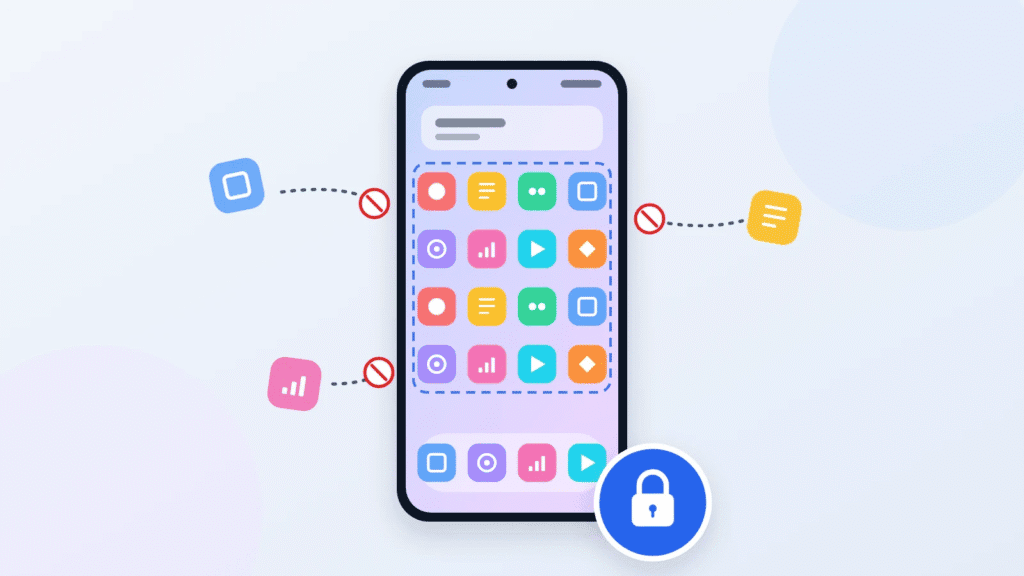
Quick answer
- Samsung Galaxy: Settings > Home screen > turn on Lock Home screen layout.
- Other Android phones: Touch and hold an empty spot on the home screen, open the home screen settings, and look for a lock layout option.
- No lock option on your phone: Stop new apps from being added to the home screen automatically, avoid changing the grid size, or switch to a launcher that can lock your layout.
How to Lock Home Screen Layout on Samsung Galaxy
Samsung Galaxy phones running One UI have a built-in Lock Home screen layout switch. When it’s on, app icons, folders, and widgets on your home screen can’t be moved or removed, even by accident (Samsung).
To lock your Samsung home screen:
- Touch and hold an empty spot on the home screen, or pinch two fingers together on it.
- Tap Settings (the gear icon).
- Turn on Lock Home screen layout.
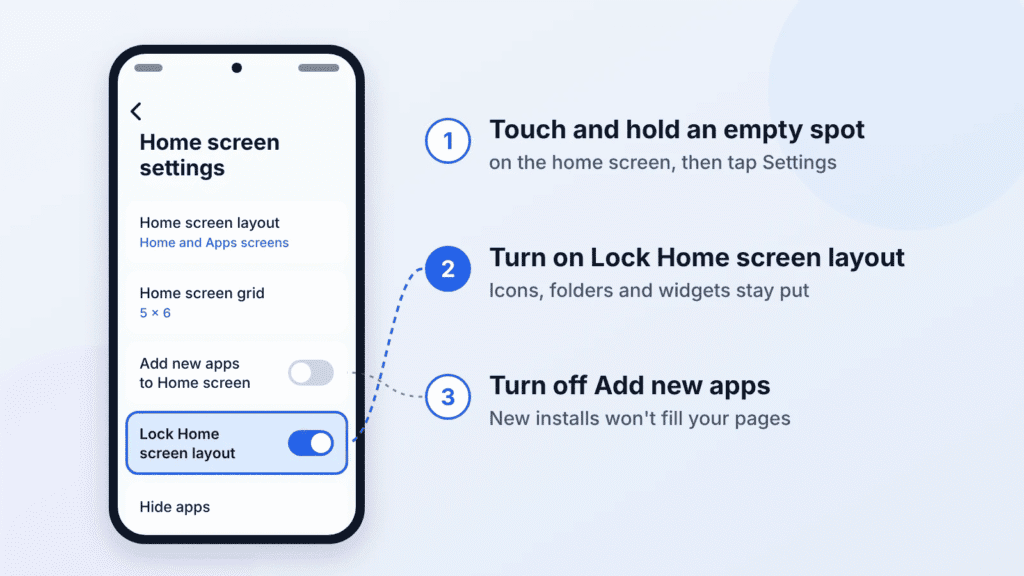
You can also open the same menu from the Settings app under Settings > Home screen. On some older Galaxy models, it’s under Settings > Display > Home screen.
To rearrange your icons later, turn the switch off, make your changes, and turn it back on.
One catch: on at least some One UI versions, the lock doesn’t stop newly installed apps from getting a home screen icon. If there’s no free space, One UI can create a new home screen page for the new app (SamMobile). To prevent this, turn off Add new apps to Home screen in the same Home screen settings menu.
How to Stop Icons Moving on Google Pixel
Google Pixel phones don’t have a lock home screen layout option. Google’s own guide to organizing the Pixel home screen lists no such setting (Pixel Phone Help), and reviewers have long flagged it as a missing feature (Pocket-lint). You can still remove the main things that move icons.
- Stop new apps from landing on your home screen. Touch and hold an empty space, tap Home settings, and turn off Add app icons to Home screen. The exact wording varies slightly between Android versions.
- Turn off suggestions in your favorites row. On Pixel, empty spots in the bottom row are filled with suggested apps that change based on your habits, which looks like icons swapping on their own. Go to Home settings > Suggestions and turn off Suggestions on Home screen (Google). You can also pin a suggested app to keep it in place.
- Leave the app grid alone. Changing the layout under Wallpaper & style changes how many icons fit in each row, which reshuffles your pages.
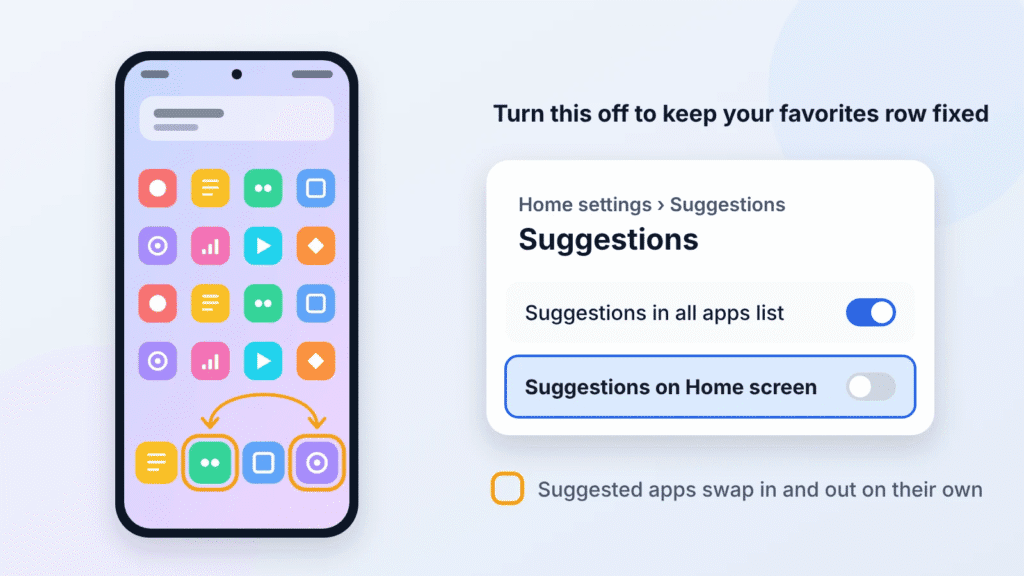
If you want a true layout lock on a Pixel, you’ll need a third-party launcher (covered below).
How to Lock Icons on Other Android Phones
Several other Android brands include a home screen layout lock, but the name and menu location differ. The quickest way to find it is to open the Settings app and search for “lock layout” or “home screen.”
| Brand (software) | Built-in layout lock? | Where to find it |
|---|---|---|
| Xiaomi, Redmi, POCO (HyperOS) | Yes, on recent versions | Settings > Home screen > Lock Home screen layout, or pinch the home screen and tap the gear icon |
| OnePlus (OxygenOS) | Yes, on recent versions | Settings > Home screen & Lock screen > Lock Home screen layout |
| Honor (MagicOS) | Yes, on recent versions | Pinch the home screen, or go to Settings > Home screen & style > Home screen settings > Layout, then turn on Lock layout |
| Huawei (EMUI) | Yes, on supported versions | Pinch the home screen to open Home screen settings > Lock layout |
| OPPO (ColorOS), realme (realme UI) | On many models | Settings > Home screen & Lock screen (wording varies) > Lock Home screen layout or Home screen locked |
| Motorola | Not documented | Increase the touch and hold delay (see below), or use a third-party launcher |
| Google Pixel | No | See the Pixel section above |
Menu names change between software updates, so treat these paths as a starting point and confirm them on your own phone.
Why Do My Android Icons Keep Moving?
Android icons rarely move for no reason. Matching what you see to one of these causes tells you which fix to use.
| Cause | What you notice |
|---|---|
| Accidental long press and drag | An icon jumps to a new spot or page, often after the phone was in your pocket. Android treats a slow tap as a long press, which starts rearrange mode (Computeractive). |
| New apps added automatically | New icons appear in empty gaps or on a brand-new home screen page after you install an app. |
| Home screen grid changed | Icons shift rows or spill onto another page after you change the grid or layout setting. |
| A software update changed the grid | Icons shift or blank spaces appear after a major update. For example, One UI 7 on Samsung dropped the 4×5 and 5×5 grids, so phones using them were moved to the closest supported grid (Samsung). |
| Display size changed | On some phones, a larger display size fits fewer icons per row, pushing some onto other pages. |
| Restored from a backup | Your layout returns on a new phone with a different screen or grid, so icons land in different places. |
| Launcher data reset or damaged | The layout goes back to the default or loses items after the launcher’s storage is cleared or its saved data is damaged. |
| Switched launchers | A newly installed launcher app became your default, so you see a different layout. |
| Pixel app suggestions | Apps in the bottom favorites row change by themselves because empty spots are filled with suggestions (Google). |
How to Fix Icons That Keep Rearranging on Android
Work through these fixes in order. The first ones are quick and change nothing else on your phone; the last one resets your layout, so keep it for when nothing else works.
- Turn on your phone’s layout lock. If your phone has one (see the sections above), this alone stops most accidental moves.
- Turn off auto-adding new apps. Touch and hold an empty spot, open the home screen settings, and switch off the option that adds new app icons to the home screen.
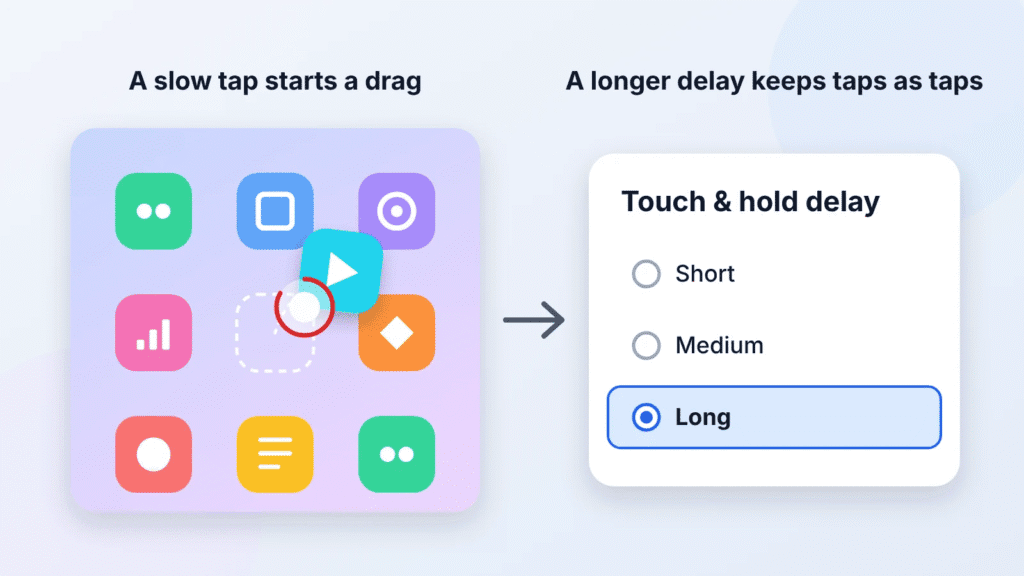
- Make long presses less sensitive. A longer touch and hold delay means a normal tap won’t start rearrange mode by mistake (Google).
- Pixel and most Android phones: Settings > Accessibility > Timing controls > Touch & hold delay > Medium or Long.
- Samsung: Settings > Accessibility > Interaction and dexterity > Touch and hold delay (Samsung). On newer One UI versions, it may sit inside Touch settings.
- Check which launcher is your default. Go to Settings > Apps > Default apps > Home app and make sure it’s the launcher you actually use. A newly installed launcher app can quietly take over.
- Restart and update. Restart your phone, then install any system update and any launcher update offered in Settings or your app store.
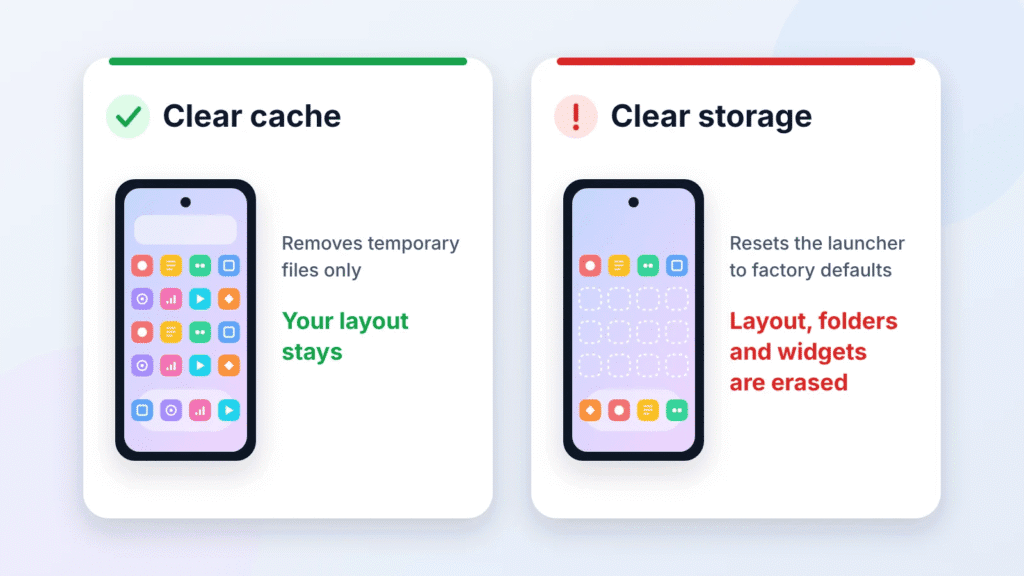
- Clear the launcher’s cache. Go to Settings > Apps, open your launcher (for example, One UI Home or Pixel Launcher; you may need to show system apps first), tap Storage, then Clear cache. This removes temporary files and doesn’t touch your layout.
- Last resort: clear the launcher’s storage. In the same Storage screen, Clear storage (or Clear data) resets the launcher to factory defaults.
Warning: Clearing launcher storage erases your home screen layout, folders, and widgets. Your apps stay installed, but you’ll have to rebuild your pages. Take a screenshot of each home screen page first so you can recreate it.
No Lock Option? Use a Launcher That Can Lock Your Layout
If your phone’s built-in launcher can’t lock icons, a third-party launcher from the Play Store can. After installing one, make it your default home app (see step 4 above). Expect to rebuild your home screen, since each launcher keeps its own layout.
| Launcher | How it prevents moved icons | Worth knowing |
|---|---|---|
| Microsoft Launcher | Lock home screen switch in Launcher settings, under Home screen (Windows Central) | Free. If you try to drag a locked icon, it offers a quick unlock. |
| Nova Launcher | Lock desktop switch in Nova Settings, under Home screen (Desktop on older versions) and then Advanced | Owned by Instabridge since January 2026 (9to5Google). The free version shows ads, and Nova Prime removes them (Nova Launcher FAQ). |
| Niagara Launcher | Not a true lock. Every home screen change takes several deliberate taps, so accidental edits are rare (Niagara Help). | A different approach: a minimal, list-style home screen instead of a grid of icons. |
A launcher’s lock only works while that launcher is your default. If you switch back to your phone’s original launcher, its own settings apply again.
Does App Pinning Lock Icons in Place?
No. App pinning (also called screen pinning) keeps one open app on screen until you unpin it, so someone you hand your phone to can use only that app (Google). It has no effect on where your home screen icons sit.
It’s still handy when you lend your phone to a child or a friend. On a Pixel, turn it on under Settings > Security & privacy > More security settings > App pinning (Google). Then open Recents, tap the app’s icon at the top of its preview, and tap Pin. To unpin with gesture navigation, swipe up and hold.
Frequently Asked Questions
Why can’t I move icons on my Samsung home screen?
Lock Home screen layout is probably turned on. Touch and hold an empty spot, tap Settings, and switch it off. Turn it back on once your icons are where you want them.
Why does my app drawer keep reordering itself?
The app drawer (the Apps screen) has its own sort setting, separate from the home screen. On Samsung, open the Apps screen, tap the three-dot menu, tap Sort, and choose Custom order to arrange apps yourself or Alphabetical order to keep them A to Z.
Do widgets still update when the layout is locked?
Yes. A layout lock only stops items from being moved or removed. Weather, calendar, and other widgets keep refreshing as usual.
Can I lock just one home screen page or add a password?
Not with the built-in launchers covered here. Samsung’s lock applies to the whole home screen, and anyone using your unlocked phone can switch it off. If you’re lending your phone, app pinning with a PIN is the better tool.
Will my layout come back on a new phone?
Often, but not always. On Pixel phones, launcher data rides along with your phone’s general Google backup, but Google doesn’t document exactly which layout details come back (Android Authority). Take a screenshot of each home screen page before switching phones, and expect some icons to move if the new phone has a different screen size or grid.
Conclusion
To stop icons from moving on Android, lock your home screen layout if your phone supports it, as Samsung, Xiaomi, OnePlus, Honor, Huawei, and many OPPO and realme phones do. On Pixel and Motorola phones, turn off auto-adding new apps, lengthen the touch and hold delay, or switch to a launcher with a lock. If icons still shuffle, check your default launcher and clear its cache, and clear its storage only as a last resort.

Louis Mugan is a seasoned technology writer with a talent for turning complicated ideas into clear, practical guidance. He focuses on helping everyday readers stay confident in a world where tech moves fast. His style is approachable, steady, and built on real understanding.
He has spent years writing for platforms like EasyTechLife, where he covers gadgets, software, digital trends, and everyday tech solutions. His articles focus on clarity, real-world usefulness, and helping people understand how technology actually fits into their lives.
Outside of his regular columns, Louis explores emerging tools, reviews products, and experiments with new tech so his readers don’t have to. His steady, friendly approach has made him a reliable voice for anyone trying to keep up with modern technology. get in touch at louismugan@gmail.com


