The way you pair an Altice remote to your TV depends on which Optimum remote you have. The newest Optimum Stream remote is set up on screen, through the box’s settings, with no codes. Older remotes are programmed with a TV brand code or a code search.
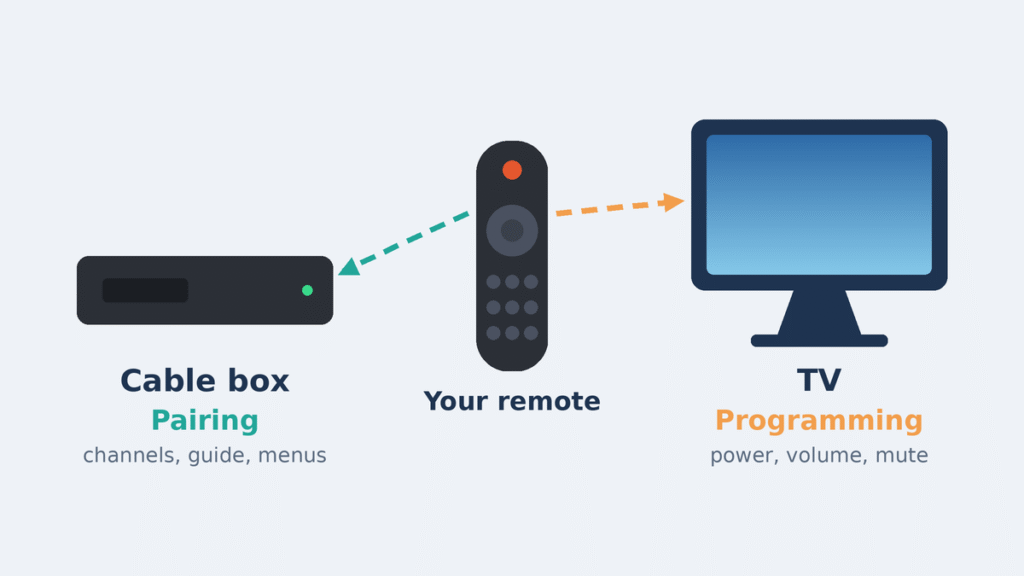
Two different jobs often get called “pairing”:
- Pairing connects the remote to your Optimum or Altice cable box, so it can change channels and open menus.
- Programming teaches the remote to control your TV’s power, volume and input.
One doesn’t do the other. A remote can be paired to the box and still not turn your TV on. Start by identifying your remote below, then follow the section for that model.
Identify your Altice remote
Check the buttons and the battery compartment, then jump to the matching section. These remotes come with Optimum TV service, so yours may say Optimum, Altice or both.
| Remote | How to spot it | Batteries | Connects to the box by | TV setup method |
|---|---|---|---|---|
| Optimum Stream remote | Google Assistant button and an Optimum button | 2 AAA | Bluetooth, paired on screen | On screen, no codes |
| Altice One voice remote | Microphone button, separate TV Power and Altice One Power buttons, Home button | 3 AAA | On screen + hold 7 and 9 | One-digit brand code or four-digit code |
| Altice digital adapter remote | Small remote packed with an Altice digital adapter | AAA | On screen + hold 7 and 9 | One-digit brand code, auto search or four-digit code |
| Older Optimum remote (URC2464) | TV POWER and CBL POWER keys, a SEL key, an Optimum key and A–D keys | 2 AA | Infrared, no pairing needed | One-digit brand code, code search or code entry |
If your remote isn’t in this table, use the remote picker at optimum.net/remote. Older silver Optimum remotes (with an “O” or “iO” button) and former Suddenlink remotes use different steps.
Optimum Stream remote
The Optimum Stream remote pairs with the box over Bluetooth, and you set up TV control from the box’s Settings menu. You don’t need a code. Your remote is normally paired during installation, so use these steps if it becomes unpaired or you get a new one.
Pair the remote with your Stream box
- Make sure the remote can point straight at the Stream box. If the box sits behind the TV or in a cabinet, move it into view for now. You can hide it again after pairing.
- Insert 2 AAA batteries in the remote.
- Turn on your TV and the Optimum Stream box.
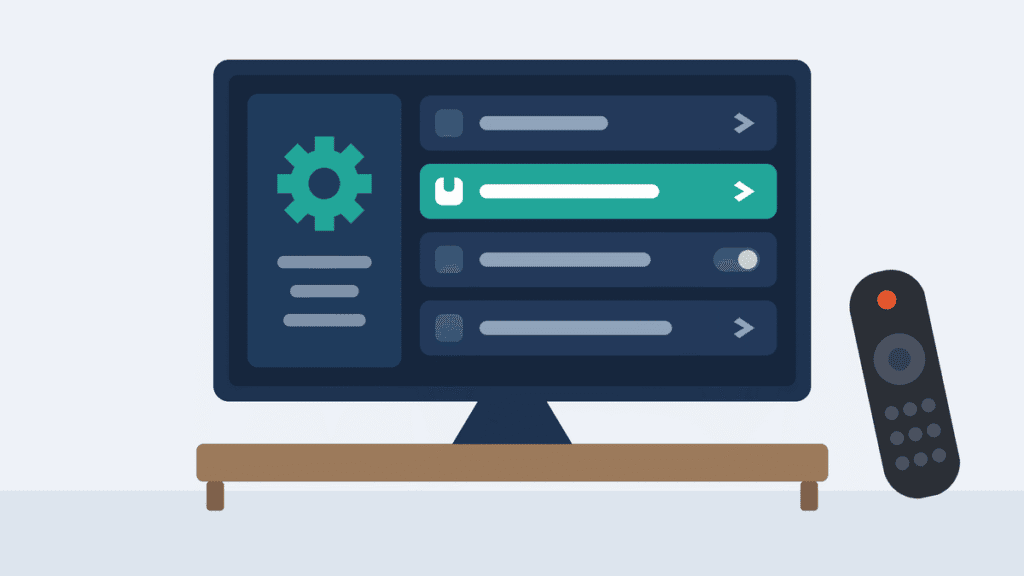
- Press Home on the remote.
- From the Home screen, select Settings.
- Select Device & Remote Settings, then Remotes & Accessories.
- Select Add Stream Remote and follow the on-screen instructions.
- Wait for the on-screen confirmation that the remote is paired.
Program it to control your TV
- Go to Settings and select Device and Remote Settings.
- Select Stream Remote (connected), then Change TV Set Up.
- Follow the on-screen instructions.
- Wait for the on-screen confirmation, then test TV power and volume.
Source: Optimum Stream pairing instructions.
Altice One voice remote
The Altice One remote pairs with the box through the Settings menu and a 7 + 9 button hold. You then program TV control with a one-digit brand shortcut or, if that fails, a four-digit code. Once paired, it controls the box even when the box is out of sight, up to 30 feet away.
Pair the remote with your Altice One box
- Remove the back cover and insert 3 AAA batteries.
- Turn on your TV and the Altice One box.
- Press Home, then select Settings.
- Select Remote, then Pair Remote to Altice One.
- Follow the on-screen instructions. When asked, press and hold 7 and 9 together for at least 5 seconds.
- Select Pair Remote Control. An on-screen message confirms the remote is paired.
Program TV control: one-digit brand method
Use this first if your TV brand is in the list.
| Digit | TV brand |
|---|---|
| 1 | Insignia |
| 2 | LG |
| 3 | Panasonic |
| 4 | Philips/Magnavox |
| 5 | Samsung |
| 6 | Sanyo |
| 7 | Sharp |
| 8 | Sony |
| 9 | Toshiba |
| 0 | Vizio |
Optimum’s digital adapter and URC2464 remotes use the same brand digits.
- Turn on your TV.
- Press and hold TV Power and your brand’s digit together for 3 seconds, then release.
- Point the remote at the TV. Press and hold TV Power until the TV turns off.
- Press Select to store the code.
- Test the volume and turn the TV on and off.
Program TV control: four-digit code method
Use this if your brand isn’t listed above or the shortcut didn’t work.
- Turn on your TV.
- Find your brand’s codes in the table below.
- Press and hold TV Power and Select together for 3 seconds.
- Enter the first code for your brand with the number buttons.
- Press TV Power. If the TV turns off, you’re done.
- If it doesn’t, repeat steps 3 to 5 with the next code.
| TV brand | First Altice One codes to try |
|---|---|
| Hisense | 0051, 0981, 0771 |
| Insignia | 0271, 2311, 0991 |
| LG | 0051, 4111, 3301 |
| Samsung | 0151, 3071, 1461 |
| Sharp | 0261, 4141, 0051 |
| Sony | 0141 |
| TCL | 1111, 0821, 0001 |
| Toshiba | 0331, 2831, 0131 |
| Vizio | 0171, 1891, 0051 |
These codes are for the Altice One remote only. Older Optimum remotes use a different code list. The full Altice One list is in the Altice One remote user guide.
Older Optimum remote (URC2464)
This infrared remote doesn’t pair with the box; it works as soon as the batteries are in. To control your TV, try the one-digit brand method first, then code search, then a four-digit code. Every method starts with the TV turned on.
While you program, the light on the Optimum key tells you what happened: 2 blinks means the step worked, and 1 long blink means it didn’t.
Method A: one-digit brand method
Use the same brand digits as the Altice One table above (1 Insignia through 0 Vizio).
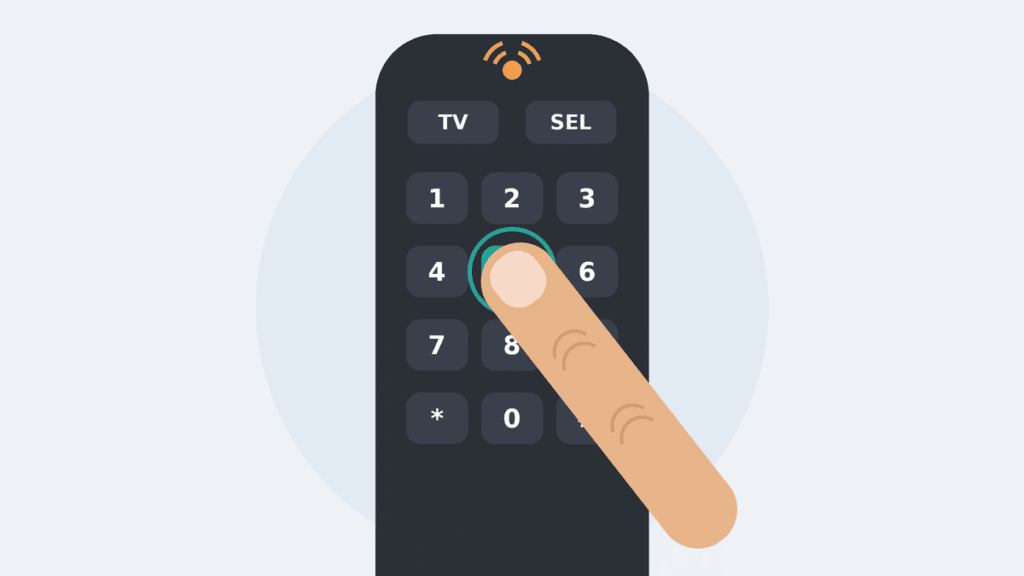
- Press and hold TV POWER and SEL until the Optimum key blinks twice.
- Press TV POWER.
- Point the remote at the TV. Press and hold your brand’s digit.
- Let go as soon as the TV turns off.
Method B: code search
Use this if your brand isn’t in the digit list or Method A didn’t work.
- Press and hold TV POWER and SEL until the Optimum key blinks twice.
- Press TV POWER.
- Point the remote at the TV. Press and hold SEL.
- Let go of SEL as soon as the TV turns off.
Method C: four-digit code entry
- Point the remote at the TV and press TV POWER.
- Press and hold TV POWER and SEL until the Optimum key blinks twice.
- Enter the first code for your brand.
- Test the remote. If it doesn’t control your TV, repeat with the next code for your brand.
| TV brand | First URC2464 codes to try |
|---|---|
| Hisense | 2183, 1314, 1660 |
| Insignia | 2049, 1423, 1564 |
| LG | 1423, 0178, 0017 |
| Samsung | 2051, 1959, 0178 |
| Sharp | 2360 |
| Sony | 0810, 1685 |
| TCL | 2434 |
| Toshiba | 1524, 1343, 1369 |
| Vizio | 1758, 2707, 0864 |
Write down the code that works, in case you need to reprogram later. URC’s Optimum URC2464 support page has these setup steps and a CodeFinder, and the printed URC2464 user guide has the full code list.
Method D: choose which device controls volume
Once programmed, the volume buttons control the TV. To change that:
- Press and hold TV POWER and SEL until the Optimum key blinks twice.
- Press Volume Up to send volume to the TV. The Optimum key blinks twice to confirm.
- Or press Volume Down to send volume to the cable box. The Optimum key blinks four times to confirm.
Altice digital adapter remote
The remote that comes with an Altice digital adapter pairs the same way as the Altice One remote: through the box’s Settings and a 7 + 9 hold.
Pair the remote with your digital adapter
- Turn on your TV and the digital adapter.
- Press Menu on the remote and go to Settings.
- Open the remote pairing option and select Pair Remote Control.
- Press 7 and 9 together for at least 5 seconds to finish pairing.
Once paired, the remote controls the adapter without being pointed at it, but it works only with that one adapter. If you move it to another box, pair it again.
Program TV control: one-digit brand method
This remote uses the same brand digits as the Altice One table above (1 Insignia through 0 Vizio). The remote’s status light shows when it’s in setup mode.
- Turn on your TV.
- Press and hold TV and your brand’s digit for 3 seconds, then release. The status light turns on and stays on.
- Press and hold TV until the TV turns off.
- Press Select to save the code. The status light turns off.
Program TV control: auto search
Use this if your brand isn’t in the digit list.
- Turn on your TV.
- Press and hold TV and VOL+ for 3 seconds, then release. The status light turns on and stays on.
- Press and release 1.
- Press and hold TV until the TV turns off.
- Press Select to save the code. The status light turns off.
Program TV control: four-digit code
- Press and hold TV and Select for 3 seconds, then release. The status light turns on and stays on.
- Enter the four-digit code for your TV brand. The status light turns off.
- Test TV power. If it doesn’t work, repeat with the next code.
Optimum’s guide doesn’t print a code list for this remote; it points to Optimum’s support site. Use the code finder at optimum.net/remote, not the Altice One or URC2464 codes above.
Source: Altice Digital Adapter User Guide (Optimum PDF).
Pairing vs. programming at a glance
If your remote works the box but not the TV, it’s paired but not programmed. If your Stream, Altice One or digital adapter remote doesn’t control the box, it may need to be paired again. Check the batteries and make sure the box is responding before you repeat the pairing steps.
| Pairing | Programming | |
|---|---|---|
| Connects the remote to | Your cable box | Your TV |
| Lets you control | Channels, guide, menus, DVR | TV power, volume, mute |
| Done through | The box’s on-screen menu (plus a 7 + 9 hold on Altice One and digital adapter remotes) | A brand digit, code search or four-digit code; on screen for Optimum Stream |
| Needed for | Optimum Stream, Altice One and digital adapter remotes | Every remote |
| Sign it’s missing | The box ignores the remote | The TV won’t turn on or change volume |
Altice remote not working? Common fixes
Most problems come down to batteries, the wrong setup method for your remote, or a step that controls the box but not the TV.
| Problem | Likely cause | Fix |
|---|---|---|
| Remote does nothing; light doesn’t blink | Dead batteries | Replace the batteries. On the URC2464, a light that blinks 5 times with each press also means low batteries. |
| Stream remote won’t pair | The box isn’t in the remote’s line of sight | Move the box into view, pair, then put it back. |
| Remote changes channels, but TV power and volume don’t work | Paired to the box but not programmed to the TV | Follow the TV programming steps for your remote. |
| Volume buttons change the cable box, not the TV | Volume is locked to the box | On the URC2464, use Method D and press Volume + to move volume to the TV. |
| No code for your brand works | Code list doesn’t match your TV or your remote | Use the code list for your exact remote model. On the URC2464, try code search (Method B). |
| Stopped working after you got a new TV | The remote still holds the old TV’s code | Program TV control again for the new brand. You don’t need to re-pair with the box. |
| Remote won’t reach a box hidden in a cabinet | Infrared remotes like the URC2464 need a clear line of sight | Move the box into view. Paired Altice One remotes work out of sight from up to 30 feet, and Stream boxes can be hidden after pairing. |
| Still not working | Faulty remote | Contact Optimum support or ask for a replacement remote at an Optimum store. |
Frequently asked questions
Do I pair the remote in my TV’s settings menu?
No. Altice and Optimum remotes are set up through the cable box’s menu or with button combinations on the remote. Your TV’s own Bluetooth or device-pairing menu isn’t involved.
Do I need a TV code?
Not always. The Optimum Stream remote sets up TV control on screen. The Altice One remote has a one-digit shortcut for 10 popular brands. The URC2464 and digital adapter remotes can search for a code automatically.
Can I use my Altice remote with any TV?
It can control power and volume on most major TV brands. If none of the codes or searches work for your TV, keep using the TV’s own remote for power and volume.
Why is my Altice remote blinking?
On the URC2464, 2 blinks during setup means a step worked and 1 long blink means it didn’t. A light that blinks 5 times with every press means the batteries need replacing.
How do I set up an Altice remote with a Samsung or LG TV?
On the Altice One, digital adapter and URC2464 remotes, use the one-digit method: Samsung is 5 and LG is 2. If that fails, use your remote’s four-digit codes. The first Altice One codes are 0151 for Samsung and 0051 for LG; the first URC2464 codes are 2051 for Samsung and 1423 for LG.
Conclusion
Pairing an Altice remote comes down to knowing which remote you have. The Optimum Stream remote does everything on screen. The Altice One and digital adapter remotes pair through the box’s Settings and a 7 + 9 hold, and the older URC2464 needs no pairing at all.
For TV control on an Optimum Stream remote, follow the on-screen setup. On the Altice One, digital adapter and URC2464 remotes, start with the one-digit brand shortcut, then try your remote’s code search or four-digit codes. If nothing works after fresh batteries and the right code list, contact Optimum support for a replacement remote.

Louis Mugan is a seasoned technology writer with a talent for turning complicated ideas into clear, practical guidance. He focuses on helping everyday readers stay confident in a world where tech moves fast. His style is approachable, steady, and built on real understanding.
He has spent years writing for platforms like EasyTechLife, where he covers gadgets, software, digital trends, and everyday tech solutions. His articles focus on clarity, real-world usefulness, and helping people understand how technology actually fits into their lives.
Outside of his regular columns, Louis explores emerging tools, reviews products, and experiments with new tech so his readers don’t have to. His steady, friendly approach has made him a reliable voice for anyone trying to keep up with modern technology. get in touch at louismugan@gmail.com