
Lost the Settings icon on your Android phone? The Settings app is almost certainly still there. Only its shortcut is gone from your Home screen, and you can put it back in a few seconds without resetting anything.
Quick fix:
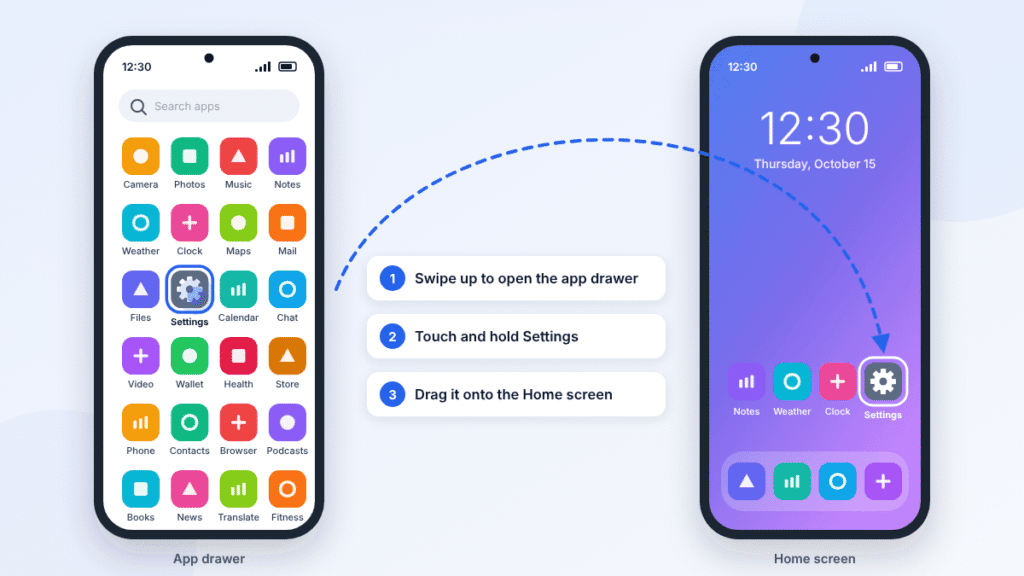
- Swipe up from the bottom of your Home screen to open the app drawer.
- Find Settings (the gear icon).
- Touch and hold it, then drag it onto your Home screen.
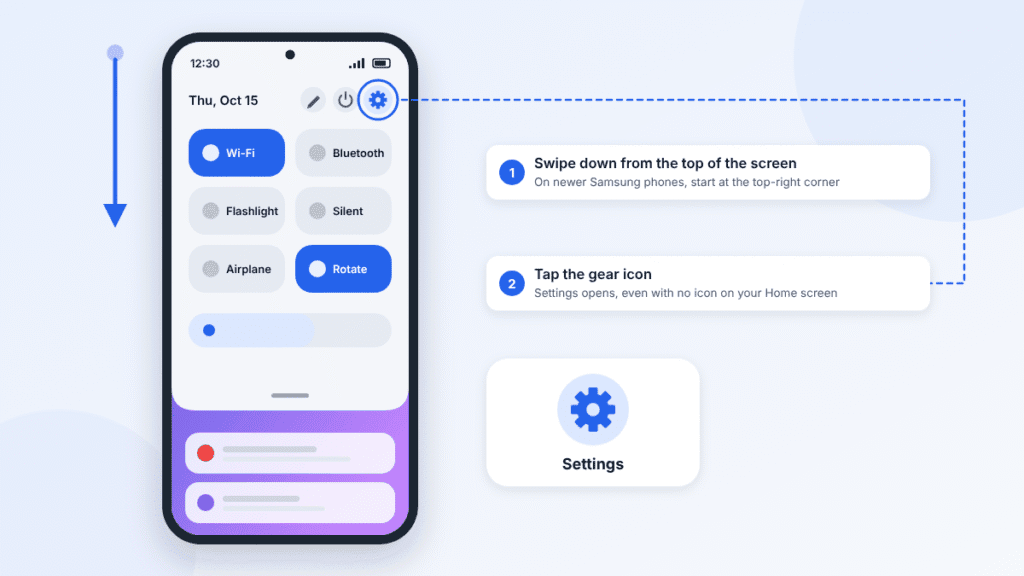
Need Settings right now? Swipe down from the top of the screen and tap the gear icon in Quick Settings. This works even when the shortcut is missing.
The sections below cover Samsung Galaxy, Google Pixel and other Android phones. They also explain what to do if Settings has vanished from the app drawer.
How to Restore the Settings Icon on Your Home Screen
These steps work on most Android phones. The names of menus differ slightly between brands.
- Swipe up from the bottom of your Home screen to open the app drawer. Samsung calls this the Apps screen.
- Find Settings. If you have a lot of apps, type “Settings” into the search bar at the top of the app drawer.
- Touch and hold the Settings icon until your Home screens appear.
- Drag the icon to an empty spot and lift your finger.
Removing an icon from the Home screen never uninstalls the app. The app stays in the app drawer, which is why this fix works in almost every case.
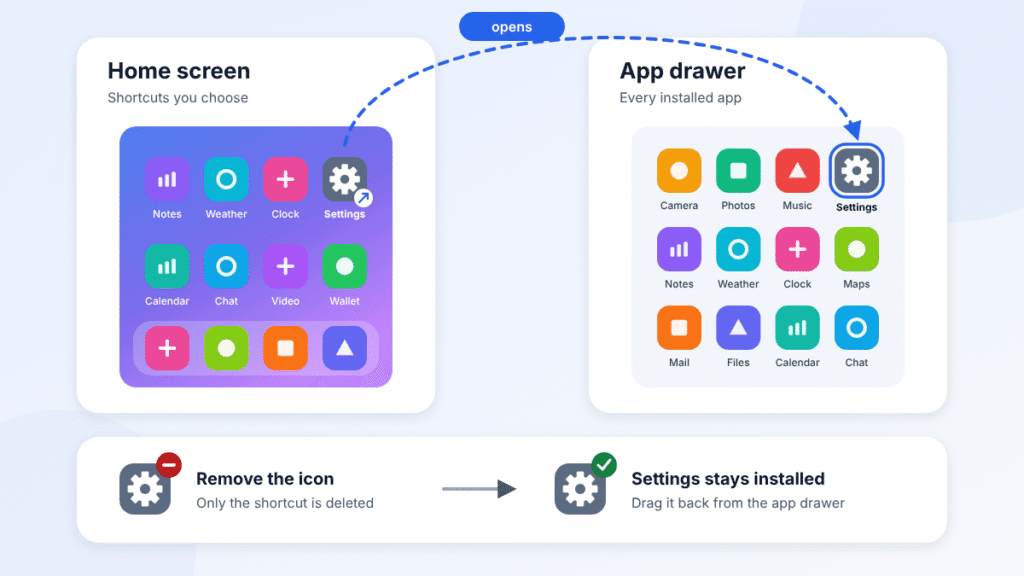
Check your folders too. Settings may have been dragged into a folder by accident. Open each folder on your Home screen, touch and hold Settings, and drag it out.
If the app drawer search finds nothing, skip to Settings App Missing From the App Drawer?
How to Open Settings Without the Icon
You don’t need the icon to get into Settings. Any of these works:
- Quick Settings gear: Swipe down from the top of the screen and tap the gear icon. On Pixel and most other phones, you may need to swipe down a second time to see it. On Samsung phones with One UI 7 or later, swipe down from the top-right corner.
- App drawer search: Open the app drawer and type “Settings” in the search bar.
- Voice: Say “Hey Google, open Settings.”
Once Settings is open, you can fix whatever caused the problem. The brand sections below show where to look.
Home screen settings are different from the Settings app. Touching and holding an empty spot on the Home screen opens your launcher’s own settings. It’s not the full Settings app, but it’s where hidden-app and layout options live on Samsung and many other phones.
How to Restore the Settings Icon on Samsung Galaxy
On a Galaxy phone, every installed app appears on the Apps screen. The Home screen only holds shortcuts to some of them.
Put the shortcut back:
- Swipe up on the Home screen to open the Apps screen.
- Find Settings.
- Touch and hold the icon, then tap Add to Home. You can also drag it straight onto the Home screen.
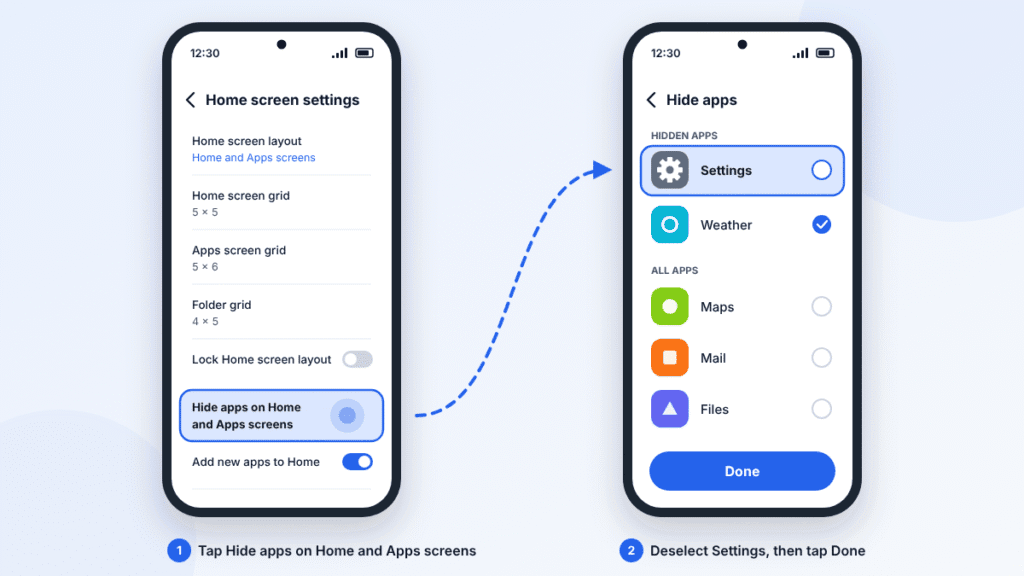
If Settings isn’t on the Apps screen, it’s probably hidden. Samsung’s “Hide apps” feature removes an app from both the Home and Apps screens. Hidden apps can also drop out of search results. To unhide Settings without needing its icon:
- Touch and hold an empty spot on the Home screen.
- Tap Settings at the bottom of the screen. This opens Home screen settings, not the main Settings app.
- Tap Hide apps on Home and Apps screens.
- Deselect Settings in the list of hidden apps, then tap Done.
Can’t drop the icon on the Home screen? Turn off Lock Home screen layout in the same Home screen settings menu. While it’s on, you can’t add, move or remove icons.
How to Restore the Settings Icon on Google Pixel
Pixel phones follow Google’s standard Android steps.
- Swipe up from the bottom of the Home screen to open the app drawer.
- Find Settings, or type it into the search bar at the top.
- Touch and drag the icon. Images of your Home screens appear.
- Slide it where you want it and lift your finger.
Want Settings in the bottom row? That row holds your favorite apps. You can only add one by hand if app suggestions are turned off. Touch and hold an empty spot on the Home screen, tap Home settings, open Suggestions, and turn off suggestions on the Home screen.
Missing from the Pixel app drawer? The standard Pixel Launcher doesn’t have a hide-apps option. If Settings isn’t in the drawer, check whether you’re using a different launcher, a work profile or a phone managed by work or school. See Settings App Missing From the App Drawer?
Other Android Phones
The general steps above work on most phones. These brands have one or two differences worth knowing.
| Phone | Where all your apps are | Where hidden apps go |
|---|---|---|
| Xiaomi, Redmi, POCO (HyperOS) | Many models ship in Classic mode with no app drawer, so every app sits on a Home screen page. Check every page and folder. To add a drawer, go to Settings > Home screen > Home screen > With app drawer. | On many versions, under App lock in Settings. Search Settings for “hidden apps”. |
| OnePlus (OxygenOS) | Swipe up for the app drawer. | Hidden Space: open the app drawer and swipe right from the left edge. If that doesn’t work on your version, search Settings for “hide apps”. |
| Motorola | Swipe up for the app drawer. Steps match Google Pixel. | Check your launcher’s Home screen settings for a hide option. If there isn’t one, see the troubleshooting section below. |
| Any phone using a downloaded launcher (Nova, Microsoft Launcher, Niagara and others) | The launcher’s own app drawer. | The launcher’s settings. In Nova, for example, it’s App drawer > Hide apps. |
Why Did My Settings Icon Disappear?
On most Android phones, the Settings app itself can’t be uninstalled or disabled from the phone’s menus. When the icon disappears, one of these is almost always the reason.
| Cause | What happened | Fix |
|---|---|---|
| Removed by accident | Tapping Remove on a Home screen icon deletes only the shortcut. | Drag Settings back from the app drawer. |
| Moved | The icon was dragged into a folder or onto another Home screen page. | Check every page and folder. |
| Hidden | A hide-apps feature (Samsung, Xiaomi, OnePlus or a downloaded launcher) took it off the Home screen and the app drawer. | Unhide it in your launcher’s settings. |
| New launcher | A downloaded launcher became your Home app and started with its own layout. | Add the icon in that launcher, or switch back to your phone’s own launcher. |
| System update | Major updates sometimes rearrange or reset the Home screen. The app stays in the drawer. | Drag Settings back from the app drawer. |
| Work or school management | An administrator can restrict which apps appear on a managed phone. | Ask your IT department. |
Settings App Missing From the App Drawer?
If Settings isn’t in the app drawer or search either, it has been hidden or your phone is using a different launcher. Work through these steps in order. Open Settings from the Quick Settings gear whenever a step needs it.
- Unhide it. On Samsung, touch and hold the Home screen, tap Settings, then Hide apps on Home and Apps screens. On other phones, see the table in Other Android Phones.
- Check which launcher you’re using. Go to Settings > Apps > Default apps > Home app. On Samsung, it’s Settings > Apps > Choose default apps > Home app. If a downloaded launcher is selected, unhide Settings in that launcher, or switch back to your phone’s own launcher.
- Restart your phone. Hold the power button (on some phones, power and volume up together) and tap Restart. This clears temporary launcher glitches.
- Try safe mode. Safe mode turns off downloaded apps, including downloaded launchers. It can also remove some Home screen widgets, so take a screenshot first if you use them. You can add them back afterward. Open the power menu, then touch and hold Power off or Restart until the safe mode prompt appears, and tap OK. If Settings shows up in safe mode, a downloaded app is the cause. Restart normally to leave safe mode.
- Ask your IT department if your phone is managed by work or school. Administrators can restrict apps, and you may not be able to change this yourself.
Should You Reset Your Home Screen Layout?
Almost never for a missing Settings icon. The fixes above solve the problem without losing anything. If your Home screen is still behaving oddly, here’s what each reset option really does.
| Option | What it does | What you lose | Use it when |
|---|---|---|---|
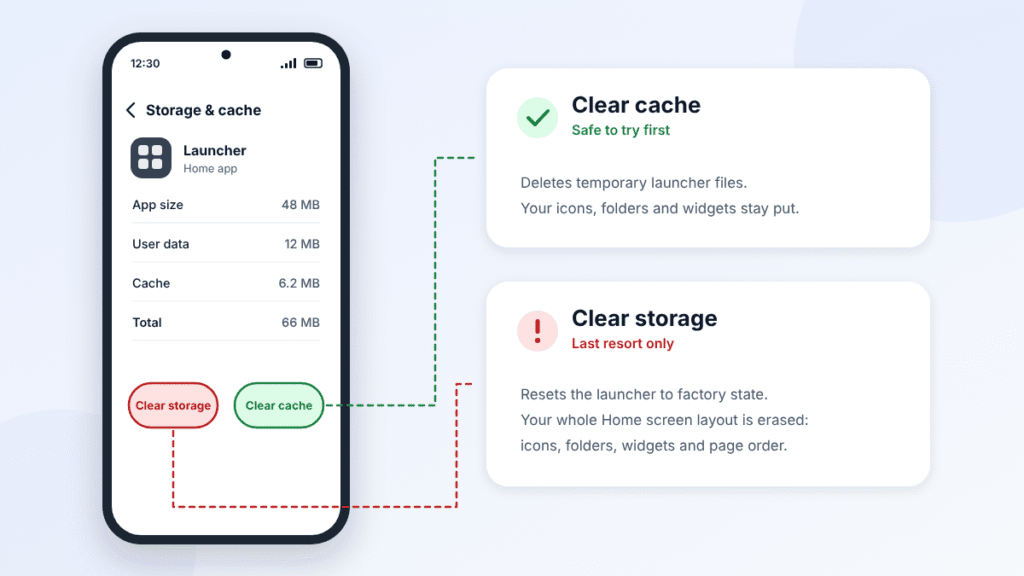
| Clear launcher cache | Deletes temporary launcher files | No personal data or Home screen layout | Icons glitch, freeze or vanish after you’ve tried everything above |
| Clear launcher storage (also called Clear data) | Returns the launcher to its out-of-the-box state | Your entire Home screen layout: icons, folders, widgets and page order | Only as a last resort, and only after taking screenshots of your Home screens |
| Reinstall a downloaded launcher | Removes and reinstalls a launcher like Nova | That launcher’s layout, unless you back it up first | Only for downloaded launchers. Built-in ones, such as Pixel Launcher and One UI Home, can’t be uninstalled. |
| Reset app preferences | Resets default apps, app permissions and notification settings, and re-enables disabled apps | Your default-app choices and permission settings | Not a fix for missing icons |
| Factory reset | Erases everything on the phone | All your apps and data | Never for a missing icon |
To clear the launcher cache: go to Settings > Apps and show all apps, including system apps if your phone asks. Tap your launcher (for example Pixel Launcher, One UI Home or System launcher on Xiaomi), then Storage & cache (just Storage on Samsung) > Clear cache. Don’t tap Clear storage unless you’re ready to rebuild your Home screen.
Frequently Asked Questions
Can I delete the Settings app on Android?
Not on most phones. Settings is a core system app, so you can’t uninstall or disable it from the phone’s menus. You can only remove its Home screen shortcut.
Does removing the Settings icon delete my settings?
No. Removing the icon only deletes the shortcut. Every setting on your phone stays exactly as it was.
Why can’t I find Settings when I search my phone?
It’s most likely hidden. On Samsung phones, hidden apps can drop out of search results too. Open Settings from the Quick Settings gear, then unhide it using the steps for your brand above.
What should I do if the Settings icon disappeared after an update?
Updates sometimes rearrange the Home screen, but the app stays in the app drawer. Open the drawer, touch and hold Settings, and drag it back.
Will a factory reset bring the Settings icon back?
It would, but it also erases everything on your phone. Every fix in this guide is faster and loses nothing, so a factory reset is never needed for a missing icon.
Do these steps work on an iPhone?
No. This guide is for Android phones only. On an iPhone, icons you remove from the Home Screen go to the App Library.

Louis Mugan is a seasoned technology writer with a talent for turning complicated ideas into clear, practical guidance. He focuses on helping everyday readers stay confident in a world where tech moves fast. His style is approachable, steady, and built on real understanding.
He has spent years writing for platforms like EasyTechLife, where he covers gadgets, software, digital trends, and everyday tech solutions. His articles focus on clarity, real-world usefulness, and helping people understand how technology actually fits into their lives.
Outside of his regular columns, Louis explores emerging tools, reviews products, and experiments with new tech so his readers don’t have to. His steady, friendly approach has made him a reliable voice for anyone trying to keep up with modern technology. get in touch at louismugan@gmail.com


