
Yes. With Live Translation, when someone speaks to you in another supported language, you hear a translation through your AirPods a moment later. You reply in your own language, and your iPhone shows or plays your words in theirs.
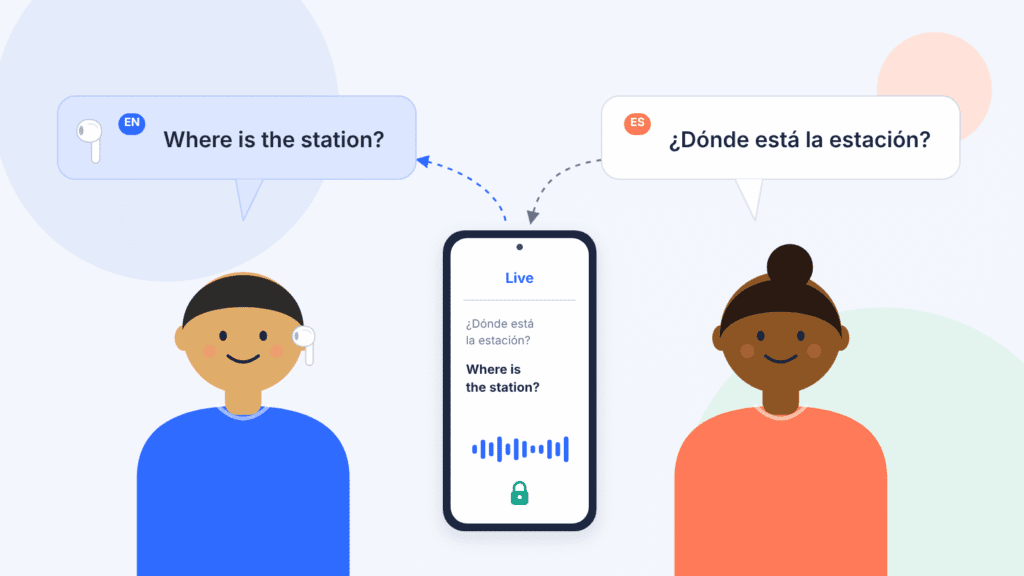
The translation runs on your iPhone, not on the AirPods themselves. That’s why the feature needs an Apple Intelligence–capable iPhone, and why it won’t work if you pair your AirPods with an Android phone.
The same technology also translates phone calls, FaceTime calls and text messages. This guide covers which devices and languages work, how to set everything up, and what to check if Live Translation doesn’t appear.
Which AirPods and iPhones support Live Translation?
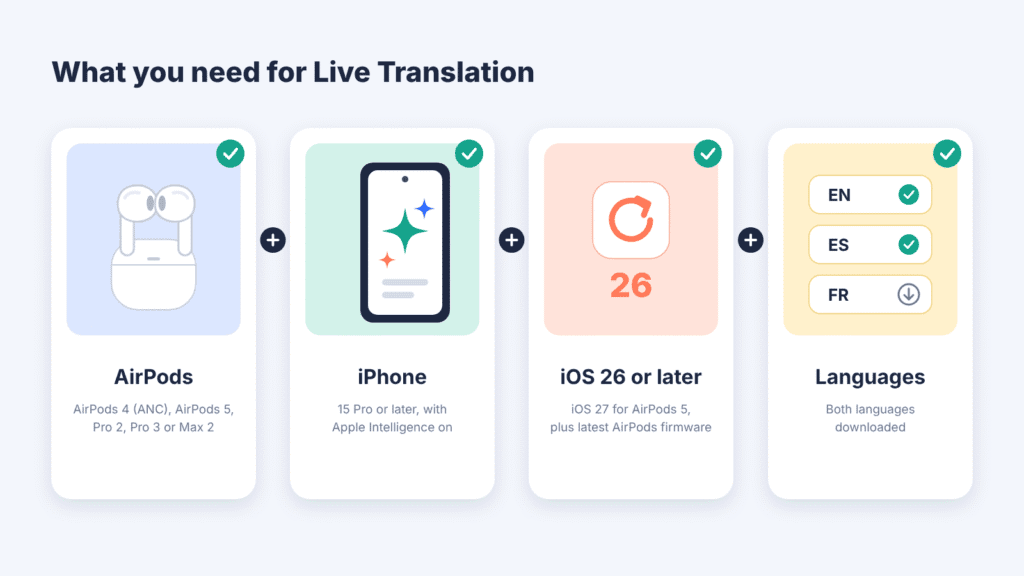
You need compatible AirPods, an iPhone that can run Apple Intelligence, and a few settings in place (Apple Support).
| You need | Details |
|---|---|
| AirPods | AirPods 4 with Active Noise Cancellation, AirPods 5 (both models), AirPods Pro 2, AirPods Pro 3 or AirPods Max 2 |
| iPhone | iPhone 15 Pro, iPhone 15 Pro Max, or any iPhone 16 model or later |
| Software | iOS 26 or later (iOS 27 or later for AirPods 5), plus the latest AirPods firmware |
| Apple Intelligence | Turned on |
| App | Apple’s Translate app, installed |
Live Translation won’t work with AirPods 4 without noise cancellation, the original AirPods Pro, or the standard iPhone 15 and 15 Plus, which can’t run Apple Intelligence.
Translation in Phone, FaceTime and Messages doesn’t need AirPods at all, but it still needs an Apple Intelligence–capable iPhone.
Which languages does Live Translation support?
Supported languages depend on the feature you use. AirPods translation covers 10 languages, Phone and FaceTime add Swiss Italian, and Messages adds six more languages plus many regional variants (Apple feature availability, iOS 27).
| Language | AirPods | Phone and FaceTime | Messages |
|---|---|---|---|
| English | US, UK | US, UK | US, UK, Australia, Canada, India, Ireland, New Zealand, Singapore, South Africa |
| French | France | France | France, Belgium, Canada, Switzerland |
| German | Germany | Germany | Germany, Austria, Switzerland |
| Italian | Yes | Yes, plus Switzerland | Yes, plus Switzerland |
| Portuguese | Brazil | Brazil | Brazil, Portugal |
| Spanish | Spain | Spain | Spain, Mexico, US |
| Japanese | Yes | Yes | Yes |
| Korean | Yes | Yes | Yes |
| Chinese, Mandarin (Simplified) | Yes | Yes | Yes |
| Chinese, Mandarin (Traditional) | Yes | Yes | Yes |
| Danish | No | No | Yes |
| Dutch | No | No | Yes |
| Norwegian | No | No | Yes |
| Swedish | No | No | Yes |
| Turkish | No | No | Yes |
| Vietnamese | No | No | Yes |
Simplified Chinese isn’t available in mainland China. Apple adds languages through software updates, so check its feature availability page for the latest list.
How to set up Live Translation
You only need to do this once. Do it before you need it, since language downloads can take a few minutes.
- Update your iPhone. Go to Settings > General > Software Update and install the latest version of iOS.
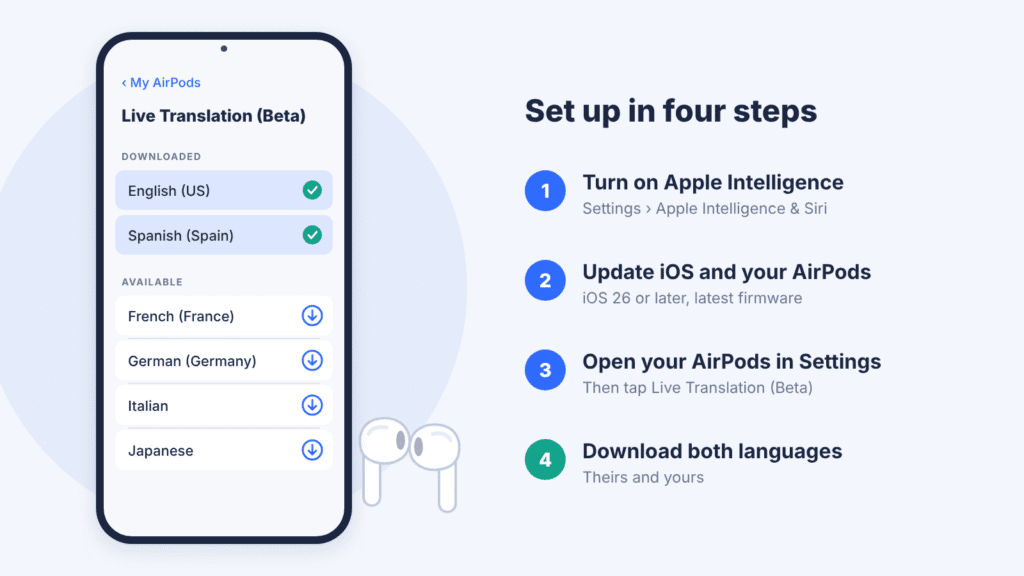
- Turn on Apple Intelligence. Go to Settings > Apple Intelligence & Siri and turn on Apple Intelligence.
- Install Apple’s Translate app from the App Store if it isn’t already on your iPhone.
- Update your AirPods firmware. Updates usually install on their own while your AirPods charge near your iPhone. To prompt one, connect your iPhone to Wi‑Fi, put your AirPods in their case, connect the case to power, close the lid, keep it near your iPhone and wait at least 30 minutes. For AirPods Max 2, plug in the charging cable instead. To check your version, go to Settings > Bluetooth, tap the Info button next to your AirPods and look under About (Apple Support).
- Download both languages. Put in your AirPods and connect them to your iPhone. Go to Settings, tap your AirPods’ name, tap Live Translation (Beta), then select the languages to download. You need both the language the other person speaks and the one you want to hear. On some versions, this option is labeled Languages, under Translation.
How to translate an in-person conversation
Put in your AirPods, open the Translate app, tap Live, and choose the language the other person speaks and the language you want to hear. Then start Live Translation in any of these ways (Apple AirPods User Guide):
- In the Translate app, tap Live, then tap Start Translation.
- Press and hold the stems of both AirPods at the same time. On AirPods Max 2, press and hold the listening-mode button.
- Say “Siri, start Live Translation.”
- Open Control Center and tap Translate. If it isn’t there, add the Translate control first.
- Press the Action button, if you’ve set it to the Translate app.
Having the conversation
- Listen as the other person speaks. Your AirPods play a translation in your language.
- Reply in your own language.
- Let them read or hear your reply. In the Live tab, show them the transcript in their language, or tap Play to speak the translation through your iPhone’s speaker.
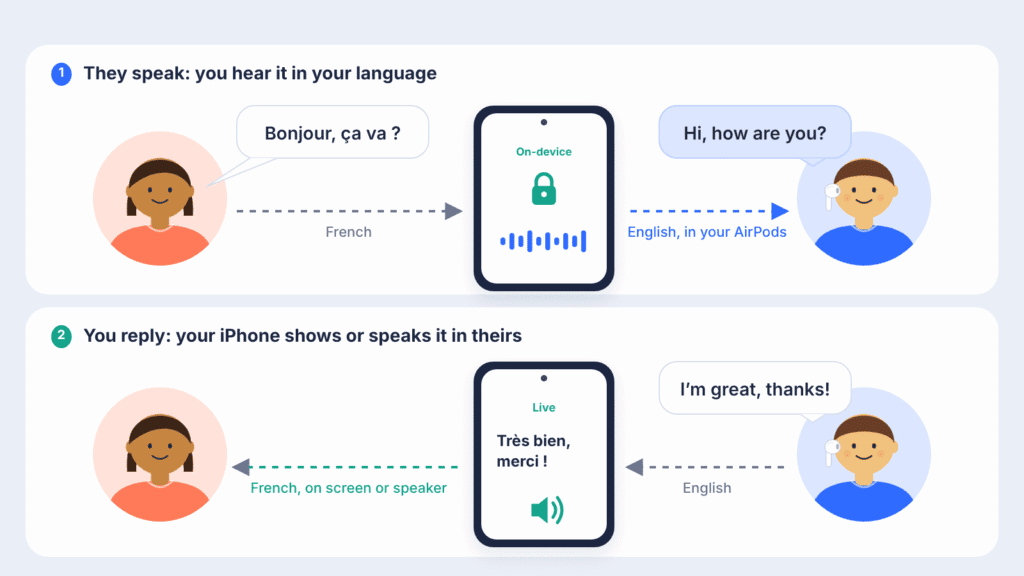
If the other person also has supported AirPods with Live Translation running, each of you hears the other in your own language. Noise cancellation turns down the original voice so the translation is easier to follow (Apple).
In a noisy place, move your iPhone closer to the person speaking. Its microphones work alongside your AirPods’ to improve the translation. To stop, tap the X button in the Translate app.
How to translate calls, FaceTime and Messages
These work on the iPhone alone, with or without AirPods (Apple Support).
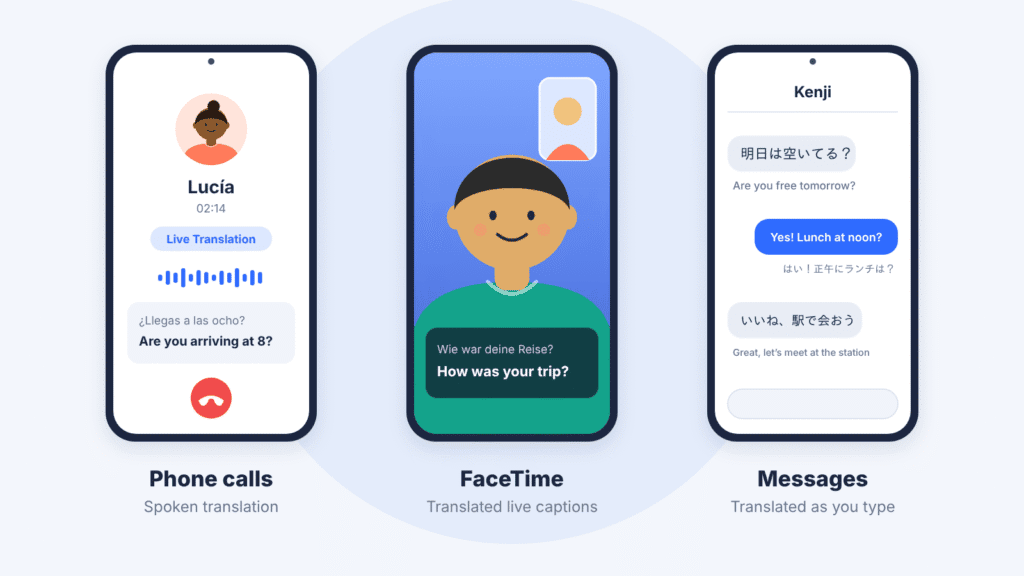
Phone calls
- During a call, tap the More button, then tap Live Translation. If you aren’t using the speaker or headphones, the call switches to the speaker.
- If your language isn’t selected, tap Choose Language and pick the language to translate from. It downloads if needed, which can take a few minutes.
- Tap Start Translation. Both people are told the call is being translated. The other person hears a spoken translation of what you say, their replies are translated for you, and a transcript appears on your screen.
FaceTime calls
- During a call, tap the More button, then tap Live Translation.
- Tap Choose Language and pick the language to translate from.
- Tap Start Translation. Translated live captions appear on screen as each person speaks.
Messages
- Open the conversation and tap the person’s name at the top.
- Turn on Automatically Translate. Messages may suggest the language. If it doesn’t, tap Choose Language.
- Choose the language to translate from. It downloads if needed.
- Type as usual. The translation appears as you type, and the other person receives both your original message and the translation. Messages they send are translated for you.
Why isn’t Live Translation working?
Most problems come from one missing requirement. Start with the symptom that matches yours.
| Problem | What to try |
|---|---|
| No Live tab in Translate, or the stem gesture does nothing | Check that your AirPods and iPhone are on the supported list, Apple Intelligence is on, and both iOS and your AirPods firmware are up to date. AirPods 4 without ANC don’t support Live Translation. |
| It keeps asking you to download languages | Download both languages in your AirPods settings, then pick the same pair in the Translate app’s Live tab. Some users have fixed this by also downloading English (US). |
| Live Translation doesn’t appear at all | Check Apple’s feature availability page. Support depends on your region and language, and it isn’t available in mainland China. |
| A language won’t download | Connect to Wi‑Fi, check that your iPhone has free storage, and try again. Large downloads can take a few minutes. |
| Translations are poor in noisy places | Move your iPhone closer to the speaker so its microphones can help, and ask people to speak one at a time. |
| The translation lags | A short delay is normal. Short sentences with clear pauses help it keep up. |
If none of these help, restart your iPhone, put your AirPods back in their case for a few seconds, and try again. If the problem continues, reset your AirPods and pair them again.
Availability, privacy and accuracy
Availability. Live Translation depends on your country, language and software version. Apple held the AirPods feature back in the European Union at launch, citing extra engineering work to comply with the Digital Markets Act. It reached EU users with iOS 26.2 in December 2025 (Apple). It isn’t available in mainland China, so check Apple’s feature availability page for your region.
Privacy. Live Translation runs entirely on your iPhone. According to Apple, once the language models are downloaded, all processing happens on the device and your conversation data stays private. On phone calls, both people are told when translation starts.
Accuracy. Live Translation is still labeled beta, and Apple warns that its generative models can produce inaccurate or unexpected results. Background noise, accents, slang and people talking over each other make mistakes more likely. Double-check anything important, and use a professional interpreter for medical, legal or emergency conversations.
Alternatives if your devices aren’t supported
If your iPhone can’t run Apple Intelligence or your AirPods aren’t on the list, Google Translate is the best-known alternative. Its Live Translate feature came to iPhone in March 2026, works with any headphones and supports more than 70 languages (TechCrunch).
To use it, open the Google Translate app, tap Live Translate, connect your headphones and choose your languages. It’s available in a growing list of countries, including the US, UK, India, Mexico, Japan and several EU countries.
Apple’s own Translate app also works on older iPhones in its Conversation mode. You tap to speak for each turn and pass the phone back and forth, so it’s slower, but it costs nothing.
FAQ
Do both people need AirPods?
No. Only you need supported AirPods. The other person can read your reply on your iPhone’s screen or hear it from the speaker. If they also have supported AirPods, each of you hears the other in your own language.
Does Live Translation work with an Android phone?
No. The translation runs on an Apple Intelligence–capable iPhone, so AirPods paired with an Android phone can’t use it. Google Translate’s Live Translate is the closest option on Android.
Will it work on a standard iPhone 15 or an older iPhone?
No. You need an iPhone 15 Pro, iPhone 15 Pro Max, or an iPhone 16 or later. The standard iPhone 15 and 15 Plus can’t run Apple Intelligence.
Does it work in the EU?
Yes. Live Translation with AirPods has been available to EU users since iOS 26.2 in December 2025, though support still varies by language.
Do I need AirPods to translate phone calls?
No. Live Translation in Phone, FaceTime and Messages works on the iPhone alone.
Does it cost anything?
No. Live Translation is built into iOS on supported devices.

Louis Mugan is a seasoned technology writer with a talent for turning complicated ideas into clear, practical guidance. He focuses on helping everyday readers stay confident in a world where tech moves fast. His style is approachable, steady, and built on real understanding.
He has spent years writing for platforms like EasyTechLife, where he covers gadgets, software, digital trends, and everyday tech solutions. His articles focus on clarity, real-world usefulness, and helping people understand how technology actually fits into their lives.
Outside of his regular columns, Louis explores emerging tools, reviews products, and experiments with new tech so his readers don’t have to. His steady, friendly approach has made him a reliable voice for anyone trying to keep up with modern technology. get in touch at louismugan@gmail.com


