
You pat your pocket. Nothing. You check the other pocket, your bag, the car seat, and that cold little drop in your stomach kicks in. We’ve all been there.
Here’s the good news: if your phone’s finding feature was switched on, it has likely been checking in with Apple, Google or Samsung whenever it had power and a signal. Even if the battery just died, you may still be able to pull up its last known location on a map and walk right to it.
This guide shows you how to track your device on iPhone, Android and Samsung Galaxy phones, with a quick word on laptops and tablets. The find-it-now steps come first. After that, you’ll learn the few settings worth switching on today, so that if your phone ever goes missing again, finding it takes minutes instead of a whole ruined afternoon.
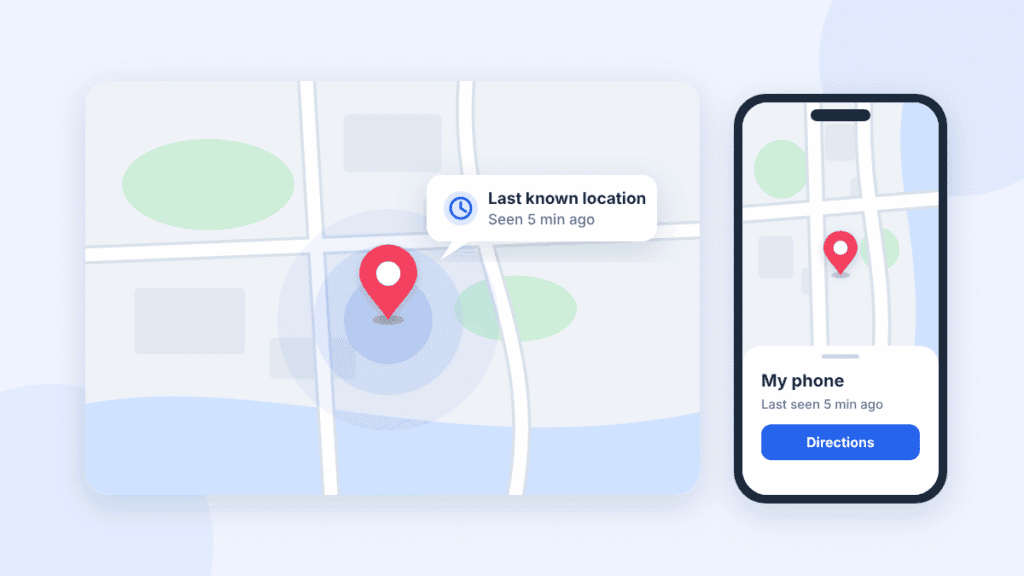
Quick answer: where to look right now
Grab any phone or computer and head to the right place for your phone:
| Your phone | Where to look | Sign in with |
|---|---|---|
| iPhone | The Find My app on your iPad or Mac, or icloud.com/find in any browser | Your Apple Account |
| Android | The Find Hub app, or android.com/find in any browser | The Google account on the lost phone |
| Samsung Galaxy | Samsung Find or SmartThings Find, plus Google’s Find Hub | Your Samsung account (or Google account for Find Hub) |
Check the time stamp next to the pin, because it tells you how fresh that location is. And if the pin sits somewhere you’ve never been, don’t head over there alone. The details for each phone are right below.
How to find your iPhone’s last known location
You’ve got two ways in, depending on what you have handy.
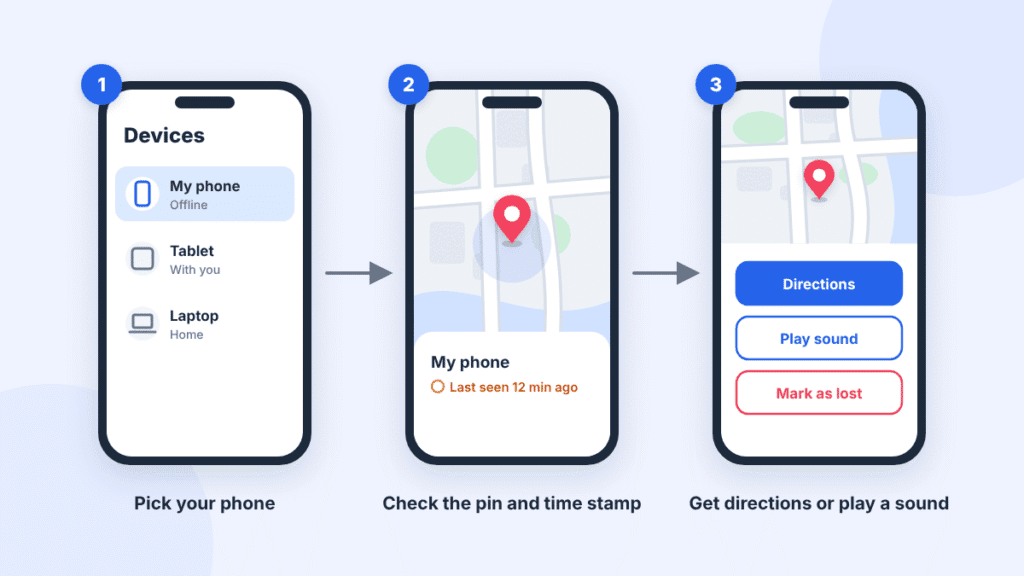
Option 1: The Find My app on another Apple device
Use another Apple device that’s signed in to your Apple Account, like your iPad or Mac. This is the best option because it shows the most information.
- Open the Find My app and tap Devices.
- Pick your missing iPhone. Its current spot, or its last known location, pops up on the map along with a time stamp.
- Tap Directions to open the route in Apple Maps.
- Think it’s close by? Tap Play Sound and follow the noise.
- If Find My says “No location found,” turn on Notify When Found so you get an alert as soon as your iPhone reports in again.
If you’re in a Family Sharing group, a family member can also help find your device from their own iPhone. Borrowing a friend’s iPhone instead? Don’t sign them out of anything. Just open Safari and use iCloud.com, as described below.
Option 2: iCloud.com from any browser
No Apple gear nearby? Head to icloud.com/find in any web browser, whether that’s on a computer, a friend’s iPhone or an Android phone, sign in with your Apple Account, and choose your iPhone.
There’s a catch worth knowing. The website only shows a location for up to 24 hours, and it doesn’t display pings picked up through the Find My network. The app does a better job.
How long does the last known location stick around?
According to Apple, if your phone can’t send a fresh location (say, the battery died), the Find My app keeps showing its last known location for up to seven days. After that, you’ll see “No location found.”
So the clock is ticking, but you’ve got more breathing room than most people think. Check sooner rather than later.
Apple’s full walkthrough lives in its Find My support guide.
How to find your Android phone’s last known location
If you remember “Find My Device,” that’s the same tool. Google renamed it Find Hub in 2025, but it works the same way and the web address hasn’t changed.
From a browser
- Go to android.com/find on any computer or phone.
- Sign in with the Google account that’s on your lost phone.
- Pick your phone from the list at the top. Its location, or its last known location, shows up on the map.
From someone else’s Android phone
- Open the Find Hub app (or grab it free from Google Play).
- Tap Sign in as guest and log in with your own account. Your friend’s account stays untouched.
- Select your phone. You might be asked for your lost phone’s screen-lock PIN, which is a security step on Android 9 and newer.
Reading the map like a pro
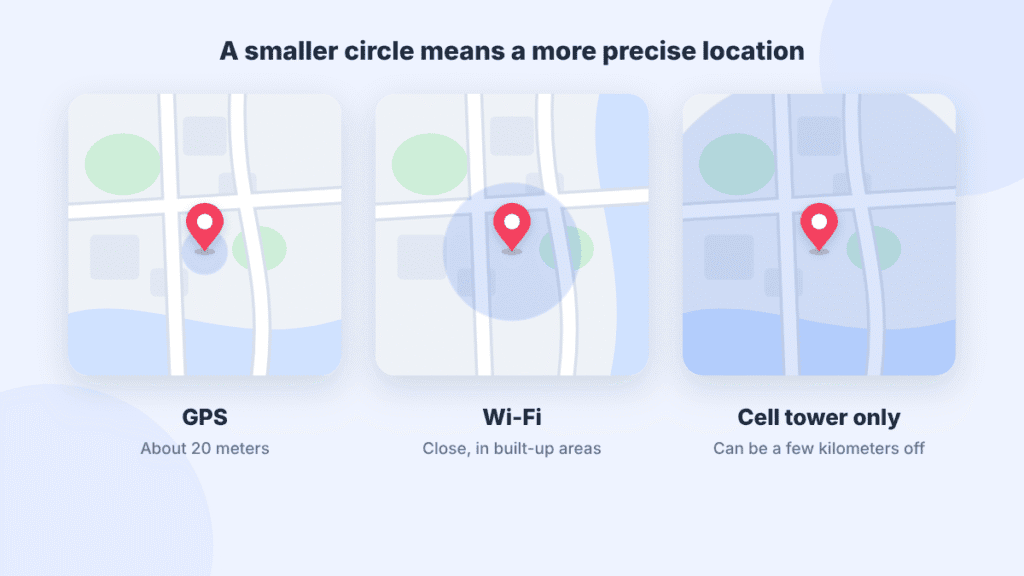
That shaded circle around the pin isn’t decoration. It shows how confident Google is about the location. Google says GPS is accurate to around 20 meters outdoors, Wi-Fi gets you close in built-up areas, and a cell-tower-only fix can be off by a few thousand meters.
So a tiny circle on a street corner means “go look right there.” A huge circle covering half a neighborhood means “it’s somewhere around here, start thinking about where you’ve been.”
Handy buttons once you see it
- Play sound rings your phone at full volume for five minutes, even if it’s on silent. Perfect for the couch-cushion scenario.
- Find nearby can show a shape that fills in as you get closer once you’re within about 10 meters, though whether it appears depends on the phones involved.
- Get directions opens the route in Google Maps.
If your phone is offline and you turned on offline finding earlier, Find Hub uses an encrypted copy of the location your phone stored the last time it was connected. Google also notes that the Find Hub app gives better results than the website when the offline network is involved.
Google’s step-by-step instructions are on its Find Hub help page.
Samsung Galaxy owners: you’ve got a second option
Galaxy phones work with Google’s Find Hub like any Android phone. On top of that, Samsung runs its own service, and it has a few tricks Google doesn’t.
Go to SmartThings Find or Samsung Find in any browser and sign in with your Samsung account (not your Google one). Your devices show up in a list on the left. Click your phone and its location appears on the map. If the phone is switched off, you’ll see its last known location instead.
Here’s why Samsung’s version is worth knowing about. Samsung notes that the options can vary by model, software version and carrier, so your phone may not show every one of these:
- Send last location fires off your phone’s position right before it loses its data connection, or when the battery drops to 5%.
- Track location sends you a fresh update every 15 minutes. Samsung suggests it if you think you left your phone on a bus or train.
- Extend battery life remotely switches on Maximum power saving mode, which buys your phone more time to keep reporting. When it’s available, it’s a real lifesaver if you’re racing a dying battery.
Got a Galaxy Watch? Open Samsung Find on the watch, pick your phone, and tap Ring. Handy when you’re sure it’s somewhere in the house.
Samsung’s full walkthrough is in its guide to finding a lost Galaxy.
Can’t see your phone on the map? Here’s why
Sometimes you sign in, spot your phone in the list, and get no pin at all, or a message where the location should be. That doesn’t automatically mean it’s stolen or gone for good. Usually the phone just can’t report in, and the message on screen hints at why.
What those messages mean
- “No location found” on iPhone. It means Find My can’t show a location right now, for example because the phone has been offline a long time or no usable location was saved. Apple keeps a last known location in the app for up to seven days, and after that, the previous location is no longer available. Turn on Notify When Found to get an alert if it reappears.
- “Not sharing location • Online” on iPhone. The phone is connected but can’t send its location, usually because something is off with Location Services.
- Nothing on iCloud.com after a password change. If you have Stolen Device Protection turned on and changed your Apple Account password somewhere unfamiliar, Apple says your devices’ locations may not show at icloud.com/find. Try the Find My app on another Apple device instead.
- An old location, or none, on Android or Samsung. The phone has been off or offline, and there’s no newer saved location to show. This is common if offline finding was switched off.
- “Sync recent location” on Android. Google says Find Hub shows this when it can’t read your phone’s recent location because the encryption is out of sync. Select the phone, tap Sync recent location, then enter the screen lock of one of your Android devices or sign in to your Google Account when asked. Usually the message clears, and if a saved location is available, it shows up on the map. If you get “Can’t sync location” instead, Google’s Find Hub troubleshooting page walks through the next steps.
When your phone isn’t listed at all
- You’re in the wrong account. Sign in with the exact Apple, Google or Samsung account that’s on the missing phone. Google adds that a phone’s most recent location goes to the first account set up on it, and on a phone with several user profiles, you need the main profile’s account.
- It’s hidden in Google Play. Google says a device hidden from your Google Play device list won’t show up in Find Hub. Open play.google.com/library/devices and make sure Show in menus is ticked.
- It was factory reset. Once an Android phone is reset, it drops out of Find Hub.
- The device you’re searching from needs an update. If something you own isn’t appearing in Find My, Apple’s first suggestion is to update the iPhone, iPad or Mac you’re using to the latest software.
What to do next
- Double-check you’re in the right account, then refresh the app or web page.
- Set up an alert so you hear the moment it reconnects. On iPhone, select your phone in Find My and turn on Notify When Found. On the Samsung Find website, select your phone and turn on Notify me when it’s found.
- If there’s any chance it was stolen, don’t wait for the map. Secure your accounts and call your carrier, as covered in the “Now what?” section below.
A blank map is frustrating, but it often just means “not right now.” Phones that come back online usually start reporting again.
Dead battery or switched off? Here’s what still works
This is the question everyone asks: “Can I find my phone if it’s dead?” The honest answer is that it depends on your phone and on what you switched on beforehand, which the settings section further down covers.
| Device | Saves a location before it dies | Findable after it’s off? |
|---|---|---|
| Supported iPhones | Yes, with Send Last Location | Yes, up to 24 hours after shutdown, or up to 5 hours in power reserve mode |
| Supported Pixel models (Google lists the Pixel 8, 9 and 10 series) | Yes, as long as offline finding wasn’t switched off | Yes, for several hours |
| Samsung Galaxy | Yes, with Send last location (fires at 5% battery) | Generally no, you’ll see the last saved spot |
| Most other Android phones | Possible, if a recent location was stored before the device went offline | Usually not, you’ll see the last saved spot |
| Windows laptop | No special feature | No, you’ll see where it last connected |
Why some phones stay findable while “off”
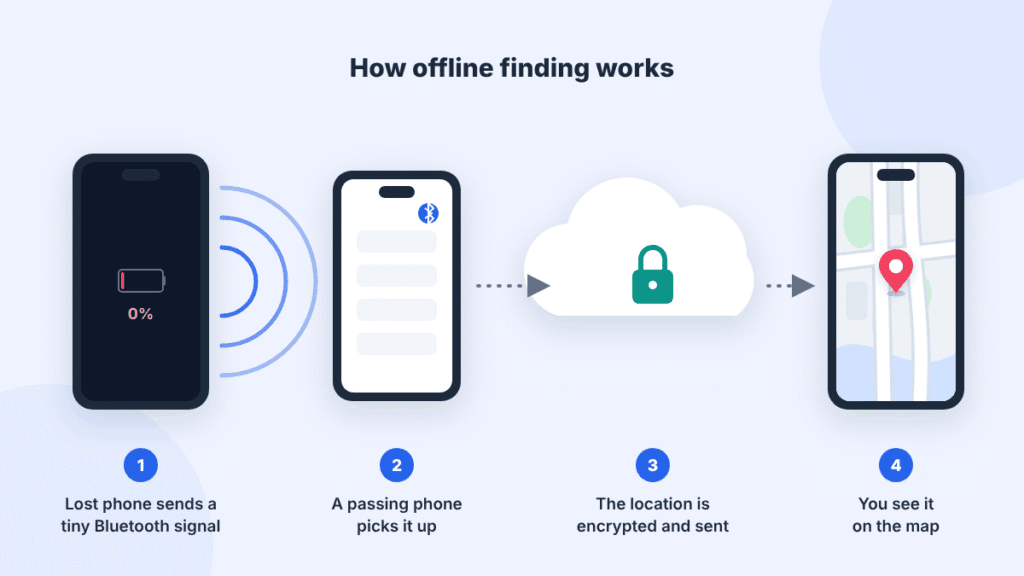
Supported iPhones and Pixel phones keep a tiny Bluetooth beacon running even after you power them down. Any passing phone on Apple’s or Google’s finding network can pick up that signal and pass the location back to you, all encrypted and anonymous. Apple says its network is made up of over a billion devices, which is why an iPhone lost in a busy city often gets found so fast. On Pixels, Google says this only works if offline finding is set to one of the “With network” options and Bluetooth and Location are both on when the phone shuts down.
According to Apple, a supported iPhone can be found for up to 24 hours after it’s switched off, or up to five hours in power reserve mode, as long as the Find My network was on beforehand. To check whether yours qualifies, go to Settings > General > Shut Down to bring up the power-off slider. If you see “iPhone Findable After Power Off” under the slider, you’re covered. Tap Cancel to back out.
A quick reality check on Samsung’s “offline finding”
The name trips people up. Samsung’s offline finding helps when your Galaxy is switched on but has no internet, like when it’s in airplane mode or out of signal. Once the phone is fully powered off, that feature stops working, so Send last location becomes your safety net.
When the battery is still alive but dropping fast
Act quickly. On a Galaxy, try Extend battery life from Samsung Find to stretch the remaining charge, if your model offers it. On any phone, mark it as lost right away, so if it powers back on later, it’s locked and will report in again.
You found it on the map. Now what?
Seeing that little pin is a huge relief. What you do next depends on where it is.
If it’s somewhere you’ve been
Your gym, your office, a friend’s place, the café from this morning? Great. Call the place, ask someone to check, or head over and use Play sound once you’re nearby. This is how most lost phones turn up.
If it’s somewhere you’ve never been
This is where you need to slow down. Don’t go there alone to confront anyone. Samsung warns against heading straight to a stolen phone’s location, and the US FCC gives the same advice: never try to recover a stolen device on your own. Take a screenshot of the map and the time stamp, then let the police handle it.
Lock it down right away
Whether it’s lost or stolen, protect your stuff first and worry about the phone second.
- Mark it as lost. On iPhone this is Lost Mode, which locks the phone, suspends Apple Pay cards, and puts your contact number on the screen. On Android it’s Mark as lost in Find Hub, and on Samsung it’s Lock.
- Change your important passwords, starting with your email, banking apps and your Apple, Google or Samsung account.
- Call your carrier. Ask them to suspend your SIM and block the phone’s IMEI number, so it can’t be used on their network even with a new SIM. Blocking the IMEI won’t help you find the phone, and it doesn’t lock anyone out of apps you’re still signed in to. What it does is stop the phone from working on participating mobile networks, which makes it far less useful to a thief.
- File a police report. Include the IMEI and your screenshots. Your carrier or insurance company may ask for the report anyway.
Don’t know your IMEI? Dial *#06# on your phone today and save the number somewhere safe. If it’s already gone, Android users can find it in the Find Hub app under the device’s settings, and it’s usually printed on the original box or receipt too.
Watch out for “we found your phone” messages
This one catches a lot of people. Scammers sometimes text or email the contact details you put on your lock screen, pretending to be Apple or Google and saying your phone has been found. The link leads to a fake sign-in page built to steal your password, so they can unlock the phone and resell it.
Don’t tap links in those messages, and never type your account password into a page you reached that way. Check your phone’s status only in the Find My, Find Hub or Samsung Find app, or by typing the official web address yourself.
Hold off on erasing
Erasing your phone is the last resort, not the first move. On Android, Google says a factory reset takes the device out of Find Hub, so you lose all tracking. Apple is more forgiving: an iPhone erased on iOS 15 or later can still be found in Find My. Either way, try everything else first, because you can’t undo an erase.
What “last known location” actually means
Your phone’s last known location is simply the last spot it reported to its home base (Apple, Google or Samsung) before it went quiet. It’s a snapshot, not a live feed.
While your phone is on and connected, it figures out where it is using GPS, nearby Wi-Fi networks and cell towers. Every so often it checks in with its service, and that check-in is what shows up on the map when you go looking.
Once the phone dies, gets switched off or loses signal, the check-ins stop. The service hangs on to the last one it got, and that’s the pin you see. That’s also why the time stamp next to the pin matters so much: a location from five minutes ago is gold, while one from yesterday is more of a clue.
There’s a newer twist too. Both Apple and Google now run crowdsourced offline finding networks. Your lost phone sends out a tiny encrypted Bluetooth signal, and strangers’ phones that pass by pick it up and report the location for you, without anyone seeing anything. That’s exactly what the dead-battery section above covers.
Do this today: settings that save you later
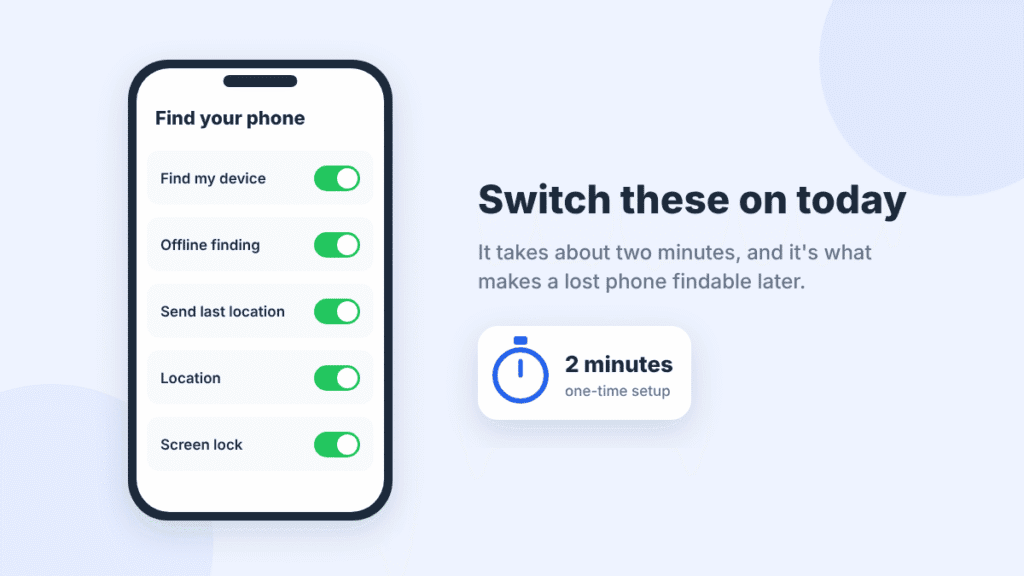
Got your phone back, or just reading ahead? This is the part most people skip, and it’s honestly the most important bit. If these switches are off when your phone disappears, there’s very little anyone can do. Flipping them on takes about two minutes.
On an iPhone
Go to Settings > [your name] > Find My > Find My iPhone, then make sure all three of these are green:
- Find My iPhone – the main switch that puts your phone on the map.
- Find My network – lets other nearby Apple devices quietly help locate your phone when it’s offline or, on supported models, even switched off.
- Send Last Location – tells your iPhone to upload its location right before the battery runs out.
While you’re in Settings, check that Location Services is on under Privacy & Security too. Find My can’t report a spot it can’t see.
On an Android phone
Google switches Find Hub (the service that used to be called Find My Device) on automatically once you sign in with a Google account. Still, it’s worth a quick check, because Google says some of these steps need Android 14 or newer. Menu names also vary a little by phone brand and Android version, so if a path below doesn’t match, type “Find Hub” into the search bar at the top of Settings.
- Open Settings > Location and turn on Use location.
- Open Settings > Security > Find Hub and make sure Allow device to be located is on.
- Go to Settings > Google > All services > Find Hub > Find your offline devices and pick With network everywhere or With network in busy places only.
- Set a screen-lock PIN, pattern or password if you don’t have one. Google can still save an encrypted recent location without one, but your phone only gets help from the crowdsourced Find Hub network once a screen lock is set.
- Save your Google 2-Step Verification backup codes somewhere other than your phone. If your phone is your only sign-in method and it’s gone, you could get locked out of the very tool you need.
Google’s full checklist is in its Be ready to find a lost Android device guide.
On a Samsung Galaxy
Samsung phones get both Google’s Find Hub and Samsung’s own tracking service, which is a nice bit of backup. Go to Settings > Security and privacy > Lost device protection > Find My Mobile and switch on all three:
- Allow this phone to be found
- Send last location
- Offline finding
A quick word on laptops and tablets
Tablets work just like phones here: iPads use Find My, and Android tablets show up in Find Hub. Laptops need one setting switched on ahead of time.
- Windows 10 and 11: Turn on Start > Settings > Privacy & security > Find my device. You need a personal Microsoft account and admin rights on the laptop. To find it, sign in at account.microsoft.com/devices, open the Find My Device tab and select Find. Whoever has the laptop gets a notification when you look.
- MacBooks: In System Settings, click your name, then iCloud, and make sure Find My Mac is on. Then look for it in the Find My app or at icloud.com/find, just like an iPhone.
A Windows laptop that’s asleep, shut down or offline can’t check in, so you’ll only see where it was the last time it connected.
Frequently asked questions
Can I find my phone if I never turned on Find My or Find Hub?
Sadly, not through those tools. They have to be on before the phone goes missing. On Android, Find Hub switches on by itself when you sign in with a Google account, so there’s a good chance it’s already running. If not, focus on protecting yourself: change your passwords, call your carrier, and report it.
How long will my phone’s last known location stay on the map?
On iPhone, the Find My app shows it for up to seven days, while iCloud.com only keeps it for 24 hours. Google doesn’t publish an exact window for Find Hub, so the safest move on any phone is to check as soon as you notice it’s gone.
Can Google Maps Timeline show me where my phone went?
Probably not anymore. Google moved Timeline (the old Location History) off its servers and onto your phone itself, so that history now lives on the very device you’re missing. If you had Timeline’s encrypted backup turned on, you might be able to restore it on another phone, but Find Hub is the faster, more reliable route.
Will the person who has my phone know I’m tracking it?
Sometimes. Google says your lost Android phone gets a notification when you select it in Find Hub, and Windows shows a notice when you try to locate a laptop. That’s one more reason to let the police handle anything that looks like theft.
Can I track a phone using just the phone number?
Not with any legitimate consumer tool. Find My, Find Hub and Samsung Find all need you to sign in to the account on that phone. Be very wary of websites that promise to locate any phone from a number alone.
Why does the location look wrong or out of date?
Check the time stamp first, since you might be looking at where the phone was hours ago. Then look at the size of the circle around the pin. A big circle usually means the phone only had a rough cell-tower fix, not GPS. Seeing “No location found,” or your phone isn’t listed at all? The “Can’t see your phone on the map?” section above walks through both.
Does this work for earbuds, watches and keys too?
Yes. AirPods and AirTags show up in Apple’s Find My, Galaxy Buds and SmartTags appear in Samsung Find, and many headphones and tracker tags work with Google’s Find Hub. Clip a tracker to your keys or bag and you get the same last known location feature for everyday stuff.
The bottom line
Finding your phone’s last known location comes down to two things: what you switched on before it went missing, and how fast you check once it does.
So here’s the one thing to do after reading this. Pick up your phone, spend two minutes in the settings above, and make sure Find My, Find Hub or Samsung Find is fully on, including the “send last location” and offline finding options. Then write down your IMEI and save your account backup codes somewhere safe.
It’s the kind of boring little task you’ll be really glad you did on the day your pocket comes up empty.

Louis Mugan is a seasoned technology writer with a talent for turning complicated ideas into clear, practical guidance. He focuses on helping everyday readers stay confident in a world where tech moves fast. His style is approachable, steady, and built on real understanding.
He has spent years writing for platforms like EasyTechLife, where he covers gadgets, software, digital trends, and everyday tech solutions. His articles focus on clarity, real-world usefulness, and helping people understand how technology actually fits into their lives.
Outside of his regular columns, Louis explores emerging tools, reviews products, and experiments with new tech so his readers don’t have to. His steady, friendly approach has made him a reliable voice for anyone trying to keep up with modern technology. get in touch at louismugan@gmail.com


