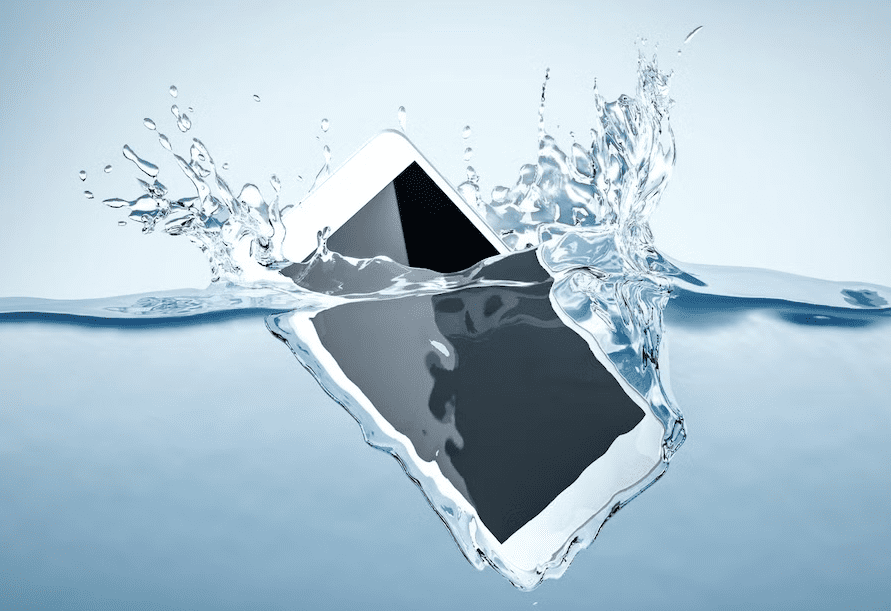
Dropped your phone in the toilet, a puddle, or your drink? What you do next matters. Some popular fixes — especially putting the phone in rice — can also create additional problems. Here’s what to do instead, step by step, whether you’re holding an iPhone or an Android phone.
What to Do Immediately After Your Phone Gets Wet
Act quickly, but don’t panic. Once you’ve gotten the phone out of the liquid, avoid unnecessary use or wired charging while moisture may still be present. The type of liquid, how long it was submerged, the condition of the phone’s seals, and whether moisture reached internal components all affect the outcome — so treat every spill as its own situation rather than assuming a fixed timeline or a guaranteed result.
- Don’t check if it still works. Resist the urge to tap the screen or press the power button “just to see.”
- Don’t shake it hard. A gentle tap is fine; a hard shake can push water deeper into ports and seams.
- Don’t plug it in, even if it looks fine.
If your phone was already off, leave it off. If it was on, move to step one below.
How to Fix a Water-Damaged Phone: Step-by-Step
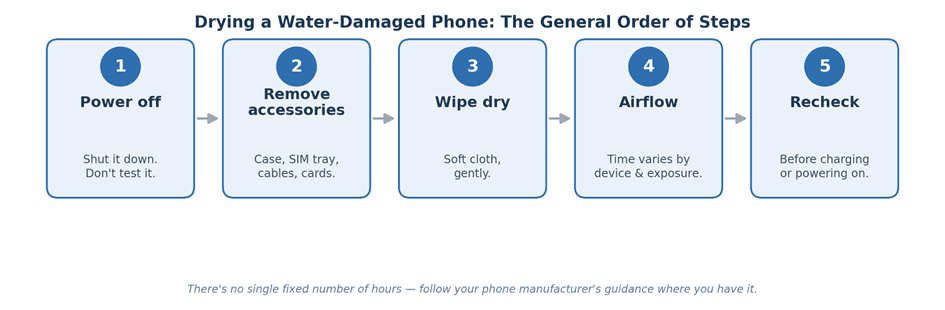
1. Power it off immediately
If your phone is still on, hold the power button and shut it down properly rather than force-restarting it, which briefly cycles power. If it’s already off, don’t turn it on to check anything.
2. Remove the case, SIM tray, and accessories
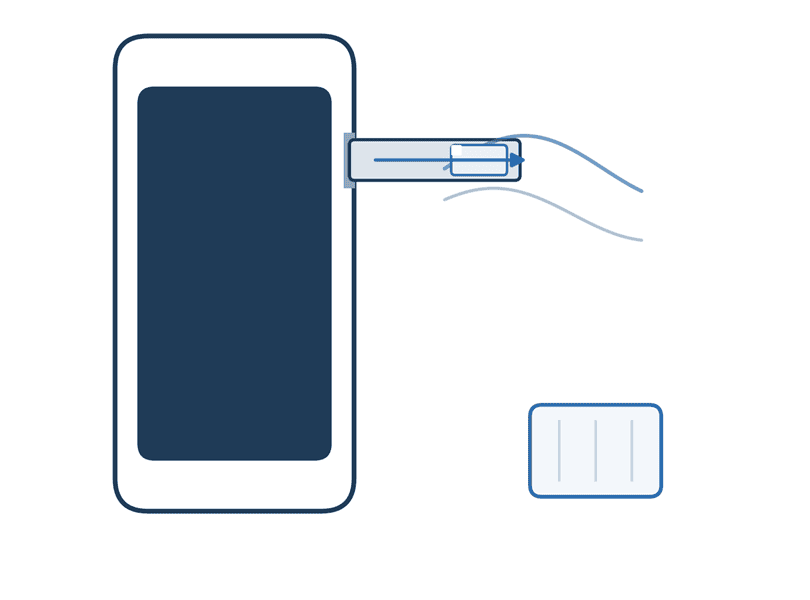
If your phone has a removable SIM tray, use its SIM-eject tool to remove the tray and let it dry separately. Take off any case, screen protector edges that trap water, and unplug headphones or a charging cable. Don’t start unscrewing or prying open a sealed modern smartphone yourself — opening it can cause additional damage and compromise its seals further.
3. Dry the outside — gently
Use a clean, soft, lint-free cloth to wipe moisture from the exterior. Pay attention to the charging port and speaker openings, but don’t push cotton swabs, paper towels, pins, or other objects inside them.
4. Let it dry with good airflow
There isn’t one drying time that applies to every phone or every spill — follow your manufacturer’s own instructions where you can find them. Leave the phone somewhere dry with good airflow, not sealed in an airtight container. Skip the rice: Apple’s support documentation specifically warns against it, since rice particles can work their way into the phone and cause additional damage.
Don’t use a hairdryer, oven, microwave, or direct sunlight to speed things up. Heat can warp internal seals and damage the battery.
5. Wait before you charge or power it back on
This is the step people rush. Rushing this step can increase the risk of additional damage, so give the phone time before applying power. Apple’s general guidance for an iPhone exposed to liquid is to wait at least 5 hours before charging with a cable or connecting an accessory. Separately, for the specific liquid-detection alert, Apple says you can try again after at least 30 minutes, and that full drying can take up to 24 hours if the alert keeps returning. Treat these as the closest thing to an official timeline, and give an Android phone the same patience even without a published number of hours.
What to Do If You Dropped Your iPhone in Water
Modern iPhones (iPhone XS, XR, and later) have a liquid sensor in the Lightning or USB-C port. Plug in a cable while moisture is present and you’ll see a “Liquid Detected” or “Charging Not Available” alert instead of a normal charge.
If you see that alert, unplug the cable from both ends, hold the phone with the connector facing down, and tap it gently against your hand. Leave it somewhere dry with airflow. Apple’s support page says you can try charging again after at least 30 minutes, and if the alert reappears, to keep drying — it can take up to a full day for the connector to fully dry. Separately, Apple’s general handling guidance for any iPhone exposed to liquid recommends waiting at least 5 hours before charging with a cable or connecting an accessory at all, even without an active alert.
Apple’s documentation also directly advises against drying an iPhone with compressed air, an external heat source, or rice.
Older iPhones and iPods have a liquid contact indicator (LCI) near the SIM tray or battery that turns from white or silver to fully red on contact with water-based liquid — Apple’s support page confirms this is used to help determine whether damage was liquid-related.
What to Do If You Drop an Android Phone in Water
Moisture warnings vary by manufacturer and model — some Android phones absolutely do have real-time detection, so don’t assume yours doesn’t. Google Pixel phones display “Liquid or debris in USB port”, and Google’s guidance is to unplug the charger, turn the phone off if the port or cable is wet, and let it dry at room temperature. Many Samsung Galaxy phones show a similar moisture-detected warning when you try to charge.
If your Android phone shows a warning like this, don’t repeatedly reconnect the charger to test it. Follow the warning and give the port time to dry. Many Android phones, including several Samsung Galaxy models, also have a physical liquid damage indicator inside the SIM tray that changes color on contact with water, similar to Apple’s LCI.
Follow the same drying process described above: power off, remove the SIM tray, dry gently, and give it time with good airflow before trying to charge again.
How to Tell If Your Phone Has Water Damage
A few signs are worth checking for before you assume the worst:
- The liquid contact/damage indicator near the SIM tray, battery compartment, or headphone jack has turned pink, red, or maroon.
- Visible moisture or fogging under the camera lens or screen.
- Corrosion — a white or greenish crust — visible around ports.
- Muffled sound from the speaker or microphone that improves as the phone dries.
Display Water Damage: Signs and What’s Actually Fixable
If water reaches the display layers, you may notice colored lines or blotches, dim or dark patches that don’t respond to brightness changes, flickering, or a touchscreen that misregisters taps in one area.
Drying the phone out can sometimes resolve minor issues if water simply pooled near the edge of the display and hasn’t reached the panel itself. But if lines, dark patches, flickering, or touch problems remain after the phone has fully dried, liquid may have affected the display panel, its connector, or another internal component — appearance alone can’t tell you which. At that point, professional diagnosis is more reliable than more DIY drying, since the actual fix could range from a simple connector clean to a full screen replacement.
Is Water Damage Covered by Warranty or Insurance?
Liquid damage isn’t necessarily covered by a phone’s standard warranty, even when the device carries a water-resistance rating. Apple, for example, states directly that liquid damage isn’t covered by its One-Year Limited Warranty, and describes splash and water resistance as conditions that can decrease with normal wear rather than a permanent guarantee. Samsung’s published warranty terms carry a similar exclusion.
Accidental-damage plans such as AppleCare+ or Samsung Care+ may cover liquid damage, depending on your specific plan and region — check the current terms for your device before assuming coverage either way. The same goes for carrier or third-party phone insurance: some plans cover water damage as accidental damage, but terms vary widely, so it’s worth confirming rather than assuming.
An IP rating like IP68 describes how a phone performed under specific, manufacturer-defined lab conditions — it isn’t a guarantee that the phone is permanently waterproof in real-world use, and that resistance can decrease over time from normal wear, drops, or repairs. That’s the gap between “water resistant” marketing and what a warranty actually covers.
When to Stop DIY and See a Professional
Consider professional inspection if:
- The phone won’t power on after a full drying period.
- It keeps reporting moisture or a liquid-detection warning that won’t clear.
- You see corrosion around the ports.
- The screen shows persistent lines, dead zones, or unresponsive touch after drying.
- It powers on but the battery drains unusually fast, it overheats, or it randomly restarts.
- The liquid was salt water, pool water, or a drink — anything with dissolved minerals, sugar, or chemicals — rather than plain fresh water.
- It contains data you can’t afford to lose.
Repeatedly plugging it in or opening it without the right tools can cause additional damage.
How to Protect Your Phone From Water Damage Going Forward
- Check your phone’s actual IP rating (not just “water resistant” marketing) before treating it as swim- or shower-safe.
- Consider a dedicated waterproof pouch for beach, boat, or pool days — these are rated for full submersion in a way your phone’s factory seals may not be after normal wear.
- If liquid damage is a concern, consider whether phone insurance or an accidental-damage plan makes sense for you.
Quick FAQ
Does putting a phone in rice actually work?
Not reliably. Apple’s own documentation advises against it because rice particles can get into the phone and cause additional damage. Airflow and time are safer defaults.
How long should I wait before charging my phone again?
There’s no single number that applies to every phone. For iPhones, Apple’s general guidance is at least 5 hours after liquid exposure, with a separate 30-minute-to-24-hour window specifically tied to the liquid-detection alert if one appears. Other manufacturers publish their own guidance for their devices — check yours if you can find it, and don’t force a charge while any moisture warning is active.
Can a water-resistant phone still get water damage?
Yes. Water resistance doesn’t mean a phone is permanently waterproof. Apple, for example, states that splash, water, and dust resistance aren’t permanent conditions and can decrease with normal wear. Check your phone manufacturer’s specifications for the conditions under which its water-resistance rating was tested.
Can a phone with water damage in the screen be fixed?
Sometimes, if the damage is minor and the panel itself wasn’t reached. Persistent lines, dead pixels, or touch problems that remain after a full dry-out usually call for professional diagnosis rather than more waiting.
After dropping a phone in water, doing less is often safer than experimenting with DIY fixes: power it down, keep the charger away, dry it gently with good airflow, give it time, and get professional help if problems remain.

Louis Mugan is a seasoned technology writer with a talent for turning complicated ideas into clear, practical guidance. He focuses on helping everyday readers stay confident in a world where tech moves fast. His style is approachable, steady, and built on real understanding.
He has spent years writing for platforms like EasyTechLife, where he covers gadgets, software, digital trends, and everyday tech solutions. His articles focus on clarity, real-world usefulness, and helping people understand how technology actually fits into their lives.
Outside of his regular columns, Louis explores emerging tools, reviews products, and experiments with new tech so his readers don’t have to. His steady, friendly approach has made him a reliable voice for anyone trying to keep up with modern technology. get in touch at louismugan@gmail.com