You glance at your Android home screen and see a small dot on an app, but no idea how many messages are waiting. On some phones, you can swap those dots for numbers, like the red counters on an iPhone. Whether you can depends on your phone and its home screen app.
Quick answer: On a Samsung Galaxy phone, go to Settings > Notifications (then Advanced settings on newer One UI versions), tap App icon badges and choose Number (labeled Show with number on some versions). The default Pixel Launcher on Google Pixel phones shows notification dots rather than numbers, though Google appears to be developing numeric badges. On other phones, look for a badge setting in your launcher or notification settings.
Dots vs number badges on Android
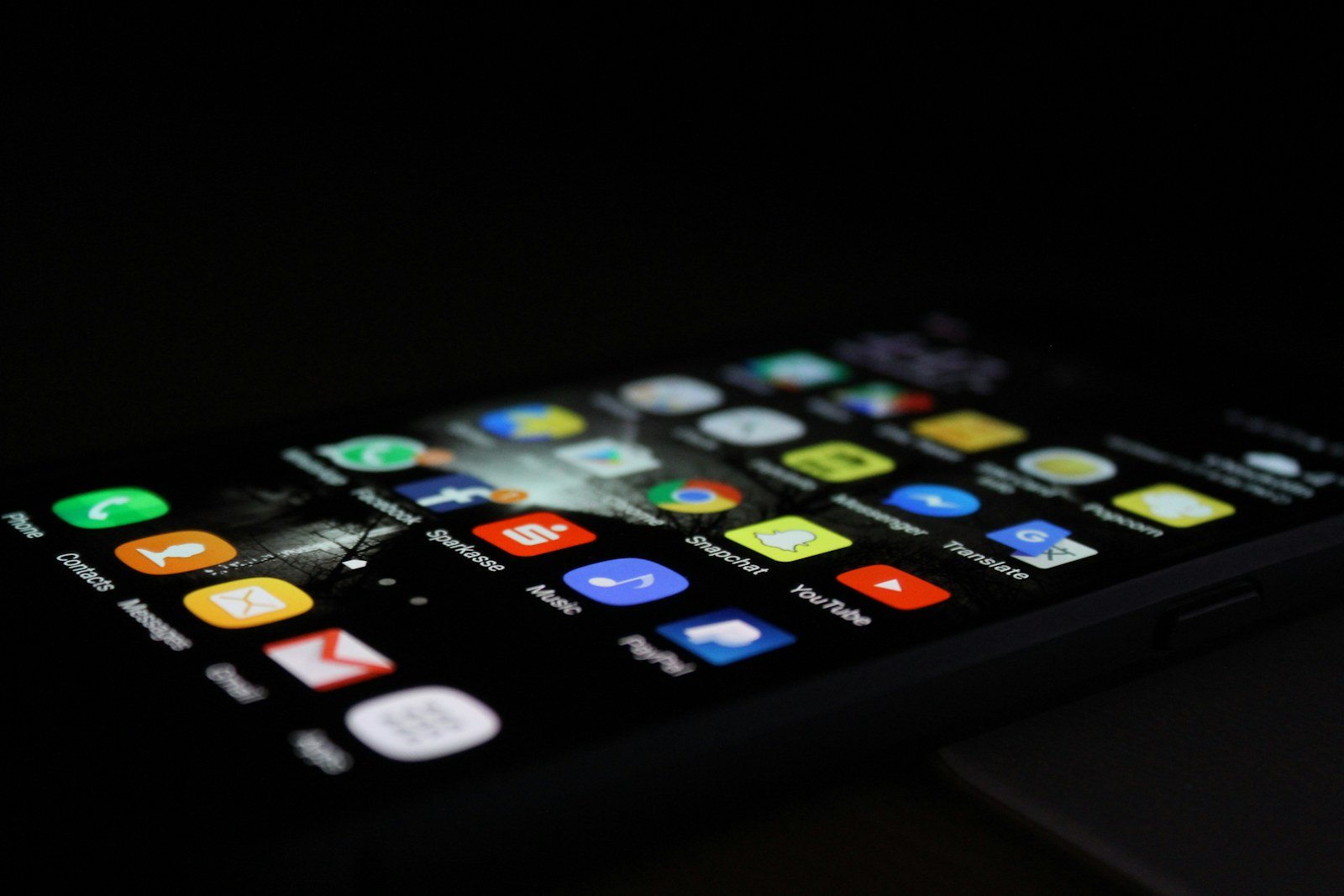
Since Android 8.0, Android has supported notification badges, also called notification dots, that appear on an app’s icon when it has an active notification. How those badges look depends largely on your home screen app, called the launcher, whether it comes from your phone maker or you install one yourself. That’s why Samsung phones can show numbers while Pixel phones show dots.
On supported launchers, you can also touch and hold an app icon to see its active notifications, sometimes with a count.
How to show notification numbers on Samsung Galaxy phones
- Open Settings.
- Tap Notifications. On newer One UI versions, tap Advanced settings next.
- Turn on App icon badges.
- Tap App icon badges (the words, not just the switch) and select Number instead of Dot. Some versions label it Show with number.
Menu names can vary slightly between One UI versions. If you can’t find it, search for badges in the Settings search bar.
Google Pixel phones
The Pixel Launcher shows notification dots on app icons, not numbers. To make sure dots are on, go to Settings > Notifications and turn on Notification dot on app icon (it may sit under General or Advanced, depending on your Android version).
Code discovered in the Android 17 QPR3 Beta 2 release suggests Google is developing numeric badges for Pixel Launcher, but that doesn’t confirm a public release.
Other Android phones
- Phones with their own launchers (for example, from OnePlus, Motorola or Xiaomi) may include a badge style option under Settings > Notifications or in the home screen settings. Touch and hold an empty spot on the home screen, open Home settings and look for badges.
- Third-party launchers from the Play Store sometimes offer numeric badges. They may need notification access, which lets them read your notification contents, including private messages. Only grant it to a launcher you trust.
Badge turned on but no number appears?
- Check the app’s own settings. Go to Settings > Apps, choose the app, tap Notifications and make sure badges or notification dots are allowed.
- Check the notification category. On supported phones, individual notification categories may have their own badge settings.
- Dismissed notifications can clear the badge. On launchers that tie badges to active notifications, clearing an app’s notifications may remove its badge even if messages are still unread.
- Counts come from the app and launcher. Apps can supply a notification count, but the launcher decides whether and how it appears.
- Restart the phone if badges look stuck after an update.
If notifications aren’t arriving at all, the problem is bigger than badges. Our guide to why your phone keeps beeping also covers how notification settings work on Android.
Frequently asked questions
How do I show the number of notifications on app icons in Android?
On Samsung phones, go to Settings > Notifications > (Advanced settings) > App icon badges and select Number. The default Pixel Launcher currently shows dots only.
Why does my Android show a dot instead of a number?
Your phone’s launcher uses dot-style badges. Samsung’s One UI launcher supports number badges, but the default Pixel Launcher currently doesn’t.
How do I see how many notifications an app has?
Touch and hold the app’s icon to see its active notifications on supported launchers. A number may not always appear.
Is the badge number the same as my unread messages?
Not always. Depending on the app and launcher, the number may count active notifications rather than every unread message.
How do I turn off notification badges?
On Samsung, turn off App icon badges in notification settings. On Pixel, turn off Notification dot on app icon. You can also turn badges off for a single app in its notification settings.
Why didn’t the badge disappear after I read my messages?
The app may still have an active notification. Open the notification shade and clear it, or open the app and mark items as read.
How we researched this guide
We based this guide on the Android Developers documentation on notification badges, Samsung’s support instructions for app icon badges and reporting on Pixel Launcher’s numeric badge setting, read on November 26, 2026. Settings vary by phone model and software version. We did not perform hands-on device testing for this guide.

Louis Mugan writes how-to and troubleshooting guides for EasyTechLife, covering Android phones, iPhones, laptops, Chromebooks, headphones and everyday software.
He aims to base each guide on official manufacturer documentation and support pages, and to link the sources so readers can check the steps for themselves. Questions or corrections? Use the contact page.