Two factor authentication on iPhone adds a second lock on top of your Apple ID password. When it is on, anyone who tries to sign in as you needs both your password and a one time verification code that goes to your trusted devices or trusted phone numbers.
That extra step matters a lot because your Apple ID controls iCloud, your photos, your messages, backups, and purchases. If someone gets into that account, they can often see far more than what is stored on the iPhone in their hand.
In this guide you will learn, in calm and simple steps, how to turn on two factor authentication, how to add and manage trusted devices and phone numbers, and what to do when things go wrong, such as losing your phone or not receiving a code. By the end, you should feel confident that your Apple account is much harder for an attacker to break into.
Key Takeaways
- Two factor authentication protects your Apple ID by requiring both your password and a time limited verification code when you sign in on a new device or browser.
- You turn it on in Settings, under your name, in the Sign In and Security section where you can enable two factor authentication and add a trusted phone number.
- Trusted devices and trusted phone numbers are what Apple uses to deliver verification codes and to confirm that it is really you.
- Common mistakes include leaving old devices as trusted, not updating phone numbers, and ignoring sign in alerts that show unfamiliar locations.
- Once set up, two factor authentication largely runs in the background but makes it much harder for stolen or leaked passwords to be used to take over your Apple account.
Insight Into Two Factor Authentication on iPhone
What two factor authentication means for Apple ID
Two factor authentication, often shortened to 2FA, is a security system that requires two separate proofs that you are who you say you are. With Apple, the first factor is your Apple ID and password. The second factor is a six digit verification code that is sent to your trusted devices or trusted phone numbers when you sign in on a new device or in a new browser. Apple Support
In practical terms, this means that even if someone guesses or steals your password, they still cannot sign in to your Apple account unless they also have access to one of your trusted devices or numbers.
Where Apple uses two factor authentication
Apple uses this two step check whenever you sign in with your Apple Account on
- iPhone
- iPad
- Mac
- Apple Watch and other Apple devices that support Apple Account sign in
- Apple websites such as the Apple account page and iCloud in a browser
The same protection applies when you make sensitive changes, such as updating your password or security settings, because Apple may ask for a verification code from a trusted device before it accepts the change.
Why this matters for everyday users
Most people keep almost everything in their Apple account today. That often includes
- iCloud Photos and videos
- Messages and iCloud backups
- Contacts, calendars, and notes
- App Store and Apple Music purchases
- Payment methods and subscriptions connected to their Apple ID
If an attacker gets into your Apple account they can see or change many of these things, even from their own device. Two factor authentication greatly reduces this risk because they would also need your physical device or a trusted phone line, not just a password taken from a data leak or a phishing message. Security organizations and consumer security guides consistently recommend two factor authentication as one of the most effective ways to protect online accounts.
Default behavior on newer Apple IDs and iOS versions
According to Apple Support, if you create a new Apple ID on a device running at least iOS 13 point 4, iPadOS 13 point 4, macOS 10 point 15 point 4, or newer, that account will automatically use two factor authentication. Apple Support
Apple also notes that you can use two factor authentication with your Apple Account if you have a device with the latest iOS, iPadOS, or macOS, or if you have access to a web browser and a phone number, although some older or special account types may remain ineligible at Apple’s discretion.
So if your iPhone is up to date and your Apple ID is relatively new, you may find that two factor authentication is already on. The next section shows how to check that status and how to enable it if it is not.
Method: Step by Step Setup Guide
This section walks you through the process in small, clear steps. If you feel nervous about changing security settings, move slowly and check each screen before you tap. There is no time pressure.
Step 01: Check your iOS version and Apple ID status
Check your iOS version
- Open Settings on your iPhone.
- Tap General.
- Tap About.
- Look for iOS Version.
Apple strongly recommends keeping iOS up to date because each release includes security fixes as well as new features. The current major iOS line is iOS twenty six, and Apple lists the latest security release under its security updates page.
If your iPhone cannot update to a very recent version, you can still use two factor authentication in most cases, but menus might look slightly different from the screenshots you see online.
Check whether two factor authentication is already on
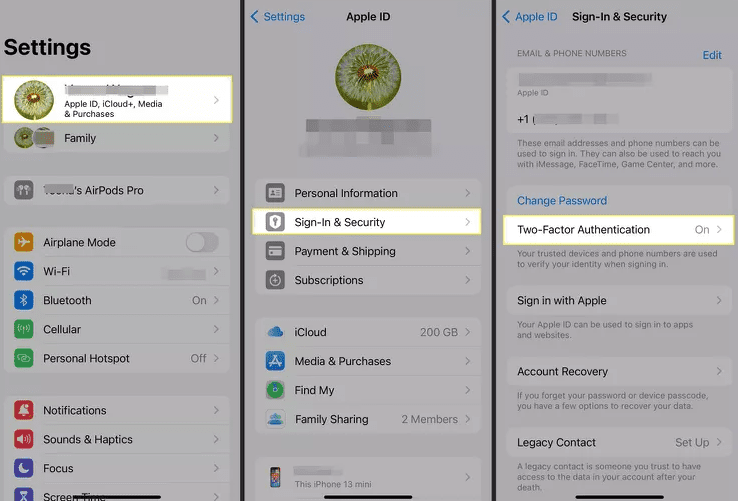
- In Settings, tap your name at the top. This opens your Apple Account page.
- Tap Sign In and Security. On some older versions you may see Password and Security instead.
- Look for Two Factor Authentication.
On recent iOS versions you should see a clear status, such as
- On, often with a short description
- Off and an option to Turn On Two Factor Authentication
If it already says On, your Apple ID is protected with two factor authentication and you can skip ahead to the sections on managing trusted devices and numbers.
If it is off or you see an option to turn it on, follow the next steps.
Step 02: Turn on two factor authentication for Apple ID on iPhone
Apple’s own instructions for turning on two factor authentication start from the Settings app.
- Open Settings.
- Tap your name at the top.
- Tap Sign In and Security.
- Tap Two Factor Authentication.
- Tap Turn On Two Factor Authentication if you see that option, then tap Continue.
If you are upgrading an older account, Apple may first ask you to confirm the answers to your security questions before it lets you continue. This is normal and is another check that you are the real owner of the account.
Enter and confirm a trusted phone number
Apple requires at least one trusted phone number during enrollment. A trusted phone number is a number Apple can use to send verification codes by text message or automated phone call when it needs to confirm your identity.
- On the two factor setup screen, enter the phone number you want Apple to use as your primary trusted number.
- Choose how you want to receive codes for this number
- Text Message
- Phone Call
For most people, a mobile number that receives text messages is the easiest option. A landline number can also be used with phone calls in many regions, but you will need to listen to the spoken code.
- Tap Next.
- A six digit verification code will arrive by the method you chose.
- Enter that six digit code on the screen.
If the code is correct, your number becomes a trusted phone number and two factor authentication is activated for your Apple Account.
From this point forward, when you sign in to your Apple account on a new device or browser, Apple will ask for both your password and a verification code sent to a trusted device or trusted number.
Step 03: Add and manage trusted devices
Apple defines a trusted device as an Apple device such as iPhone, iPad, Apple Watch, Apple Vision Pro, or Mac where you have already signed in with your Apple Account using two factor authentication. Apple treats these devices as yours and can use them to show verification codes and to approve important account changes.
How a device becomes trusted
If you already use the same Apple ID on several devices, then once you turn on two factor authentication on one device and successfully confirm a code, the others are usually marked as trusted automatically.
If you add a brand new iPhone, iPad, or Mac later on, you will see a message when you sign in for the first time that asks for a verification code. Here is what typically happens.
- On the new device, sign in with your Apple ID and password.
- One of your existing trusted devices shows a pop up with a small map and a message that someone is trying to sign in with your Apple ID from a particular location.
- If this is you, tap Allow on that message.
- A six digit verification code appears on that trusted device.
- Enter that code on the new device.
After you complete this process, the new device becomes a trusted device for future sign ins.
How to review the list of trusted devices
- On your iPhone, open Settings.
- Tap your name.
- Scroll down. You will see a list of devices signed in with your Apple ID.
Each entry typically shows the device name, model, and in many cases the last time it was used with your Apple account.
To see more details or to remove a device, tap it in the list.
Step 04: Add and manage trusted phone numbers
Adding a second or even third trusted phone number is one of the most important safety steps you can take, especially if you travel a lot, change SIM cards, or have only one device. Apple specifically suggests that you consider adding other numbers you can access, such as a home phone or a family member’s phone.
Trusted numbers are especially useful if your iPhone is lost, damaged, or unavailable. You can still receive verification codes on another number you control.
When adding a second number makes sense
Consider adding another trusted number if
- You plan to change your main mobile number soon
- Your phone is part of a family plan and another person could help you receive codes in an emergency
- You have a separate work phone that you carry often
- You have a reliable home or office landline that you trust
Steps to add a trusted phone number on iPhone
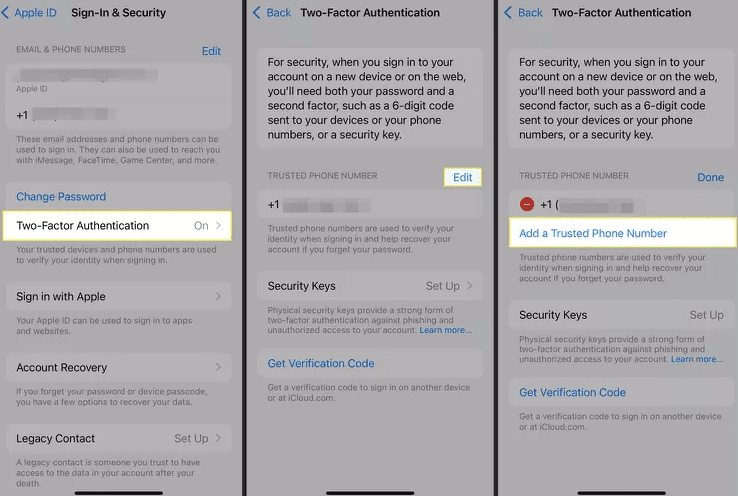
Apple’s current instructions for adding trusted phone numbers on iPhone are as follows.
- Open Settings.
- Tap your name.
- Tap Sign In and Security.
- Tap Two Factor Authentication.
- Tap Add a Trusted Phone Number. On some older iOS versions you may need to tap Edit first in the phone number section. Apple Support
- Authenticate with your device passcode, Face ID, or Touch ID if asked.
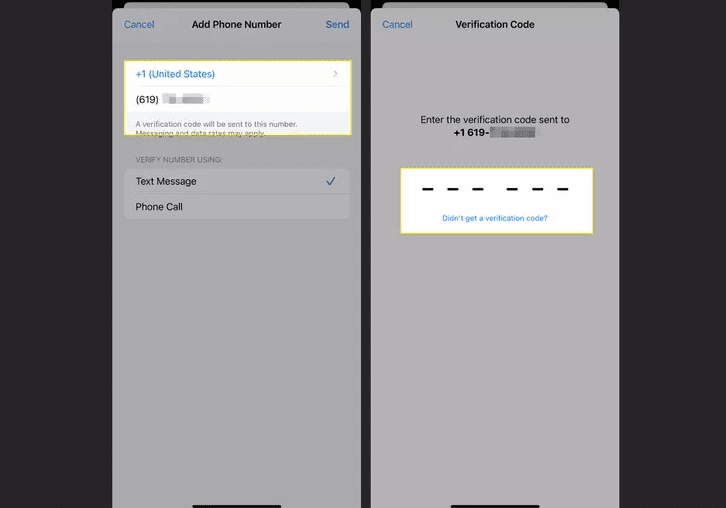
- Enter the new phone number and choose Text Message or Phone Call.
- Tap Next.
- Enter the verification code that arrives.
The new number now appears in your list of trusted phone numbers.
Remove an old or incorrect trusted number
If you change numbers or a friend’s number is no longer appropriate, you should remove it.
- Go back to Settings > your name > Sign In and Security > Two Factor Authentication.
- In the trusted numbers section, tap Edit.
- Tap the red delete icon next to the number you no longer want.
- Confirm that you want to remove it.
Always make sure there is at least one current trusted phone number that you control.
Step 05: Remove old or lost devices from your account
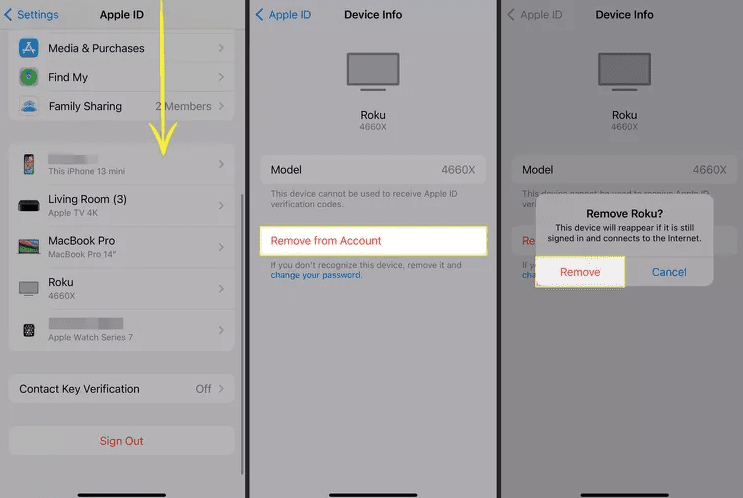
If you sell, give away, or recycle a device, you should remove it from your Apple account so it no longer counts as trusted. If you forget, the new owner might see prompts related to your Apple ID or, in some cases, request codes.
To remove a device from your account
- Open Settings on your current iPhone.
- Tap your name.
- Scroll down to the list of devices.
- Tap the device you no not use any more.
- Tap Remove from Account.
- Confirm your choice.
This does not erase the device, but it disconnects it from your Apple ID. Before you hand a device to someone else, you should also sign out of iCloud on that device and erase all content in Settings, so your personal data is fully removed.
Step 06: Handle sign in codes in common situations
If you do not receive a code
Sometimes the verification code does not arrive right away. Here are practical checks and solutions based on Apple’s own guidance.
- Wait a short time, since network delays can slow delivery.
- If you are expecting a text message, check that your phone has a mobile signal and can receive SMS messages.
- If you have message filtering that hides unknown senders, make sure time sensitive messages are still allowed so Apple’s code appears.
- On the sign in screen, look for an option such as Did not get a code and choose to resend it or to receive a phone call instead.
If you still do not get a code automatically but you have another trusted Apple device with you, you can usually generate a code manually.
- On the trusted device, open Settings.
- Tap your name.
- Tap Sign In and Security or Password and Security.
- Scroll down and tap Get Verification Code.
Enter that code on the device that is trying to sign in.
If you no longer have access to the trusted number
If you changed phone numbers and forgot to update your trusted numbers, you may not receive codes on that line any more. In that case
- See if you still have any trusted device signed in, such as a Mac, iPad, or an older iPhone on Wi Fi. You can often generate a code using Get Verification Code as described above.
- If you cannot access any trusted device or trusted number, you will need to go through Apple’s account recovery process, which may take some time and can require additional verification. Apple does this to stop attackers from easily resetting accounts they do not own.
Because account recovery can be slow, it is wise to set up more than one trusted number while you still have full access.
Key Benefits and Advantages of Using Two Factor Authentication on iPhone
- Stronger protection for Apple ID and iCloud data
When two factor authentication is on, a password alone is not enough to get into your Apple account, which is a significant security improvement over password only logins. - Reduced risk from stolen or leaked passwords
Password reuse and data breaches are common. Even if your Apple ID password appears in a leak, an attacker still needs a second factor that they usually cannot reach. - Extra safety for photos, contacts, messages, and backups
iCloud can store your photo library, device backups, and app data. Two factor authentication makes it much harder for someone to quietly sign in to iCloud from their own computer and browse through your private information. - Safer purchases and subscriptions
Your Apple ID often holds payment cards and subscriptions. With two factor authentication, a bad actor has a much harder time signing in from a new device and making unauthorized purchases. - Peace of mind across multiple devices
If you use the same Apple ID on an iPhone, iPad, and Mac, you gain protection across all of them. You will see clear alerts whenever a new device tries to sign in, and you have a chance to block suspicious attempts.
Mistakes to Avoid
Forgetting to update trusted numbers
If you change your phone number and forget to update it under trusted phone numbers, you may lock yourself out later when Apple tries to send codes to your old line. The better practice is to add your new number as a trusted number before you stop using the old one, then remove the old number once you have tested that codes reach the new one.
Ignoring unfamiliar sign in prompts
If you see a sign in alert on your iPhone that shows a location or device you do not recognize, do not tap Allow just to get rid of the message. This may be a real attack where someone has your password and is trying to add a new device. Instead tap Do Not Allow, change your Apple ID password, and review your trusted devices.
Leaving old devices in the trusted list
When you sell or give away an old iPhone or iPad, leaving it in your list of devices can cause confusion and can slightly increase risk if you did not erase it fully. Always remove it from your Apple account and erase it before handing it over.
Storing codes where others can see them
Verification codes are meant to be used once and then forgotten. Taking screenshots, writing them on sticky notes near shared computers, or typing them into chat messages can create new risks. Never share a verification code with anyone, not even someone who claims to be from Apple Support. Recent real world scams have involved attackers calling users, sending real Apple codes, then asking the user to read those codes aloud into a fake support site.
Relying on a single trusted device
If you only have one trusted device and it is lost, broken, or stolen, you may face a complicated recovery. Where possible, sign in on at least one additional Apple device that you keep in a safe place, or add a trusted phone number that belongs to a family member you trust.
Expert Tips and Real Life Style Examples
How to guide a family member through setup
If you are helping a parent or friend, simple phrases can reduce anxiety, such as
- “We are just adding a second lock to your Apple account so that thieves cannot get in with only a password.”
- “If a pop up ever appears and you were not trying to sign in, always tap do not allow and tell me.”
Walk them through each Settings screen slowly and ask them to read the title at the top out loud so you know you are both in the same place.
Examples of two factor authentication blocking unwanted access
Security reports frequently show that accounts with two factor authentication are much less likely to be taken over in large password leak incidents, because attackers cannot get past the second factor.
A common real world pattern is that someone reuses their email and password on many sites. One of those sites is breached. Attackers try the same combination on Apple’s login page. With two factor authentication off, they might get in quietly. With two factor authentication on, they would be stopped by the verification code step and you would see an unexpected sign in prompt, which gives you a chance to change your password right away.
Tips for frequent travelers and dual SIM users
If you travel often or change SIM cards
- Keep at least one trusted phone number that does not depend on the SIM you swap most often. For example a home landline or a relative’s mobile number.
- When roaming is expensive or unreliable, rely more on verification codes shown directly on trusted devices through Wi Fi. These do not depend on mobile SMS networks.
Suggestions for less technical users
For people who do not feel confident with technology
- Set up two factor authentication together in person, and write down a simple one page note that says which device is trusted and which relative to call if they see a sign in alert they do not understand.
- Add a trusted phone number for a close family member who is willing to help in emergencies, but explain clearly that verification codes must only ever be typed into Apple’s own sign in screens, never into links sent by text or email.
Frequently Asked Questions
Q1: Can I turn off two factor authentication on my iPhone and Apple ID
For most Apple IDs that use two factor authentication, Apple does not allow you to turn it off after an initial grace period. Apple’s guidance explains that if you already use two factor authentication, you generally cannot disable it, because many current features depend on that extra security. There is usually a window of about two weeks right after you enroll where you may be able to revert using a link in the confirmation email, but after that the setting becomes permanent for that account. Apple Support Community
Q2: What happens if I lose my iPhone and do not have any trusted device
If you lose your only trusted device and do not have any trusted phone numbers, signing in will be difficult. Your best options are
- Try to access any other Apple device where you might still be signed in, such as a Mac or iPad stored at home, and use Get Verification Code there.
- If no trusted device or number is available, start account recovery from Apple’s official account page. Apple may ask for additional information and the process can take time because they need to be very sure the account belongs to you.
This is why adding extra trusted numbers and devices in advance is so important.
Q3: How do I change my trusted phone number if I no longer have the old number
If you still have access to a trusted device
- Open Settings and go to your name > Sign In and Security > Two Factor Authentication.
- Add your new number as a trusted phone number and verify it with a code.
- Once the new number appears in the list and you have tested it, remove the old number.
If you cannot receive codes on either the old or the new number and you have no trusted device, you will need to use Apple’s account recovery process.
Q4: Do I need two factor authentication on every Apple device or only on my iPhone
Two factor authentication is tied to your Apple Account, not to a single device. Once it is on, it protects sign in on all supported devices and Apple websites that use that account. Each device where you sign in can become a trusted device that can receive verification codes and approve sign in attempts.
Q5: Why do I not get a code when I try to sign in with my Apple ID
There are several common reasons
- The trusted device is offline or has notifications restricted in a way that hides Apple sign in prompts.
- Your trusted phone number is no longer active, so text messages and calls do not arrive.
- You have screened unknown senders in Messages without allowing time sensitive messages, so Apple’s verification codes are hidden.
In these cases, try the Did not get a code option, use Get Verification Code on another trusted device, or update your trusted numbers once you regain access.
Conclusion
Two factor authentication adds a powerful extra lock to your Apple ID. By requiring both your password and a short verification code from a trusted device or phone number, it makes it much harder for attackers to take over your Apple account using stolen or guessed passwords.
The core steps are straightforward. You check your iOS version, go into Settings under your name, turn on two factor authentication, confirm at least one trusted phone number, and then review your trusted devices and numbers so that only devices you control can approve sign ins. Once everything is in place, you will only notice two factor authentication when you sign in on a new device or make a sensitive change.
After setup, the system mostly works quietly in the background, but it provides real protection for your photos, messages, purchases, and backups. From time to time, it is worth opening Settings to review your trusted devices and phone numbers, removing anything you no longer use and adding a backup option in case your main phone is lost.
If you have been putting this off, take a few minutes today to turn on two factor authentication and lock down your Apple ID before someone else tries to use it.

Louis Mugan is a seasoned technology writer with a talent for turning complicated ideas into clear, practical guidance. He focuses on helping everyday readers stay confident in a world where tech moves fast. His style is approachable, steady, and built on real understanding.
He has spent years writing for platforms like EasyTechLife, where he covers gadgets, software, digital trends, and everyday tech solutions. His articles focus on clarity, real-world usefulness, and helping people understand how technology actually fits into their lives.
Outside of his regular columns, Louis explores emerging tools, reviews products, and experiments with new tech so his readers don’t have to. His steady, friendly approach has made him a reliable voice for anyone trying to keep up with modern technology. get in touch at louismugan@gmail.com