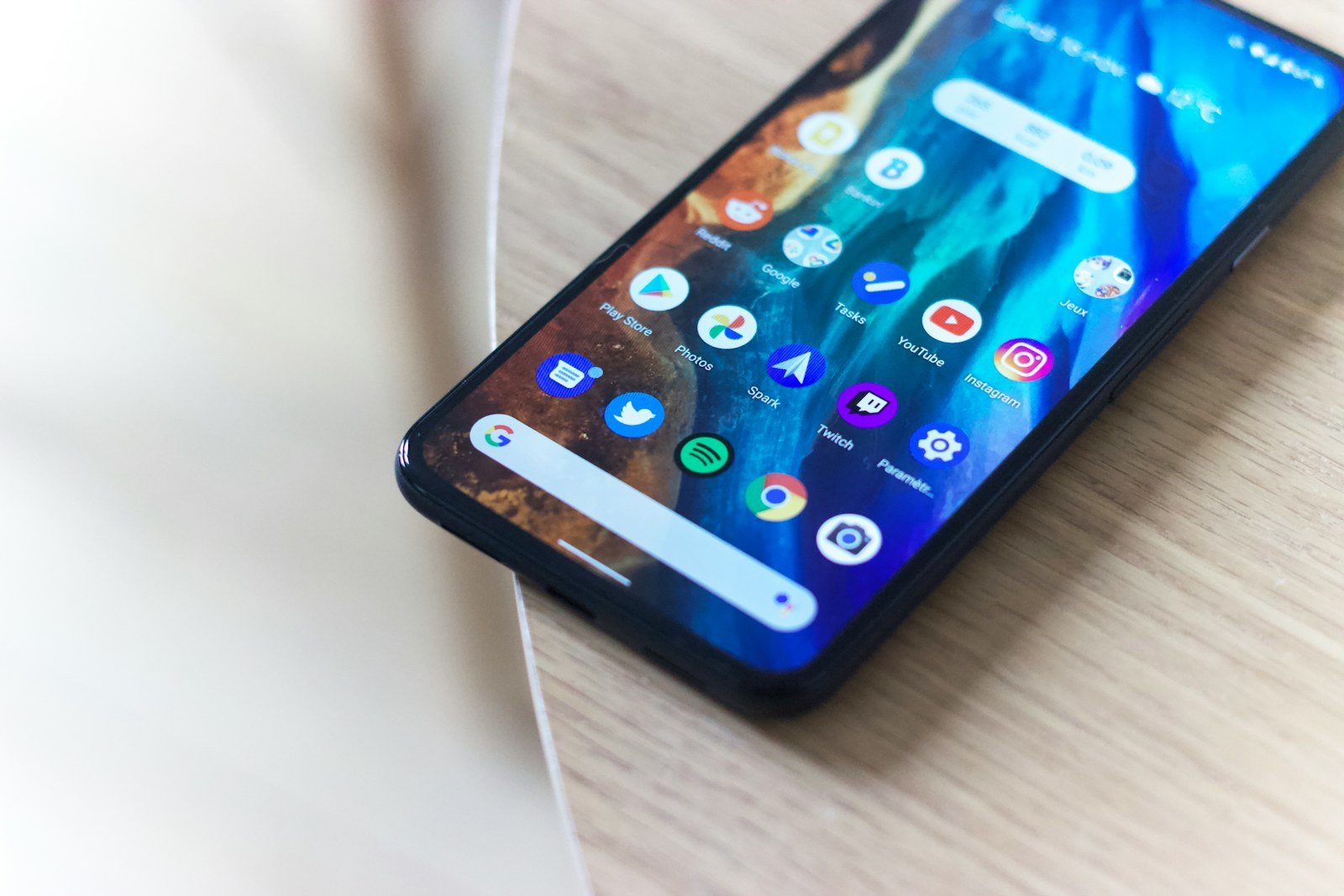
The names under your Android app icons have vanished, and now your home screen is just a grid of pictures. Or maybe you want the opposite: a clean home screen with no text at all. On newer Samsung and Pixel phones, app names are now a setting you can switch on and off.
Quick answer: On a Samsung Galaxy phone with One UI 7 or later, go to Settings > Home screen and turn App labels on to show app names (or off to hide them). On a Google Pixel running Android 17, touch and hold an empty spot on the home screen, tap Wallpaper & style, go to Icons > Names, turn Show app names on or off and tap Apply. On other phones, check your launcher’s home screen settings.
Why app names disappeared on Android
- The app labels setting was turned off. Samsung added a toggle in One UI 7, and Pixel added one in Android 17. Check whether it’s switched off, especially if you recently changed your home screen, theme or launcher.
- Your launcher hides them. Some third-party launchers and themes hide labels by default.
- Grid size or icon size changed. Some launchers change how labels appear when you adjust the icon size or grid layout.
- Easy mode or a simplified layout. Some simplified home screen modes use a different layout with fewer customization options.
- Names were shortened, not removed. With One UI 6, Samsung shortened some of its app names, removing “Samsung” and “Galaxy” from labels like Samsung Notes, which now shows as Notes.
How to show or hide app names on Samsung Galaxy phones
- Open Settings.
- Tap Home screen. You can also touch and hold an empty spot on the home screen and tap Settings.
- Turn App labels on to show app names, or off to hide them.
- If widget names are missing too, turn on Widget labels.
These options are available on One UI 7 and later. Older One UI versions may not have a dedicated App labels toggle, so check your theme or launcher instead.
How to show or hide app names on Google Pixel phones
- Touch and hold an empty spot on your home screen.
- Tap Wallpaper & style.
- Go to Icons, then Names.
- Turn Show app names on to show names, or off to hide them.
- Tap Apply.
App names stay visible in the app drawer either way.
This setting arrived with Android 17, which Google began rolling out to eligible Pixel phones in June 2026. If you don’t see it, check for an update in Settings > System > Software updates.
Other Android phones and launchers
- Touch and hold an empty part of the home screen, open the home screen or launcher settings, and look for options such as Labels, Icon labels or Show app names.
- If you use a third-party launcher, open that launcher’s own settings. Labels are often under icon or layout options.
- Try a different grid size or a smaller icon size if labels still don’t fit.
- Switch back to your phone’s default launcher in Settings > Apps > Default apps > Home app to rule out a launcher problem.
App names still missing?
- Restart your phone to reload the home screen.
- Check Easy mode. If you use Easy mode or another simplified layout, see whether the standard layout shows labels. Keep the simplified mode if you rely on its accessibility features.
- Reset a theme or icon pack that may be hiding labels.
- Install updates for your system and launcher.
Want to customize your home screen further? See our guide to the notification numbers on Android app icons.
Frequently asked questions
How do I show app names on my Android home screen?
On Samsung, go to Settings > Home screen and turn on App labels. On Pixel with Android 17, go to Wallpaper & style > Icons > Names, turn on Show app names and tap Apply. Other phones may have similar options, depending on the launcher.
Why did my app names disappear after an update?
An update may have changed your home screen layout or launcher settings. Check whether your launcher has an app label option and whether it’s switched on.
Can I hide app names on Android?
Yes. On Samsung One UI 7 and later, turn off App labels. On Pixel with Android 17, turn off Show app names in Wallpaper & style > Icons > Names.
Why are some Samsung app names shorter?
Since One UI 6, Samsung shows shorter names for some of its apps on the home screen, such as Notes instead of Samsung Notes. The app itself hasn’t changed.
Can I show app names in folders only?
It depends on your launcher. Some let you control folder labels separately from home screen labels.
How we researched this guide
We based this guide on Samsung’s support page on simplified app names in One UI 6, reporting on One UI 7’s app label settings and Google’s Android 17 feature overview, read on November 27, 2026. Settings vary by phone and software version. We did not perform hands-on device testing for this guide.

Louis Mugan writes how-to and troubleshooting guides for EasyTechLife, covering Android phones, iPhones, laptops, Chromebooks, headphones and everyday software.
He aims to base each guide on official manufacturer documentation and support pages, and to link the sources so readers can check the steps for themselves. Questions or corrections? Use the contact page.