Sending a long YouTube video and telling someone to “skip to 12:40” works, but a timestamp link is easier. When they open it, the video starts at the exact moment you picked. You can make one on a computer or in the YouTube app on your phone.
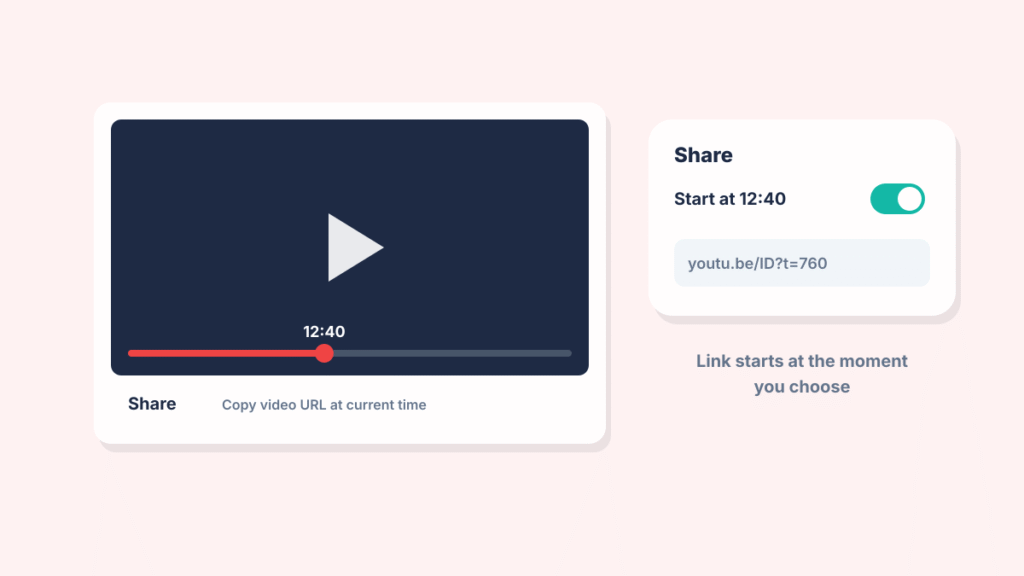
Quick answer: On a computer, pause the video where you want it to start, click Share, check Start at and copy the link. You can also right-click the video and choose Copy video URL at current time. In the YouTube app on iPhone or Android, pause at the right moment, tap Share, turn on the timestamp toggle at the top of the share menu, then tap Copy link.
How to link to a specific time on a computer
Use the Share button
- Open the video on youtube.com and play it to the moment you want to share.
- Pause the video.
- Click Share below the video.
- Check the box next to Start at. It fills in the current time automatically. You can also type a different time, like 2:15 or 1:03:20.
- Click Copy and paste the link wherever you want.
Use right-click
- Pause the video at the right moment.
- Right-click the video player itself.
- Choose Copy video URL at current time.
The link is now on your clipboard, ready to paste.
How to link to a specific time in the YouTube app
YouTube added a timestamp option to its iPhone, iPad and Android app in 2026, so you no longer need to edit the link by hand.
- Open the video in the YouTube app.
- Play or scrub to the moment you want and pause.
- Tap Share.
- In the share menu, turn on the toggle that shows the current time (for example, 2:30). It’s at the top of the menu.
- Tap Copy link, or choose an app to share it with directly.
In the app, you can’t type a different time in the share menu. It always uses where the video is paused, so get the timing right before you tap Share. If you don’t see the toggle, update the YouTube app and try again.
Add the time to the link yourself
This method works anywhere, including on older app versions. It’s just a matter of adding a time to the end of the link.
- For a full link like youtube.com/watch?v=VIDEOID, add &t= followed by the time. Example: youtube.com/watch?v=VIDEOID&t=90s
- For a short link like youtu.be/VIDEOID, add ?t= followed by the time. Example: youtu.be/VIDEOID?t=90
If the short link you copied already has a question mark in it (for example, ?si= followed by letters), add &t=90 to the end instead.
| Time you want | What to add |
|---|---|
| 45 seconds | t=45s or t=45 |
| 1 minute 30 seconds | t=1m30s or t=90 |
| 12 minutes 40 seconds | t=12m40s or t=760 |
| 1 hour 3 minutes 30 seconds | t=1h3m30s or t=3810 |
How to add clickable timestamps in comments and descriptions
In a YouTube comment or a video description, type a time like 4:12 or 1:02:45. YouTube turns it into a link automatically, and clicking it jumps to that moment in the same video. Creators can also turn description timestamps into chapters on the video’s progress bar. That needs at least three timestamps in order, starting at 0:00, with each chapter at least 10 seconds long.
How to make an embedded video start (and stop) at a set time
If you embed a YouTube video on a website, add start to the embed link to set where it begins. The value is in seconds. For example, youtube.com/embed/VIDEOID?start=90 starts at 1:30. You can also add &end=120 to stop playback at 2:00. Ending at a set time only works in embeds, not in regular share links.
What happened to YouTube Clips?
YouTube used to have a Clips feature that let viewers share a 5- to 60-second section of a video. YouTube stopped letting viewers make new Clips in 2026 and pointed people to timestamp sharing instead. Timestamp links pick a starting point only. The full video still plays from there.
Frequently asked questions
How do I set a YouTube link to a specific time?
Pause the video at the right moment, click Share, check Start at and copy the link. On a phone, use the timestamp toggle in the share menu.
Why does my YouTube timestamp link start from the beginning?
The time may be missing or in the wrong format, or it may be longer than the video. Check that the link ends in something like t=90 and that you used & or ? in the right place.
Do timestamp links work for YouTube Shorts?
Shorts don’t have the same timestamp toggle as regular videos. Sharing a Short links to the Short itself, not a set moment in it.
Can I share a YouTube video that starts and stops at certain times?
Not with a regular share link. You can only set a start time. To stop at a certain time, you’d need to embed the video and use the end setting.
Does the timestamp still work if the video title changes?
Yes. The link is tied to the video’s ID, not its title, so the timestamp keeps working.
Having other trouble with YouTube? See how to fix a YouTube black screen or what to do when you can’t turn off Restricted Mode.

Louis Mugan writes how-to and troubleshooting guides for EasyTechLife, covering Android phones, iPhones, laptops, Chromebooks, headphones and everyday software.
He aims to base each guide on official manufacturer documentation and support pages, and to link the sources so readers can check the steps for themselves. Questions or corrections? Use the contact page.