
After a reset, or when you compare your phone with someone else’s, it’s natural to wonder what the “normal” iPhone Home Screen is supposed to look like. Apple provides a standard app arrangement you can restore, but it won’t recreate a Home Screen you customized yourself.
Quick answer: Apple’s default Home Screen arrangement places built-in apps first, followed by the apps you downloaded in alphabetical order, with no custom folders. The exact appearance varies by iPhone and iOS version. To return to it, go to Settings > General > Transfer or Reset iPhone > Reset > Reset Home Screen Layout.
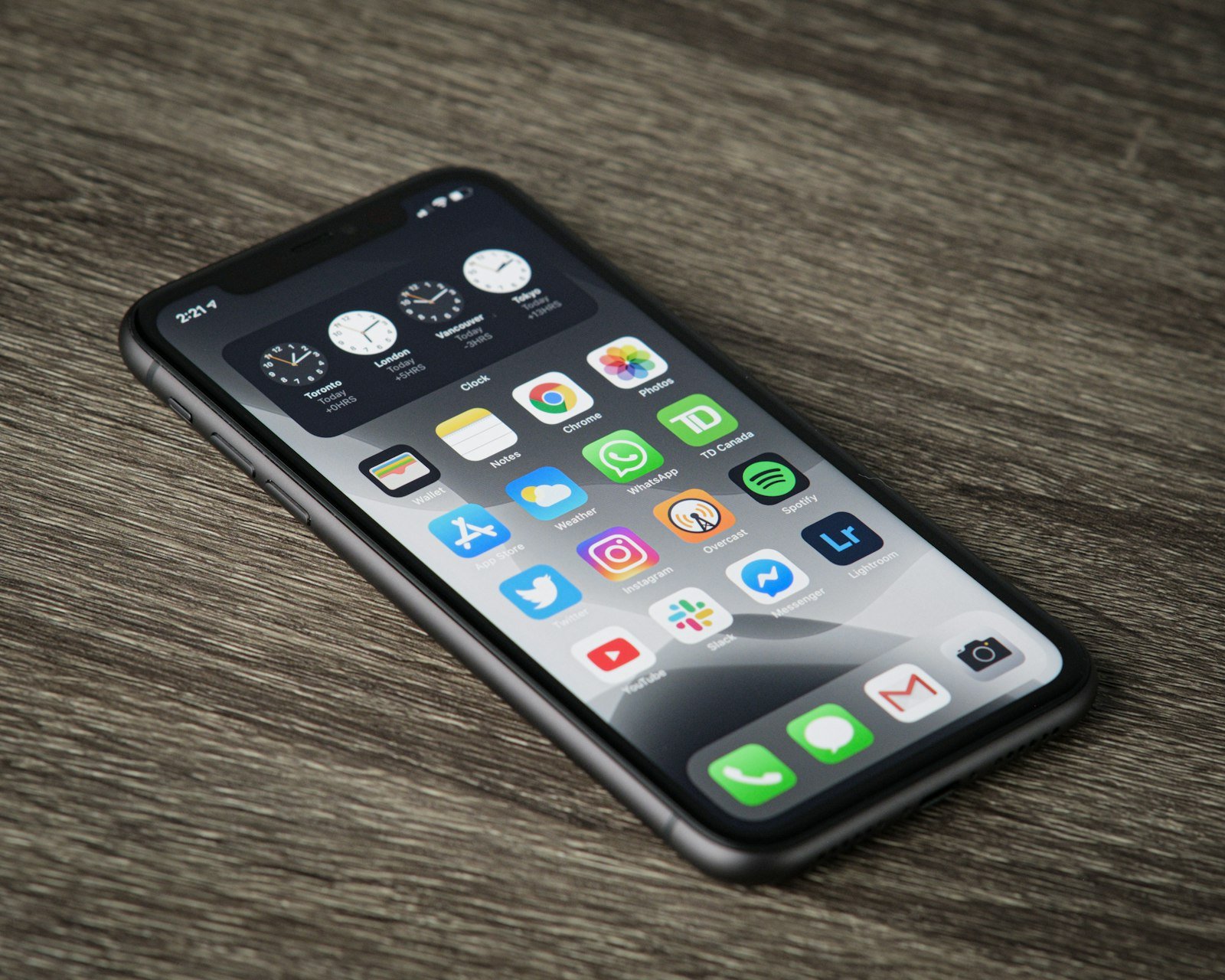
If you’re trying to fix a Home Screen that changed, our guide to restoring your iPhone Home Screen to its original layout helps you pick the right fix first.
What the default layout consists of
| Part of the screen | Default |
|---|---|
| First pages | Apple’s built-in apps in Apple’s order |
| Dock | The row at the bottom of every page for frequently used apps. Its contents may vary |
| Following pages | Downloaded apps, alphabetically after Apple’s built-in apps when you reset the layout |
| Folders | None that you created |
| After the last page | App Library, a separate view beyond your Home Screen pages that automatically organizes installed apps |
Apple’s iPhone User Guide states the rule: after a reset, folders you created are removed and downloaded apps are arranged alphabetically after the apps that came with your iPhone.
Why there’s no single list of default apps
The exact built-in apps and their arrangement can change between iOS versions and iPhone models, and regional availability may affect which Apple apps are installed. That’s why two “default” iPhones can differ slightly, and why this guide doesn’t print an icon-by-icon list that might be wrong for your phone.
What stays consistent is the logic: Apple’s apps first, your downloads after them from A to Z.
How to return to the default layout
- Take screenshots of every Home Screen page and folder you may want to recreate. Screenshots are a reference only; they don’t restore the arrangement.
- Open Settings and tap General.
- Tap Transfer or Reset iPhone, then Reset.
- Tap Reset Home Screen Layout, then Reset Home Screen.
Resetting rearranges the Home Screen and removes custom folders. It doesn’t delete installed apps or their data, but the change can’t be undone with a tap. If you used it by mistake, see what to do after an accidental Home Screen reset.
What the reset doesn’t touch
Reset Home Screen Layout is an organization reset, not a factory reset. It doesn’t erase installed apps or their data. Wallpaper, icon style and size (set in Edit > Customize), Display Zoom and accessibility settings are separate controls.
If your Home Screen still looks different after a reset, check wallpaper, icon customization, Display Zoom and accessibility settings separately. Our guide to Home Screen changes after an iOS update covers them.
Making the default layout yours again
The default is a starting point. Move your most-used apps to the Dock and first page, group the rest into folders, and hide pages you don’t need. For inspiration, see these iPhone Home Screen layout ideas.
Frequently asked questions
What is the standard iPhone Home Screen layout?
Apple’s built-in apps first, then downloaded apps in alphabetical order, with the Dock at the bottom of each page.
Is the default layout the same on every iPhone?
Not exactly. It varies with the iOS version, model and region.
Does the default layout include widgets?
Widget placement varies by iOS version and setup. Apple’s reset instructions don’t say which widgets remain or return, so don’t count on a particular widget arrangement after a reset.
How do I get missing apps back on my iPhone Home Screen?
Swipe left past your Home Screen pages to open App Library. To add an app from App Library, touch and hold its icon and drag it to the Home Screen. If the app was hidden with the Hide and Require Face ID feature, open the Hidden folder and unhide it first. More in why apps disappear.
Can I switch back to the old iPhone Home Screen design?
Reset Home Screen Layout restores Apple’s app arrangement, not an older iOS design. You can adjust icon appearance through Edit > Customize, and on iOS 27 a Liquid Glass control in Settings > Appearance adjusts transparency. Appearance settings differ by iOS version.
Can I set my own layout as the default?
No. Reset Home Screen Layout always returns to Apple’s arrangement, not yours.
How we researched this guide
This guide draws on Apple’s iPhone User Guide and Apple Support articles, reviewed on November 15, 2026. We did not test these steps on a device. Menu names and available options vary by iPhone model and iOS version.

Louis Mugan writes how-to and troubleshooting guides for EasyTechLife, covering Android phones, iPhones, laptops, Chromebooks, headphones and everyday software.
He aims to base each guide on official manufacturer documentation and support pages, and to link the sources so readers can check the steps for themselves. Questions or corrections? Use the contact page.


