

Do you want to transform your AirPods into walkie-talkies? In this guide, I will tell you all you need to know about using your AirPods as walkie-talkies, including the requirements and why it will no longer be an option in the future. Read on to learn why!
What Using AirPods as a Walkie-Talkie Really Means
While AirPods can’t be used as walkie-talkies themselves, what people are usually referring to when talking about using them as walkie-talkies is pairing them with an Apple Watch while using the Walkie-Talkie app for watchOS.
However, the Walkie-Talkie app has been discontinued, starting from watchOS 27. If you are using an earlier version of watchOS, you can still use the Walkie-Talkie app, but only if the other person hasn’t yet updated their watch to watchOS 27 either.
Both people need to be on a watchOS version that is at least watchOS 5.3 but no later than watchOS 26.6, and the watch itself needs to be an Apple Watch Series 1 or later.
As soon as you update to watchOS 27, you will no longer be able to use the Walkie-Talkie app.
Furthermore, both people need to have an iPhone running iOS 12.4 or later, and they need to have FaceTime enabled as well. Finally, the Walkie-Talkie app is not available in certain countries.
How to Use the Walkie-Talkie App
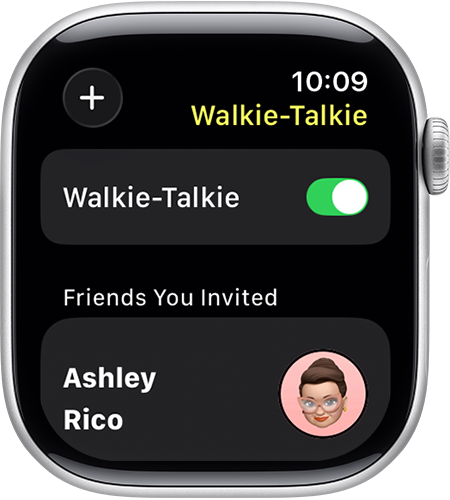
Invite your friends on the Walkie-Talkie app to communicate with them.
If you have an older version of watchOS that still supports the Walkie-Talkie app, here is how to use it:
- Open the Walkie-Talkie app on your Apple Watch.
- Scroll through your contacts and tap on a contact to send them an invitation. Once they accept, their contact card will turn yellow. Alternatively, if someone sends you an invitation, tap on Always Allow to accept it.
- Once you are connected on the Walkie-Talkie app, open the app at any time and tap on your friend’s name. Press and hold the talk button and speak. When you’re done speaking, just let go. Your friend will receive an alert when you start to speak and will be able to hear you instantly.
- If you want to use your AirPods, make sure they are paired with and connected to your Apple Watch, and you are wearing them in your ears. When you press and hold the Walkie-Talkie talk button, you will be able to speak through your AirPods.
Remember, you can always toggle the switch off within the Walkie-Talkie app to turn it off when you are unavailable, so your friend can’t reach you.
Walkie-Talkie vs. Live Listen: What’s the Difference?
Live Listen is a feature for AirPods that is still available and has not been discontinued. However, it serves a different purpose than the Walkie-Talkie app did.
With Live Listen, you can use your iPhone or iPad as a microphone for your AirPods from across the room.
For example, let’s say you are at a convention or event, and there is a guest speaker. However, it is also slightly noisy, or you are far away, and you can’t hear the speaker.
You can place your iPhone next to the speaker and then go back to your seat at the back of the room. Your iPhone will act as a microphone, transmitting audio to your AirPods in real time as the speaker speaks.
The first step is to add Live Listen to your Control Center, so you can access it easily. To do that, just open the Control Center, tap on the plus icon, select “Add a Control,” and then select Live Listen under Hearing Accessibility (or search for “Live Listen” in the search bar to find it easily).
Once it’s in the Control Center, using Live Listen is easy. First, put your AirPods in your ears and make sure they are paired with and connected to your iPhone.
Then, open the Control Center and tap on Live Listen. Finally, put your iPhone in front of the speaker, adjusting the volume until the volume on your AirPods is clear.
Troubleshoot Common Problems With Walkie-Talkie
If Walkie-Talkie isn’t working, the most likely reason is that you or your friend do not meet the requirements.
Remember, for Walkie-Talkie to work, both you and your friend need to have both an Apple Watch and an iPhone that meet the minimum and maximum system requirements, and you both need to have FaceTime enabled on your phones and live in a country where the app is supported. As soon as one of you upgrades to watchOS 27, it will no longer work.
Furthermore, both of you need to be friends on Walkie-Talkie (make sure to accept pending invitations), and Walkie-Talkie needs to be enabled, with the switch toggled on within the app.
Double-check that you meet the requirements, and consider looking for alternatives so you can upgrade to watchOS 27 for the latest security updates and features.
Use iPhone Alternatives to Walkie-Talkie
Since Walkie-Talkie has been discontinued and is no longer available with current watchOS versions, it’s a good idea to consider some popular alternatives.
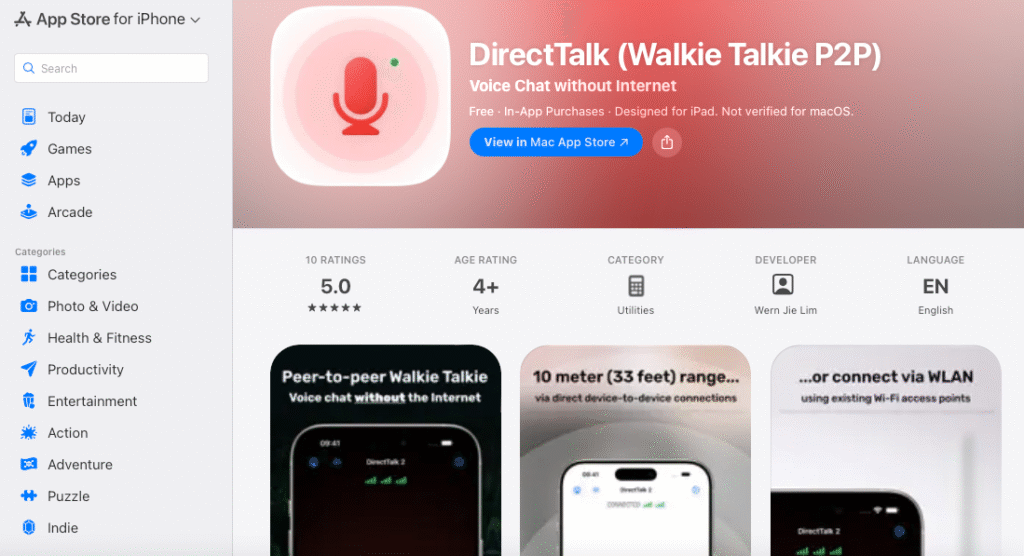
I personally recommend DirectTalk, which is an iOS app that turns your iPhone into a walkie-talkie. It doesn’t even require an internet connection, mimicking a true walkie-talkie.
It uses your phone’s Wi-Fi antennas to communicate and requires you and your friend to be within 33 feet (10 meters) of each other for the best experience.
It can also communicate with devices connected to the same WLAN (Wi-Fi network), even if you are further than 33 feet away, but the signals are not transmitted over the internet but rather over your local network, and thus the app does not require an internet connection.
Not only does DirectTalk support Push To Talk, but it also supports hands-free, voice-activated communication.
What if you need something that works over a longer range? RockyTalkie works offline and still allows you to communicate up to 600 feet away. However, it is not free, although it does offer a seven-day trial.
If you need something that can communicate over the internet, even beyond standard walkie-talkie range, try Walkie Cloud. It’s free to use!
Conclusion
I hope this guide was helpful! Unfortunately, the Walkie-Talkie app has been discontinued. However, you can still use various third-party apps on your iPhone and pair them with your AirPods to use your AirPods as walkie-talkies. I recommend DirectTalk for offline, close-range communication, Rocky-Talkie for offline, longer-range communication up to 600 feet, and Walkie Cloud for a cloud-based walkie-talkie app that works over the internet.

Louis Mugan is a seasoned technology writer with a talent for turning complicated ideas into clear, practical guidance. He focuses on helping everyday readers stay confident in a world where tech moves fast. His style is approachable, steady, and built on real understanding.
He has spent years writing for platforms like EasyTechLife, where he covers gadgets, software, digital trends, and everyday tech solutions. His articles focus on clarity, real-world usefulness, and helping people understand how technology actually fits into their lives.
Outside of his regular columns, Louis explores emerging tools, reviews products, and experiments with new tech so his readers don’t have to. His steady, friendly approach has made him a reliable voice for anyone trying to keep up with modern technology. get in touch at louismugan@gmail.com