If your Vizio TV keeps switching inputs, the fix depends on when it happens. If it opens SmartCast (Vizio Home) every time you turn it on, go to System > Input at Power On and choose Last Used TV Input. If it jumps to a different HDMI input while you’re watching, one of the most common causes is a connected device taking over through HDMI-CEC, which you can turn off on the TV or on that device.
Below are 7 fixes in the order to try them, from a 30-second settings change to a factory reset. You’ll also find how to keep the TV on HDMI 1 and how to tell when the problem is hardware.
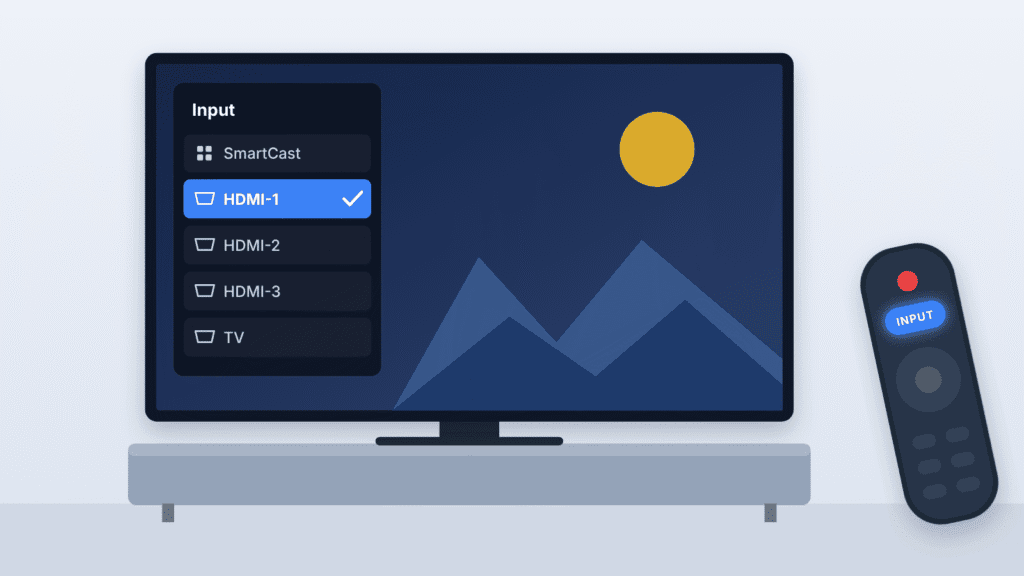
Why does my Vizio TV keep switching inputs?
A Vizio TV changing inputs by itself is almost never random. It’s usually following a setting or a signal, and the timing tells you which one. Match what you see to the table, then jump to that fix.
| What you see | Most likely cause | Start with |
|---|---|---|
| TV opens SmartCast or Vizio Home every time you turn it on | Input at Power On is set to SmartCast, which Vizio’s manual lists as the default | Fix 1 |
| TV lands on SmartCast at power-on even though Last Used TV Input is set | The connected device was off or still booting, so the last input had no signal yet | Fix 1 (see “Still opening SmartCast”) |
| TV jumps to SmartCast when your computer or streaming stick goes to sleep | TechHive reported some models falling back to SmartCast when the input loses its signal | Fix 1 |
| TV jumps to another HDMI input while you’re watching | A connected device (streaming stick, console, cable box, soundbar) sent an HDMI-CEC command to take over the screen | Fix 2, then Fix 3 |
| TV switches when you press a button on a Roku, Fire TV or cable remote | That device’s one-touch play feature is telling the TV to switch to its port | Fix 3 |
| The input menu pops up and scrolls through inputs on its own | A stuck Input button on the remote or on the TV itself | Fix 4, then the hardware section |
| Picture drops and the input changes at random, often on one port | A loose or failing HDMI cable or port making a device disconnect and reconnect | Fix 5 |
What is HDMI-CEC?
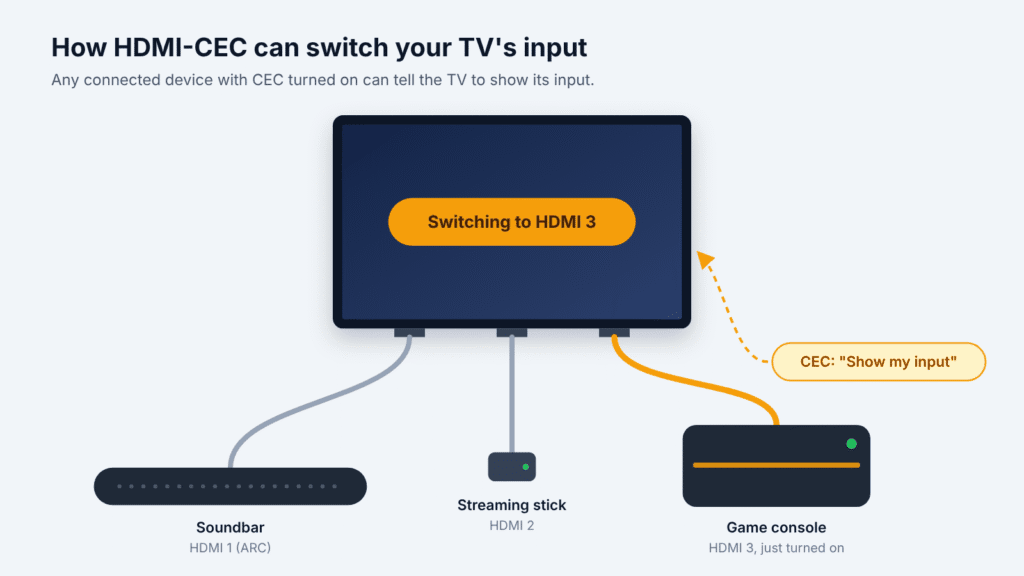
HDMI-CEC (Consumer Electronics Control) lets devices connected over HDMI control each other. It’s why your TV remote can change your soundbar’s volume, and why turning on a PlayStation can turn on the TV. Vizio simply calls it CEC in its menus.
The side effect is that any CEC device can tell the TV to switch to its input, at any time. A streaming stick waking up, a console updating overnight, or a cable box restarting can all pull your Vizio TV away from what you were watching.
Fix 1: Stop your Vizio TV switching to SmartCast at startup
If your Vizio TV keeps switching to SmartCast every time you turn it on, it’s doing what it was told. The Input at Power On setting decides which input the TV opens on, and Vizio’s 2022 V-Series manual lists SmartCast as the default.
- Press Menu on the Vizio remote. On some remotes this is a gear icon.
- Open System. On some models it’s under All Settings > System.
- Select Input at Power On.
- Choose Last Used TV Input. If your model lists inputs by name, you can pick one directly, such as HDMI-1.
- Switch to the input you want, turn the TV off, wait 30 seconds, and turn it back on to test.
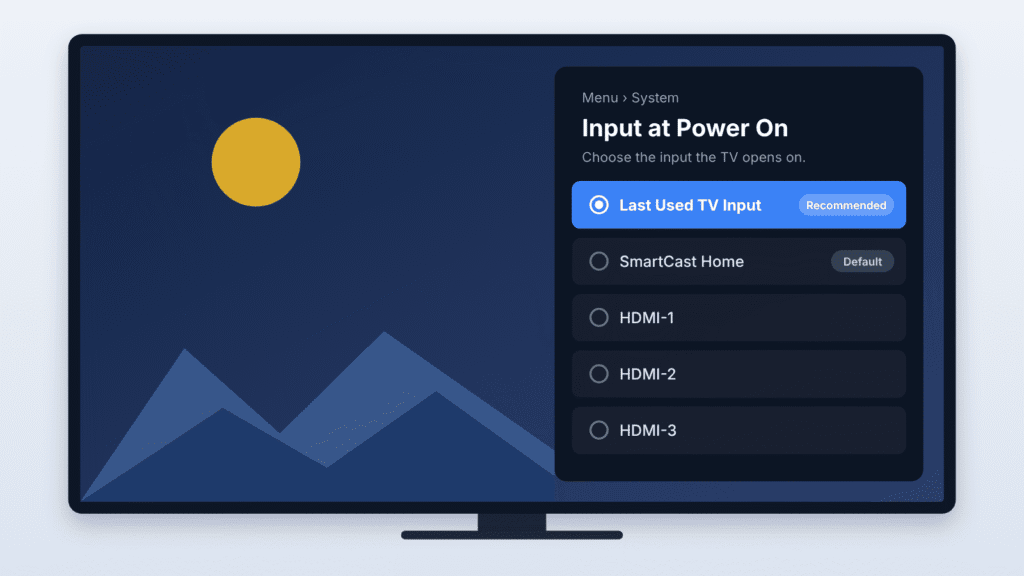
The option names vary by model and firmware. You may see Last Used Input, Previous Input or Home instead. The choice to avoid is the one labelled Vizio Home, Home, SmartCast or Automatic.
Still opening SmartCast after changing the setting?
The last-used input probably had no signal when the TV started. If a cable box, console or streaming stick is still booting when the TV starts, the TV may fall back to SmartCast. TechHive reported this after Vizio’s late-2021 update, and it may not apply to every model. Two ways to fix it:
- Turn your device on first, wait 5 to 10 seconds, then turn on the TV.
- Keep a streaming stick powered. A stick powered from the TV’s USB port shuts down with the TV and has to boot every time. Plug it into its own wall adapter, or look under System for USB Power and set it to Always On, where your model offers it.
Fix 2: Turn off CEC on your Vizio TV
If the input changes while you’re watching, turning off CEC is the quickest test. It stops every connected device from switching the TV at once.
- Press Menu on the remote.
- Go to System > CEC.
- Set CEC to Disable (on older models, Off).
- Watch normally for a day. If the switching stops, a CEC device was the cause.
Before you leave it off: CEC also runs a soundbar or receiver connected to the TV’s HDMI ARC or eARC port. With CEC disabled, your Vizio remote may stop controlling the soundbar’s volume and power. If you rely on that, turn CEC back on and use Fix 3 to silence only the device causing the problem.
Fix 3: Turn off auto-switching on the device that takes over
Most streaming players, consoles and cable boxes have their own one-touch play setting that tells the TV to jump to their input. Turning it off on that one device stops the switching while CEC keeps working for everything else.
| Device | Setting to turn off | Where to find it |
|---|---|---|
| Roku | 1-touch play | Settings > System > Control other devices (CEC) |
| Amazon Fire TV | HDMI CEC Device Control | Settings > Display & Sounds |
| Apple TV | Control TVs and Receivers | Settings > Remotes and Devices |
| PlayStation 5 | Enable One-Touch Play (or Enable HDMI Device Link to turn off all linking) | Settings > System > HDMI |
| Xbox Series X|S | HDMI-CEC options | Settings > General > TV & display options > Device control |
| Nintendo Switch | Match TV Power State | System Settings > TV Settings |
| Verizon Fios box | TV Input Control | Menu > Settings > Audio & Video > Video Settings |
Other cable and satellite boxes usually call it TV input control or HDMI-CEC in their settings menu. These menu paths were checked against each maker’s support pages or recent guides in October 2026, and they can change with software updates. On some Xbox software versions, the same options sit under Settings > General > Sleep mode & startup > TV & A/V power options.
Not sure which device it is? Unplug every HDMI cable except the one you’re watching. If the switching stops, reconnect the devices one at a time, a day apart if needed, until it starts again. The last one you plugged in is the culprit.
Fix 4: Check the remote and the TV’s own buttons
If the input list pops up and scrolls on its own, something is pressing Input. Find out what before you change any settings.
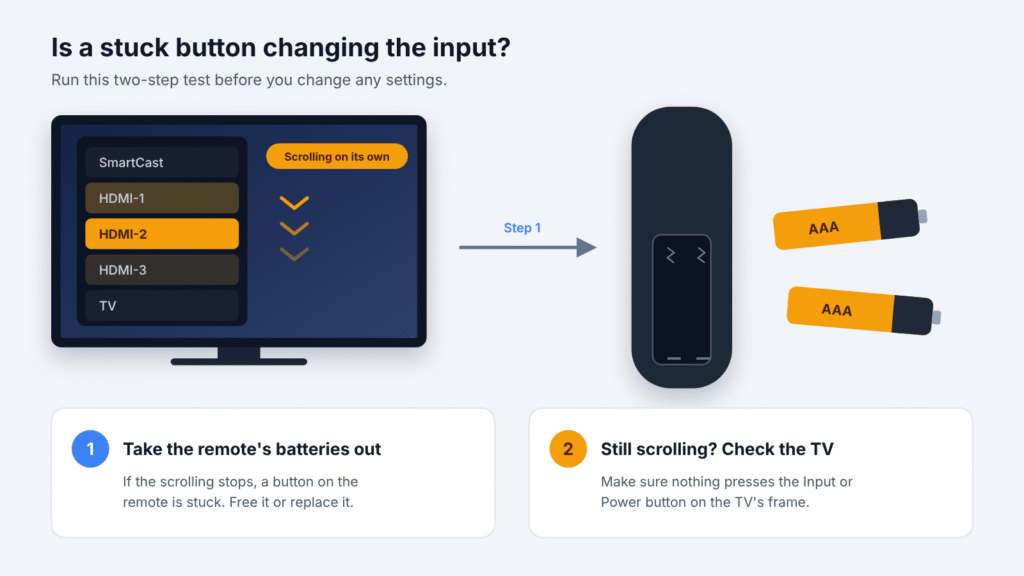
- Take the batteries out of the Vizio remote. If the scrolling stops, a button is stuck. Press every button firmly a few times to free it, then put the batteries back. If it starts again, replace the remote.
- Check other remotes. A cable or universal remote programmed for your TV can send input commands too. Remove its batteries for the same test.
- Check the buttons on the TV. On many Vizio models, a single button under the front sensor turns the TV on and moves to the next input with each press. Make sure a wall mount, stand, cable or object isn’t resting against it or the side buttons.
If the input still keeps scrolling with no remote in range and nothing touching the TV, skip to the hardware section below.
Fix 5: Reseat HDMI cables and power cycle everything
A cable that loses contact makes a device drop off and reconnect, and the reconnect can trigger an input change. A full power cycle also clears temporary glitches in the TV and the devices.
- Turn off the TV and every connected device.
- Unplug them all from the wall, including the soundbar.
- Unplug each HDMI cable at both ends and push it firmly back in.
- Wait 60 seconds, then plug the TV back in first and the other devices after.
- If one port keeps causing trouble, try a different HDMI cable or another port.
To restart only the TV, use Menu > Admin & Privacy > Reboot TV. Older menus call it Soft Power Cycle under System > Reset & Admin.
Fix 6: Update your Vizio TV’s firmware
A firmware update can fix bugs that cause unwanted switching. Vizio TVs usually update on their own while connected to the internet, but you can check manually.
- Press Menu.
- Go to Admin & Privacy > Check for Updates. On older models it’s under System.
- If an update is found, confirm it and leave the TV on until it restarts.
After any update, check Input at Power On again, since an update can change it. Some guides suggest disconnecting the TV from Wi-Fi to block updates. That works, but you lose AirPlay, Chromecast and the TV’s apps, and you miss future fixes.
Fix 7: Factory reset your Vizio TV
A factory reset rules out a corrupted setting, but it erases everything: Wi-Fi, apps, picture settings and accounts. Try it only after Fixes 1 to 6.
With the remote:
- Press Menu and go to Admin & Privacy > Reset to Factory Settings. Older models use System > Reset & Admin.
- Enter your PIN if asked. The default is 0000 unless you set one.
- Select Reset and wait for the TV to restart into setup.
Without the remote: The button steps differ by model, so check your TV’s manual on Vizio’s support site or Vizio’s reset guide for SmartCast TVs before you try this. On many models, you hold Volume Down and Input on the TV for about 10 to 15 seconds, release them when an on-screen prompt appears, then hold Input for about 10 seconds to confirm. On the 2022 V-Series, which has a single Power/Input button, you hold that button for 12 seconds instead.
When setup finishes, set Input at Power On again (Fix 1) before you test.
How to make your Vizio TV stay on HDMI 1
To make your Vizio TV stay on HDMI 1, set it as the default input and stop other devices from pulling the TV away. Choosing Last Used TV Input alone only works if HDMI 1 was the last input you watched.
- Set the default input. Go to Menu > System > Input at Power On. If HDMI-1 appears in the list, select it. If you only see Last Used TV Input and Vizio Home, choose Last Used TV Input and always turn the TV off while it’s on HDMI 1.
- Keep the HDMI 1 device sending a signal. Turn it on before the TV, and power streaming sticks from a wall adapter, so the TV doesn’t fall back to SmartCast.
- Block other devices from switching. Turn off one-touch play on the devices plugged into your other ports (Fix 3).
- Hide inputs you never use. Go to Menu > System > Hide from Input List to remove unused inputs. This doesn’t stop automatic switching, but it makes getting back to HDMI 1 with the Input button faster.
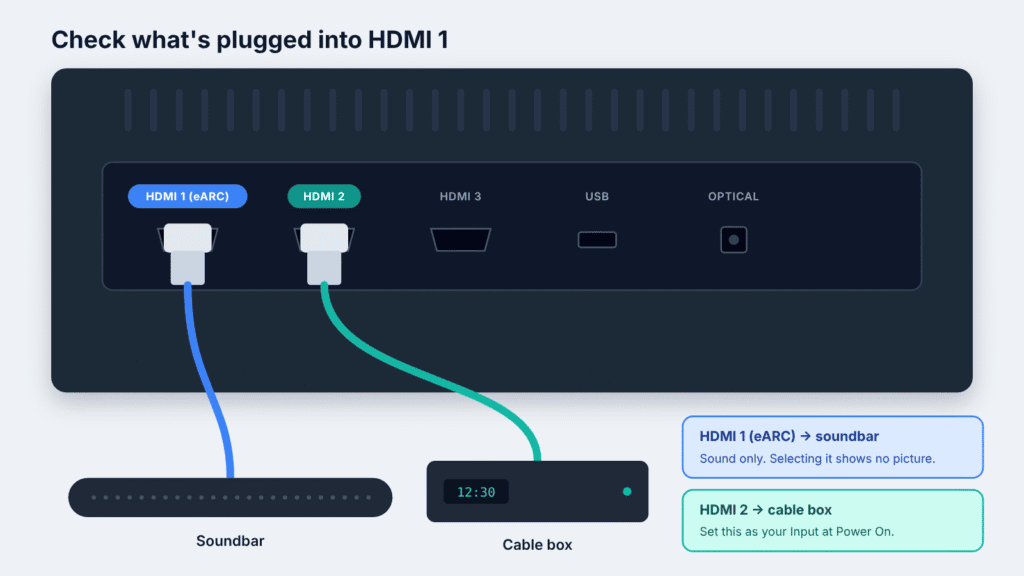
Check what’s on HDMI 1. On many Vizio models, HDMI 1 is also the ARC or eARC port that Vizio’s 2022 V-Series manual says to use for a soundbar. If your soundbar is plugged in there, selecting HDMI 1 shows a blank screen, because a soundbar receives sound from the TV and sends no picture back. In that case your cable box or streaming player is on another port, and that’s the input to set as your default.
When it’s a hardware problem
If your Vizio TV keeps switching inputs after all seven fixes, the cause is probably inside the TV. These signs point to hardware:
- The input menu keeps scrolling with the remote’s batteries out and nothing touching the TV’s buttons.
- The switching continues after a factory reset with every HDMI cable unplugged.
- It happens mostly when the room is cold and stops once the TV has been on for a few minutes. Owners have reported this with a sticking Input button on the TV’s panel.
The usual culprits are the TV’s button panel or its main board. Neither is a safe DIY repair, because opening the back exposes high voltages, as Vizio’s own manual warns.
Contact Vizio support
Vizio’s limited warranty generally covers eligible TVs bought for home use for one year from the original purchase date. Displays 30 inches or larger are usually serviced in your home, subject to availability. The exact terms for your TV are in the warranty documentation that came with it.
Before you contact Vizio support, have these ready:
- Your model and serial number, from the label on the back of the TV
- Your proof of purchase
- Your support code, from Menu > Admin & Privacy > Support Code
- A list of the fixes you’ve already tried
If the TV is out of warranty, a local TV repair shop can quote for the button panel or main board. Compare that quote with the price of a new TV before you agree to the repair.
Frequently asked questions
Why does my Vizio TV keep switching to SmartCast?
Vizio’s 2022 V-Series manual lists SmartCast as the default power-on input, and TechHive reported the same change reaching older SmartCast TVs in a late-2021 firmware update. TechHive also reported some models falling back to SmartCast when the current input has no signal. Set Input at Power On to Last Used TV Input and make sure your device is on before the TV.
How do I stop my Vizio TV from changing inputs automatically?
Set System > Input at Power On to Last Used TV Input, then turn off CEC under System > CEC. If you need CEC for a soundbar, leave it on and turn off one-touch play on the device that keeps taking over instead.
Can I set HDMI 1 as the default input on a Vizio TV?
On many models, yes. Go to System > Input at Power On and select HDMI-1 if it’s listed. If it isn’t, choose Last Used TV Input and turn the TV off while it’s on HDMI 1.
Does turning off CEC affect my soundbar?
It can. CEC is what lets the Vizio remote control a soundbar connected by HDMI ARC or eARC. With CEC off, you may need the soundbar’s own remote for volume and power.
Why does my Vizio TV switch inputs when I turn on my PlayStation or Roku?
That’s one-touch play, a CEC feature that tells the TV to show the device that just woke up. Turn it off on the device: Settings > System > HDMI on a PS5, or Settings > System > Control other devices (CEC) on a Roku.
Is there an auto input setting on Vizio TVs?
Vizio’s 2022 V-Series manual lists Input at Power On and CEC under System settings, but no separate auto-input switch. CEC is one of the most common causes of automatic switching while you watch, so it’s the first setting to check.
Why does my Vizio TV switch to a blank HDMI input?
One possible cause is the TV switching to the port your soundbar uses. A soundbar on the HDMI ARC port can send a CEC command that makes the TV select that input, which has no picture. Turn off one-touch play or the CEC option on the soundbar, or use Fix 2. A device that’s switched off or a loose HDMI cable can also leave you on a blank input, so check Fix 5 too.
Conclusion
A Vizio TV that keeps switching inputs usually comes down to one of two situations, and each has a quick fix. If it opens SmartCast at power-on, set System > Input at Power On to Last Used TV Input or the HDMI port you want. If it changes input while you’re watching, a CEC device is one of the most common causes, so start by turning off CEC on the TV or one-touch play on that device.
Try the other fixes only if those two don’t solve it, and save the factory reset for last. If the input still changes with the remote’s batteries out and every device unplugged, the fault is likely inside the TV. At that point, contact Vizio support or a local repair shop.

Louis Mugan is a seasoned technology writer with a talent for turning complicated ideas into clear, practical guidance. He focuses on helping everyday readers stay confident in a world where tech moves fast. His style is approachable, steady, and built on real understanding.
He has spent years writing for platforms like EasyTechLife, where he covers gadgets, software, digital trends, and everyday tech solutions. His articles focus on clarity, real-world usefulness, and helping people understand how technology actually fits into their lives.
Outside of his regular columns, Louis explores emerging tools, reviews products, and experiments with new tech so his readers don’t have to. His steady, friendly approach has made him a reliable voice for anyone trying to keep up with modern technology. get in touch at louismugan@gmail.com