
To hard reset an iPhone 8 or newer, press and release Volume Up, press and release Volume Down, then press and hold the side button until the Apple logo appears. The whole thing takes about 10 seconds, and it won’t delete your photos, apps or messages.
Apple calls this a force restart. It’s the fix for a frozen screen, an unresponsive app that locks up the whole phone, or a display that stays black. iPhone 7 and older models use different buttons, and the iPhone Duo has its own button order, so check the table below before you start.
Which hard reset method does your iPhone use?
There are three button combinations, and the right one depends on your model, not on whether it has a Home button. The iPhone SE (2nd and 3rd generation) catches people out: it has a Home button but uses the same steps as the newest models.
| Your iPhone | Buttons to use |
|---|---|
| iPhone 8 and later: iPhone 18 Pro and 18 Pro Max, iPhone 17 lineup, iPhone Air, iPhone 16e and 17e, iPhone X through iPhone 16, iPhone SE (2nd and 3rd generation), iPhone 8 and 8 Plus | Volume Up, Volume Down, then hold the side button |
| iPhone Duo | The volume button nearest the side button, then the other volume button, then hold the side button |
| iPhone 7 and 7 Plus | Hold Volume Down and the side button together |
| iPhone 6s and 6s Plus, iPhone SE (1st generation) and older | Hold the Home button and the Sleep/Wake button together |
Not sure which model you have? Open Settings > General > About and look at Model Name.
Hard reset vs. force restart vs. factory reset
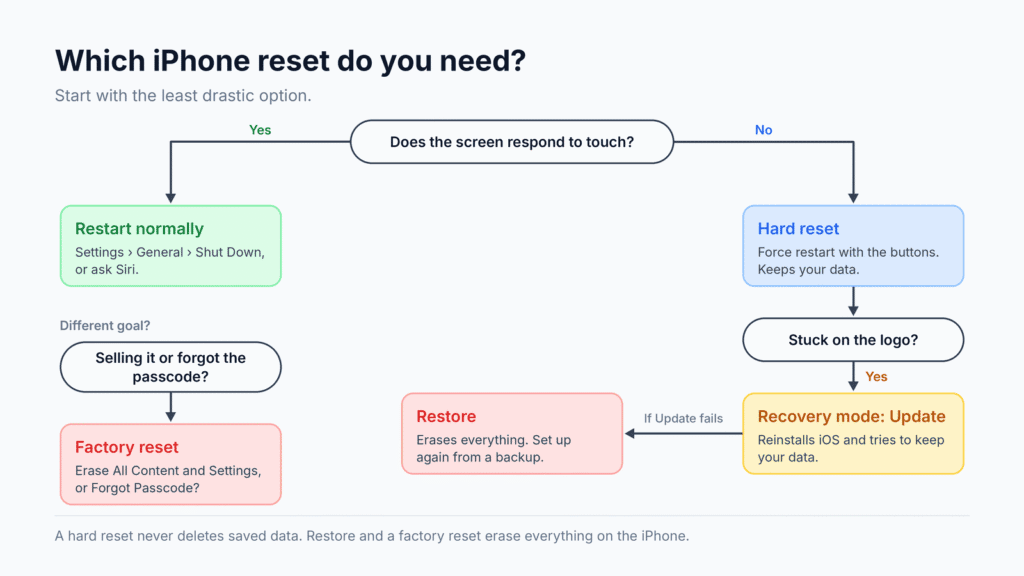
On an iPhone, “hard reset” and “force restart” mean the same thing: using a button combination to make the phone reboot when the software stops responding. A factory reset is different. It erases everything and returns the iPhone to its out-of-the-box state.
The mix-up matters because some guides, and most Android phones, use “hard reset” to mean a full wipe. Everything in the steps below is the safe kind.
| Compare | Restart | Hard reset (force restart) | Factory reset |
|---|---|---|---|
| What it does | Shuts down normally, then starts up | Forces a reboot when the screen won’t respond | Erases all content and settings |
| Use it when | Something feels slightly off | The iPhone is frozen, black or unresponsive | You’re selling the phone or locked out of it |
| Deletes saved data? | No | No | Yes |
| Unsaved work | Apps get a chance to save | May be lost | Lost |
| How | Power-off slider, Settings or Siri | Physical buttons | Settings, a computer, or the lock screen |
How to force restart iPhone 8 and later (including iPhone 18 Pro, Duo, 17 and SE)
This method works on every iPhone with Face ID, plus the iPhone 8, 8 Plus and the 2nd and 3rd generation SE.
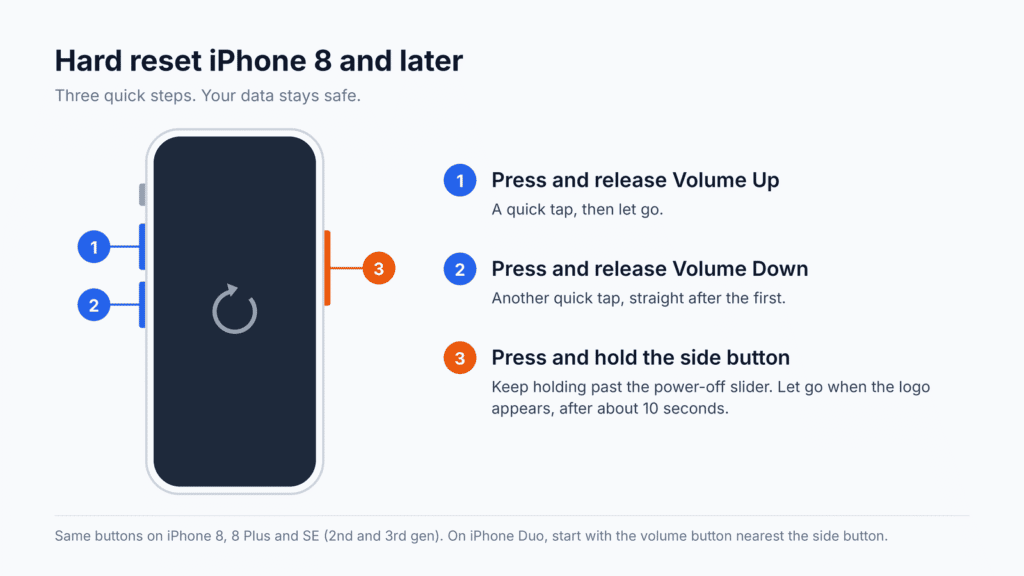
- Press and quickly release the Volume Up button.
- Press and quickly release the Volume Down button.
- Press and hold the side button on the right edge.
- Keep holding when the power-off slider appears. Let go once the Apple logo shows, usually after about 10 seconds, though it can take longer.
The first two presses need to be quick taps, one after the other. If the volume indicator appears or the Emergency SOS slider shows up, you pressed too slowly or held two buttons at once. Let go and start again.
On iPhone Duo, Apple identifies the volume buttons by their position. Press and quickly release the volume button nearest the side button, then the other volume button, then hold the side button until the Apple logo appears.
Apple’s own force restart guide lists the same steps.
How to force restart iPhone 7 and 7 Plus
The iPhone 7 was the first model with a solid-state Home button, so Apple moved the force restart to the volume key.
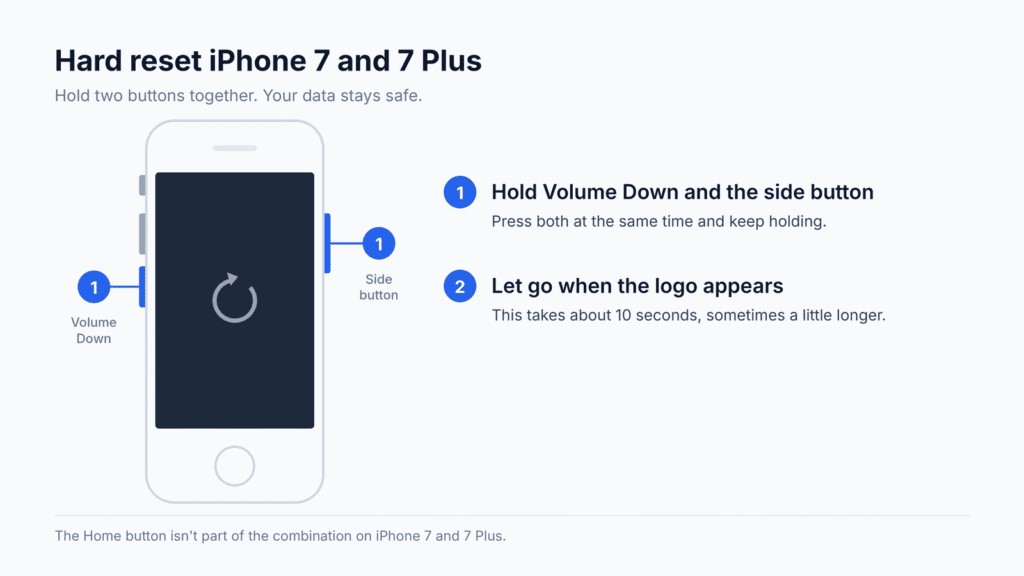
- Press and hold the Volume Down button and the side (Sleep/Wake) button at the same time.
- Keep holding both until the Apple logo appears, which takes about 10 seconds.
- Release both buttons.
How to force restart iPhone 6s, SE (1st generation) and earlier
These models have a physical Home button that clicks, and it’s part of the combination.
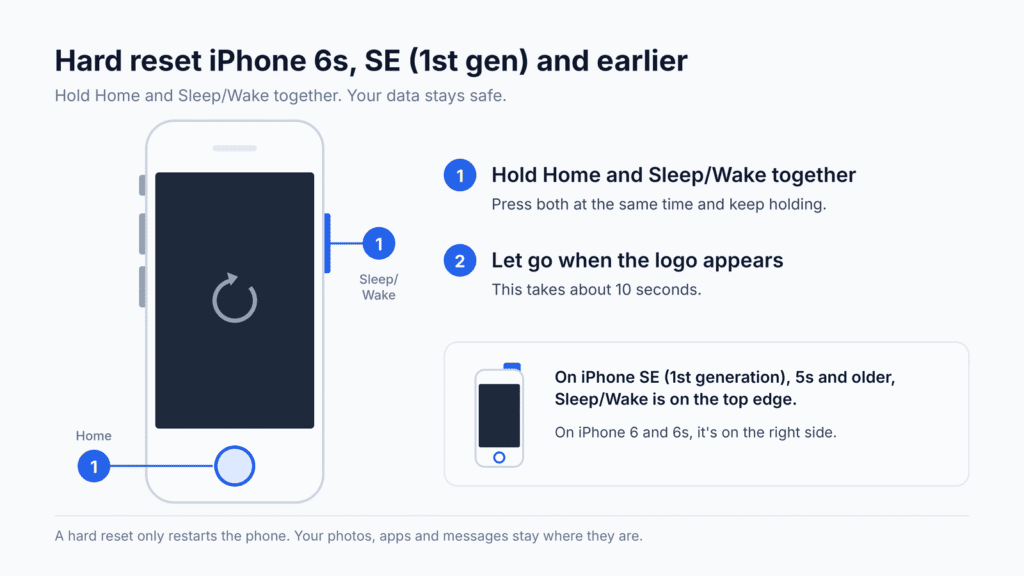
- Press and hold the Home button and the Sleep/Wake button at the same time. On the iPhone 6 and 6s it’s on the right side; on the 1st generation SE, iPhone 5s and older it’s on the top edge.
- Keep holding both until the Apple logo appears.
- Release both buttons.
Can you hard reset a locked iPhone without the passcode?
Yes. The button combination works from the Lock Screen, and you don’t need your passcode to do it.
It won’t unlock the phone, though. After any restart, your iPhone asks for the passcode once before Face ID or Touch ID will work again. If you’ve forgotten the passcode, a force restart can’t help; the factory reset section below covers what to do.
How to restart an iPhone without buttons
There’s no way to force restart an iPhone without its physical buttons. If the screen still responds, though, you can do a normal restart without touching them:
- Siri: Say “Restart iPhone” and confirm. This works on iOS 16 and later.
- Settings: Go to Settings > General > Shut Down and drag the slider. With a broken side button, plug the iPhone into a charger to turn it back on.
- AssistiveTouch: Turn it on in Settings > Accessibility > Touch > AssistiveTouch. Tap the floating button, then Device > More > Restart.
If the screen is frozen and a button is broken, your options run out. You can let the battery run flat and then charge it, which forces a fresh start. If that doesn’t work, the phone needs a repair visit, since recovery mode also relies on the buttons.
What to do if a hard reset doesn’t work
Most failed attempts come down to timing. Try the sequence twice more, tapping the volume buttons quickly and holding the side button longer. If that still fails, work through these fixes in order.
The screen stays black
The battery may be completely empty. Charge the iPhone for one hour with a cable and adapter you know work, then try the force restart again. If a charging icon appears, leave it to charge before you try anything else.
The iPhone is stuck on the Apple logo
A progress bar under the logo usually means an update is still installing, so give it time first. If the logo stays on screen for several minutes with no progress bar, or the phone keeps restarting, iOS likely needs reinstalling. You can do this in recovery mode with a Mac (Finder) or a Windows PC (the Apple Devices app).
- Update your Mac, or get the latest Apple Devices app on Windows.
- Connect the iPhone to the computer with a cable, then open Finder or Apple Devices.
- Use the buttons for your model:
- iPhone 8 and later, including SE (2nd and 3rd generation): press and quickly release Volume Up, press and quickly release Volume Down, then hold the side button. On iPhone Duo, start with the volume button nearest the side button.
- iPhone 7 and 7 Plus: hold the side button and Volume Down together.
- iPhone 6s, SE (1st generation) and earlier: hold the Home button and the Sleep/Wake button together.
- Keep holding past the Apple logo until the Connect to computer screen appears.
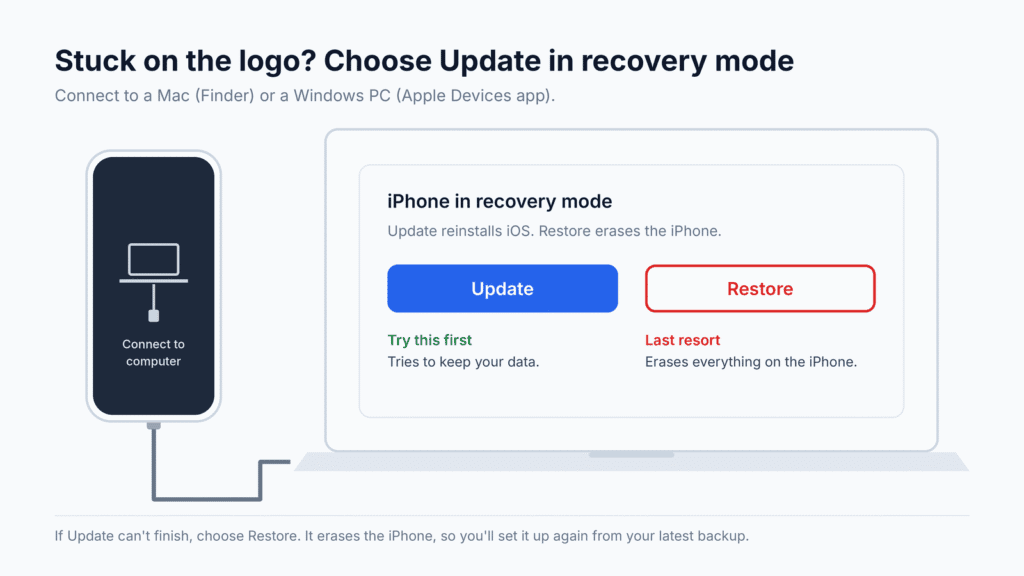
- On the computer, select your iPhone. When it offers Update or Restore, choose Update.
Update tries to reinstall iOS without erasing your personal data. Restore erases everything on the iPhone. Only choose Restore if Update fails, and be ready to set the phone up again from a backup.
If the download takes longer than 15 minutes, the iPhone may leave the Connect to computer screen. Let the download finish, then repeat steps 3 and 4. Apple’s recovery mode guide has more detail.
Nothing works
If the iPhone won’t enter recovery mode, a button doesn’t respond, or Update and Restore both fail, it likely has a hardware fault. Contact Apple Support or book a repair.
When you actually need a factory reset
A factory reset may be necessary when you’re selling or giving away your iPhone, when you’ve forgotten the passcode and can’t get back in, or when a software problem persists after other troubleshooting.
Back up first
You have two free options:
- iCloud: Go to Settings > [your name] > iCloud > iCloud Backup and tap Back Up Now. You need enough iCloud storage for everything on the phone.
- Your computer: Connect the iPhone, select it in Finder on a Mac or in the Apple Devices app on Windows, and choose to back up all data to the computer. This needs no iCloud storage at all.
Erase your iPhone from Settings
- Go to Settings > General > Transfer or Reset iPhone.
- Tap Erase All Content and Settings.
- Enter your passcode, then your Apple Account password if Find My is on.
If you forgot your passcode
If you changed your passcode in the last 72 hours, try Passcode Reset first. On iOS 17 or later, it lets you unlock with your previous passcode without erasing anything.
Otherwise, you can reset the iPhone from the Lock Screen:
- Enter a passcode until the iPhone Unavailable screen appears.
- Tap Forgot Passcode? in the bottom corner.
- Tap Start iPhone Reset, then enter your Apple Account password.
- Tap Erase iPhone to delete everything, then set it up again from your backup.
The Forgot Passcode? option only appears if Find My is on and the iPhone has a Wi-Fi or cellular connection. On iOS 15.2 to iOS 16, the button is labeled Erase iPhone instead. If neither option shows up, use recovery mode as described above and choose Restore. Apple’s lock screen reset guide and computer reset guide cover both routes.
Frequently asked questions
Does a hard reset delete everything on an iPhone?
No. A force restart keeps your photos, messages, apps and settings. The only thing at risk is work you hadn’t saved yet, such as a half-written note in an app that froze.
How do I hard reset an iPhone 18 Pro, 17 or Duo?
Press and release Volume Up, press and release Volume Down, then hold the side button until the Apple logo appears. It’s the same method used on every iPhone since the iPhone 8. On iPhone Duo, press the volume button nearest the side button first, then the other one.
Can I hard reset an iPhone with a broken screen?
Yes. The force restart uses only the physical buttons, so it works even if the display is cracked, black or not responding to touch.
Why won’t my iPhone force restart?
The most common reasons are pressing the volume buttons too slowly, letting go of the side button too early, or a completely drained battery. Charge the phone for an hour and try again. If it still won’t respond, try recovery mode or contact Apple.
Is it bad to hard reset your iPhone often?
An occasional force restart does no harm. If you need one every few days, though, something else is wrong. Update iOS, check that your storage isn’t nearly full, and look for an app that crashes repeatedly.
What if my iPhone froze during an iOS update?
Don’t force restart it straight away. Keep the iPhone on power and give the update time, because a progress bar can sit still for a while without anything being wrong. If the phone stays unresponsive or the update can’t finish, use recovery mode with Update as described above.

Louis Mugan is a seasoned technology writer with a talent for turning complicated ideas into clear, practical guidance. He focuses on helping everyday readers stay confident in a world where tech moves fast. His style is approachable, steady, and built on real understanding.
He has spent years writing for platforms like EasyTechLife, where he covers gadgets, software, digital trends, and everyday tech solutions. His articles focus on clarity, real-world usefulness, and helping people understand how technology actually fits into their lives.
Outside of his regular columns, Louis explores emerging tools, reviews products, and experiments with new tech so his readers don’t have to. His steady, friendly approach has made him a reliable voice for anyone trying to keep up with modern technology. get in touch at louismugan@gmail.com


