DOM storage is already turned on by default in Chrome, Edge, Firefox, and Safari, so most people never need to enable it. When a website says DOM storage or local storage is disabled, the cause is almost always a privacy setting that blocks cookies and site data, a browser extension, or a changed Firefox preference.
The quick fix is to let sites save data in your browser’s cookie or site-data settings, then reload the page. Below you’ll find how to enable DOM storage in each major browser, how to test that it works, and what to try when it still fails.
What Is DOM Storage?
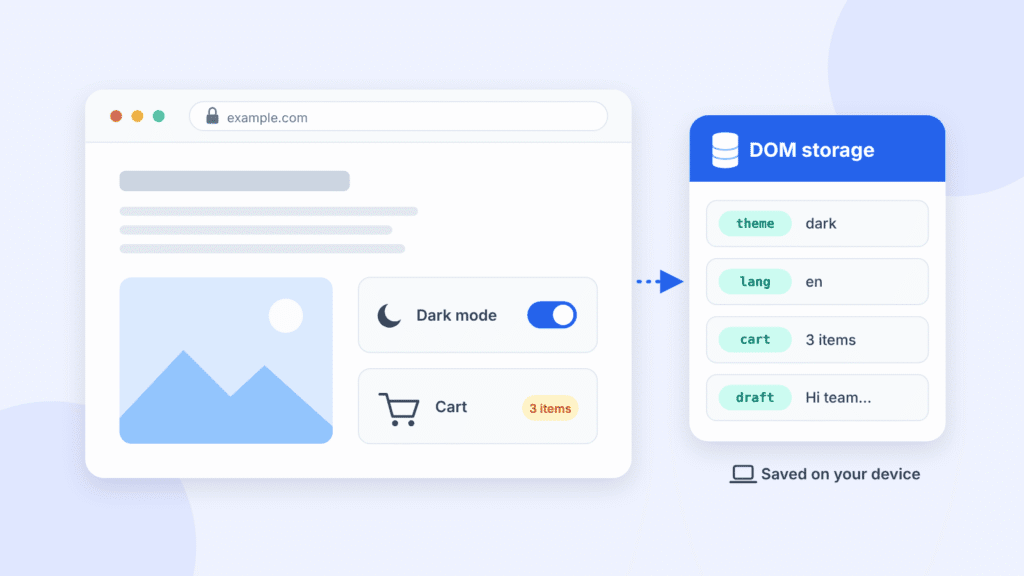
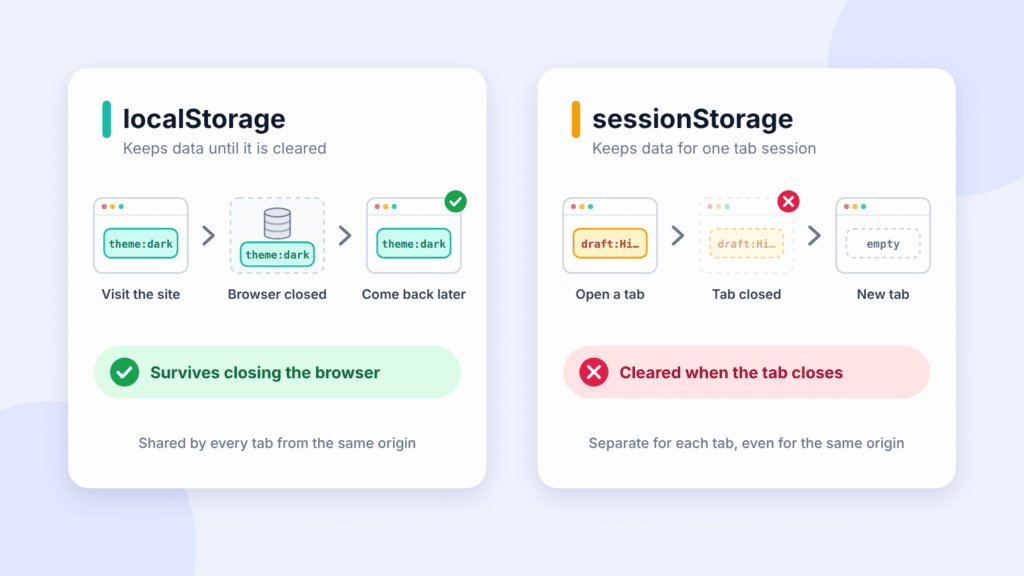
DOM storage is the older name for the Web Storage API, the browser feature that lets a website save small pieces of data on your device as key-value pairs. It comes in two types:
| Storage type | How long the data lasts | Who can read it |
|---|---|---|
| localStorage | Until the site, you, or the browser clears it; survives closing the browser | Pages from the same origin, in any tab or window |
| sessionStorage | Until you close the tab | Pages from the same origin, within that tab’s session only |
Websites use DOM storage to remember your theme, language, a half-filled form, or items in a shopping cart. Unlike cookies, this browser storage is not sent to the web server with every request.
Each origin (the scheme, domain, and port, such as https://example.com) gets its own separate storage, so one site can’t read another site’s data. Browsers allow about 5 MiB of localStorage and 5 MiB of sessionStorage per origin (MDN storage quota guide).
Don’t confuse DOM storage with the DOM (Document Object Model), which is the page structure a browser builds from HTML. They are separate features; today the standard name for DOM storage is simply Web Storage (MDN Web Storage guide).
Is DOM Storage Enabled by Default?
Yes. Every modern browser supports localStorage and sessionStorage out of the box, and the feature has worked across major browsers since July 2015 (MDN Web Storage guide). If a site reports that DOM storage is disabled, something has switched it off. The usual causes are:
- Cookies and site data are blocked. Browsers treat local storage as site data, so blocking all cookies blocks it too.
- Third-party cookies are blocked. Depending on the browser, this can block or limit storage inside embedded content, such as a login box or chat widget loaded from another site.
- A Firefox preference was changed. Setting
dom.storage.enabledto false turns web storage off completely. - An extension is interfering. Privacy, ad-blocking, and script-blocking add-ons can block storage on some sites.
- You’re in a private window. Storage still works, but it’s wiped when you close the window, so sites forget you.
- Your device is managed. A work or school policy may block site data, and only the administrator can change it.
The sections below show where each browser keeps these settings.
How to Enable DOM Storage in Google Chrome
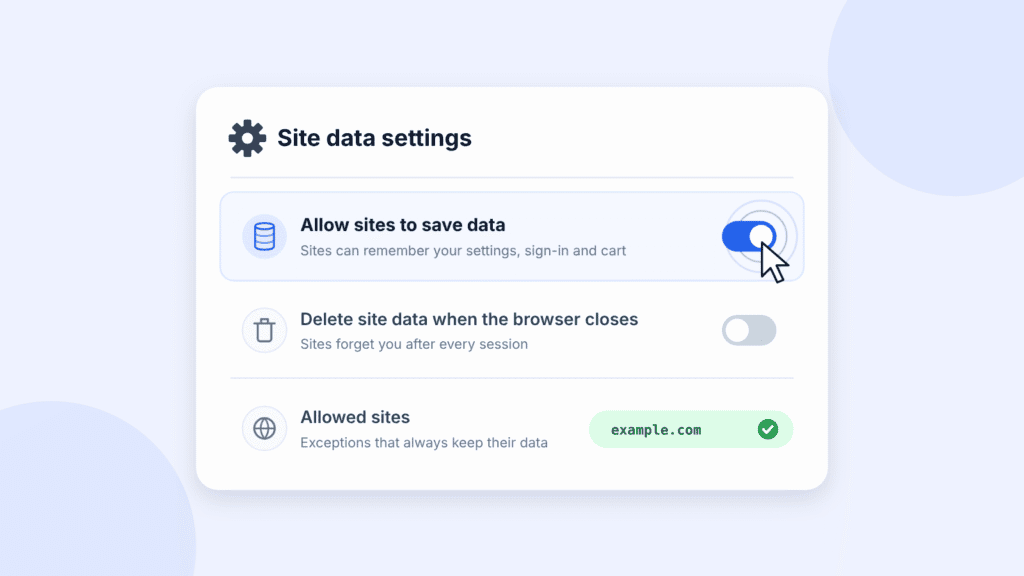
In Chrome, DOM storage is controlled by the On-device site data setting (Google’s guide to on-device site data).
- Open Chrome, click the three-dot menu at the top right, and select Settings.
- Click Privacy and security, then Site settings.
- Scroll down, click Additional content settings, then On-device site data.
- Under Default behavior, select Allow sites to save data on your device.
- Reload the website that showed the error.
Shortcut: paste chrome://settings/content/siteData into the address bar to jump straight to this page.
To allow only one site, scroll to Customized behaviors on the same page. Remove the site from the not-allowed list if it appears there, then add it to the allowed list.
The middle option, Delete data sites have saved to your device when you close all windows, keeps local storage working while Chrome is open but erases it when you quit. Chrome has no about:config page or dom.storage.enabled switch; that is a Firefox-only setting.
How to Enable DOM Storage in Microsoft Edge
Edge controls local storage through its cookie setting, because both count as site data (Microsoft’s guide to Edge cookies).
- Open Edge and select Settings and more (the three dots at the top right), then Settings.
- Select Privacy, search, and services.
- Select Cookies.
- Turn on Allow sites to save and read cookie data (recommended).
- Reload the website.
Menu names shift slightly between Edge versions. If a label doesn’t match, type “cookies” into the search box at the top of Edge’s Settings page to jump to the right setting.
To allow a single site, stay on the Cookies page, open Allowed to save cookies, and select Add site. Also check that the site isn’t listed under Not allowed to save and read cookies.
If sites forget you every time you restart Edge, go to Privacy, search, and services → Clear browsing data → Choose what to clear every time you close the browser. Turn off Cookies and other site data.
How to Enable DOM Storage in Mozilla Firefox
Firefox has two places to check: the cookie settings that most users see, and the hidden dom.storage.enabled preference. Start with the settings (Mozilla’s guide to blocked cookies).
Allow the problem site first (recommended)
This lowers privacy protection for that one site, since its trackers can run again, while the rest of your browsing stays protected (Mozilla’s tracking protection guide).
- Open the website that shows the error.
- Click the shield icon on the left side of the address bar.
- Turn off the Enhanced Tracking Protection switch at the top of the panel. The page reloads with protection off for that site only.
- If the site still fails, turn the switch back on so you don’t lose protection for nothing.
If many sites fail, check your cookie settings
- Click the menu button (three lines) and select Settings.
- Select Privacy & Security. In newer versions, click Advanced settings to see Enhanced Tracking Protection.
- Check which mode is selected:
- Standard is the default and allows site data from the sites you visit.
- Strict tracking protection blocks cross-site cookies more aggressively and may interfere with embedded logins or widgets. If a trusted site breaks, try the per-site switch above first; choose Standard only if many sites break.
- Custom: uncheck Cookies, or set it to Cross-site tracking cookies, and isolate other cross-site cookies.
- Click the reload button that appears to apply the change to open tabs.
Check blocked-site exceptions
- On the same page, scroll to Cookies and Site Data (called Browsing data in newer versions).
- Click Manage Exceptions.
- If the site is listed as blocked, select it and click Remove Website.
Turn on dom.storage.enabled in about:config
This is an advanced check for when the steps above don’t help. It applies only if web storage was switched off at the preference level (Mozilla’s about:config guide).
- Type
about:configin the address bar and press Enter. - Click Accept the Risk and Continue.
- Search for
dom.storage.enabled. - If the value is false, click the Reset button to restore the default (true), or double-click the entry to toggle it.
- Reload the website.
How to Enable DOM Storage in Safari (Mac, iPhone, and iPad)
Safari has one switch for this: Block All Cookies. When it’s on, websites can’t save cookies or other website data, which includes local storage (Apple’s Safari cookie settings guide).
On a Mac
- Open Safari and choose Safari → Settings from the menu bar.
- Click Advanced.
- Deselect Block all cookies.
- Reload the website.
On an iPhone or iPad
- Open the Settings app and tap Apps.
- Tap Safari, then Advanced.
- Turn off Block All Cookies.
- Go back to Safari and reload the page.
Apple notes that blocking cookies can stop you from signing in and can trigger “cookies are required” messages (Apple’s iPhone Safari guide). On older iOS versions, Safari appears directly under Settings rather than under Apps.
How to Enable DOM Storage on Android
In the Chrome app for Android, DOM storage uses the same On-device site data setting as the desktop version (Google’s Chrome for Android guide).
- Open the Chrome app.
- Tap the three-dot menu to the right of the address bar, then Settings.
- Under Advanced, tap Site settings.
- Tap On-device site data and turn it on.
- Reload the website.
You don’t need to change Android’s app permissions. The phone’s storage permission controls access to your files and photos, not website data inside the browser.
How to Check Whether DOM Storage Is Working
The fastest test takes about 30 seconds in your browser’s developer tools. Open the website you’re having trouble with, then:
- Open the console: press Ctrl+Shift+J in Chrome or Edge, Ctrl+Shift+K in Firefox (use Cmd+Option instead of Ctrl+Shift on a Mac). In Safari on a Mac, first turn on Show features for web developers in Settings → Advanced, then press Cmd+Option+C.
- Type the code below and press Enter. It’s short enough to type by hand, which is the safest habit: browsers warn against pasting code into the console because scammers use that trick to run harmful scripts. If you’d rather paste it and the console blocks you, type
allow pastingfirst, but only for code you understand.
try {
  localStorage.setItem("storageTest", "working");
  console.log(localStorage.getItem("storageTest"));
  localStorage.removeItem("storageTest");
} catch (e) {
  console.log("DOM storage is blocked: " + e.name);
}- Read the result:
- working means local storage is enabled for this site.
- DOM storage is blocked: SecurityError (or a similar error) means a browser setting, extension, or policy is blocking it.
- QuotaExceededError means the browser couldn’t save the data, usually because the site’s storage is full or the browser restricts storage for it.
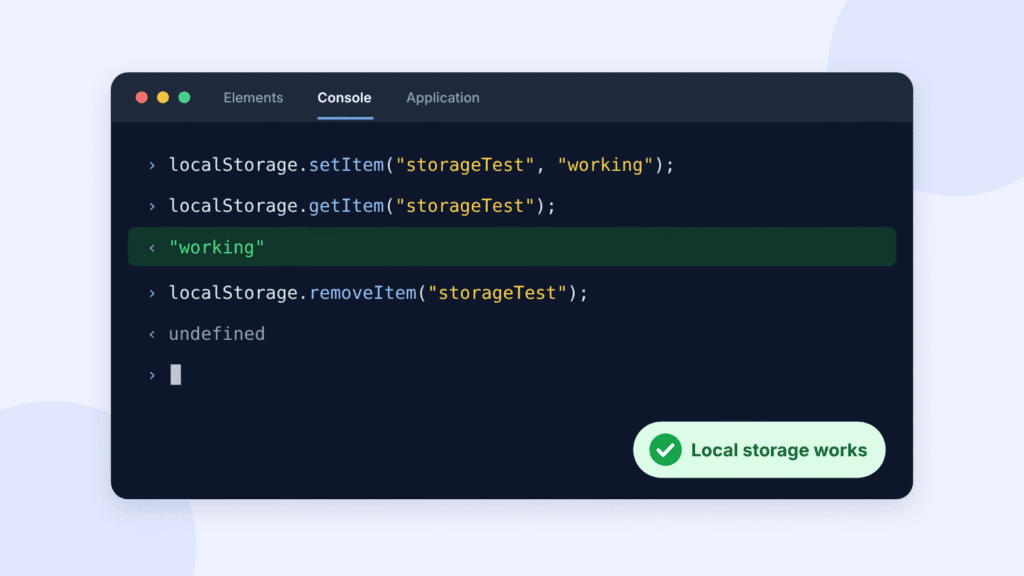
If the test runs successfully, it removes the temporary value it created. To see what a site has already saved, open the Application tab in Chrome or Edge, or the Storage tab in Firefox, and expand Local Storage.
How to Fix DOM Storage Not Working
If you allowed site data and DOM storage still fails, match what you’re seeing to the most likely cause below.
| What you see | Likely cause | Fix |
|---|---|---|
| “DOM storage is disabled” or “cookies are required” message | Cookies and site data are blocked | Allow site data using your browser’s steps above, or add the site to the allowed list |
| Works in one browser but not another | A setting or extension in that browser | Check that browser’s settings, then turn off extensions one at a time |
| Site forgets you every time you close the browser | Private window, or site data is cleared on exit | Use a normal window and turn off clearing cookies and site data on close |
| Embedded login, payment, or chat box fails | Third-party cookies are blocked, which in some browsers also blocks or limits storage in embedded frames | Allow third-party cookies for that site, or turn off tracking protection for it |
| Every site fails in Firefox only | dom.storage.enabled is set to false | Set it back to true in about:config |
| Safari forgets a site you haven’t used for a while | Not a disabled setting: Safari’s tracking prevention deletes a site’s stored data after 7 days of Safari use without you interacting with that site | Use the site regularly. Sites added to the Home Screen as web apps keep their own day counter, so regular use keeps their data |
| Console shows QuotaExceededError | The site’s storage is full, or the browser restricts storage for it | Clear that site’s cookies and site data, then retry in a normal (non-private) window |
| Settings are greyed out | Your work or school manages the device | Ask your IT administrator |
Two general fixes solve many stubborn cases: update your browser to the latest version, and clear the problem site’s stored data so it can start fresh.
Sources: MDN Web Storage API (third-party frames), WebKit (Safari’s 7-day limit), MDN storage quotas (QuotaExceededError).
DOM Storage vs. Cookies: What’s the Difference?
Both save site data in your browser, but they do different jobs. Cookies travel to the server with every request; DOM storage stays on your device.
| Feature | DOM storage (localStorage, sessionStorage) | Cookies |
|---|---|---|
| Capacity | About 5 MiB per origin for each type | About 4 KB per cookie |
| Sent to the server | No | Yes, with every request to that site |
| How long it lasts | localStorage: until cleared; sessionStorage: until the tab closes | Until the expiry date the site sets, or the end of the session |
| Readable by page scripts | Always | Not if the site marks the cookie HttpOnly |
| Typical use | Theme, language, drafts, cached non-sensitive data | Login sessions, server-side preferences |
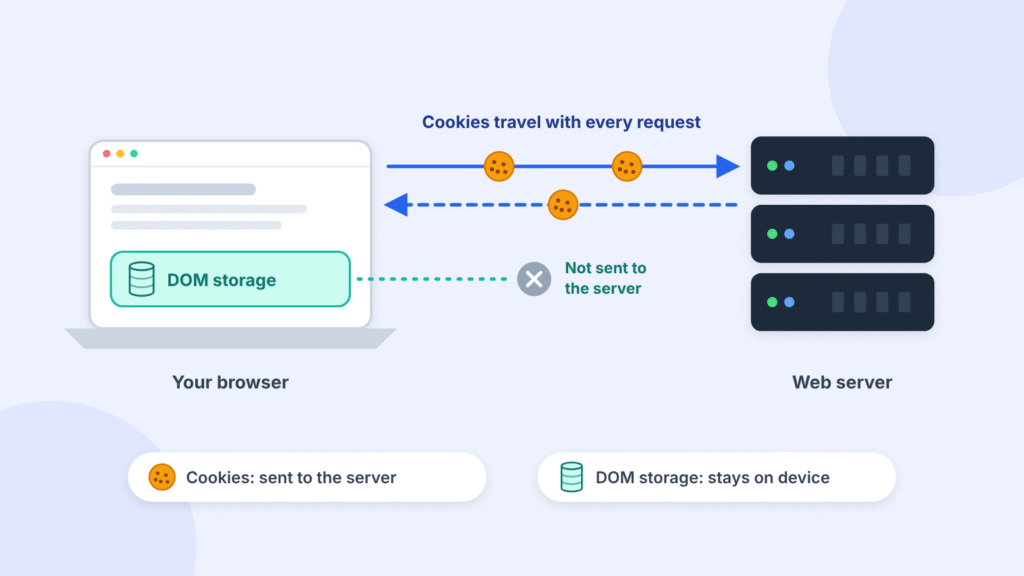
Is DOM storage more secure than cookies? Not automatically. Any script running on a page can read that site’s DOM storage, including malicious code injected through a security flaw. A cookie marked HttpOnly can’t be read by scripts at all. That’s why browser makers recommend Secure, HttpOnly cookies for login sessions (WebKit’s privacy blog), and why passwords and login tokens don’t belong in localStorage.
Frequently Asked Questions
Is DOM storage the same as local storage?
Almost. DOM storage is the umbrella term for two features, localStorage and sessionStorage. When people say “local storage,” they usually mean localStorage, the type that survives closing the browser.
Is it safe to enable DOM storage?
Yes. It’s on by default in every major browser, and each site can read only its own data. On a shared computer, use a private window so nothing stays behind after you close it.
Does clearing cookies also delete DOM storage?
Yes. When you clear “cookies and site data” (or “website data” in Safari), the browser deletes local storage too. You may be signed out of sites and lose saved preferences.
Can I enable DOM storage in Chrome through about:config or chrome://flags?
No. Chrome has no about:config page, and you don’t need chrome://flags for this. Use Settings → Privacy and security → Site settings → Additional content settings → On-device site data instead.
Does DOM storage work in Incognito or private browsing?
Yes, but only temporarily. In private mode, localStorage behaves like sessionStorage, and everything is deleted when you close the private window (MDN Web Storage guide).
How much data can DOM storage hold?
About 5 MiB for localStorage and another 5 MiB for sessionStorage per origin. When a site goes over, the browser refuses to save more and reports a QuotaExceededError.
Why does a site still say DOM storage is disabled after I allowed cookies?
Check for a privacy extension, a private window, or a site-specific block in your browser’s exceptions list. In Firefox, also confirm dom.storage.enabled is set to true in about:config.

Louis Mugan is a seasoned technology writer with a talent for turning complicated ideas into clear, practical guidance. He focuses on helping everyday readers stay confident in a world where tech moves fast. His style is approachable, steady, and built on real understanding.
He has spent years writing for platforms like EasyTechLife, where he covers gadgets, software, digital trends, and everyday tech solutions. His articles focus on clarity, real-world usefulness, and helping people understand how technology actually fits into their lives.
Outside of his regular columns, Louis explores emerging tools, reviews products, and experiments with new tech so his readers don’t have to. His steady, friendly approach has made him a reliable voice for anyone trying to keep up with modern technology. get in touch at louismugan@gmail.com