
Before moving this guide to EasyTechLife, check the DeviceMAG page’s traffic, rankings and backlinks, then choose one migration path. Don’t keep near-duplicate versions on both sites. Delete this section before publishing.
You can move your Safari bookmarks to Chrome on iPhone without a computer. Since iOS 18.2, Safari can export your bookmarks to a file, and Chrome for iPhone can import that file with its built-in Safari import tool.
The whole process takes a few minutes. Safari keeps your bookmarks; Chrome gets a copy.
What you need:
- An iPhone running iOS 18.2 or later
- The latest version of Chrome from the App Store
- Optional: a Google account signed in to Chrome, so your bookmarks are saved to your account
How to Transfer Safari Bookmarks to Chrome on iPhone
The transfer has two parts: export your bookmarks from Safari, then import the file into Chrome. iOS doesn’t let Chrome read Safari’s data directly, so the exported file is the bridge between them.
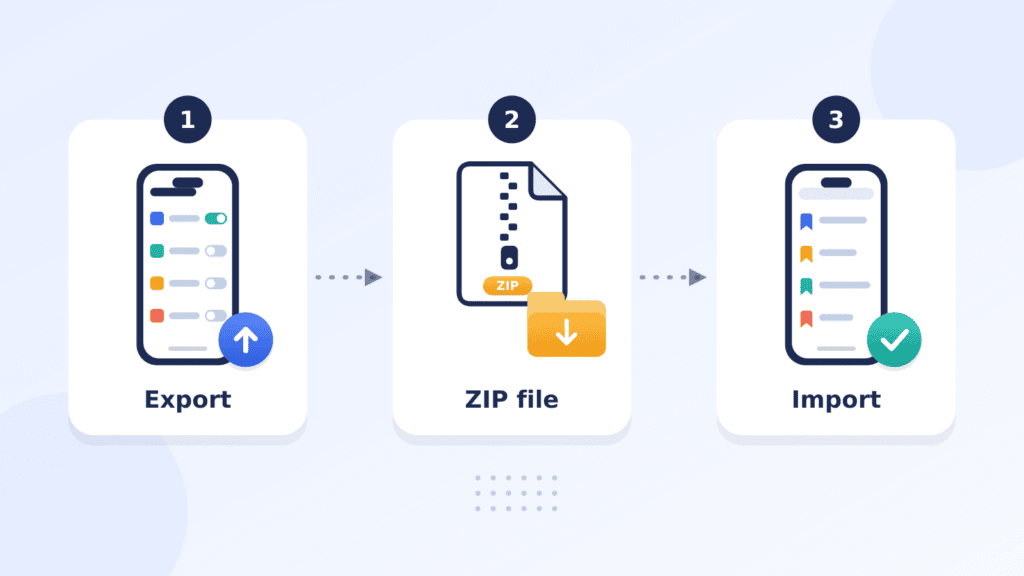
Step 1: Export your bookmarks from Safari
- Open the Settings app on your iPhone.
- Tap Apps, then tap Safari.
- Scroll to History and Website Data and tap Export.
- Make sure Bookmarks is selected. Deselect anything you don’t want to move, such as History, Extensions, Credit Cards or Passwords.
- If you use Safari profiles, choose a profile or All Profiles. Bookmarks are the same in every profile.
- Tap Save to Downloads. Confirm with Face ID, Touch ID or your passcode if asked.
- Tap Done.
Safari saves a ZIP file named “Safari Export” plus the date to the Downloads folder in the Files app. Apple’s guide to exporting Safari data on iPhone covers this step in more detail.
Step 2: Import the file into Chrome
- Open Chrome on your iPhone.
- Tap More (•••), then tap Settings.
- Scroll down and tap Safari import.
- Tap Import to Chrome, then tap I’ve exported my data.
- Tap Select your file and choose the Safari Export ZIP file.
- Review the preview of what Chrome found in the file.
- Tap Import.
Chrome imports everything in the file. If you exported passwords that already exist in Google Password Manager, Chrome first asks which version to keep. Google’s Chrome Help page lists the same steps.
Step 3: Delete the exported file
The exported file isn’t encrypted, so anyone who opens it can see what’s inside, including passwords if you exported them. Chrome may offer to delete it when the import finishes. If not, open Files, go to Downloads, and delete the Safari Export file. Then remove it from Recently Deleted in Files.
How to Find Imported Bookmarks in Chrome
Open Chrome, tap More (•••), then tap Bookmarks. Your Safari bookmarks appear in your bookmarks list. If you can’t spot a site, type its name in the search bar at the top of the Bookmarks screen.
How to Transfer Safari Bookmarks Using a Mac or PC
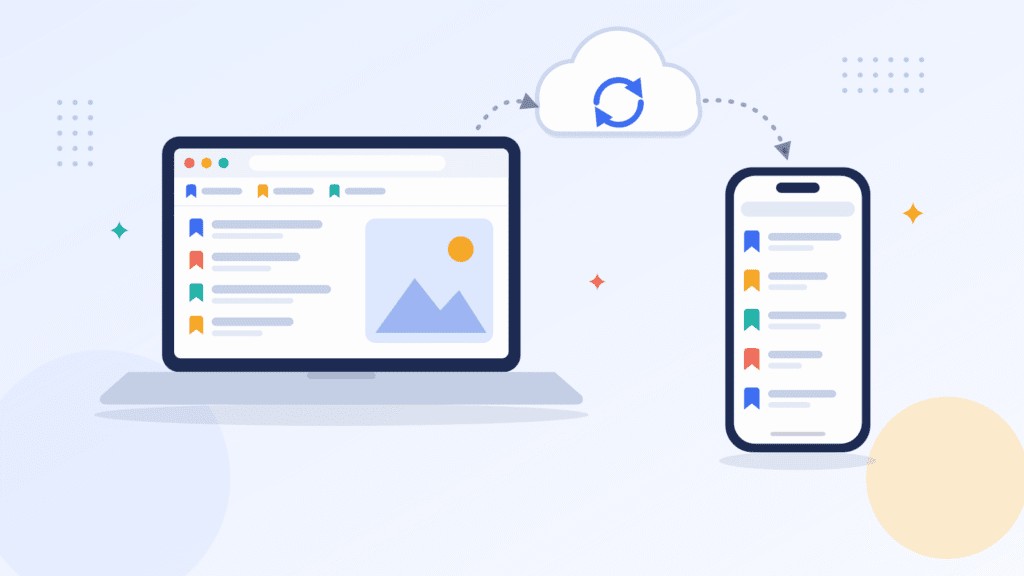
Use a computer if your iPhone can’t run iOS 18.2 or Chrome’s Safari import isn’t available to you. You get the bookmarks into Chrome on the computer, then Chrome sync carries them to your iPhone.
On a Mac
- On your iPhone, go to Settings > [your name] > iCloud and make sure Safari is on (tap See All if you don’t see it). Sign in to the same Apple Account on your Mac.
- Wait until your iPhone’s bookmarks appear in Safari on your Mac.
- In Safari on your Mac, choose File > Export Browsing Data to File.
- Select Bookmarks. Click Export (or Download, depending on your macOS version), choose where to save the file, then click Save.
- Double-click the saved ZIP file to unzip it, and find the bookmarks HTML file inside.
- Open Chrome on your Mac and click More (⋮) > Bookmarks and lists > Import bookmarks and settings.
- Choose Bookmarks HTML File from the drop-down menu, select the bookmarks HTML file, and import it.
- Sign in to Chrome on your Mac and your iPhone with the same Google account, with bookmark sync on. The bookmarks then appear in Chrome on your iPhone.
On older Safari versions, choose File > Export > Bookmarks (or File > Export Bookmarks) instead. This saves a file named Safari Bookmarks.html, so you can skip the unzipping step.
On a Windows PC
- On your iPhone, make sure Safari syncs with iCloud: Settings > [your name] > iCloud > Safari.
- Install iCloud for Windows from the Microsoft Store and sign in with the same Apple Account.
- Open iCloud for Windows. Click the arrow to the right of Bookmarks, then turn on Bookmarks.
- Click Install Extension next to Chrome and follow the onscreen instructions to add the iCloud Bookmarks extension.
- Click Done. If asked, click Merge to combine your PC’s existing bookmarks with iCloud.
- Sign in to Chrome on your PC with the same Google account you use on your iPhone. Chrome sync carries the bookmarks to your iPhone.
Once set up, bookmarks stay in sync between Safari and Chrome on your PC, as long as Safari’s iCloud sync stays on and the iCloud Bookmarks extension stays installed. Menu labels can differ slightly between iCloud for Windows versions; Apple’s iCloud Bookmarks setup guide has the current steps.
What to Do If Safari Bookmarks Won’t Import
Most import problems come from an outdated app or a file Chrome can’t find.
| Problem | Fix |
|---|---|
| No Export option in Safari settings | Update your iPhone to iOS 18.2 or later in Settings > General > Software Update. |
| No Safari import option in Chrome | Update Chrome from the App Store. Older versions don’t include it. |
| Chrome can’t find the file | Open Files > Browse > Downloads and check the Safari Export ZIP file is there. Select the ZIP file itself in Chrome. |
| Bookmarks are missing after import | You may not have selected Bookmarks on the export screen. Export again with Bookmarks selected, then import the new file. |
| Bookmarks appear twice | Importing the same file twice can duplicate bookmarks. Delete the extra copies in Chrome’s Bookmarks screen. |
| Chrome asks which password to keep | That site already has a saved password in Google Password Manager. Choose the one to keep; it replaces the other. |
Can Safari and Chrome Bookmarks Sync Automatically?
Not directly on iPhone. Safari and Chrome have no built-in bookmark sync, and Chrome’s Safari import is a one-time copy. Bookmarks you add in Safari later won’t appear in Chrome until you export and import again.
However, you can set up ongoing sync using iCloud for Windows and the iCloud Bookmarks extension for Chrome. It keeps Chrome on your PC matched to your Safari bookmarks while the extension stays installed, and Chrome sync passes them to your iPhone. Apple’s extension works only with Chrome on Windows, not on a Mac.
Frequently Asked Questions
Do I need a computer to move Safari bookmarks to Chrome?
No. With iOS 18.2 or later and a current version of Chrome, you can do the whole transfer on your iPhone.
Will this remove my bookmarks from Safari?
No. Exporting creates a copy. Your bookmarks stay in Safari.
Can I transfer only my bookmarks?
Yes. On Safari’s export screen, keep Bookmarks selected and deselect everything else. Chrome imports whatever is in the file.
Can I also move my passwords and browsing history?
Yes. Safari can also export history, passwords and credit cards. Chrome shows a preview of what it found in the file before importing, so check it to see what will come across. Safari extensions won’t transfer, since Chrome on iPhone doesn’t support extensions. Delete the export file afterward because it isn’t encrypted.
Will my bookmarks appear in Chrome on my computer too?
Yes, if you’re signed in to Chrome with your Google account and bookmark sync is on. Chrome saves the imported data to your Google account.
Does this work on iPad?
Yes. The steps are the same on an iPad running iPadOS 18.2 or later.
Conclusion
Moving Safari bookmarks to Chrome on iPhone now takes two steps: export them in Settings, then import the file with Chrome’s Safari import. Delete the export file when you’re done. If your iPhone can’t run iOS 18.2, use Chrome on a Mac or PC and let Chrome sync bring your bookmarks to your phone.

Louis Mugan is a seasoned technology writer with a talent for turning complicated ideas into clear, practical guidance. He focuses on helping everyday readers stay confident in a world where tech moves fast. His style is approachable, steady, and built on real understanding.
He has spent years writing for platforms like EasyTechLife, where he covers gadgets, software, digital trends, and everyday tech solutions. His articles focus on clarity, real-world usefulness, and helping people understand how technology actually fits into their lives.
Outside of his regular columns, Louis explores emerging tools, reviews products, and experiments with new tech so his readers don’t have to. His steady, friendly approach has made him a reliable voice for anyone trying to keep up with modern technology. get in touch at louismugan@gmail.com


