
When you copy a photo on iPhone, it goes to the clipboard. That’s a temporary holding spot that keeps your copy until you paste it or copy something else. Copying doesn’t create a new photo in your library. If you copied from the Photos app, the original is still exactly where it was.
To see a copied photo right now: open Notes, start a new note, tap the empty page, then tap Paste. If the image appears, it’s still on your clipboard. From there you can save it to your Photos library in a few taps.
This guide covers how Copy differs from Duplicate and Save, how to get a copied image into Photos, why pasting sometimes fails, and what to do if you’ve already copied over it.

Copy, Duplicate, or Save: Where Your Photo Actually Goes
The button you tap decides where the image ends up. Only Copy and Copy Subject use the clipboard.
| What you tap | Where the image goes | How long it stays |
|---|---|---|
| Copy (Photos app) | The clipboard | Until you copy something else |
| Copy Subject (touch and hold a person, pet, or object) | The clipboard, as a cutout without the background | Until you copy something else |
| Duplicate (Photos app) | A second copy in your Photos library, next to the original | Until you delete it |
| Save Image or Save (Safari, Messages, Notes, Mail) | Your Photos library | Until you delete it |
| Paste into a note | Inside that note only | Until you delete the note |
If you want a second copy of a photo in your library, use Duplicate. Copy is only for moving a photo into another app, like an email, message, or document. (Apple: Duplicate and copy photos)
Where Are Copied Photos Stored on iPhone?
Copied photos sit on the clipboard, which is short-term memory, not a folder or album. You can’t open it or browse it. The only way to see what’s on it is to paste.
A few things are worth knowing about how it behaves:
- It holds one copy at a time. That copy can include several photos if you selected them together. But the next thing you copy, even a single word, replaces all of it.
- Copying never moves or deletes the original. If you copied a photo from the Photos app, it’s still in your library. Nothing is lost if the clipboard gets overwritten.
- Images copied from elsewhere are the ones at risk. Copying an image from a website, email, or message doesn’t add it to your Photos library. The original stays where you found it, but if that page changes or the message is deleted, the clipboard copy is all you have until you save it.
- Don’t count on it lasting. The clipboard isn’t designed for storage. If an image matters, save it right away rather than relying on it surviving a restart or a busy afternoon of copying.
How to Copy a Photo on iPhone
You can copy one photo, several at once, or just the subject of a photo.
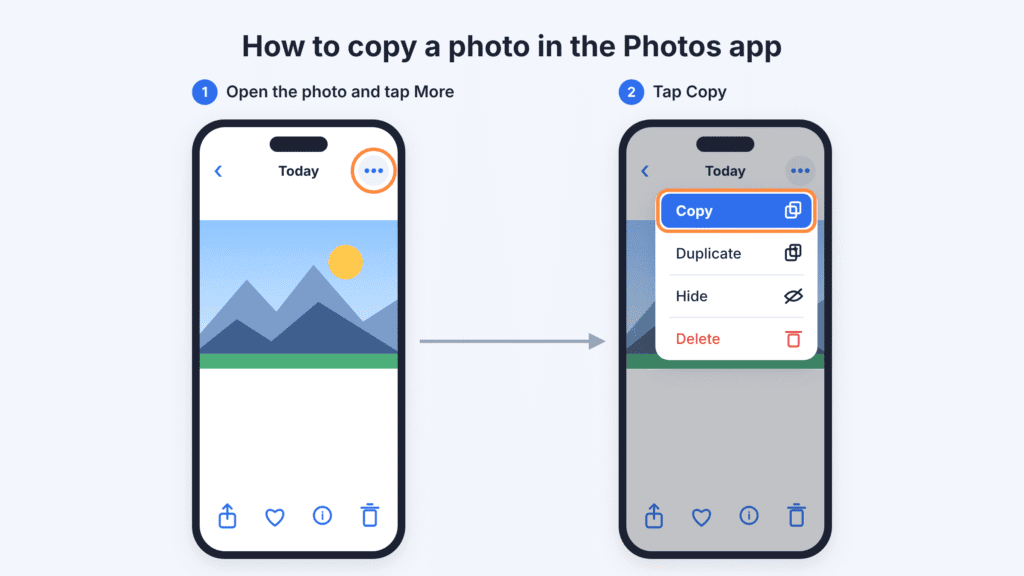
Copy one photo from the Photos app
- Open the Photos app and tap the photo to view it full screen.
- Tap the More button (three dots).
- Tap Copy.
Copy several photos at once
- In Photos, tap Select.
- Tap each photo you want.
- Tap the More button, then tap Copy.
All the selected photos go to the clipboard together, and they paste together too. (Apple: Duplicate and copy photos)
Copy just the subject (Copy Subject)
- Open a photo full screen, or pause a video on a frame.
- Touch and hold the person, pet, or object until a glowing outline appears.
- Tap Copy (or Copy Subject).
This copies a cutout with the background removed, not the whole photo. It works in Photos, Safari, Quick Look, and other apps. (Apple: Lift a subject from the background)
Copy an image from a website, email, or message
Touch and hold the image, then tap Copy. You’ll usually see a Save option in the same menu. If you want to keep the image, Save is the better choice, since it skips the clipboard and goes straight to your library.
How to See a Copied Photo on iPhone
iPhone has no clipboard viewer, so you check what’s on it by pasting. Notes is the easiest place to do that because it accepts images and saves automatically.
- Open Notes and create a new note.
- Tap the empty page so the keyboard appears.
- Tap the empty page again, then tap Paste. On iOS 27, a paste suggestion may also appear above the keyboard. Tap it to paste in one step.
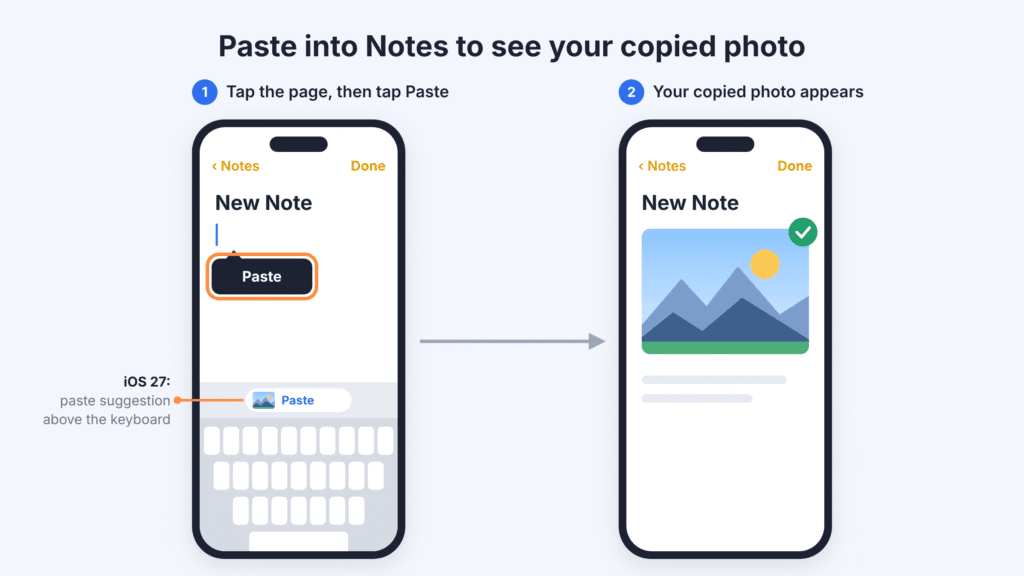
If your photo appears, it was still on the clipboard. If you see text or nothing at all, something else has replaced it. The recovery section below covers where to look next.
About the paste button in iOS 27. After you copy text or an image, iOS 27 can show a one-tap paste suggestion above the keyboard. It only offers your most recent copy, so it isn’t a clipboard history. It also doesn’t appear in every app or field. If you don’t see it, use the regular Paste option. (Macworld)
About the “Allow Paste” pop-up. Since iOS 16, an app asks permission before it pastes something you copied in a different app. Tap Allow Paste to continue. If one app keeps asking, go to Settings → Apps → [the app’s name] → Paste from Other Apps and choose Allow. That option only appears after the app has asked at least once.
How to Save a Copied Photo to Your Photos Library
The clipboard can’t save straight to Photos, so you need one stop in between. Here are three ways to do it.
Option 1: Through Notes (no setup needed)
- Paste the image into a note, as described above.
- Tap the image to open it. If it doesn’t open, touch and hold it instead.
- Tap Share, then tap Save Image.
- Check that the image appears in Photos before you delete the note.
The image now lives in both Notes and Photos. Note that the Notes setting called Save to Photos only covers photos you take with the camera inside Notes, not images you paste. (Apple: Add photos to notes)
Option 2: A two-step shortcut (best if you do this often)
- Open the Shortcuts app and create a new shortcut.
- Add the Get Clipboard action.
- Add the Save to Photo Album action below Get Clipboard. Leave its default destination selected, or choose an available album in your Photos library.
- Name it something like “Save Copied Photo.”
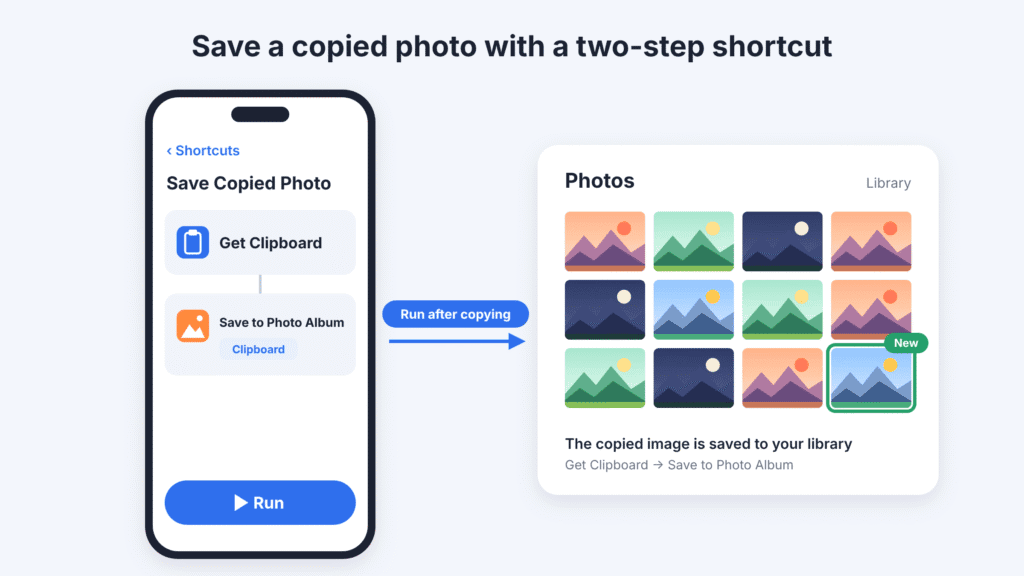
Now, after copying any image, run the shortcut from the Shortcuts app, a widget, or Siri. The image goes straight into your library. You can also assign it to Back Tap or the Action button on supported models. (Save to Photo Album action)
Option 3: Send it to yourself
Paste the image into a message to yourself, send it, then touch and hold it and tap Save. This works, but it’s slower and sends the image through Messages.
Copied from Photos and want a second copy? Skip all of this. Go back to the original, tap the More button, and tap Duplicate.
Can You Recover a Photo After Copying Something Else?
Usually not from the clipboard itself. iOS keeps no clipboard history, and that’s still true in iOS 27. Once something new is copied, the old item is gone.
The image itself may still exist somewhere else, though. Check these places:
- The Photos app. If you copied it from your library, the original never left. Search Photos or check Recents.
- Where you found it. Go back to the website, email, or message thread and copy or save it again. Safari’s History can help you find the page.
- Anywhere you already pasted it. A note, a message draft, or a document you pasted into earlier still holds a copy.
- A clipboard manager app. Only if you opened the app after copying the image. See the section on clipboard managers below for why.
Why Can’t I Paste My Copied Photo?
If Paste is missing or nothing shows up, one of these is usually the cause.
- The field only takes text. Search bars, address fields, and many form fields can’t hold images. Try pasting into Notes or Messages instead.
- Something else was copied since. Even a single copied word replaces the photo. Copy the image again.
- You tapped Don’t Allow Paste. Paste again and choose Allow Paste. To stop the question for one app, go to Settings → Apps → [the app’s name] → Paste from Other Apps.
- It came from another device a while ago. Items copied on a Mac or iPad only stay available on your iPhone briefly. Copy it again on the other device, then paste right away.
- You copied the subject, not the photo. If you get a cutout with no background, you used Copy Subject. Open the photo, tap the More button, and tap Copy instead.
- The phone restarted. Don’t expect the clipboard to survive a restart. Copy the image again from its source.
How to Paste Photos Between iPhone, iPad, and Mac
With Universal Clipboard, a photo you copy on your iPhone can be pasted on a nearby Mac or iPad, and the reverse. There’s nothing to open. You copy on one device and paste on the other.
It works when:
- Both devices are signed in to the same Apple Account.
- Bluetooth and Wi-Fi are on for both.
- Handoff is on. On iPhone, go to Settings → General → AirPlay & Continuity (called AirPlay & Handoff on some versions). On a Mac, go to System Settings → General → AirDrop & Handoff.
- The devices are near each other.
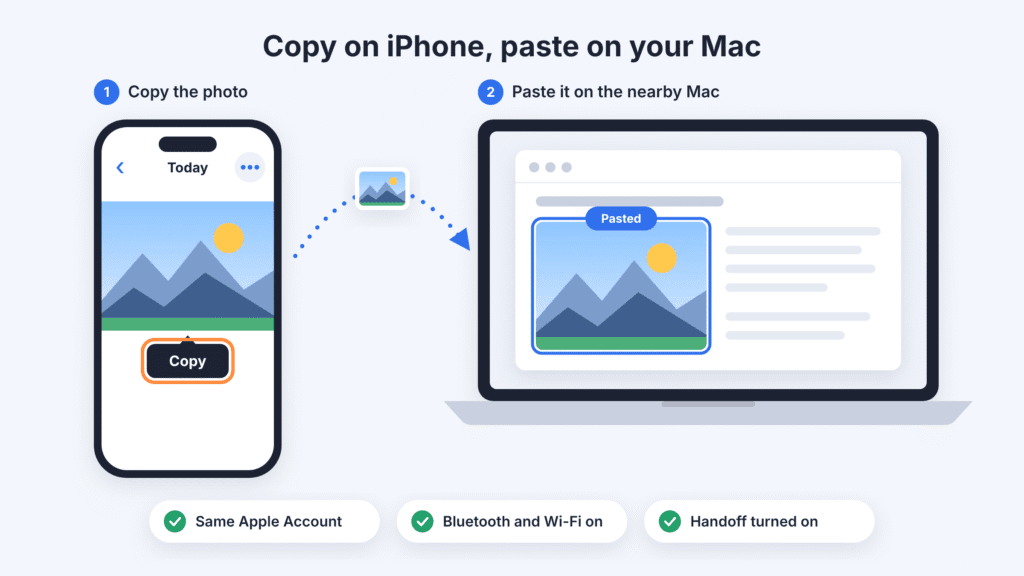
The copied item only stays available on the other device for a short time, so paste it soon after copying. Copying something new on either device replaces it. (Apple: Universal Clipboard)
Do Clipboard Manager Apps Save Copied Photos?
They can, but on iPhone they don’t save everything automatically. Apps like Paste and PastePal keep a history of items, including images. However, iOS doesn’t let apps read the clipboard while they run in the background. (Paste Help)
In practice, an item only reaches your history when you do something to add it:
- open the clipboard app after copying,
- use the app’s own keyboard, or
- send the item to the app from the Share menu.
If you copy a photo and then copy something else before any of those, the photo never gets saved. A clipboard manager helps if you build the habit. It’s not a safety net.
Think about privacy before installing one. A clipboard app sees whatever you add to it, which can include passwords, codes, and addresses. Choose a well-reviewed app, check whether it syncs through your own iCloud account or the developer’s servers, and decide whether to allow it to paste without asking in Settings → Apps → [the app’s name] → Paste from Other Apps.
Frequently Asked Questions
Does copying a photo create a duplicate in my library?
No. Copy only puts the photo on the clipboard. To add a second copy to your library, use Duplicate from the More menu.
Does iOS 27 have a clipboard history?
No. iOS 27 adds a paste suggestion above the keyboard, but it only shows your most recent copy.
Is a copied photo backed up to iCloud?
Not while it’s only on the clipboard. Once you save it to Photos, iCloud Photos will sync it if that’s turned on. Keep in mind that iCloud Photos syncs your library across devices, so deleting a photo on one device deletes it everywhere. It works as sync, not as a separate backup.
Can I copy videos the same way?
Yes. You can select and copy videos in Photos just like photos, then paste them into apps that accept video.
Does the clipboard clear when I restart my iPhone?
Don’t rely on it surviving a restart. If an image matters, save it to Photos or a note before you restart.

Louis Mugan is a seasoned technology writer with a talent for turning complicated ideas into clear, practical guidance. He focuses on helping everyday readers stay confident in a world where tech moves fast. His style is approachable, steady, and built on real understanding.
He has spent years writing for platforms like EasyTechLife, where he covers gadgets, software, digital trends, and everyday tech solutions. His articles focus on clarity, real-world usefulness, and helping people understand how technology actually fits into their lives.
Outside of his regular columns, Louis explores emerging tools, reviews products, and experiments with new tech so his readers don’t have to. His steady, friendly approach has made him a reliable voice for anyone trying to keep up with modern technology. get in touch at louismugan@gmail.com


