
If your phone screen suddenly turned black and white, a setting is almost always the cause, not a broken display. You can usually bring the color back in under a minute.
Quick fix on Android (Google Pixel and most phones): Open Settings > Digital Wellbeing & parental controls > Bedtime mode > Customize > Screen options at bedtime and turn off Grayscale.
Quick fix on Samsung Galaxy: Open Settings > Modes and Routines > Sleep and turn off the grayscale option. If the screen is still gray, check Settings > Accessibility > Vision enhancements > Color correction.
Quick fix on iPhone: Open Settings > Accessibility > Display & Text Size > Color Filters and turn off Color Filters.
Still no color? On any phone, open Settings and search for grayscale or color filter. The search box finds the right switch even when menu names differ by model. The sections below cover every common cause, plus yellow tints, gray app icons, and signs of a hardware fault.
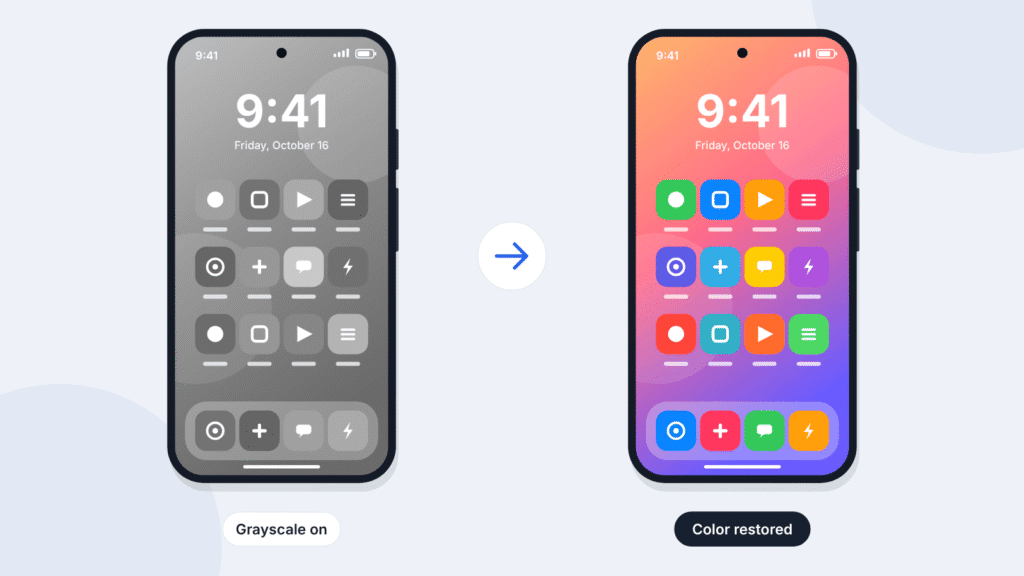
Why Did My Phone Screen Turn Black and White?
Your phone still has a color screen; a setting is telling it to show gray. Phones include grayscale on purpose for wind-down routines, battery saving, and accessibility. These features can switch on by schedule or through an accidental shortcut, which is why the change often seems to come from nowhere.
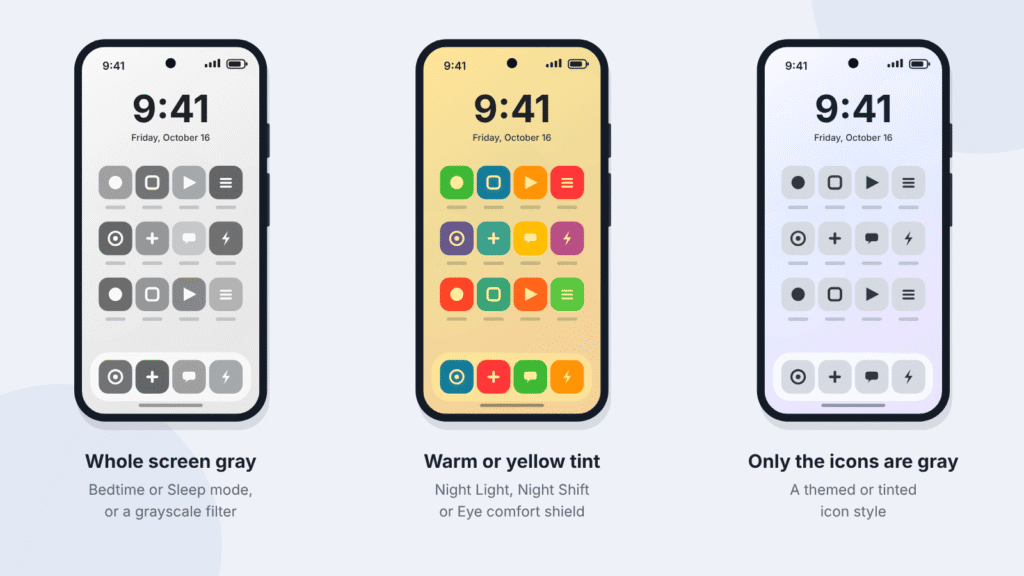
Match what you see to the likely cause, then jump to the section for your phone:
| What you see | Most likely cause | Where to look first |
|---|---|---|
| Whole screen black and white, especially in the evening | Bedtime or Sleep mode grayscale | Digital Wellbeing (Pixel) or Modes and Routines (Samsung) |
| Whole screen gray at any time of day | Accessibility grayscale filter | Color correction (Android) or Color Filters (iPhone) |
| Screen turned gray when the battery was low | Power saving mode | Battery settings |
| Colors look reversed, like a photo negative | Color inversion | Accessibility settings |
| Screen looks yellow, orange, or tinted | Night Light, Eye comfort shield, Night Shift, or Color Tint | Display or Accessibility settings |
| Only app icons are gray or a single color | Themed or tinted icons | Home screen or wallpaper style settings |
| Lines, patches, or discoloration in one area | Display damage | The hardware section below |
If the screen still looks wrong after you check these settings, a hardware fault becomes more likely. The last section explains how to tell.
How to Get Color Back on Android
Most Android phones share the same five sources of grayscale. Work through them in order; most people find the cause in the first two. Google Pixel and Samsung Galaxy have their own sections below with exact menu names.
1. Turn off grayscale in Bedtime mode
Bedtime mode (called Wind Down on older Android versions) can turn the screen gray on a schedule. Switching Bedtime mode off won’t always help, because grayscale has its own toggle.
- Open Settings > Digital Wellbeing & parental controls.
- Tap Bedtime mode.
- Tap Customize > Screen options at bedtime.
- Turn off Grayscale.
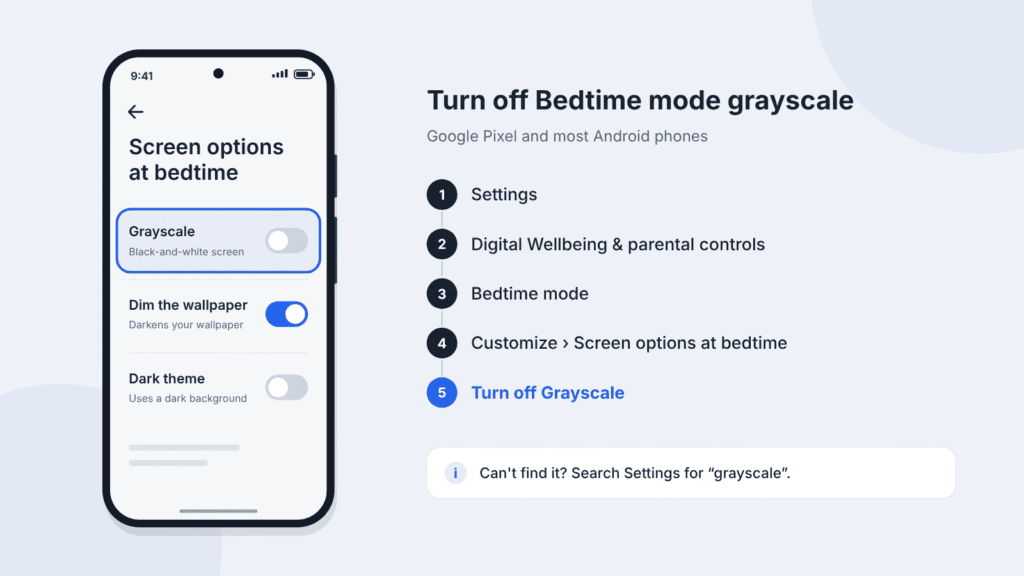
If you don’t use Bedtime mode, turn off its schedule as well so it can’t switch on again tonight.
2. Turn off grayscale color correction
Color correction is built for people with color blindness, and one of its modes is grayscale.
- Open Settings > Accessibility.
- Tap Color and motion (or Text and display on some versions), then Color correction.
- Turn off Use color correction.
3. Turn off the color correction shortcut
Color correction can be assigned to a shortcut, such as holding both volume buttons or tapping a floating accessibility button. That makes it easy to switch on by accident in a pocket or bag. On the Color correction screen, turn off its shortcut if you don’t need it.
4. Turn off power saving mode
Some phones reduce or remove screen color in power saving mode to stretch the battery. Charging alone won’t bring the color back while the mode stays on. Open Settings > Battery and turn off any power saving or extreme battery saver mode.
5. Check Developer options (advanced)
Developer options include a testing setting called Simulate color space, and its Monochromacy option turns the whole screen gray. This only applies if Developer options were switched on, by you or someone else.
- Open Developer options. It sits under Settings > System on Pixel and at the bottom of Settings on Samsung. If it isn’t there, it’s off and this isn’t your cause.
- Find Simulate color space under Hardware accelerated rendering.
- Set it to Disabled.
Other Android brands
Xiaomi, OnePlus, Motorola, Oppo, and other brands use their own menu names. Settings search finds the right switch: try grayscale, color correction, monochrome, and bedtime.
How to Turn Off Grayscale on Samsung Galaxy
On current Galaxy phones, Sleep mode and Color correction cause most black-and-white screens. Recent One UI versions handle bedtime grayscale through Modes and Routines rather than Digital Wellbeing, so the general Android steps above may not match.
Turn off grayscale in Sleep mode
- Open Settings > Modes and Routines.
- Tap Sleep.
- Find the grayscale action in the mode’s list of actions. Samsung’s guide places it under Other actions.
- Tap the remove icon next to grayscale, then tap Done.
This keeps Sleep mode’s other features, such as Do Not Disturb, while restoring color.
Turn off Color correction
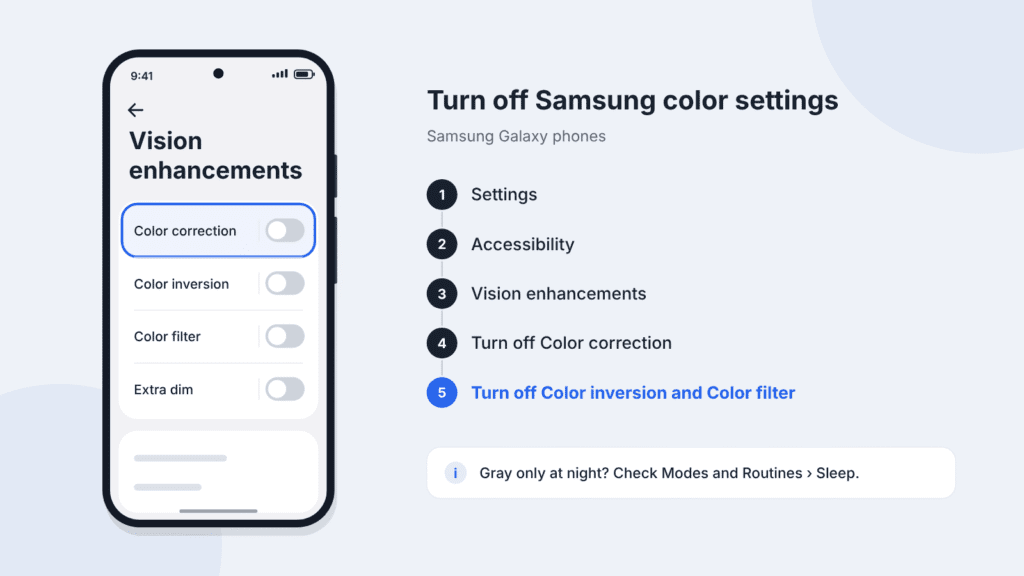
- Open Settings > Accessibility > Vision enhancements.
- Tap Color correction and turn it off.
Turn off Color inversion and Color filter
Color inversion makes the screen look like a photo negative. Color filter lays a single tint over everything. Both live in Settings > Accessibility > Vision enhancements: turn off Color inversion, then tap Color filter and turn it off.
Turn off Power saving
Samsung lists Power saving among the features that can turn the display gray. Open Settings, tap Battery (on some models, Battery and device care > Battery), and turn off Power saving.
Older Galaxy phones
Older One UI versions may say Visibility enhancements or Color adjustment instead, and may keep Bedtime mode under Digital Wellbeing and parental controls. If a menu above is missing, search Settings for grayscale.
How to Restore Screen Colors on Google Pixel
On a Pixel, Bedtime mode is the usual reason the screen turns gray in the evening. Color correction is the usual reason it stays gray all day.
Turn off Bedtime mode grayscale
- Open Settings > Digital Wellbeing & parental controls > Bedtime mode.
- Tap Customize > Screen options at bedtime.
- Turn off Grayscale.
To end Bedtime mode right now, swipe down to open Quick Settings and tap the Bedtime mode tile. If the tile isn’t there, you can add it from the Quick Settings edit screen.
Turn off grayscale color correction
- Open Settings > Accessibility > Color and motion > Color correction.
- Turn off Use color correction. If you rely on color correction for color blindness, pick a correction mode other than Grayscale instead.
- If color correction has a shortcut assigned, turn it off so it can’t switch on again by accident.
If only your app icons look gray, or the whole screen looks amber rather than gray, skip ahead to the icon and tint sections below.
How to Get Color Back on iPhone
An iPhone has two settings that can turn the screen gray, plus a shortcut and an automation that can switch them on without you noticing. Check all four, in this order.
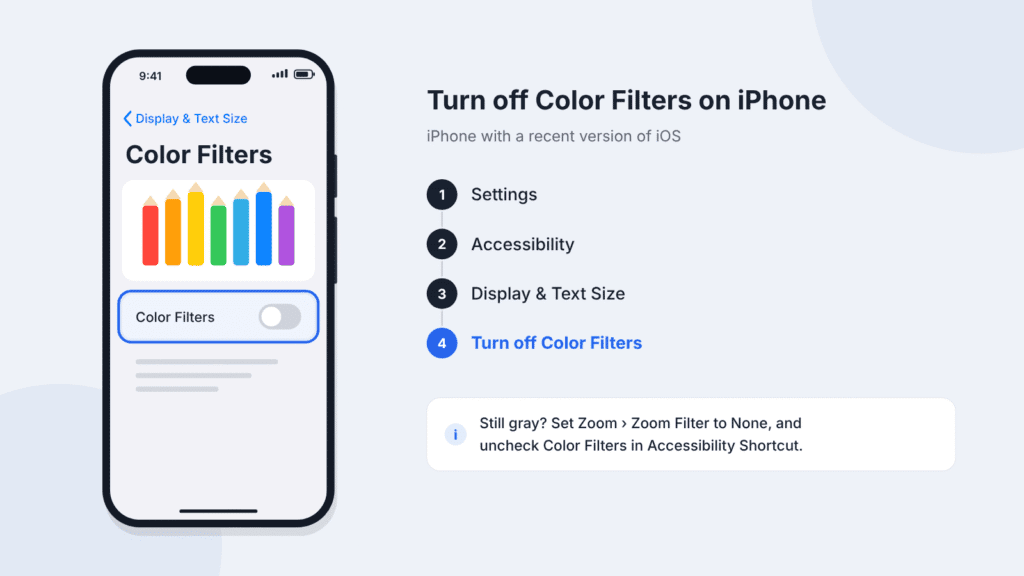
1. Turn off Color Filters
- Open Settings > Accessibility > Display & Text Size > Color Filters.
- Turn off Color Filters.
2. Set the Zoom Filter to None
If Zoom is on, its own filter can keep the screen gray even after Color Filters is off. This catches many people out.
- Open Settings > Accessibility > Zoom > Zoom Filter.
- Tap None.
3. Check the Accessibility Shortcut
Triple-clicking the side button (or the Home button on older iPhones) runs the Accessibility Shortcut. If Color Filters is assigned to it, a stray triple-click turns grayscale on.
- Open Settings > Accessibility > Accessibility Shortcut (at the bottom of the Accessibility screen).
- Uncheck Color Filters, and Zoom if you don’t use it.
4. Check Shortcuts automations
The Shortcuts app has a Set Color Filters action that an automation can run on a schedule. If your screen goes gray at the same time each day, open the Shortcuts app, tap Automation, and look for any automation that uses Set Color Filters. Turn it off or delete it.
If the screen looks warm or tinted rather than gray, see the next section.
How to Fix a Yellow, Orange, or Unusual Screen Tint
A warm or colored tint almost always comes from a blue-light or color-temperature feature, not a fault. Turn each feature off one at a time and watch the screen, so you know which one was responsible.
| Phone | Feature | Where to turn it off |
|---|---|---|
| iPhone | Night Shift | Settings > Display & Brightness > Night Shift, or touch and hold the brightness control in Control Center |
| iPhone | True Tone | Settings > Display & Brightness |
| iPhone | Color Tint | Settings > Accessibility > Display & Text Size > Color Filters |
| Google Pixel | Night Light | The Night Light tile in Quick Settings, or Settings > Display |
| Samsung Galaxy | Eye comfort shield | Settings > Display |
| Samsung Galaxy | Adaptive color tone (Galaxy S24 and later) | Settings > Display |
| Samsung Galaxy | Color filter | Settings > Accessibility > Vision enhancements |
| Samsung Galaxy | Extra dim (screen darker, not tinted) | Settings > Accessibility > Vision enhancements |
Night Shift and Night Light often run on a sunset-to-sunrise schedule, so a tint that appears every evening points to them. A tinted privacy screen protector can also shift colors; take it off briefly to compare.
If the tint stays after every feature is off, or it covers only part of the screen, treat it as a possible hardware problem and see the last section.
Why Are Only My App Icons Black and White?
If photos, videos, and websites look normal but your app icons are gray or a single color, a home screen style is active. This is cosmetic and takes a few seconds to undo.
- Google Pixel: Touch and hold an empty spot on the home screen, tap Wallpaper & style, and turn off Themed icons. Only apps that support themed icons change, so a mix of gray and colorful icons is the giveaway. If menus and buttons are gray too, pick a colored palette on the same screen instead of the black-and-gray one.
- Samsung Galaxy: Open Settings > Wallpaper and style > Color palette and turn off Apply palette to app icons.
- iPhone (iOS 18 and later): Touch and hold an empty spot on the Home Screen, tap Edit > Customize, and choose Default. The Tinted and Clear styles can make icons look washed out or all one color.
What If the Screen Is Still Discolored?
If every setting above is off and the screen is still gray or tinted, work through these steps in order. None of them erase your photos, messages, or apps, though Safe Mode and a settings reset have side effects noted in their steps.
- Restart the phone. A restart clears temporary glitches, including a filter that didn’t switch off cleanly.
- Install any pending software update. Display bugs are sometimes fixed in updates. Check the Software update section of Settings.
- Try Safe Mode (Android). Safe Mode starts the phone with only its built-in apps. If color returns there, a downloaded app such as a screen dimmer or blue-light filter is applying an overlay. Restart normally and remove recently installed apps one at a time. Before you start, take a screenshot of your home screen: Safe Mode can remove some widgets, and the screenshot helps you put them back. On a Pixel 6 or later, press and hold Power + Volume Up, then touch and hold Restart until the Safe Mode prompt appears and tap OK. Restart again to exit.
- Reset settings, not data. On iPhone, Settings > General > Transfer or Reset iPhone > Reset > Reset All Settings returns every setting to default while keeping your content. On Samsung, Settings > General management > Reset > Reset all settings does the same. You’ll need to re-enter Wi-Fi passwords afterward.
A factory reset erases everything on the phone and rarely fixes a color problem that the steps above didn’t. Back up and contact the manufacturer’s support before going that far.
Signs of a hardware problem
Take a screenshot and open it on another device. Grayscale, color filters, and other display adjustments don’t show up in screenshots. So if the screenshot looks normal but your screen doesn’t, the cause is either a display setting that’s still on or the screen hardware. Double-check every setting above. If the discoloration persists, especially after a drop, pressure, or water exposure, the screen may need inspection. Other signs include:
- Lines, flickering, or patches that stay after a restart
- Discoloration that appeared after a drop, pressure, or water exposure
- A green, pink, or purple cast that no setting changes
- Color loss in one area of the screen rather than everywhere
Don’t press or rub the screen to try to fix it; pressure can make existing display damage worse. Contact the manufacturer or an authorized service center, especially if the phone is still under warranty.
Frequently Asked Questions
Why does my phone screen turn black and white at night?
A bedtime feature is on a schedule. Bedtime mode on Pixel and most Android phones, or Sleep mode on Samsung, can switch the screen to grayscale at a set time. Turn off grayscale inside that mode, or change its schedule.
Why did my screen turn black and white by itself?
Usually a schedule or a shortcut did it. Schedules include Bedtime or Sleep mode and iPhone Shortcuts automations. Shortcuts include triple-clicking the side button on iPhone or holding both volume buttons on Android.
Does a low battery turn the screen black and white?
Not on its own. Power saving mode on some phones reduces or removes color, and it can switch on automatically when the battery runs low. Turn the mode off in battery settings; charging alone won’t bring the color back while it’s active.
Why do my screenshots look normal when my screen is gray?
Grayscale and color filters change how the screen displays the image, not the image itself, so screenshots usually keep their full color. That’s also why a screenshot can’t show a friend what your screen looks like.
Is a black-and-white screen a sign my phone is broken?
Rarely. A whole screen that turns evenly gray is almost always a setting. Damage usually shows as lines, flickering, patches, or discoloration in one area, often after a drop or water exposure.

Louis Mugan is a seasoned technology writer with a talent for turning complicated ideas into clear, practical guidance. He focuses on helping everyday readers stay confident in a world where tech moves fast. His style is approachable, steady, and built on real understanding.
He has spent years writing for platforms like EasyTechLife, where he covers gadgets, software, digital trends, and everyday tech solutions. His articles focus on clarity, real-world usefulness, and helping people understand how technology actually fits into their lives.
Outside of his regular columns, Louis explores emerging tools, reviews products, and experiments with new tech so his readers don’t have to. His steady, friendly approach has made him a reliable voice for anyone trying to keep up with modern technology. get in touch at louismugan@gmail.com


