
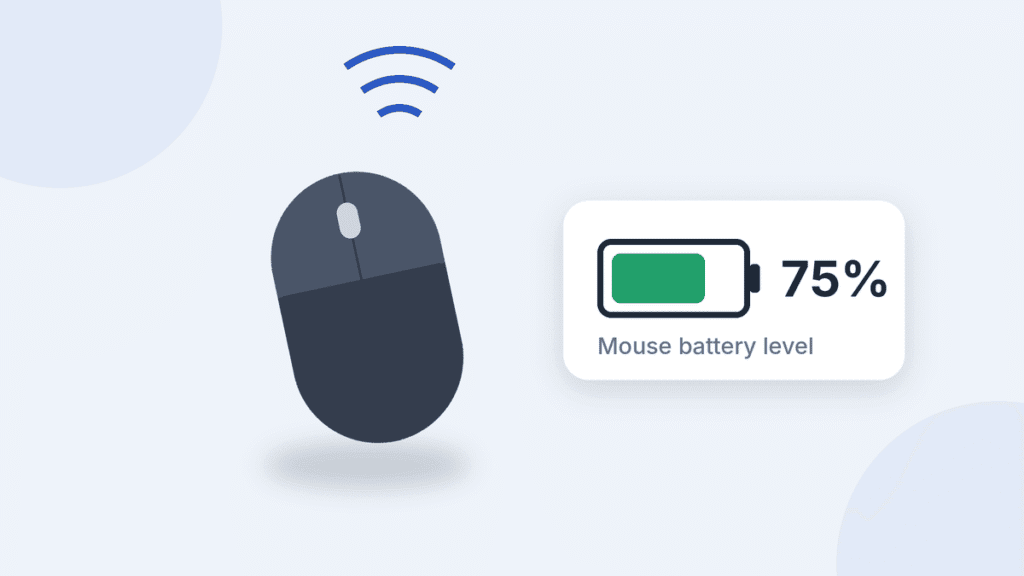
On Windows 11, open Settings > Bluetooth & devices. If your mouse connects over Bluetooth and reports its battery, the percentage appears under its name. On a Mac, click Control Center in the menu bar, then Bluetooth, to see the battery level of a supported mouse such as Apple’s Magic Mouse.
No percentage? Your mouse may use a USB receiver, report battery only through its maker’s app, or not report battery at all. This guide covers Windows, Mac, Logitech and other popular wireless mice, including USB receiver models, plus what to try when no battery level shows.
First, check how your mouse connects
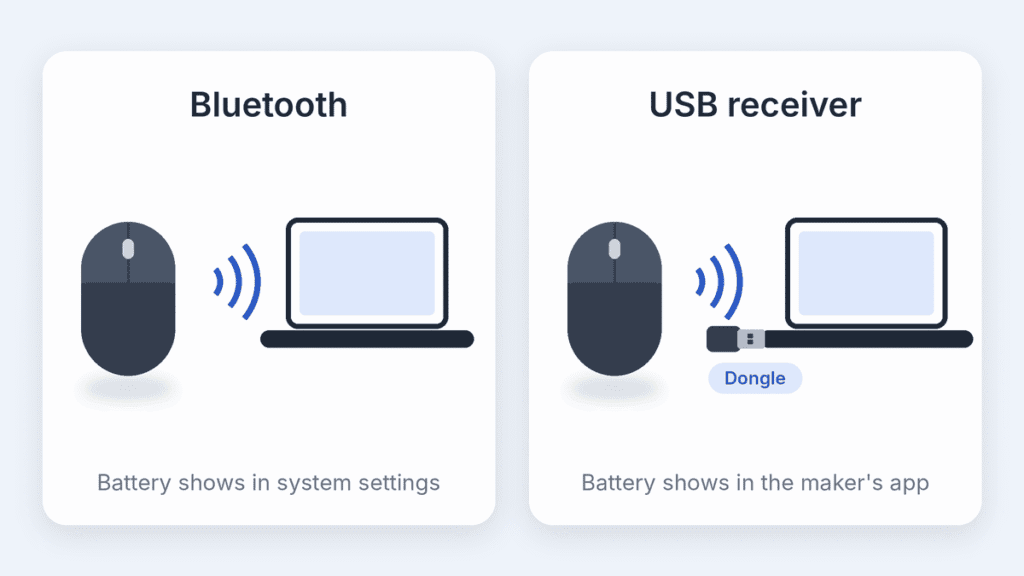
How your mouse connects decides where its battery level shows up. Look at your computer’s USB ports before anything else.
| Connection | How to tell | Where the battery level shows |
|---|---|---|
| Bluetooth | No dongle; the mouse is paired in your Bluetooth settings | Windows or macOS Bluetooth settings, if the mouse reports it |
| USB receiver (2.4 GHz) | A small USB-A or USB-C dongle is plugged into the computer | The maker’s app, or a status light on the mouse |
| Dual mode | A button or switch on the mouse picks Bluetooth or the receiver | Depends on which mode you’re using right now |
The power source matters too. Rechargeable mice usually report a percentage. Mice that run on AA or AAA batteries often show only a low-battery warning, or nothing at all.
How to check mouse battery level on Windows 11
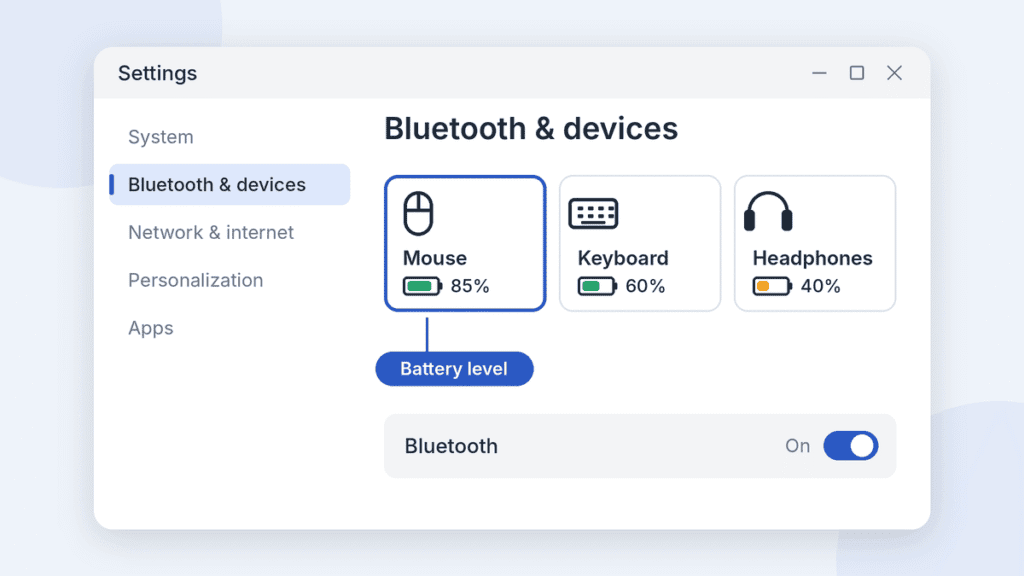
Windows 11 shows the battery level of a Bluetooth mouse in Settings, as long as the mouse sends that information.
- Press Windows + I to open Settings.
- Click Bluetooth & devices in the left menu.
- Find your mouse in the device cards at the top. The battery percentage appears under its name.
- Not there? Click Devices (or View more devices) for the full list, with battery levels on the right.
On recent Windows 11 versions, there’s a quicker route. Open Quick Settings (the network, sound and battery icons in the taskbar), then click the arrow next to the Bluetooth tile. Paired devices that report battery are listed with their last known level.
If your mouse is paired but no percentage appears, it most likely doesn’t report its battery to Windows. Try the maker’s app or the troubleshooting steps below.
Still on Windows 10? The steps are almost the same. Go to Settings > Devices > Bluetooth & other devices, and the battery level appears next to the mouse’s name. Microsoft ended standard support for Windows 10 in October 2025.
How to check mouse battery level on Mac
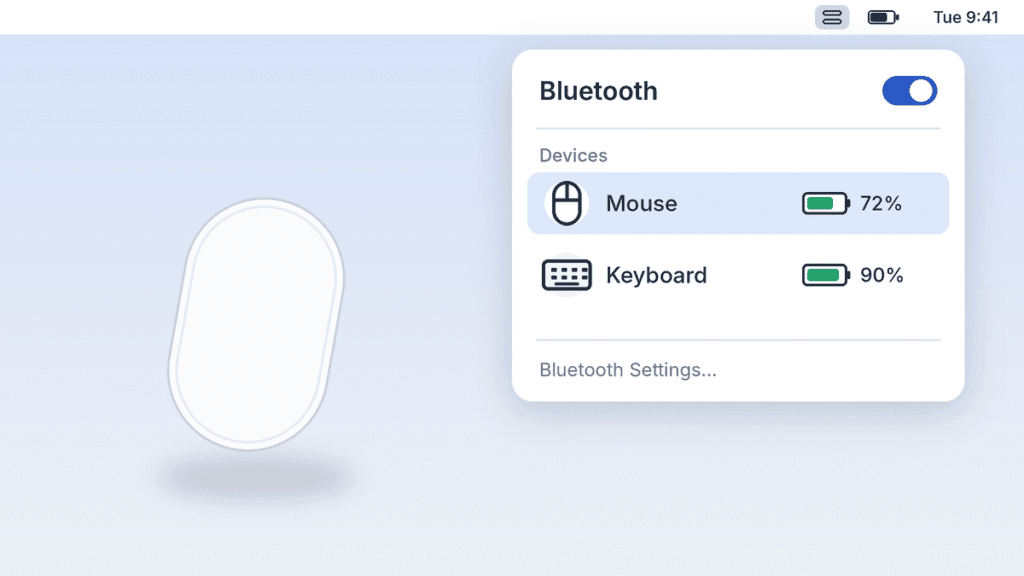
macOS shows the battery level of an Apple Magic Mouse, and of other Bluetooth mice that report it, in two places.
From Control Center (fastest)
- Click the Control Center icon in the menu bar (the two toggle switches, top right).
- Click Bluetooth.
- Your mouse’s battery percentage appears next to its name.
From System Settings
- Click the Apple menu > System Settings.
- Click Bluetooth in the sidebar.
- Find your mouse under connected devices. The battery level shows under its name.
To keep it one click away, type “Bluetooth” into the System Settings search field and set it to Show in Menu Bar. Clicking that icon then lists every connected device with its charge.
A few Magic Mouse specifics are worth knowing:
- There’s no battery light. The small green light on the underside only means the mouse is switched on. It doesn’t show charge.
- You can’t use it while it charges, because the charging port is on the bottom. Apple says it charges fastest when left switched on.
- macOS warns you when it runs low, with a notification on screen.
- The original Magic Mouse uses two AA batteries. It still reports its level in Bluetooth settings, so the steps above work for it too.
Apple covers these details in its guide to recharging Apple keyboards, mice and trackpads.
A third-party mouse that’s paired but shows no percentage most likely doesn’t report battery to macOS. Use its maker’s app instead (next section).
How to check battery on Logitech and other brands
Many wireless mice from major brands report battery through the maker’s own app, including some that also appear in Windows or macOS settings. Depending on the model, you’ll see an exact percentage, battery bars or a low-battery warning.
| Brand | App | Where to look | How it’s shown |
|---|---|---|---|
| Logitech (supported MX, M series and other mice) | Logi Options+ | Home screen, under the mouse’s picture | A percentage, or 1 to 3 bars |
| Logitech G (gaming mice) | Logitech G HUB | The mouse on the home screen | A percentage; some models also estimate time left |
| Razer | Razer Synapse | Battery icon on the mouse’s tile | An icon; some models show no exact percentage |
| Corsair | iCUE | The mouse’s device page | Levels such as High, Medium and Low, not a percentage |
| SteelSeries | SteelSeries GG | The Engine tab, on the mouse | A battery indicator on the device |
Reading Logi Options+ bars: some mice show a percentage, and others show one to three bars. One bar means the battery is low and it’s time to charge. The range each bar covers can vary by model, so check your mouse’s support page for exact figures. Options+ also pops up an on-screen warning when the battery gets low.
Using an older Logitech mouse? Logitech recommends Options+ for current models, but it doesn’t support every older mouse. Some older mice still rely on legacy software such as SetPoint, which Logitech no longer maintains. Check your exact model on Logitech’s support site before installing anything.
Many gaming mice have a button check, too. For example, the Logitech G502 Lightspeed shows its charge on the DPI lights when it’s switched on or when you press the G9 button. Check your manual for the exact button and light colors.
How to check battery on a USB receiver mouse
A mouse that connects through a USB dongle won’t appear in Windows or macOS Bluetooth settings, so Windows and macOS usually can’t show its battery. You have three options, in this order:
- Install the maker’s app. Most branded mice report battery through their receiver, and the app reads it (see the table above).
- Switch to Bluetooth for a moment. If your mouse has a Bluetooth mode, switch to it and check Windows or macOS settings. Switch back afterwards.
- Read the status light. Many mice flash a light red or orange when the battery runs low. What each color means varies by model, so check the manual.
Budget and unbranded receiver mice often have no app and no battery reporting at all. With these, watch for the low-battery signs below. If yours runs on AA or AAA batteries, keep a spare set nearby.
What to do when the battery percentage isn’t showing
Usually the mouse simply doesn’t report its battery to your computer. Work through these checks before assuming something is broken.
- Check it’s connected, not just paired. Move the mouse so it wakes up. Windows and macOS refresh the reading when the mouse connects, and a disconnected mouse may show an old value or none.
- Check how it connects. If it uses a USB receiver, system settings usually won’t show it. Use the maker’s app instead.
- Update the app and the mouse firmware. Readings that are stuck or wrong are often fixed by the latest app version and firmware. Most brand apps update both.
- Charge it fully, then check again. If it still looks wrong, follow your maker’s calibration steps. Corsair, for example, suggests one full drain and recharge when iCUE shows “critical” on a charged mouse. Don’t make full drains a habit, since they wear lithium-ion batteries faster.
- Remove and re-pair the mouse. Forget it in Bluetooth settings, switch it off and on, then pair it again.
- Try fresh alkaline batteries if your mouse supports them. Rechargeable NiMH cells have a lower voltage, so some mice report a lower level even when they’re fully charged. They still work fine in mice that accept them.
If the percentage still doesn’t appear, your mouse may not report battery over its current connection. Check the maker’s documentation, and rely on the mouse’s status light and the warning signs below.
Signs your wireless mouse battery is low
When there’s no percentage to check, the mouse itself usually tells you. Charge it or swap the batteries if you notice any of these:
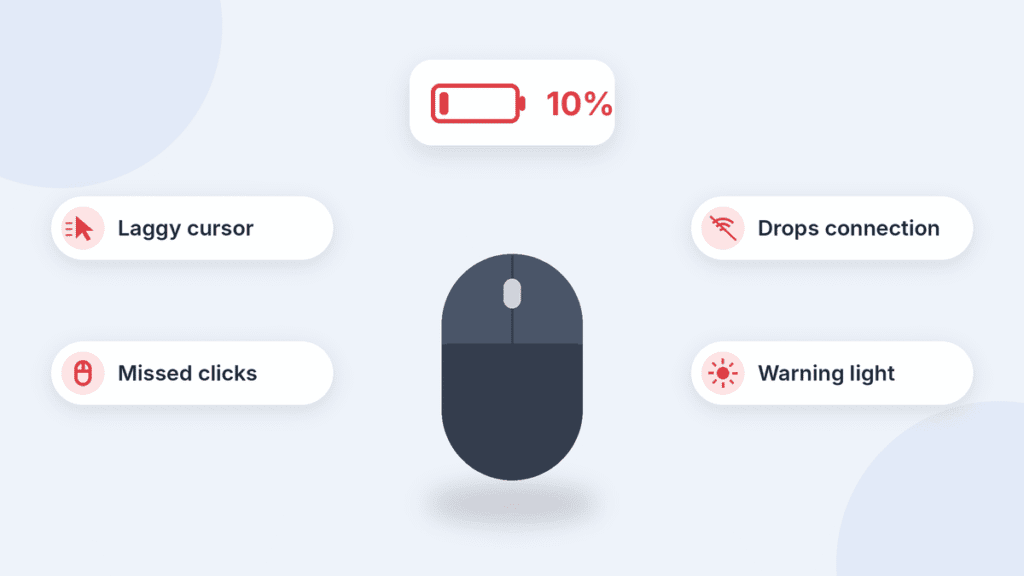
- The cursor lags, stutters or jumps across the screen.
- Clicks or scrolls sometimes don’t register.
- The mouse disconnects often, or takes longer to wake from sleep.
- It only works when it’s close to the computer or receiver.
- A status light flashes red or orange.
- Your computer or the maker’s app shows a low-battery warning.
If the problems continue with a full battery, the cause is something else. Common culprits are wireless interference, a dirty sensor, or a shiny or glass surface.
Frequently asked questions
How do I check my mouse battery on an iPad?
Add the Batteries widget to your Home Screen or Today View. It lists connected Bluetooth devices that report their battery, including the Magic Mouse.
Can I check mouse battery on a Chromebook?
Yes, for Bluetooth mice that report it. Open Settings > Bluetooth, or the Bluetooth list in Quick Settings. ChromeOS has shown these levels since version 87.
How do I check mouse battery on Linux?
On GNOME desktops such as Ubuntu and Fedora, open Settings > Power to see connected devices with batteries. In a terminal, upower -d lists the same levels. For Logitech mice, the free community app Solaar reads battery through Logitech receivers.
Can I see the battery level of a mouse that uses AA batteries?
Sometimes. Some AA mice report a level to their maker’s app or to Bluetooth settings, and the original Magic Mouse did. Many budget models report nothing, so watch for the warning signs above.
Why does Windows show a battery level when my mouse is off?
Windows keeps the last level it received. Turn the mouse on and move it to get a fresh reading.
How long does a wireless mouse take to charge?
It depends on the model. Check your mouse’s manual or the maker’s support page. For a Magic Mouse, Apple gives no exact time but says it charges fastest when left switched on.

Louis Mugan is a seasoned technology writer with a talent for turning complicated ideas into clear, practical guidance. He focuses on helping everyday readers stay confident in a world where tech moves fast. His style is approachable, steady, and built on real understanding.
He has spent years writing for platforms like EasyTechLife, where he covers gadgets, software, digital trends, and everyday tech solutions. His articles focus on clarity, real-world usefulness, and helping people understand how technology actually fits into their lives.
Outside of his regular columns, Louis explores emerging tools, reviews products, and experiments with new tech so his readers don’t have to. His steady, friendly approach has made him a reliable voice for anyone trying to keep up with modern technology. get in touch at louismugan@gmail.com


