
To reset your iPhone Home Screen, go to Settings > General > Transfer or Reset iPhone > Reset > Reset Home Screen Layout, then tap Reset Home Screen to confirm. Your apps and data stay put, but your custom arrangement is gone for good.
That last part is what most guides skip. This one covers what the reset changes, what it leaves alone, how to protect your current layout first, and what to try if you only want a missing app back.
Quick answer
- Where: Settings > General > Transfer or Reset iPhone > Reset > Reset Home Screen Layout
- Deletes apps or data? No
- Removes your folders? Yes
- Can you undo it? No, there’s no Undo button
- Works on: iPhone and iPad (on iPad, the menu says Transfer or Reset iPad)
What the reset changes (and what it doesn’t)
The reset restores the default arrangement of Apple’s built-in apps and places your downloaded apps alphabetically after them. It doesn’t touch anything else on your phone (Apple: Move apps and widgets on the Home Screen).
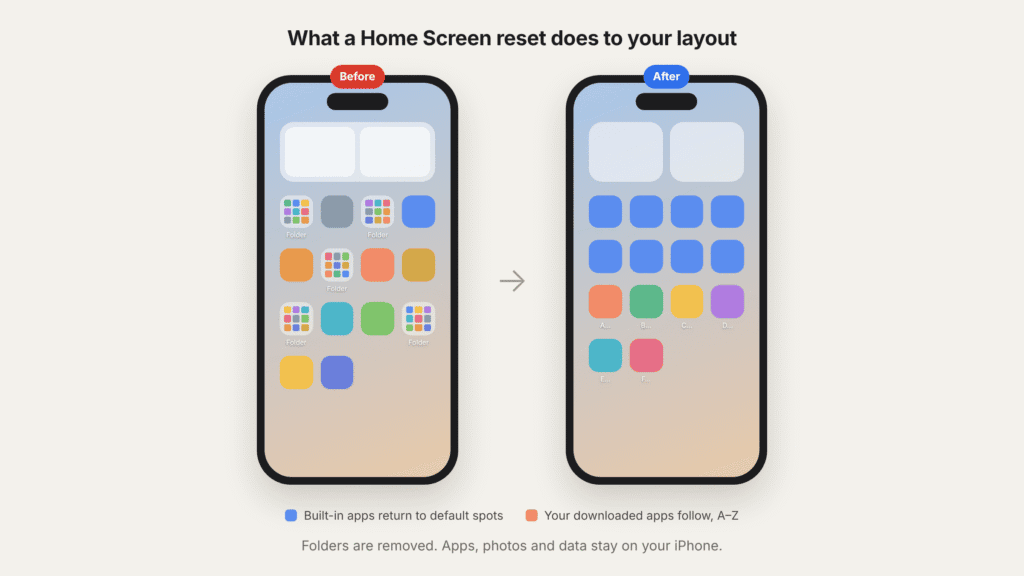
| Item | What happens after a reset |
|---|---|
| Apple’s built-in apps | Return to their default positions |
| Apps you downloaded | Move after the Apple apps, sorted A–Z |
| Folders you created | Removed; the apps inside go back onto the Home Screen |
| Widgets you added | Your custom widget arrangement may be removed, so note your widgets and their settings first |
| Custom Home Screen pages | Your custom page arrangement may be reset to the default layout |
| Apps, photos, messages, settings | Unchanged |
| App Library | Unchanged |
| Wallpaper and Lock Screen | Unchanged |
| Icon style (dark, tinted, larger icons) | Unchanged |
| Apps hidden or restricted with Screen Time | Stay hidden; the reset won’t bring them back |
The last two rows matter more than they look. If you’re resetting because your icons changed color or an app vanished because of Screen Time, a layout reset won’t fix it. See the FAQ below for what will.
Before you reset: save your current layout
There’s no Undo button. Once you confirm, your folders are removed and your apps return to the default arrangement. Your custom widget setup may be removed too. Your apps and data are safe, but rebuilding a carefully organized Home Screen by hand can take a while.
Take two minutes to protect yourself first:
- Screenshot every Home Screen page. Swipe through each page and take a screenshot (on an iPhone with Face ID, press the side button and volume up together; on an iPhone with a Home button, press the side or top button and the Home button together).
- Open each folder and screenshot it too. The folder names and contents are the hardest part to remember.
- Note your widgets. Write down which widgets you use, their sizes and any settings, such as the city in a weather widget.
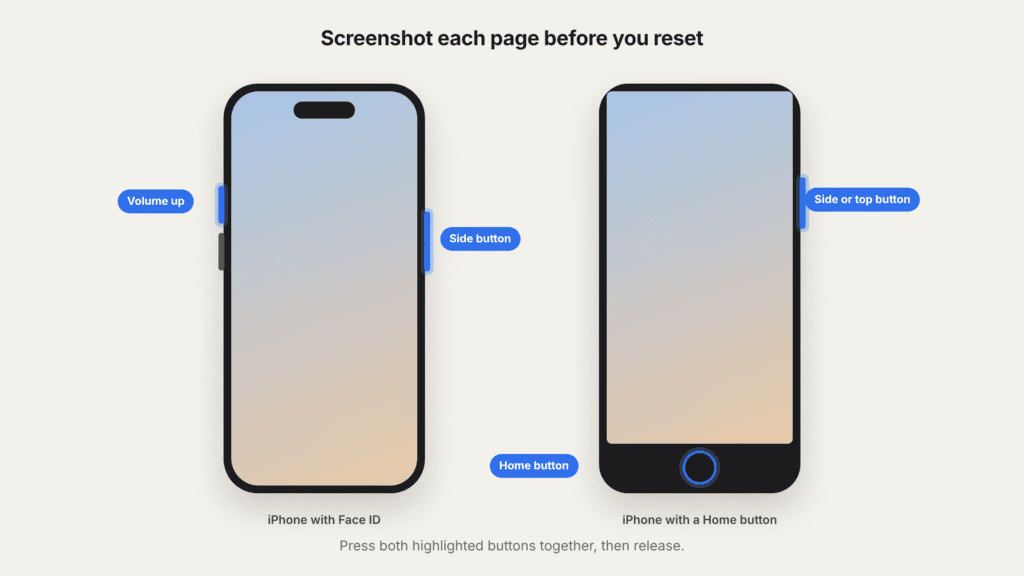
Your screenshots land in the Photos app, so you can check them while you rebuild.
How to reset your iPhone Home Screen layout
You only need your phone. No computer or iCloud backup is required. These steps follow Apple’s official guide.
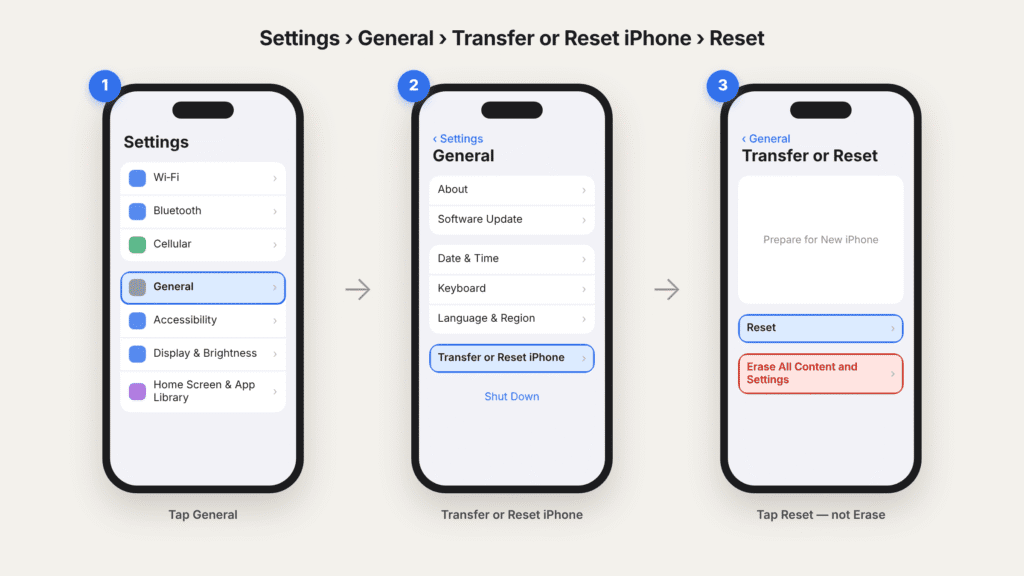
- Open Settings.
- Tap General.
- Scroll to the bottom and tap Transfer or Reset iPhone.
- Tap Reset. Avoid Erase All Content and Settings on the same screen; that one wipes your phone.
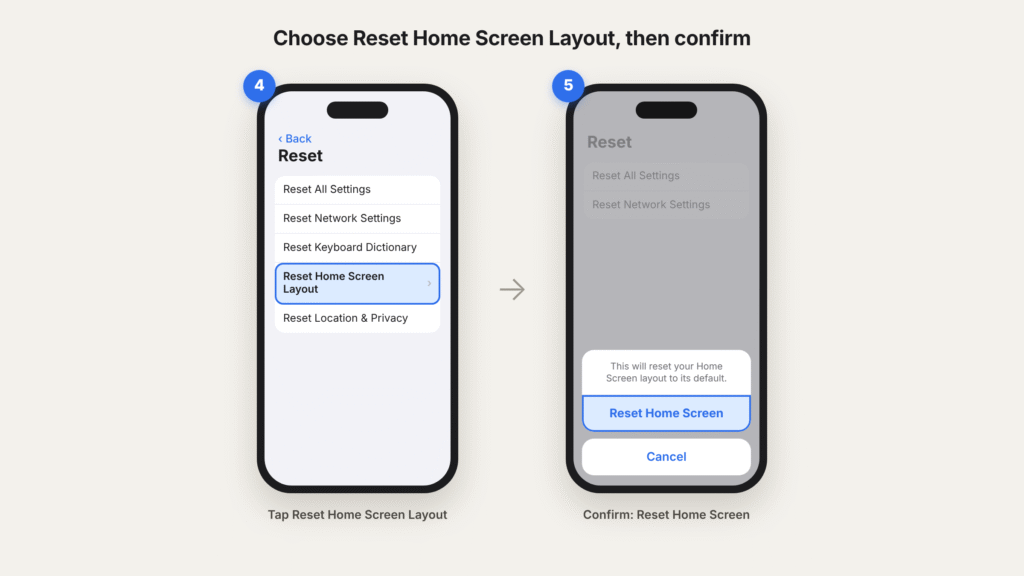
- Tap Reset Home Screen Layout.
- Tap Reset Home Screen to confirm.
Go back to your Home Screen. You’ll see Apple’s apps in their original spots, followed by your downloaded apps in alphabetical order.
Can you undo a Home Screen reset?
No. iOS doesn’t save your previous layout, so there’s no button to bring it back.
Restoring an older iCloud or computer backup isn’t a good workaround. It’s disruptive, it may replace newer data on your phone, and it isn’t a reliable way to get back your previous Home Screen arrangement.
The realistic option is to rebuild by hand, using the screenshots from the step above:
- Long-press an empty spot on the Home Screen until the icons jiggle.
- Drag one app onto another to create a folder, then rename it.
- Drag apps into place page by page, matching your screenshots.
- Tap Edit in the top-left corner, then Add Widget, to put your widgets back.
- Tap Done when you’re finished.
If you didn’t take screenshots, start with the apps you use most on page one. Leave the rest in the App Library, which already sorts them by category.
How to restore a missing app without resetting
If one app disappeared, you probably don’t need a full reset. Check these in order:
- Search for it. Swipe down on the Home Screen, or tap the Search button at the bottom, and type the app’s name. If it appears, drag its icon from the results onto the Home Screen.
- Look in the App Library. Swipe left past your last Home Screen page. Find the app, then touch and hold its icon and drag it onto a Home Screen page.
- Check hidden pages. Long-press an empty spot, then tap the row of dots above the Dock (or tap Edit > Edit Pages). Tick any unchecked pages to show them again.
- Check Screen Time. Some Screen Time settings can stop an app from appearing. Built-in apps such as Safari or Camera can be switched off under Settings > Screen Time > Content & Privacy Restrictions > Allowed Apps & Features. Older iOS versions may label this Allowed Apps. Turn the app back on there.
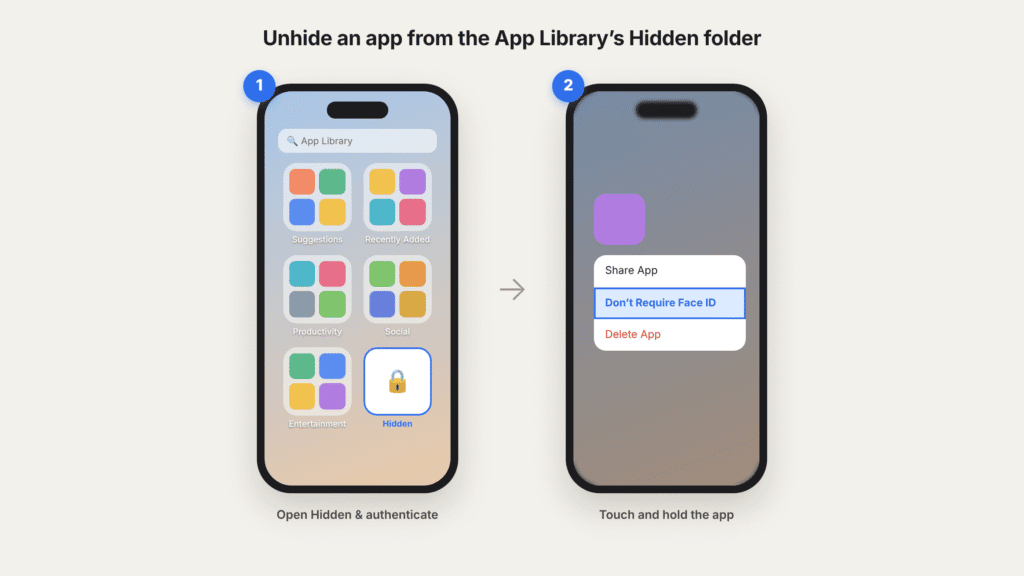
Downloaded apps may also disappear because of age-rating restrictions. Go to Settings > Screen Time > Content & Privacy Restrictions > App Store, Media, Web, & Games > Apps to review the permitted age rating. Menu names may differ on older iOS versions. A layout reset won’t bring back an app that Screen Time is blocking. - Check the Hidden folder. Since iOS 18, you can hide an app behind Face ID, Touch ID or your passcode. Hidden apps don’t show up in Search; they live only in the Hidden folder at the bottom of the App Library (Apple: Lock or hide an app). To unhide one:
- Swipe left to the App Library, scroll to the bottom and tap Hidden.
- Authenticate with Face ID, Touch ID or your passcode.
- Touch and hold the app, then tap Don’t Require Face ID (or Touch ID or Passcode) and authenticate again.
- The app moves back into the App Library, where you can drag it onto your Home Screen.
- Check the App Store. If you still can’t find the app, search for it in the App Store to see whether it’s installed. If it shows a download button, you can reinstall it.
Apple’s own checklist is here: If you can’t find an app on the Home Screen.
Only reset the whole layout if many apps are scattered and you’d rather start clean than fix each one.
Lighter ways to declutter
If you like most of your layout and just want it calmer, try these instead. Both are fully reversible.
Hide whole pages
- Long-press an empty spot until the icons jiggle.
- Tap the row of dots above the Dock, or tap Edit > Edit Pages.
- Untick the pages you want to hide, then tap Done.
Remove an app from the Home Screen without deleting it
- Long-press the app icon.
- Tap Remove App.
- Tap Remove from Home Screen.
The app stays installed and available in the App Library and Search.
Home Screen reset vs. factory reset
They sit on the same screen but do very different things.
| What’s affected | Reset Home Screen Layout | Erase All Content and Settings |
|---|---|---|
| Apps | Rearranged | Deleted |
| Photos, messages, data | Kept | Deleted |
| Settings | Kept | Restored to factory defaults |
| When to use it | Your Home Screen is a mess | You’re selling the phone or troubleshooting a serious problem |
Frequently asked questions
Will resetting the Home Screen delete my photos?
No. Photos, messages, contacts and app data aren’t affected. The reset changes your Home Screen arrangement, not your personal data.
What happens to my folders?
They’re removed. The apps inside them move back onto the Home Screen, sorted alphabetically after Apple’s built-in apps.
Will I lose my widgets?
Your custom widget arrangement may be removed. Screenshot your widgets and note their settings before you reset so you can add them back. The apps behind them keep their data.
Can I undo a Home Screen reset?
No. There’s no Undo button, and iOS doesn’t save your previous layout. You’ll need to rebuild it by hand, which is why screenshots taken beforehand help.
Does it bring back apps I deleted?
No. A deleted app has to be reinstalled from the App Store.
Does it change the App Library?
No. The App Library sorts itself automatically and isn’t affected by the reset.
Will it fix my icon colors?
No. Dark, tinted and larger icons are a separate setting. Long-press an empty spot on the Home Screen, tap Edit > Customize, and choose the default look.
Will it change my wallpaper or Lock Screen?
No. Both stay exactly as they are.
What if the reset doesn’t seem to work?
Restart your iPhone and check the Home Screen again. If some apps are still missing, they may be hidden or blocked by Screen Time, so work through the missing-app steps above. On a work or school iPhone, your organization may control the layout.
The bottom line
Resetting your Home Screen layout is a safe way to clear clutter: no apps or data are lost. Just screenshot your current layout first, since there’s no way to undo it. If you’re only chasing one missing app, try Search or the App Library before resetting anything.

Louis Mugan is a seasoned technology writer with a talent for turning complicated ideas into clear, practical guidance. He focuses on helping everyday readers stay confident in a world where tech moves fast. His style is approachable, steady, and built on real understanding.
He has spent years writing for platforms like EasyTechLife, where he covers gadgets, software, digital trends, and everyday tech solutions. His articles focus on clarity, real-world usefulness, and helping people understand how technology actually fits into their lives.
Outside of his regular columns, Louis explores emerging tools, reviews products, and experiments with new tech so his readers don’t have to. His steady, friendly approach has made him a reliable voice for anyone trying to keep up with modern technology. get in touch at louismugan@gmail.com


