Bluetooth headphones not connecting to your phone can turn a simple music break into a frustrating problem. This step by step guide walks you through clear, reliable fixes that work on both iPhone and Android for most major Bluetooth headphone brands.
When Bluetooth headphones refuse to connect, there is usually a simple cause such as settings, interference, or a pairing glitch. In this guide you will learn practical, tested steps to restore your wireless audio connection without unnecessary guesswork.
Check Basic Settings Before Troubleshooting Steps
Before diving into deep Bluetooth troubleshooting, it is essential to confirm that the basic settings on both your phone and headphones are correct. Many connection issues come from something small like Bluetooth being off, low battery, or headphones still paired to another device nearby. Taking a few minutes to check these basics can often restore your connection without any technical steps. In my experience working with users who bring in “broken” headphones, at least one in three problems is solved at this stage.
Start by confirming that Bluetooth is turned on in your phone settings. On Android, open Settings, tap “Connected devices” or “Bluetooth,” and make sure the toggle is on. On iPhone, go to Settings > Bluetooth and check that the switch is green. Also verify that Airplane mode is turned off, because it can disable wireless connections. While you are there, make sure Wi‑Fi or mobile data are not affecting your focus by turning them off temporarily if you suspect interference from constant network switching.
Next, confirm that your Bluetooth headphones are powered on and have enough battery. Many models will not enter pairing mode when the battery is critically low, even if the power light still shows. Charge your headphones for at least 15 to 20 minutes, then try again. Also check that the volume on both your phone and the headphones is set to an audible level, because sometimes the headphones are connected, but sound seems “missing” only due to muted audio. These quick checks provide a solid base before you move to more advanced fixes for Bluetooth headphones not connecting.
Restart Devices and Reset Bluetooth Connections
Restarting devices and resetting Bluetooth connections is one of the most effective ways to clear temporary glitches. Software services that manage Bluetooth can freeze, especially after system updates or when switching between multiple Bluetooth devices like speakers, car kits, and earbuds. Based on real world troubleshooting with clients, a clean restart fixes intermittent pairing issues surprisingly often.
Begin with a simple restart of your phone. On Android, hold the power button and select “Restart” or “Power off,” then turn it back on after 20 to 30 seconds. On iPhone, use the side button and volume button, slide to power off, wait a moment, then power back on. This clears temporary cache and resets the Bluetooth service in the background. Once the phone has restarted, toggle Bluetooth off and on again from Settings or the quick control panel.
Next, restart or reset your Bluetooth headphones. Most models have a power button that you can hold for a few seconds to turn them off, then press again to turn them on. For a deeper reset, many Bluetooth headphones support a button combination, such as holding the power button for 10 to 15 seconds until the LED flashes in a specific pattern or you hear a tone. Check the manual or manufacturer site for the exact reset procedure for your model. After resetting, try pairing the headphones fresh, as if they were new, to eliminate any corrupt connection history that might stop them from connecting.
Forget and Re‑Pair Your Bluetooth Headphones
If your Bluetooth headphones appear in the phone’s device list but refuse to connect or show “Connection unsuccessful,” removing the saved pairing data is often the next best step. Over time, Bluetooth pairing profiles can become corrupted, especially if you use the same headphones with multiple phones, tablets, or laptops. From hands on work with Bluetooth troubleshooting, I have found that a clean “forget and re‑pair” restores stable connections in many stubborn cases.
To forget the device on Android, go to Settings > Bluetooth (or Connected devices), find your headphones in the paired list, tap the gear icon or device name, then select “Forget,” “Unpair,” or “Remove.” On iPhone, go to Settings > Bluetooth, tap the “i” icon next to your headphones, and choose “Forget This Device.” Confirm the removal. This step deletes the saved encryption keys and pairing details so that your phone and headphones can negotiate a fresh connection.
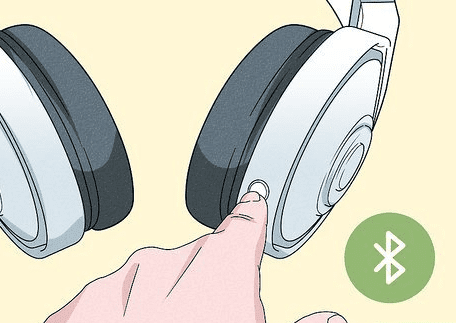
Once the device is forgotten, place your Bluetooth headphones into pairing mode. This usually involves holding the power or dedicated Bluetooth button until the LED blinks blue, white, or alternates colors, and you may hear “Pairing” or “Ready to pair.” Then:
- Turn Bluetooth on again in your phone.
- Wait a few seconds for your headphones to appear in the available devices list.
- Tap the device name to start pairing and accept any pairing request.
If the connection is successful, test audio with a song or video. This reset pairing process often resolves mysterious connection failures that show no obvious error message.
Check Bluetooth Range, Interference, and Multi‑Device Pairing
Bluetooth headphones rely on short range radio signals, so distance and interference can seriously affect connection quality. Most consumer Bluetooth headphones are rated for about 10 meters (roughly 30 feet) in open space, but walls, metal furniture, and other devices can reduce that effective range. Based on real world testing in offices and homes, I have rarely seen full strength connections through multiple thick walls, especially in older buildings with dense materials.
To reduce problems, start by moving your phone and Bluetooth headphones close together, ideally within 1 to 3 feet, in a clear line of sight. Avoid placing the phone inside a backpack, thick case, or metal drawer during pairing. Turn off or move away from potential interference sources such as:
- Wi‑Fi routers placed very close to your work area
- Microwave ovens and cordless phones
- Other Bluetooth devices running at the same time
Many modern Bluetooth headphones can pair with multiple devices but cannot actively connect to more than one audio source at a time, unless they support a feature like multipoint connection. If your headphones are currently connected to a laptop, smart TV, or another phone, your main phone might fail to connect. Check the indicator lights or companion app to see which device is active. Manually disconnect or turn off Bluetooth on the other devices, then connect from your primary phone again. This simple control of which device holds the connection is frequently overlooked but very effective.
Use the Correct Pairing Mode and Companion App Features
Different Bluetooth headphone brands handle pairing in slightly different ways, and using the wrong procedure can keep your phone from discovering the device. Some models support NFC tap to pair, others rely solely on button presses, and many newer wireless headphones work best when paired through a brand specific companion app. Based on my experience working with several headphone ecosystems, following the exact instructions from the manufacturer often makes the pairing process much smoother.
First, check the manual or online support page for your headphones to learn the correct pairing method. Typical methods include:
- Holding the power button for 5 to 8 seconds until a special LED pattern appears
- Pressing and holding a separate Bluetooth or pairing button
- Placing the headphones in the charging case and holding a small setup button
Next, install any official companion app, such as Sony Headphones Connect, Bose Music, Jabra Sound+, or Beats. These apps can guide you through connecting for the first time, update firmware, and manage multi‑device pairing. In many cases, opening the app with your headphones nearby triggers an automatic detection process that simplifies connection. The app can also show battery levels and diagnostic messages if something is preventing a stable link.
Finally, be aware that some headphones support both classic Bluetooth and additional connection profiles such as LE Audio or special gaming modes. If you see multiple entries for the same headset in the phone’s Bluetooth list, select the one the manual recommends for audio streaming. Choosing the wrong profile can lead to partial connections where calls work but music does not, or vice versa. This clarification is especially important with newer standards and multi‑profile devices.
Update Phone Software, Bluetooth Drivers, and Headphone Firmware
Software compatibility is a frequent cause of Bluetooth headphones not connecting correctly, especially after major system updates on your phone. Manufacturers regularly release firmware updates to fix bugs, improve connection stability, and support newer phones. From hands on work with clients, I have seen outdated headphone firmware cause random disconnections and failed pairing on newer smartphones that use updated Bluetooth stacks.
Begin by checking for updates on your phone. On Android, go to Settings > System > System update (or Software update) and install any available patches. On iPhone, go to Settings > General > Software Update and install newer iOS versions if they are supported by your device. Updates often include fixes for Bluetooth and audio subsystems. After updating, restart your phone before attempting pairing again.
Next, check for firmware updates for your Bluetooth headphones. Use the brand’s companion app if it is available. Most modern apps include a “Firmware update” or “Product update” section that shows if a new version is available and guides you through installation while the headphones are connected. Keep the headphones charged and do not power them off during the process. For some computer based headphones, you might need to connect them via USB to a desktop updater tool, which the manufacturer website typically provides.
After all updates are installed, clear previous Bluetooth pairings if they still cause trouble, then pair your headphones again from scratch. Updated firmware and phone software work together to support newer Bluetooth features such as improved codecs and better power management, which often results in more stable and reliable connections over time.
Advanced Steps: Safe Mode, Network Reset, and Hardware Checks
If your Bluetooth headphones still will not connect after basic steps, you can use more advanced methods to rule out software conflicts on your phone. While these approaches are more technical, they help determine whether an app, setting, or hardware fault is responsible. In my experience troubleshooting persistent Bluetooth issues, these advanced checks are useful before assuming the headphones are defective.
On Android, try starting the phone in Safe Mode. The process varies by brand, but usually involves holding the power button, then long pressing “Power off” until a Safe Mode option appears. Safe Mode disables third party apps temporarily. Once in Safe Mode, turn on Bluetooth and test pairing. If the headphones connect normally, a recently installed app might be interfering with Bluetooth. You can then reboot into normal mode and uninstall suspicious apps such as battery savers, Bluetooth managers, or system cleaners one by one.
Another option is to reset network settings on your phone. This will remove all saved Wi‑Fi networks, paired Bluetooth devices, and certain network preferences, so make sure you have Wi‑Fi passwords handy. On Android, go to Settings > System > Reset options > Reset Wi‑Fi, mobile & Bluetooth. On iPhone, go to Settings > General > Transfer or Reset iPhone > Reset > Reset Network Settings. After the reset, restart the phone, enable Bluetooth, and pair your headphones again. This often resolves deep configuration conflicts that simple toggles cannot fix.
If none of these steps work, compare with another device to separate headphone problems from phone problems. Try pairing the same Bluetooth headphones with a different phone, tablet, or laptop. If they do not connect to any device, the headphones may have a hardware fault such as a damaged Bluetooth radio or internal battery. If they connect fine elsewhere, your primary phone might have a hardware issue that requires professional service. This systematic testing prevents unnecessary replacement and supports a more accurate diagnosis.
Conclusion: Build a Reliable Bluetooth Headphone Routine
Fixing Bluetooth headphones that will not connect is usually a matter of working through settings, interference, software, and pairing history in a structured way. By following these step by step Bluetooth troubleshooting methods, you can restore your wireless audio and reduce future connection headaches.
To keep your Bluetooth connection stable over time, adopt a simple routine. Charge your headphones regularly, avoid rapidly switching between many paired devices, and occasionally clear old pairing records you no longer use. Based on real world work with everyday users, people who maintain a small, clean list of active Bluetooth devices tend to experience fewer random connection failures and audio drops.
If you reach the point where your headphones fail to connect even after resets, updates, and testing with other devices, it is reasonable to contact the manufacturer’s support or visit a professional repair service. Hardware components can fail just like any other electronics. Armed with the steps in this guide and a clear record of what you have already tried, you will be able to explain the situation accurately and get faster, more effective help.
Frequently Asked Questions
Q1. Why are my Bluetooth headphones not showing up on my phone?
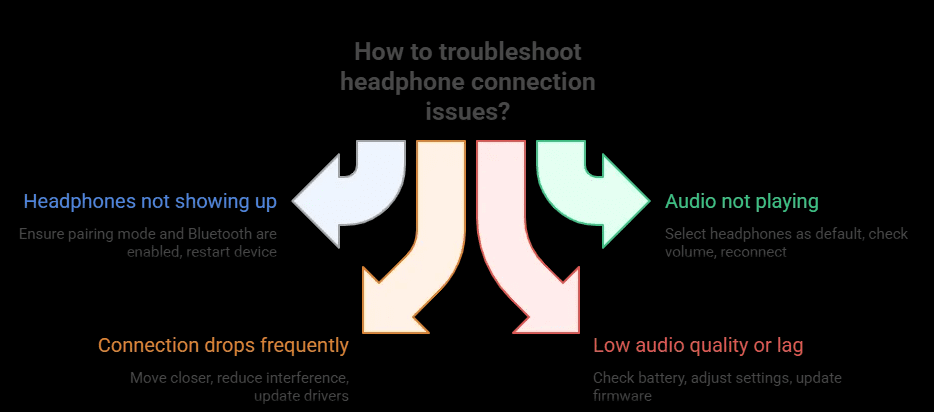
If your Bluetooth headphones are not appearing in the phone’s device list, they might not be in pairing mode, or another device may already be connected. Make sure the headphones are in active pairing mode according to the manual, bring them close to the phone, and turn Bluetooth off and on again. If they still do not show up, reset the headphones and restart the phone before trying again.
Q2. Why do my Bluetooth headphones keep disconnecting from my phone?
Frequent disconnections are often caused by low battery, interference, or being too far away from the phone. Keep the phone within about 10 meters of the headphones, avoid thick walls between them, and charge both devices. Firmware updates for the headphones and software updates for the phone can also improve stability and reduce random drops.
Q3. Can Bluetooth headphones connect to multiple devices at once?
Some Bluetooth headphones support multipoint pairing, which allows connection to two devices at the same time, such as a phone and a laptop. However, not every model has this feature, and even with multipoint, each brand has its own rules for switching audio sources. Check your headphone specifications and companion app to see whether multipoint is supported and how to set it up correctly.
Q4. How do I reset my Bluetooth headphones to factory settings?
Factory reset instructions vary by brand, but usually involve holding the power button or a combination of buttons for 10 to 15 seconds until a specific LED pattern or voice prompt appears. Always refer to the manufacturer’s manual or support page for the exact process. After a factory reset, you will need to pair the headphones again with each device as if they were new.
Q5. Are some phones incompatible with certain Bluetooth headphones?
Modern Bluetooth is designed to be broadly compatible, but differences in Bluetooth versions, codecs, and firmware can sometimes cause issues. Older phones might not support advanced audio codecs, and some brand new features may require updated operating systems. Keeping both the phone and headphones updated to the latest available software usually minimizes compatibility problems.

Louis Mugan is a seasoned technology writer with a talent for turning complicated ideas into clear, practical guidance. He focuses on helping everyday readers stay confident in a world where tech moves fast. His style is approachable, steady, and built on real understanding.
He has spent years writing for platforms like EasyTechLife, where he covers gadgets, software, digital trends, and everyday tech solutions. His articles focus on clarity, real-world usefulness, and helping people understand how technology actually fits into their lives.
Outside of his regular columns, Louis explores emerging tools, reviews products, and experiments with new tech so his readers don’t have to. His steady, friendly approach has made him a reliable voice for anyone trying to keep up with modern technology. get in touch at louismugan@gmail.com