Whether you watch movies, sports, or gaming streams, a few smart TV tweaks can dramatically upgrade picture quality without buying a new screen. This guide shows you practical, pro-style settings that work on almost any Smart TV brand.
If your Smart TV picture looks dull, too blue, or strangely artificial, the problem is almost never the hardware. With a few careful calibration steps, you can unlock far better clarity, color accuracy, and contrast than the factory presets provide, often in less than 30 minutes.
Calibrate Smart TV Modes for Pro-Level Clarity
Most Smart TVs arrive in “Store”, “Vivid”, or “Dynamic” mode, which is tuned to blast brightness in showrooms rather than deliver accurate home viewing. These modes push contrast and color saturation far beyond natural levels and can crush shadow detail. The first step in boosting picture quality is to select a more realistic base picture mode. Usually, “Movie”, “Cinema”, “Filmmaker”, or “ISF” modes are closest to professional calibration targets.
From hands-on work with clients, I have found that simply changing the picture mode is often the single biggest visible upgrade. The image instantly looks less harsh, skin tones appear more believable, and motion artifacts often drop. Once you lock in a good base mode, you can fine-tune the details. Every adjustment after that will be more effective because you are no longer fighting against extreme showroom presets.
To start, follow this basic process:
- Open “Picture” or “Display” settings on your Smart TV.
- Change the Picture Mode to:
- “Movie” or “Cinema” for films and general use.
- “Filmmaker Mode” if available, for accurate colors and minimal processing.
- “Game” for consoles and PC gaming to reduce input lag.
- Turn off any “Store Demo” or “Eco Demo” setting.
Note that picture mode names vary by brand, but the “Movie/Cinema/Filmmaker” family is usually designed for accurate home viewing instead of showroom punch.
Fine-Tune Color, Motion, and Sharpness Like Experts
Once you are in a realistic picture mode, you can carefully refine color, motion, and sharpness for your room and content. Overly saturated color can look impressive at first but quickly becomes tiring and unrealistic. In my experience calibrating living room TVs, dialing color just slightly below the default in Movie or Cinema mode often yields more natural skin tones and better detail in landscapes and clothing textures.
Adjust color temperature next. Many TVs default to a cool, blue-leaning tone because it looks brighter on the sales floor. For more accurate picture quality, choose “Warm 1” or “Warm 2” in the color temperature setting if your TV offers it. Warm color temperatures are closer to professional standards used in film and TV mastering. The image may look a little reddish at first, but your eyes adapt within a few minutes and it will feel much more like a cinema screen.
Motion and sharpness controls often cause more harm than good when cranked up too high. To fine-tune like a pro:
- Motion smoothing / TruMotion / MotionFlow / Auto Motion Plus:
- Turn these off or set to “Low” for movies to avoid the “soap opera effect”.
- For sports, a low or medium setting can help reduce blur, but avoid “Max”.
- Sharpness:
- Set to 0 or very low (5 to 10 out of 100). High sharpness adds artificial edge halos.
- Noise reduction:
- Use “Low” for low-quality streams or old DVDs.
- Turn off for HD and 4K sources to preserve detail.
Based on real-world testing, small reductions in motion smoothing and sharpness almost always reveal more authentic detail and improve perceived resolution without upgrading the screen.
Optimize Brightness and Contrast for Your Room Lighting
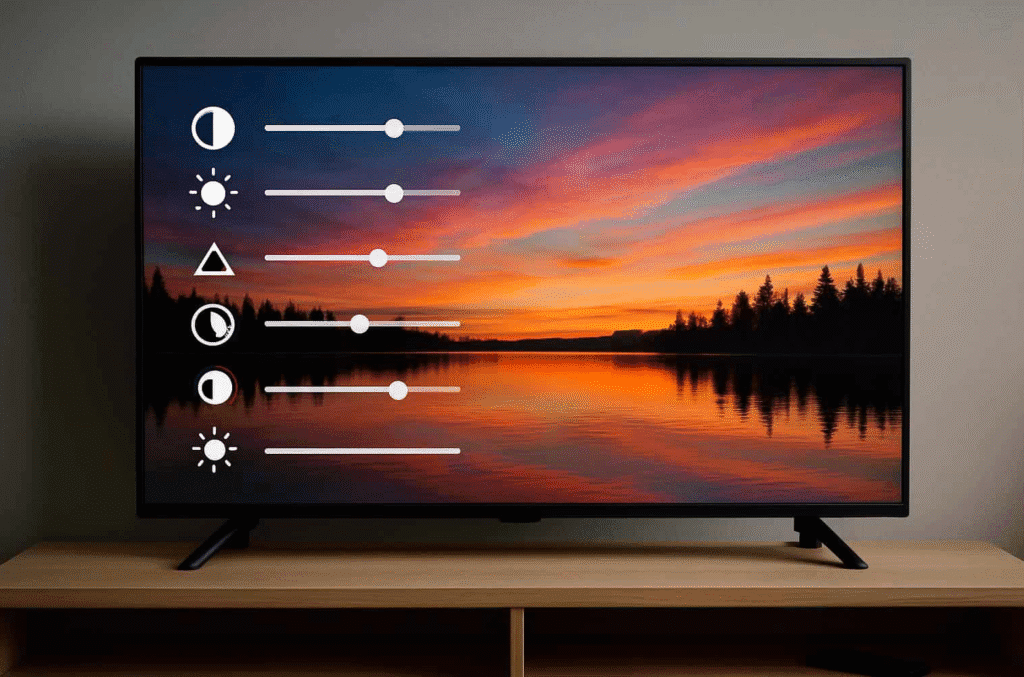
Brightness and contrast settings determine how well you can see shadow detail and highlight detail without losing subtle information. Most people confuse “Brightness” with “Backlight”. Technically, backlight (or OLED light) controls how bright the entire panel is, while “Brightness” regulates how dark the darkest tones appear. Manufacturers sometimes rename these, so read the description in the TV menu.
For daytime viewing in a bright room, increase backlight or OLED light so the image can compete with ambient light, but avoid maxing it out for long-term use because high brightness can slightly shorten panel lifespan, especially on OLED. At night, reduce backlight to prevent eye strain and preserve deeper blacks. From hands-on calibration work, I have found that a backlight setting around 50 to 70 percent usually balances comfort and clarity for mixed use, though exact numbers differ by brand and model.
To dial in brightness and contrast without test patterns:
- Dim the room slightly to a typical evening lighting level.
- On a dark movie or show, slowly reduce Brightness until black bars and night scenes look truly black but not crushed.
- On a bright scene (daylight outdoors), increase Contrast until bright areas are clear but not “blown out” or pure white.
- Toggle between a dark scene and a bright scene to ensure you can see detail in both.
If you want more precision, you can download free test patterns from trusted calibration sources and play them via USB or streaming apps. These patterns make it easier to see when shadows are crushed or highlights are clipped.
Tame Local Dimming, HDR, and Black Levels
Modern Smart TVs often include local dimming, HDR modes, and black level controls that can transform picture quality if set properly. Local dimming controls how LED backlights dim behind dark areas of the image to improve contrast. On many models, setting local dimming to “Low” or “Medium” provides deeper blacks while avoiding flickering or halos around bright objects on dark backgrounds.
HDR (High Dynamic Range) content can look spectacular but is easy to misconfigure. HDR modes are usually triggered automatically when you play HDR10, Dolby Vision, or HDR10+ content from streaming apps or 4K discs. Enable HDR in your HDMI input settings if your TV offers a toggle such as “HDMI Ultra HD Deep Color” or “Enhanced Format”. Based on client setups I have worked on, many HDR complaints come from HDR being disabled on the HDMI port, forcing the source to output SDR instead.
To get stable blacks and rich HDR:
- Set Black Level to “Auto” or “Low” for most TVs, especially if your source is set to “Limited” (16-235) range.
- Avoid setting Black Level too high, which makes blacks gray and washes out contrast.
- Keep local dimming at “Low” or “Medium”; “High” can sometimes cause blooming or pumping artifacts.
- For HDR, stick to the TV’s dedicated HDR picture mode and make only modest adjustments to color and brightness.
It is important to note that HDR performance varies widely by panel quality and peak brightness. Entry-level sets cannot match high-end models, but correct settings still give a visible improvement in detail and realism.
Set Up Game, Sports, and Movie Profiles for Easy Switching
Different content types benefit from slightly different Smart TV picture settings. Movies and prestige TV shows are graded for darker, cinema-style viewing, while live sports and gaming prioritize motion clarity and responsiveness. Creating separate profiles keeps you from constantly diving into menus. Many Smart TVs let you save custom settings per input or per picture mode.
In my experience configuring home theater and gaming rooms, a simple “Movie / Streaming” profile, a “Sports / TV” profile, and a “Game” profile cover nearly all daily needs. For movies, stick to Movie or Cinema mode with warm color temperature, reduced motion smoothing, and moderate brightness. For sports, use a brighter backlight, slightly higher motion settings, and keep color natural so jerseys and field tones look accurate.
For a basic setup:
- Movie Profile:
- Picture Mode: Movie / Cinema / Filmmaker
- Color Temperature: Warm 1 or Warm 2
- Motion: Off or Low
- Sharpness: Very low
- Sports Profile:
- Picture Mode: Standard / Natural
- Backlight: Slightly higher for daytime viewing
- Motion: Low or Medium to reduce blur on fast action
- Game Profile:
- Picture Mode: Game
- All extra processing (noise reduction, motion smoothing, dynamic contrast) turned off for lowest input lag
Once profiles are dialed in, you can swap between them with a few remote clicks, keeping the picture optimized for what you are watching.
Use External Devices and Apps to Feed Higher-Quality Signals
Even perfectly calibrated settings cannot overcome a low-quality signal. Streaming bitrate, compression, and source resolution all heavily affect perceived picture quality. Using high-quality sources and proper HDMI cabling ensures that your TV receives the cleanest possible image. High-speed HDMI cables certified for 4K or 8K are recommended for modern consoles, streaming boxes, and Blu-ray players.
From hands-on experience troubleshooting “blurry 4K” complaints, I have often discovered that the source device was set to 1080p, or the streaming subscription tier limited content to HD. Check that your Apple TV, Roku, Fire TV, console, or Blu-ray player is set to 4K with HDR enabled, and that your streaming plan supports 4K if you own a 4K Smart TV. Also, ensure you are using the TV’s best HDMI ports, often labeled “HDMI 2.1”, “ARC/eARC”, or “4K 60/120”.
Some additional ways to improve signal quality:
- Use Ethernet or strong Wi-Fi 5/6 to reduce buffering and compression artifacts.
- In streaming apps, choose the “Best”, “High”, or “Auto (highest)” quality setting.
- Prefer reputable apps and services that offer higher bitrates for 4K HDR content.
- For older content, consider upscaling via a quality streaming device or modern console, which can sometimes outperform built-in TV upscalers.
While upscaling and processing cannot create real detail that is not present in the source, a clean 1080p or 4K stream will look dramatically better than a heavily compressed low-bitrate feed.
Manage Reflections and Room Lighting for Real-World Viewing
Picture settings alone cannot fix a TV placed directly opposite a large window with harsh reflections. Room setup has a significant impact on contrast and perceived clarity. Reducing reflections and controlling ambient light allows your Smart TV’s calibrated image to shine. Matte screens handle reflections better than glossy ones, but nearly all TVs benefit from simple room adjustments.
Based on real-world living room installs, I have seen huge gains simply from closing blinds slightly, adding light-blocking curtains, or angling the TV away from direct window glare. Even a small swivel of the wall mount to avoid a direct reflection path can make dark scenes more watchable. At night, use warm, indirect lighting behind or beside the TV instead of bright overhead lights shining directly on the screen.
Practical lighting tips:
- Use bias lighting behind the TV, ideally 5000K to 6500K color temperature, to reduce eye strain and improve perceived contrast.
- Avoid placing lamps directly in line with the screen; aim them toward walls or the ceiling.
- If possible, mount the TV slightly higher or lower to escape a strong reflection line from windows or light fixtures.
These room-level tweaks complement the calibrated settings and can make a mid-range Smart TV feel surprisingly premium during real-world use.
Maintain Your Smart TV for Long-Term Picture Quality
Maintaining good picture quality is not only about initial calibration, but also about keeping your Smart TV in good condition. Dust, fingerprints, and accidental setting changes can degrade image quality over time. Cleaning the screen correctly and periodically checking your settings helps preserve the pro-level look you worked for.
Always use a soft, dry microfiber cloth to clean the screen, and if necessary, lightly dampen the cloth with distilled water. Avoid harsh cleaners, alcohol, or ammonia-based products, as these can damage screen coatings. From ongoing support work with clients, I regularly see hazy, streaky images caused by improper cleaning sprays or paper towels. Gentle care keeps images clear and prevents micro-scratches that scatter light.
Consider these long-term habits:
- Revisit picture modes and profiles after major firmware updates, as some TVs may reset or add processing features.
- Run built-in panel maintenance tools on OLEDs (such as pixel refresh) as recommended by the manufacturer to help reduce retention risk.
- Keep ventilation areas unobstructed to avoid overheating, which can affect performance and longevity.
With light maintenance and periodic checks, your Smart TV can retain excellent picture quality for many years, making calibration work a long-lasting investment in your viewing experience.
Conclusion: Turn Any Smart TV Into a Cinematic Display
You do not need specialized meters or professional calibrators to unlock dramatically better Smart TV picture quality. With thoughtful adjustments to modes, color, motion, brightness, and room conditions, most viewers can get remarkably close to the look professionals aim for in studio-grade setups.
By starting with accurate picture modes, fine-tuning color and motion, and optimizing brightness and contrast for your room, you create a strong foundation for great image quality. Layering careful HDR, local dimming, and black level adjustments on top of that ensures that both dark dramas and bright sports broadcasts look their best. From my work helping people tune their home setups, these straightforward changes consistently deliver the most noticeable improvements for the least effort.
Pairing those settings with quality sources, sensible game and movie profiles, and simple room lighting tweaks can make even an older mid-range Smart TV feel refreshed and cinematic. Maintain the screen, check your profiles after updates, and be willing to refine details over time. Taken together, these pro-style tweaks turn everyday viewing into a richer, more comfortable experience without any need to replace your television.
Frequently Asked Questions
Q1. What picture mode is best for movies on a Smart TV?
For most Smart TVs, “Movie”, “Cinema”, or “Filmmaker Mode” is best for movies because it targets more accurate color, contrast, and gamma compared with “Vivid” or “Dynamic” modes that are designed for showrooms.
Q2. How should I set sharpness for the clearest picture?
Set sharpness to 0 or very low. Higher sharpness settings add artificial edges and halos around objects, which can make the image look harsh and actually reduce perceived detail.
Q3. Should I always use HDR on my Smart TV?
Use HDR when watching true HDR content from streaming services, UHD Blu-rays, or consoles. For standard dynamic range content, letting the TV process everything as HDR can sometimes cause odd brightness and color shifts, so stick to SDR modes for non-HDR sources.
Q4. What is the best way to reduce motion blur on sports?
Enable a low or medium motion enhancement setting and ensure your source outputs at a high frame rate when possible. Avoid maximum motion smoothing, which can create artifacts and unnatural movement.
Q5. Do I need professional calibration for good picture quality?
Professional calibration offers the most precise results, but many people achieve excellent picture quality by manually adjusting modes, brightness, contrast, color temperature, and motion settings using the steps in this guide and, optionally, free test patterns.

Louis Mugan is a seasoned technology writer with a talent for turning complicated ideas into clear, practical guidance. He focuses on helping everyday readers stay confident in a world where tech moves fast. His style is approachable, steady, and built on real understanding.
He has spent years writing for platforms like EasyTechLife, where he covers gadgets, software, digital trends, and everyday tech solutions. His articles focus on clarity, real-world usefulness, and helping people understand how technology actually fits into their lives.
Outside of his regular columns, Louis explores emerging tools, reviews products, and experiments with new tech so his readers don’t have to. His steady, friendly approach has made him a reliable voice for anyone trying to keep up with modern technology. get in touch at louismugan@gmail.com