You sit down to read a news article and the page feels like a carnival. Banners blink, video ads start talking to you, and a tiny X to close a pop up is almost impossible to tap. Pages load slowly, your data plan feels like it is disappearing, and you start to worry that all of this tracking is not great for your privacy either.
The good news is that Safari has simple built in tools to reduce the worst pop ups and tracking, and there are easy content blocker apps that can do even more without requiring you to be a tech expert. According to Apple Support, Safari already includes features that limit cross site tracking and show warnings about fraudulent sites, and you can add content blockers on top for extra protection.
In this guide, you will learn in plain language how Safari ad blocking works, how to pick a safe method for your iPhone, iPad, or Mac, and how to turn everything on step by step without feeling like you might break something.
Key takeaways
- On iPhone and iPad, the simplest way to cut down on ads is to install a trusted content blocker app from the App Store, then enable it in Settings in the Safari section.
- Content blockers and extensions go beyond Safari’s built in pop up blocking by using rule lists that stop requests to known ad and tracking servers before they even load.
- You should still turn on the Safari pop up blocker and privacy settings such as Prevent Cross Site Tracking and Fraudulent Website Warning for basic protection.
- Blocking ads can reduce page size and the number of scripts that run, which often results in faster loading, smoother scrolling, less data usage, and in many cases better battery life. Content blocker developers and Apple highlight these benefits.
- Some websites rely on advertising to survive and may refuse to load unless you allow ads, so learning how to whitelist or allow your favorite sites is important.
What ad blocking in Safari actually is
Before you start flipping switches, it helps to understand what is really happening when you “block ads” in Safari.
Blocking requests, not just pictures
When Safari works with a content blocker, it does not simply hide pictures of ads. It changes what your browser is allowed to request from the internet.
Most ad and tracking systems live on separate servers with very predictable web addresses. A content blocker uses a large rule list that says something like “if a page tries to contact these ad servers or tracking domains, do not load them.” Safari follows those rules and simply never downloads those pieces.
In practical terms, that means:
- Fewer banner and video ad elements appear on the page.
- Fewer invisible tracking scripts run in the background.
- The page layout often looks cleaner, with more room for the article itself.
Hiding unwanted page elements
Some content blockers also hide or rearrange elements that are not strictly ads but are annoying, such as:
- Cookie banners that take up half the screen
- “Sign up now” overlays that cover text
- Floating chat widgets or social media boxes
Developers like the team behind 1Blocker explain that their tools can hide banners, widgets, and other distractions along with traditional ads and trackers.
Built in Safari tools versus content blockers
There are two big categories of tools inside or on top of Safari.
- Built in Safari features These are available without installing anything:
- Pop up blockingPrevent Cross Site TrackingFraudulent Website WarningPrivate browsing and privacy reports
- Content blockers and extensions These come from the App Store or Mac App Store as separate apps or extensions. They integrate with Safari using an extension system that was introduced for content blocking in iOS 9 and later, and in modern versions of macOS.
- On iPhone and iPad, they appear under Safari’s Extensions or Content Blockers section once installed.On Mac, they appear in Safari’s Extensions settings.
Why iPhone and iPad use content blocker apps
On iPhone and iPad, Safari does not let each app run arbitrary code in the background to block ads, because that would slow things down and could be unsafe. Instead, Apple designed a system where the content blocker app sends a rules file to Safari. Safari itself then applies the rules when you browse.
For you, this means two things:
- Content blockers on iOS and iPadOS are usually fast and efficient, since Safari does the heavy work in a safe way.
- You manage them like Safari extensions, not like separate browsers.
Why blocking ads in Safari matters
If you are already used to ad filled pages, it is natural to ask “Why bother changing anything?”
Faster and cleaner browsing
Every banner, video, and tracker is extra content that has to be downloaded and executed. Content blocker descriptions in the App Store and on developer sites routinely highlight faster browsing once ads and trackers are blocked, because Safari has fewer elements to load.
In everyday terms, this often looks like:
- Pages that appear in a second or two instead of feeling stuck at a blank screen.
- Less stuttering when you scroll because fewer auto playing videos are trying to load.
Reduced data usage and potential battery savings
When you do not download ad images, videos, and tracking scripts, your device sends and receives less data. Developers of content blockers such as Content Blocker and 1Blocker specifically list lower data usage and improved battery life as key benefits, because your device simply does less work and transfers fewer megabytes while you browse.
This can be especially helpful if:
- You have a limited mobile data plan.
- You often browse on cellular networks instead of Wi Fi.
Fewer distracting or risky ads
Most ads are just annoying, but some can:
- Cover content with misleading buttons.
- Try to trick you into downloading fake cleaners or updates.
- Lead to sites that host malware.
Blocking many third party ad networks reduces the chance that you see these kinds of ads, even though no solution can guarantee perfect protection.
Better privacy
Advertising trackers try to follow what you read and click across many sites. Apple explains that Safari includes features to limit cross site tracking and to minimize the data passed to third parties.
When you combine these built in protections with a strong content blocker, you:
- Reduce the number of tracking scripts that load.
- Make it harder for ad networks to build a detailed profile of your browsing habits.
The downside and why whitelisting matters
There is a real tradeoff. Many websites pay their writers, editors, and hosting bills with advertising income. If everyone blocks all ads all the time, smaller sites in particular may struggle.
You may also see:
- Websites that ask you to disable your ad blocker before showing an article.
- Pages that do not work correctly until you allow certain scripts.
Whitelisting is the compromise. Most content blockers let you allow ads and scripts on specific domains that you choose, often with a single tap in the address bar. That way you can:
- Keep strong blocking in place everywhere else.
- Support news sites, independent blogs, or creators you care about.
Step by step methods to block ads in Safari
This section walks through practical methods you can start using right away. Pick the method that matches your device and comfort level, and remember that you can always undo a change later.
Method One: Use a content blocker on iPhone and iPad
Safari content blockers on iPhone and iPad rely on a system that first appeared in iOS 9. Current content blocker apps may require newer versions, and for example the modern 1Blocker app lists iOS 16 or later as a requirement in the App Store.
If your device can run a recent iOS or iPadOS version, you will usually get the best experience by staying fully updated.
Step 01: Choose and install a content blocker
- Open the App Store on your iPhone or iPad.
- Tap Search and enter terms such as “Safari content blocker” or names like “1Blocker” or “Crystal Adblock” or “Purify.”
- Read a few descriptions and reviews. Focus on:
- A clear privacy policy.
- Regular recent updates.
- A developer or company name you can look up.
- Tap Get or the price button to install the blocker you prefer.
Treat these apps as examples, not the only options. New blockers appear and old ones change, so always check current details in the App Store listing.
Step 02: Complete the basic setup in the app
- Open the content blocker app you just installed.
- Many apps show a very short setup screen with switches for different rule lists, such as “block ads,” “block trackers,” “hide annoyances,” or “allow certain sites.”
- For your first try, leave the defaults on. You can fine tune later if a site breaks.
You might also see a screen that reminds you to enable the blocker in Settings. That is normal.
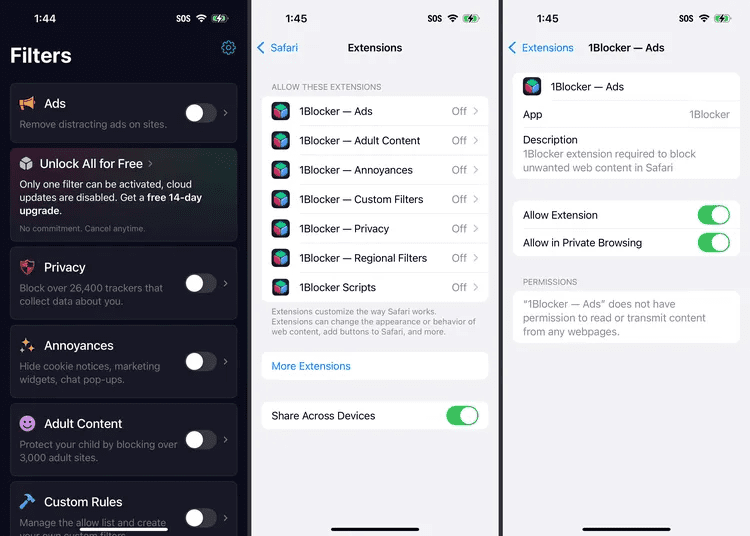
Step 03: Enable the content blocker in Safari settings
Apple Support describes Safari pop up and security options inside Settings under the Apps section. Safari extensions and content blockers live there as well.
On iPhone or iPad:
- Open the Settings app.
- Scroll down and tap Apps, then tap Safari.
- Look for a section named Extensions or sometimes Content Blockers, depending on your current iOS or iPadOS version.
- Tap Extensions.
- Find the name of the content blocker you installed and turn its toggle on. If there are multiple components, turn on each one that belongs to that blocker.
If you skip this step, the app is installed but Safari will not actually block anything.
Step 04: Test the difference in Safari
- Open Safari.
- Visit a site that you know usually has many ads, such as a news site or a recipe site.
- Wait a few seconds for the page to settle.
You should notice:
- Fewer banner and sidebar ads.
- Fewer auto playing video ads.
- Less clutter around the main article.
Many content blockers show a small report inside the app that lists how many requests they blocked for a page. That can help you see that they are actually doing something.
Step 05: Let rule lists update in the background
Most serious content blockers receive frequent rule list updates from their servers. The developers of 1Blocker mention that their filters are updated through the cloud so that you do not need to manage them manually.
To make sure updates work smoothly:
- Keep the app installed.
- Allow it to refresh in the background if the app settings recommend that.
- Open the app occasionally to check for any notices about new features.
Method Two: Use an ad blocking extension in Safari on Mac
On Mac, Safari supports extensions that you can install from the Mac App Store or from trusted developers through the Safari Extensions section. Apple describes Safari extensions as tools that enhance and customize your browsing experience.
Step 01: Find a content blocker extension
- Open Safari on your Mac.
- In the menu bar at the top of the screen, click Safari.
- Choose Safari Extensions. In modern macOS versions this opens a special Safari Extensions section in the Mac App Store.
- Browse or search for “ad blocker” or “content blocker.” You will often see familiar names such as 1Blocker or other privacy focused extensions that work across macOS and iOS.
- Click an extension to read its full description, screenshots, and privacy details.
- Click Get or the price button to install it.
Again, treat any named extension as an example. Choose the one that fits your needs and budget, and always confirm that it supports your version of Safari.
Step 02: Turn the extension on in Safari
After installation:
- Open Safari if it is not already open.
- Click Safari in the menu bar, then choose Settings. In some older macOS versions this menu item is called Preferences, but the next steps are similar.
- Click the Extensions tab.
- Find the new content blocker in the list and check the box to enable it.
- Safari may ask whether you want to allow the extension to access specific websites or “all websites.” Read the prompt carefully and choose the option you are comfortable with.
You can return to this Extensions tab at any time to disable the blocker temporarily or adjust its permissions.
Step 03: Use the toolbar button
Most Mac extensions place an icon near the Safari address bar. You can usually:
- Click the icon to pause blocking on the current site.
- Add the current site to a whitelist or “allow list.”
- See quick stats about how many items were blocked.
This makes it easy to support sites you like without turning the blocker off everywhere.
Method Three: Turn on the built in Safari pop up blocker
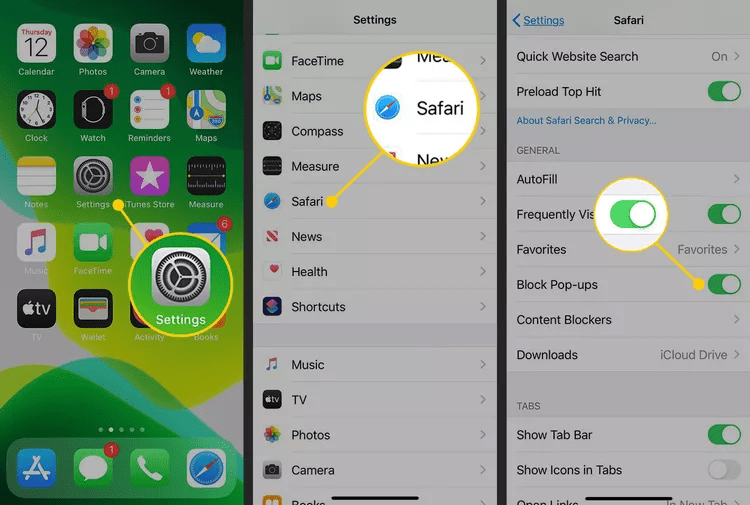
If your main complaint is sudden windows or tabs that appear without asking, the built in pop up blocker may be enough. Apple Support explains that this option lives in Safari settings on both iPhone or iPad and Mac.
On iPhone and iPad
- Open the Settings app.
- Tap Apps, then tap Safari.
- Under the general section, find Block Pop ups.
- Turn Block Pop ups on.
This setting controls whether Safari automatically stops most new windows and tabs that try to open without your direct action. It does not remove every kind of ad inside a page.
On Mac
The exact labels depend on your macOS version, but the general path is similar.
- Open Safari.
- Click Safari in the menu bar, then click Settings, or Preferences on older systems.
- Click the Websites tab.
- In the sidebar, click Pop up Windows.
- For each site in the list, choose Block and Notify or Block from the drop down menu. You can also set a default for all other websites.
This built in blocker is a good first layer even if you plan to use a full content blocker.
Method Four: Use Safari privacy and security options to reduce tracking
Safari’s privacy settings are not ad blockers, but they can significantly reduce how much you are tracked while you browse. Apple describes several options in its Safari privacy information, including Prevent Cross Site Tracking and Fraudulent Website Warning.
On iPhone and iPad
- Open the Settings app.
- Tap Apps, then tap Safari.
- Scroll to the Privacy and Security section.
- Turn on:
- Prevent Cross Site Tracking
- Fraudulent Website Warning
Prevent Cross Site Tracking tells Safari to limit third party cookies and data that can be used to follow you across many sites. Fraudulent Website Warning checks addresses against known lists of dangerous sites and shows a warning page if something looks suspicious.
On Mac
- Open Safari.
- Click Safari in the menu bar, then click Settings.
- Click the Privacy tab.
- Make sure Prevent cross site tracking is turned on.
- In recent macOS versions, you can also open the Security tab and confirm that Warn when visiting a fraudulent website is enabled.
These features do not erase every ad, but they make it harder for ad networks to follow your activity.
Method Five: Whitelist or allow ads on specific sites
Whitelisting is how you make peace between stronger blocking and supporting sites you like.
The exact steps vary between content blockers, but the pattern is similar on iPhone, iPad, and Mac. Typical steps:
- Visit the website you want to support in Safari.
- Look for an icon in the address bar, such as the “aA” button on iPhone or iPad or the extension icon on Mac.
- Tap or click that icon.
- Choose a setting such as “Turn off content blocker for this site,” “Trust this site,” or “Add to allow list.”
- Reload the page.
Now ads and scripts will load normally on that site, but your blocker will still work everywhere else. This also often fixes sites that look broken with blocking on.
Key benefits of using ad blocking tools in Safari
Once you have a content blocker and privacy settings in place, you can expect several noticeable benefits.
Faster page loads and smoother scrolling
Without many ad scripts and media files, Safari often finishes loading pages sooner. Content blocker product pages and independent reviews both link faster browsing to fewer network requests and less script execution.
You feel this as:
- Less time staring at a blank or half loaded page.
- Scrolling that does not suddenly jerk when a video starts above your place.
Less data usage on limited mobile plans
If you browse on 4G or 5G with a limited data plan, every megabyte counts. When Safari no longer downloads ad images and tracking code, the total data for each page goes down. Content blocker descriptions on the App Store frequently mention lower data usage as a result.
Over time, this can add up, especially on media heavy sites.
Fewer distracting banners and auto playing videos
With blocking in place, many banners simply never appear, and many auto playing video ads never start. This makes it easier to focus on what you meant to read in the first place.
Improved privacy and less third party tracking
Safari’s own privacy features are designed to limit cross site tracking and reduce the data sent to outside companies. When you combine them with a content blocker that also blocks known tracking domains, you get two layers of protection.
Potential battery life savings
Downloading and running fewer ads and trackers means less work for your device’s processor and radios. Developers of content blockers describe improved battery life while using Safari as a side effect of filtering out unnecessary network requests.
Common mistakes and problems to avoid
Even with a simple interface, a few common missteps can make ad blocking more confusing than it needs to be.
Installing many blockers at once
It is tempting to install several content blockers and hope they stack for extra protection. In reality, combining many blockers can:
- Slow down page loading.
- Make it harder to tell which one is causing a problem.
Start with one trusted content blocker. If you try another later, disable the first while you test the second.
Forgetting to enable the blocker in Settings or Safari
A very common real world situation looks like this:
You install a content blocker, open Safari, and see no difference. In many cases, the blocker is simply not enabled in Settings or Safari preferences yet.
If ads still appear after installation:
- On iPhone or iPad, return to Settings, then Apps, then Safari, then Extensions, and make sure the toggles for your blocker are on.
- On Mac, open Safari settings, click Extensions, and confirm that the box next to the blocker is checked.
Expecting every single ad to disappear
No blocker is perfect. Some ads come from the same servers as site content, and some sites constantly change how their ads are delivered. Even with strong rules, you may still see occasional ads, especially in newer formats.
Think of blocking as reducing the volume rather than enforcing an absolute zero.
Confusing Safari blocking with in app ads
Safari content blockers and extensions affect web pages loaded inside Safari or web views that use Safari’s engine. They do not generally block ads inside:
- Social media apps
- Games
- Video streaming apps
Those apps use their own ad systems that live outside Safari’s control. Some network level tools, such as special DNS based filters, can affect both, but that is outside the scope of this guide.
Turning off important security settings by mistake
It can be tempting to flip many switches while you explore settings and extensions. Be careful not to:
- Turn off Fraudulent Website Warning unless you fully understand the privacy and security tradeoff.
- Disable all cookies or all privacy protections in order to fix one broken site without planning to turn them back on.
When in doubt, change one thing at a time and test.
Expert tips and real world examples
To make this less abstract, here is what ad blocking in Safari looks like in day to day use.
A quick story from real life
A friend once handed me their iPhone and said, “Every news site I open looks like a maze of ads, and I can barely read the story.” They were worried that installing a content blocker might be too technical or might break the phone.
Here is what we did together, step by step:
- Installed a well reviewed content blocker from the App Store.
- Opened the app and left its default rules on.
- Turned it on under Settings, then Apps, then Safari, then Extensions.
- Enabled Block Pop ups and checked that Prevent Cross Site Tracking and Fraudulent Website Warning were on.
The next time they opened the same news site, the page loaded faster, the top banner was gone, and the article text filled most of the screen. They could still see some advertising spots, but the constant flashing and pop ups were gone. Their comment was simple: “This feels like the internet from a better timeline.”
Tips for choosing a trustworthy content blocker
When you pick a content blocker, focus on trust and transparency more than flashy marketing claims. Good signs include:
- A clear listing in the App Store or Mac App Store with an identifiable developer name.
- A privacy policy that states the blocker does not track the sites you visit and does most filtering on the device, as 1Blocker and similar tools describe.
- Regular version updates in the App Store history.
- Independent reviews from reputable tech or privacy sites.
Avoid sideloading browser extensions from unknown websites, since those can themselves act as trackers.
Balancing privacy with site support
To balance privacy and support for publishers:
- Keep blocking strong by default.
- Whitelist small independent sites or creators you really want to support.
- If a site asks you to disable blocking, consider whether you trust it before allowing everything.
In many blockers you can allow only certain categories, such as letting basic display ads through while still blocking trackers.
A simple troubleshooting checklist
If Safari pages look broken after you start blocking ads, try this quick checklist:
- Reload the page once or twice. Some layout issues fix themselves on a fresh load.
- Temporarily disable the content blocker for that site using the address bar menu or extension icon, then reload.
- If the site now works, add it to your whitelist or allow list.
- If many sites are broken, disable one blocker at a time until things improve.
- As a last resort, turn off the blocker in Settings or Safari and check for app updates or new filter lists before trying again.
Frequently asked questions
Q1: Do I have to pay for a Safari ad blocker, or are free options enough?
You can start with a free content blocker on both iPhone and Mac. Many well known blockers offer a free basic tier that blocks common ads and trackers, and some charge for advanced filters, custom rules, or features that also protect other apps.
For many users, free options are enough. If you want more control, regional filter lists, or support from a specific developer, a paid upgrade can be worth it.
Q2: Will blocking ads in Safari also block ads inside apps like games or social media?
Not usually. Safari content blockers focus on pages loaded inside Safari or Safari based web views. Ads inside dedicated apps such as games, social networks, or video platforms usually come from the app’s own code and are not filtered by Safari.
Some privacy focused browsers and network level tools can affect more, but those are different solutions from Safari content blockers.
Q3: Why do some websites tell me to disable my ad blocker before I can read an article?
Some sites rely heavily on advertising income and use scripts that detect when ad requests are blocked. If they see that nothing loads, they may cover the page with a message that asks you to disable your blocker or pay for a subscription.
In those cases you can either whitelist the site in your blocker settings, subscribe or support the site in another way, or choose a different source for that information.
Q4: Is it legal and safe to block ads in Safari?
In most countries, using a content blocker in your own browser is legal. You are simply choosing how your browser loads pages. Large browsers such as Safari and Firefox support content blocking systems, and Apple provides official APIs for Safari content blockers.
The safety question is about which blocker you choose. Blocking ads itself can increase safety by reducing exposure to malicious ads, but installing untrusted extensions from random websites can introduce new risks. For that reason, install blockers only from the official App Store or Mac App Store, and prefer developers with clear privacy policies.
Q5: Can ad blockers in Safari track what I do online?
Content blockers that follow Apple’s design do not need to see your full browsing history, because they send rule lists to Safari and Safari enforces those rules. However, a poorly designed or malicious extension could potentially log sites you visit if you give it permission.
To stay safe:
- Read the privacy information in the App Store listing.
- Prefer blockers that say filtering happens locally and that they do not collect browsing data, as 1Blocker and similar tools state.
- Revoke permissions or uninstall any extension you no not trust.
Conclusion
Blocking ads in Safari does not require deep technical knowledge or risky tweaks. You now know that you can start with simple built in tools such as Block Pop ups and Safari’s privacy settings, then add a trusted content blocker on iPhone, iPad, or Mac for stronger and more flexible protection.
In return, you can expect cleaner pages, faster loading, less wasted data, and fewer trackers following you from site to site. The tradeoff is that some sites may ask you to allow ads or may not work correctly until you whitelist them, so learning to allow your favorite sites is part of using these tools responsibly.
The safest path is to begin with one content blocker and the built in privacy options for your device, see how your usual sites behave, and adjust whitelists or settings as you become more comfortable. Remember that every change you make in Settings or Safari can be reversed. If something does not look right, you can always switch a setting back and try again.

Louis Mugan is a seasoned technology writer with a talent for turning complicated ideas into clear, practical guidance. He focuses on helping everyday readers stay confident in a world where tech moves fast. His style is approachable, steady, and built on real understanding.
He has spent years writing for platforms like EasyTechLife, where he covers gadgets, software, digital trends, and everyday tech solutions. His articles focus on clarity, real-world usefulness, and helping people understand how technology actually fits into their lives.
Outside of his regular columns, Louis explores emerging tools, reviews products, and experiments with new tech so his readers don’t have to. His steady, friendly approach has made him a reliable voice for anyone trying to keep up with modern technology. get in touch at louismugan@gmail.com