If your Amazon Fire Stick isn’t working, here are some quick fixes:
1. Inspect HDMI and power connections.
2. Restart (Press Select + Play/Pause for approximately 10 seconds).
3. Check for Wi-Fi and app updates.
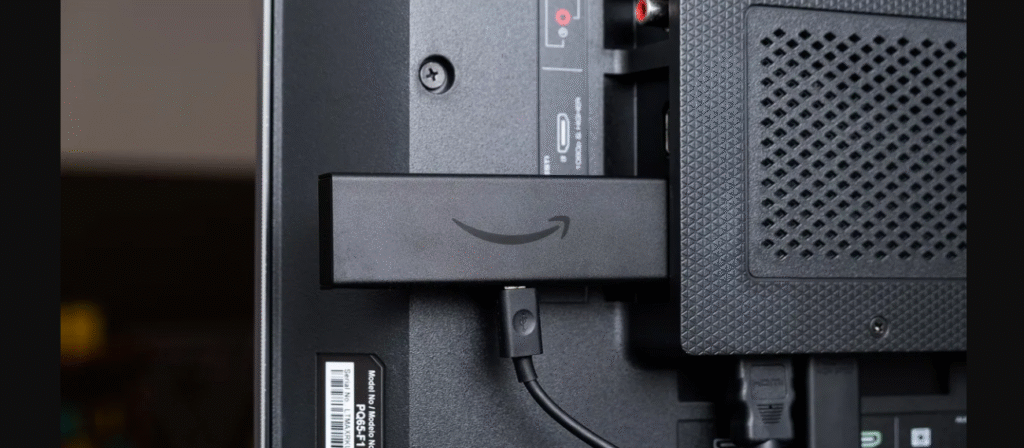
4. Plug into a wall outlet directly, with the official adapter.
The cause most Fire Stick and Fire TV problems – such as black screen, freezing, no signal, sluggishness, or crashing apps – is a weak internet connection. After running through a diagnostic procedure, in order, service is typically fully restored in minutes.
What Makes Fire Stick Issues So Common
The Amazon Fire Stick can turn any old TV into a smart one that can stream everything from Netflix to the latest Disney+ releases – but like all technology, it isn’t perfect and is actually quite prone to freezing up.
Whether it’s black screens or frozen logos, dropped Wi-Fi, or lagging apps – all most-common problems can be traced to three culprits:
- Unstable power or voltage drops
- Poor Wi-Fi signals or router problems
- Outdated firmware or overloaded cache
The good news? Most problems can be fixed at home without tools or a call to the service department. This guide brings together 13 proven solutions after I have tested them on my Fire Stick 4K, 4K Max and Lite devices.
13 Methods to Fix Fire Stick Problems (2025 Tested)
Make Sure the TV is on and Set to the Right HDMI Input
Hit your TV’s Input / Source button to change HDMI ports until you see the Fire TV home menu. Many “dead” devices are merely on the incorrect input.
Restart the Fire Stick
Press and hold the Select + Play/Pause buttons for aprox ~10 Seconds.
This will provoke a soft reboot, to flush temporary system errors.
(Note: Some models may have slightly different shortcut timing.)
Plug Into a Wall Socket (Not the TV’s USB)
Many TV USB ports this current is low (< 900 mA).
Please supply the 5 V 1 A Power for charging.
As long as a surge protector is delivering consistent voltage, you are good.
After a Sleep of Time Wait 10 Minutes from Startup
If you are brought back to the Amazon logo, your Fire Stick may be installing a background update.
Even its creators, it turns out, advise waiting as long as 25 minutes before giving up on the notion that your Echo is ever going to come back.
Reassess and Establish Remote Batteries
The main cause of abnormal Bluetooth problems is that the batteries are weak, then it will cause pairing failure or delay.
Try 2 new alkaline cells just to pair, then you will press Home for 10 seconds.
Test Internet Connectivity
Join the same Wi-Fi network on another device.
If it has similar issues, reboot the router.
Position your Fire Stick around 6 m / 20 ft away from the router for the strongest signal.
Try a Different App
If only one streaming app is down, it might be a server-side problem.
Open some other app to test your system before you search for a solution.
Update Fire OS & Apps
Settings > My Fire TV > About > Check for Updates.
Also update every app via the Amazon Appstore.
Old releases are among the top reasons for playback and buffering problems.
Clear App Cache
Navigate to:
Settings > Applications > Manage Installed Applications > [The App] > Clear Cache.
This frees up stored data and speeds responsiveness, particularly in heavy apps like Prime Video or Netflix.
Reinstall Faulty Apps
Remove the app that keeps crashing, then reboot and reinstall via Appstore.
This replaces corrupted installation files.
Check Casting or Mirroring Configuration
Make sure the Fire Stick as well as your phone/PC are connected to the same Wi-Fi network.
Use casting apps that support your phone (YouTube, Prime Video, or AirScreen for Miracast).
Factory Reset (As a Last Resort)
If problems persist:
Settings > My Fire TV > Reset to Factory Defaults.
This will delete everything, so write down your logins beforehand.
If you can’t get into Settings, hold down Back + Right for 10 seconds to enter reset mode.
(Works on all models but layout differs slightly on older firmware.)
Contact Amazon Support
If all else fails, head to Amazon Help > Fire TV > Device Support for chat or call-back facilities.
A new piece of hardware would need to be replaced if too many boot fails occur.
Why a Fire Stick Screen Goes Black
A black screen typically means:
- Wrong HDMI input
- Insufficient power or voltage fluctuation
- Loose HDMI or adapter connection
- Faulty TV HDMI port
Solution: Confirm the correct HDMI source, then power the TV directly from a wall outlet.
Don’t daisy-chain adapters or use long extenders that drop signal quality.
What Are The Reasons For Fire Stick Loading Or Buffering Problems
- Weak Wi-Fi or router congestion
- Fire OS or streaming app not updated
- Insufficient storage or overabundance of cached data
- Under-powered USB connection
Prevention Tip: Have at least 500 MB of free space and restart the device every 1/2 weeks to release memory.
If Your Fire Stick Is Stuck on the Amazon Logo
This typically indicates a firmware problem or unstable power.
Try these recovery steps:
- Unplug Fire Stick and TV for 5 mins.
- Plug Fire Stick directly into the TV (no HDMI hub).
- Connect to wall outlet, not USB.
- Test another HDMI port or TV if available.
- Hold Back + Right for 10 seconds to factory reset if it still won’t start.
If it still doesn’t boot, the flash memory may be damaged.
Pro Tips for Lag-Free Streaming
- Keep at least 500 MB of free space.
- Enable Data Monitoring to track network usage.
- Reboot every 7 to 10 days.
- Use an Ethernet adapter for better stability.
- Auto-update Fire OS and apps regularly.
Final Thoughts: Keep That Fire Stick like New!!
Most Fire Stick problems are software-based – easy to fix yet frustrating.
No need for professional repair if you follow the 13 verified solutions and maintenance steps below:
✔ Keep firmware current
✔ Use the original adapter
✔ Maintain strong Wi-Fi
✔ Clear cache periodically
With these habits, your Fire Stick will deliver smooth streaming for seven years and beyond.
Frequently Asked Questions
Q1: Why does my Fire Stick keep turning on and off by itself?
HDMI-CEC auto power and unstable voltage are usually to blame.
Go to Settings > Display & Sounds > HDMI CEC Device Control → Disable.
Ensure the power adapter is secure.
Q2: How do I repair my Fire Stick remote?
Change both batteries, then re-pair by holding Home for 10 seconds.
Ensure nothing blocks the remote’s signal.
You can also use the Fire TV mobile app as a backup remote.
Q3: How can I prevent buffering on Fire Stick?
Reboot the device and router, clear cache, lower resolution to 720p, or use Ethernet for stable bandwidth.
Q4: How can I resolve sound delay or lip-sync issues?
Go to Settings > Display & Sounds > Audio > AV Sync Tuning and use on-screen calibration.
Q5: How do I factory reset my Fire Stick if Settings won’t open?
Press Back + Right for 10 seconds until reset menu appears.
Choose “Reset to Factory Defaults.”
Then sign back into your Amazon account.

Louis Mugan is a seasoned technology writer with a talent for turning complicated ideas into clear, practical guidance. He focuses on helping everyday readers stay confident in a world where tech moves fast. His style is approachable, steady, and built on real understanding.
He has spent years writing for platforms like EasyTechLife, where he covers gadgets, software, digital trends, and everyday tech solutions. His articles focus on clarity, real-world usefulness, and helping people understand how technology actually fits into their lives.
Outside of his regular columns, Louis explores emerging tools, reviews products, and experiments with new tech so his readers don’t have to. His steady, friendly approach has made him a reliable voice for anyone trying to keep up with modern technology. get in touch at louismugan@gmail.com