You don’t need a fitness tracker or a paid app to count your steps. Most phones can do it for free with the motion sensors already inside them. The trick is knowing which app to use, since the best option depends on whether you have an iPhone, a Pixel, a Samsung phone or something else.
Quick answer: On an iPhone, the built-in Health app counts steps for free. On a Samsung Galaxy phone, use Samsung Health. On other Android phones, the free Google Health app (the app that used to be called Fitbit) can track steps using just your phone. If you want something simpler or more motivating, free versions of Pacer and StepsApp work on both iPhone and Android.
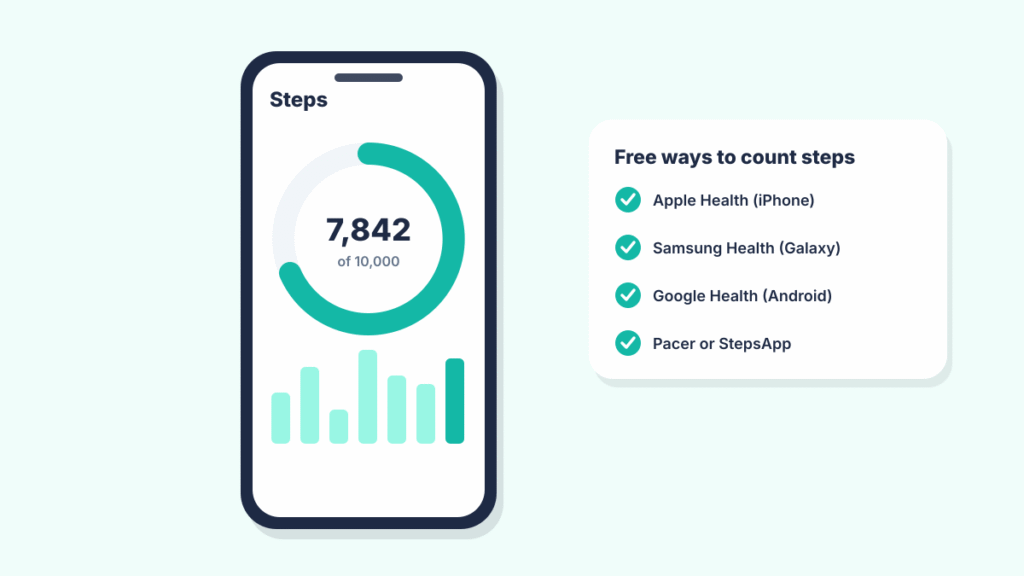
Free step counter apps compared
| App | Works on | Cost | Best for |
|---|---|---|---|
| Apple Health | iPhone | Free, built in | iPhone owners who want zero setup |
| Samsung Health | Samsung Galaxy (and other phones) | Free | Galaxy phone owners |
| Google Health | Android and iPhone | Free, with an optional paid tier | Android users, especially Pixel owners |
| Pacer | Android and iPhone | Free, with an optional paid tier | Walking goals, challenges and GPS walks |
| StepsApp | Android and iPhone | Free, with an optional paid tier | A clean, simple step count with widgets |
| Pedometer++ | iPhone | Free, with an optional Premium subscription | A no-fuss daily step counter for iPhone |
Most “free” fitness apps make money from an optional upgrade. The core step count stays free in all of these. Extras such as training plans, deeper trends or coaching may be behind a subscription.
Apple Health (iPhone)
Every iPhone counts steps on its own. As long as the phone is in your pocket or bag, it records your steps in the background, with no Apple Watch needed.
To make sure it’s working:
- Open Settings > Privacy & Security > Motion & Fitness.
- Turn on Fitness Tracking, and make sure Health is allowed in the list below it.
- Open the Health app, tap Summary and look for Steps. Tap it to see your daily, weekly and monthly totals.
Tip: Pin Steps to your Favorites in the Health app so it shows at the top of the Summary screen. Third-party step apps on iPhone usually read their data from Health, so this setting matters for them too.
Samsung Health (Galaxy phones)
Samsung Health comes preinstalled on most Galaxy phones and counts steps with the phone’s sensors. Open the app, find the Steps card and set a daily target. You can also add a Steps widget to your home screen so you can check your count without opening the app.
If you also wear a Galaxy Watch, Samsung Health can show steps from the phone and the watch together, or each device on its own.
Google Health (Android, including Pixel)
Google is replacing its older Google Fit app with Google Health, the app that used to be called Fitbit. Google Fit is being phased out by the end of 2026, so Google Health is the better choice now.
You don’t need a Fitbit or Pixel Watch to use it. In Google Health, open your connections or devices list, tap Phone under Devices, then tap Agree. If you’re setting the app up for the first time without a Fitbit, choose the option to use just the app. Your phone then records steps, distance and calories. You need to stay signed in to the app for it to keep tracking.
On supported Android phones, Health Connect, a built-in Android feature, can also count steps with the phone’s sensors and share them with apps you give permission to. That means a step count can show up in several apps at once without each one tracking separately.
Pacer, StepsApp and other free pedometer apps
If the built-in apps feel too busy, a dedicated pedometer app can be easier to use.
- Pacer focuses on walking. It counts steps in the background, tracks GPS walks and lets you join walking challenges and groups. The core features are free.
- StepsApp keeps things simple with a big step count, goals and home screen widgets. Tracking steps, calories and distance is free.
- Pedometer++ (iPhone only) shows your daily steps in a clear chart. Basic step counting is free, with an optional Premium subscription for extra features.
Before you install any step app, check which permissions it asks for. A pedometer needs motion and fitness access. It doesn’t need your contacts. Location is only needed if you want GPS maps of your walks.
How accurate is your phone’s step count?
Phones are good at counting steps when you carry them, but they aren’t perfect. Your phone may miss steps when:
- You push a stroller or shopping cart, or hold the rails on a treadmill.
- You leave the phone on a desk or counter while you walk around.
- The phone is loose in a bag that doesn’t move much as you walk.
It may count extra steps on a bumpy car ride or when you shake the phone. For the most consistent count, keep it in a front pocket or a bag you wear on your body.
Frequently asked questions
Is there a 100% free walking app?
Yes. Apple Health on iPhone and Samsung Health on Galaxy phones are completely free. Google Health and apps like Pacer and StepsApp count steps for free and charge only for optional extras.
Can I count my steps on my phone for free?
Yes. iPhones have step counting built in through the Health app. On Android, Samsung Health, Google Health and many third-party apps track steps for free.
How do I check if I walked 10,000 steps today?
Open your step app and look at today’s total. Most apps let you set 10,000 as a daily goal and show your progress with a ring or bar. Keep in mind that 10,000 is a popular target, not a medical rule. If you’re starting a new exercise routine, your doctor can help you pick a goal that suits you.
Do step counter apps drain the battery?
Built-in step counting uses very little power because phones have low-power motion chips for this. Apps that track GPS walks use more battery while that feature is on.
What happened to Google Fit?
Google is retiring Google Fit and moving its health features into the Google Health app. Google has said there will be a way to move your Fit history over, so check the app for migration options.

Louis Mugan writes how-to and troubleshooting guides for EasyTechLife, covering Android phones, iPhones, laptops, Chromebooks, headphones and everyday software.
He aims to base each guide on official manufacturer documentation and support pages, and to link the sources so readers can check the steps for themselves. Questions or corrections? Use the contact page.