
A useful Home Screen keeps your most-used apps within easy reach and moves the rest out of the way. iOS gives you more ways to arrange things than most people use. Here are eight layouts you can recreate with built-in iPhone features. Some options need iOS 18 or later.
Quick answer: For a simple starting point, keep your daily apps on one Home Screen page, put up to four essentials in the Dock and use App Library for the rest. From there, add widgets, folders by task, or Focus-based pages to suit how you use the phone.
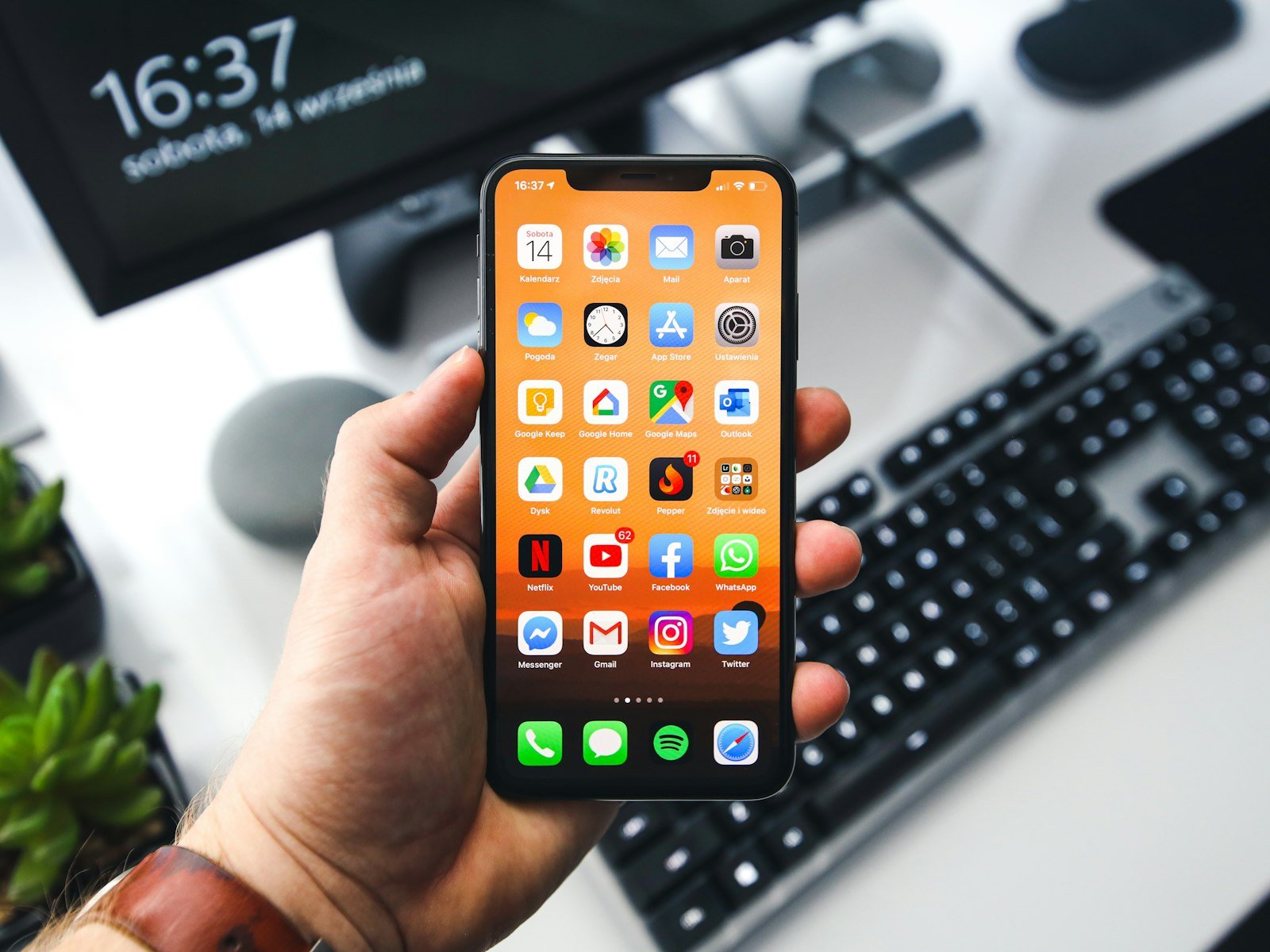
Each idea below explains what to place on the Home Screen and which built-in controls to use, so you can adapt it to your own iPhone.
Before you rearrange, take a screenshot of each page. If you’d rather start from a clean slate, our guide to restoring your iPhone Home Screen to its original layout shows how.
The tools you’ll use
| Tool | Where | Needs |
|---|---|---|
| Move apps, make folders | Touch and hold the Home Screen | All recent iOS versions; exact controls vary |
| App Library, hide pages | Swipe past the last page; tap the page dots in edit mode | iOS 14 or later |
| Widgets and stacks | Edit > Add Widget | iOS 14 or later |
| Focus pages | Settings > Focus | iOS 15 or later |
| Icon size and color, free placement | Edit > Customize | iOS 18 or later |
1. The one-page setup
Keep a single page with the apps you use daily. Hide every other page and rely on App Library and search for the rest. Set new downloads to App Library Only in Settings > Home Screen & App Library so the page stays clean. See how to hide Home Screen pages.
2. Dock plus widgets
Keep up to four apps in the Dock, then fill the first page with widgets such as Calendar, Weather, Reminders or Batteries. You glance for information and open apps from the Dock or search.
3. Folders by task
Group apps by what you do with them, not by category: Pay, Travel, Read, Create. Give folders short, task-based names and keep them together on one page. Drag one app onto another to start a folder.
4. Thumb-zone layout
On iOS 18 and later you can leave empty space on the grid. Place your apps in the bottom rows, where your thumb reaches, and leave the top of a large phone clear to show the wallpaper.
5. Work and personal pages with Focus
Build one page for work apps and one for personal apps. Open Settings > Focus, choose a Focus and select a Home Screen page under its screen customization options. While the Focus is active, your iPhone can show the pages selected for it instead of your usual arrangement.
6. Large icons, no labels
In Edit > Customize, choose the large icon size. App names disappear and icons become larger, for a less text-heavy Home Screen.
7. Dark or tinted icons
In the same Customize menu, choose Dark or Tinted for a more coordinated look. Individual app icons can look different depending on their design. Apple’s iPhone User Guide describes the options. Switch back to Light at any time.
8. The dashboard stack
Stack several widgets of the same size on top of each other and swipe through them. One stack on the first page can replace a whole page of widgets. To build one, enter editing mode and drag a widget onto another widget of the same size.
Keep your layout safe
- Screenshot each page when you’re happy with it.
- Keep iCloud Backup on. Backups can preserve the Home Screen layout and app organization, though getting it back means restoring a backup, which may involve erasing the iPhone first.
- iPhone has no layout lock, but a few settings prevent accidental changes.
- Seeing two icons for the same app? See why you have duplicate apps on iPhone.
Frequently asked questions
How do I change the iPhone Home Screen layout?
Touch and hold an empty area until the apps jiggle, drag apps and widgets where you want them, then tap Done.
What is the best iPhone Home Screen layout?
There’s no single best layout. Try one page of frequently used apps, a Dock for essentials and widgets for information you check often.
Can I leave gaps between apps?
On iOS 18 and later, yes. Earlier versions fill the grid from the top left.
How do I undo a layout I don’t like?
Rearrange apps by hand, or go to Settings > General > Transfer or Reset iPhone > Reset > Reset Home Screen Layout. Resetting removes your custom folders and lists downloaded apps alphabetically after Apple’s built-in apps. It doesn’t bring back a previous custom arrangement, so take screenshots first if you want a reference.
Can I bring back my old iPhone Home Screen layout?
You can recreate it by hand or restore a backup that contains it. Reset Home Screen Layout restores Apple’s default arrangement, not your personal one. See what to do after an accidental reset.
How we researched this guide
This guide draws on Apple’s iPhone User Guide and Apple Support articles, reviewed on November 15, 2026. We did not test these steps on a device. Menu names and available options vary by iPhone model and iOS version.

Louis Mugan writes how-to and troubleshooting guides for EasyTechLife, covering Android phones, iPhones, laptops, Chromebooks, headphones and everyday software.
He aims to base each guide on official manufacturer documentation and support pages, and to link the sources so readers can check the steps for themselves. Questions or corrections? Use the contact page.


