
The launcher is the app that controls your Android home screen, app drawer and widgets. Switching launchers changes how the home screen looks and works, though switching back doesn’t always restore your previous layout exactly. Whether you want to try a new launcher or undo a change, you can usually switch in Android’s default apps settings. The exact menu varies by phone.
Quick answer: To change the default launcher on many Android phones, go to Settings > Apps > Default apps > Home app and pick the launcher you want. On Samsung Galaxy phones the menu is Settings > Apps > Choose default apps > Home app. To go back to normal, choose your phone’s built-in launcher, such as Pixel Launcher or One UI Home.
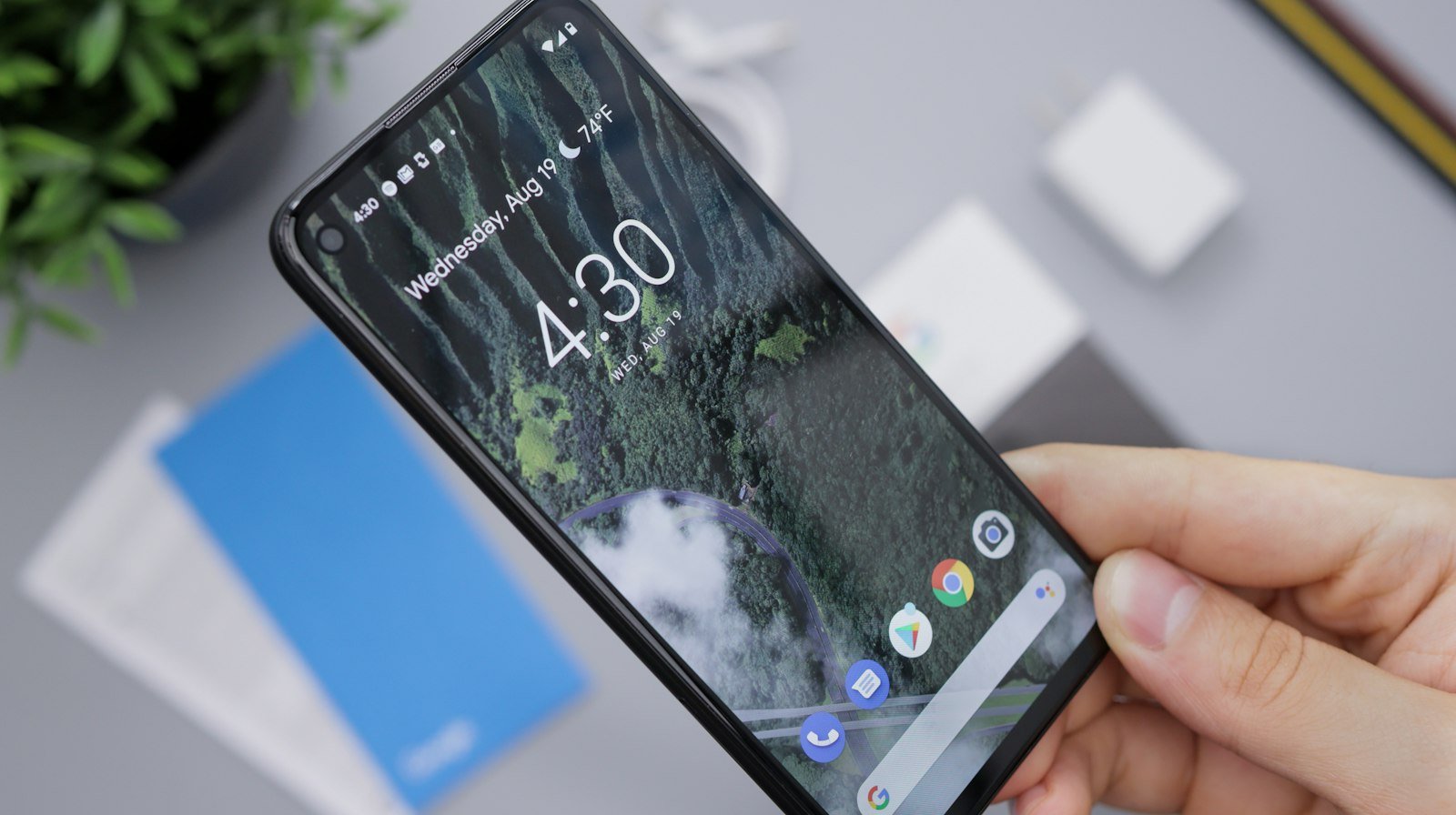
If your home screen changed and you just want it back, start with our guide to getting your Android home screen back to normal.
Where the setting is on each brand
| Phone | Path | Built-in launcher to pick for “normal” |
|---|---|---|
| Google Pixel | Settings > Apps > Default apps > Home app | Pixel Launcher |
| Samsung Galaxy | Settings > Apps > Choose default apps > Home app | One UI Home |
| Motorola | Settings > Apps > Default apps > Home app | Moto App Launcher (name may vary by model) |
| Xiaomi, Redmi, POCO | Settings > Apps > Manage apps > three-dot menu > Other settings > Default apps > Launcher | System launcher or POCO Launcher |
Menu names vary by model and Android version, and the Xiaomi, Redmi and POCO path in particular differs between HyperOS versions. If you can’t find it, open Settings, tap the search box and type home app or default apps.
How to change the default launcher
- Install the launcher you want from the Google Play Store. Installing it doesn’t make it the default.
- Open Settings and tap Apps.
- Tap Default apps (or Choose default apps on Samsung).
- Tap Home app.
- Select the launcher.
- Press Home or swipe up to go to the home screen. The new launcher appears.
On some phones, the first time you press Home after installing a launcher, Android asks which home app to use. Choose the one you want and tap Always.
How to switch back to your original launcher
- Open the same Home app menu.
- Select the built-in launcher from the table above.
- Press Home to return to the built-in launcher. Your previous layout may still be there, but some icons, folders or widgets might need rearranging.
You don’t have to uninstall the other launcher, but you can if you no longer need it or it keeps being selected as your Home app. See how to remove a launcher app that changed your home screen.
If you can’t change the launcher
- The Home app option is missing. Search Settings for “default apps,” “home app” or “launcher.” Where the option sits depends on the device and software version.
- The choice doesn’t stick. Restart the phone, then reopen the Home app setting and select the launcher again. If it still reverts, update the launcher or uninstall the unwanted one. Default-app controls vary by Android version.
- Xiaomi, Redmi or POCO won’t accept a third-party launcher. Launcher developers report that some HyperOS versions restrict third-party launchers or require extra steps. It depends on your device, software version and launcher. Check the launcher’s official support page; a workaround isn’t guaranteed.
- It’s a work or school phone. Your organization may lock the home app. Ask your IT administrator.
What changes when you switch launchers, and what doesn’t
- May change: the home screen arrangement, app drawer, icon appearance, folders, widgets and launcher gestures, depending on the launcher and phone.
- Usually doesn’t change: your installed apps and their data, the Android version and core system settings. Some launchers can affect how gestures or app switching behave.
- Each launcher manages its own layout. Switching back may show your previous arrangement, but that isn’t guaranteed on every launcher or device.
Before you install a launcher, check its developer, reviews and the permissions it asks for, and choose one you trust.
If your home screen changed and you never installed a launcher, start with why your Android home screen changed or our full guide to getting your Android home screen back to normal. Galaxy owners can also follow the Samsung home screen guide.
Frequently asked questions
How do I change the default launcher in Samsung?
Go to Settings > Apps > Choose default apps > Home app and select the launcher. Pick One UI Home for Samsung’s own.
How do I get my Android back to the normal launcher?
Open the Home app setting and choose the built-in launcher: Pixel Launcher on Pixel, One UI Home on Samsung, Moto App Launcher on Motorola.
Will changing the launcher delete my apps?
No. A launcher only changes how the home screen looks and works. Your apps and data stay.
Can I uninstall the built-in launcher?
Built-in launchers such as Samsung’s One UI Home generally can’t be uninstalled through normal phone settings. You can switch to another launcher without removing the original.
Do launchers slow down a phone or drain the battery?
They can. It depends on the launcher, its animations, widgets and background activity, and your phone. If you notice problems after switching, compare with the built-in launcher.
Will changing launchers bring back my old Android look?
Not necessarily. A launcher changes the home screen, but it can’t roll back an Android or One UI update, and some older layouts may no longer be available.
How do I lock my home screen so apps don’t move?
On Samsung Galaxy phones that support it, touch and hold an empty area of the home screen, tap Settings, then turn on Lock Home screen layout. See how to stop icons from moving.
How we researched this guide
This guide draws on Samsung’s support pages for One UI Home and on published launcher settings for other Android brands, reviewed on November 15, 2026. The note about HyperOS restrictions comes from launcher developers’ help pages. Menu paths and supported features vary by device and software version. We did not test these steps on a device.

Louis Mugan writes how-to and troubleshooting guides for EasyTechLife, covering Android phones, iPhones, laptops, Chromebooks, headphones and everyday software.
He aims to base each guide on official manufacturer documentation and support pages, and to link the sources so readers can check the steps for themselves. Questions or corrections? Use the contact page.


