
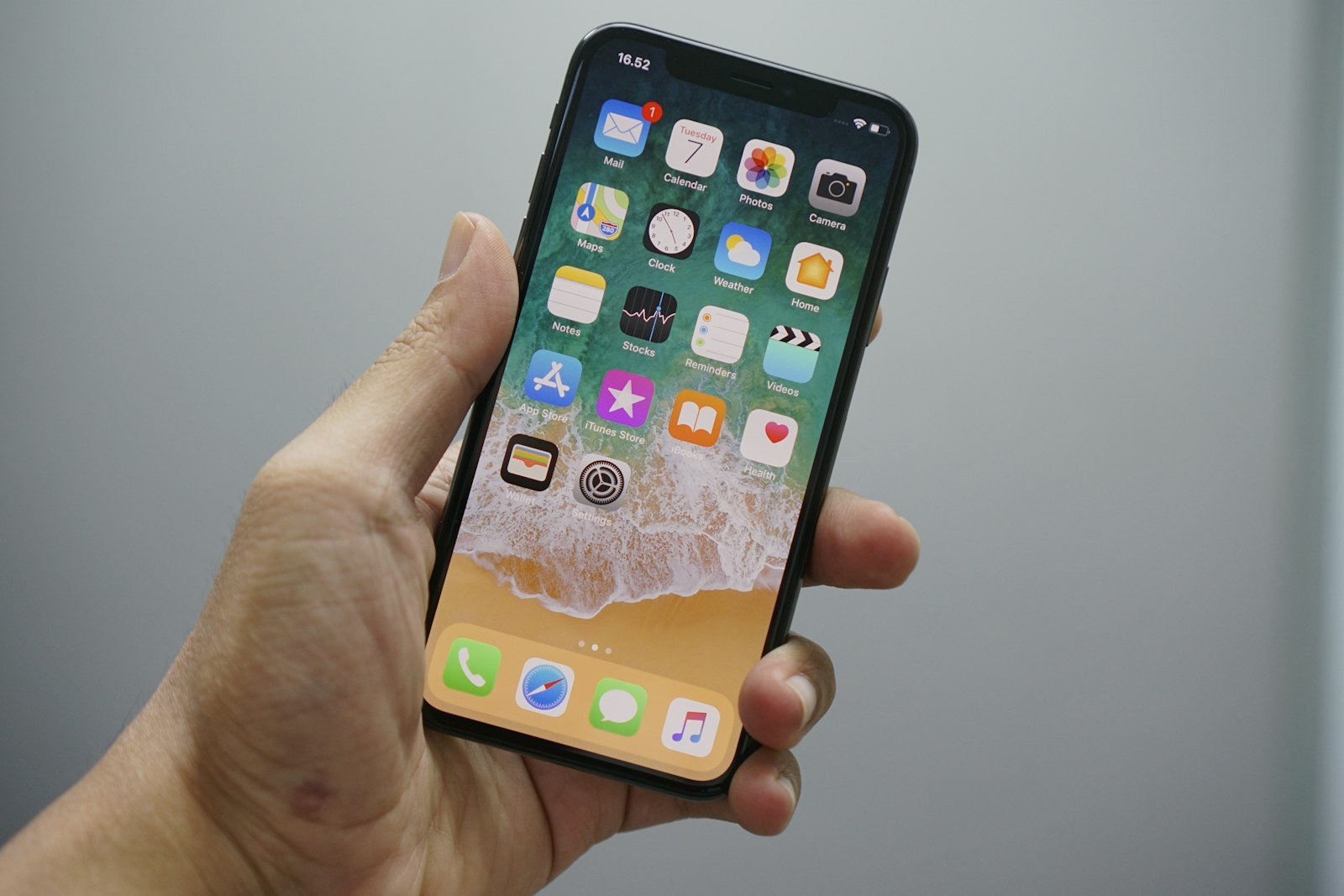
You swipe through your iPhone and spot the same app twice: two Settings icons, two Photos, two of a game you only downloaded once. It looks like a glitch, but it usually doesn’t mean the app was installed twice. In most cases, they’re separate Home Screen icons that open the same installed app.
Quick answer: “Duplicate apps” on an iPhone are almost always two icons that open the same single app. iOS lets the same app appear on more than one Home Screen page, and every app also appears in the App Library. To remove an extra icon, touch and hold it, tap Remove App, then tap Remove from Home Screen. The app itself stays installed.
Why you have two icons for the same app
- It was dragged out of the App Library. If you drag an app from the App Library onto a Home Screen page while its icon is already on another page, iOS keeps both icons. This often happens by accident when you go looking for an app you thought was missing.
- You’re seeing the App Library copy. The App Library, the last page when you keep swiping left, always lists every installed app. That entry isn’t a duplicate and can’t be removed without deleting the app.
- The second icon is a website shortcut or web app. Safari’s Add to Home Screen feature can create an icon that resembles an installed app but opens a website instead.
- They’re actually two different apps. Some services have separate apps with near-identical icons, such as a standard and a “Lite” or business version.
- One is inside a folder. An icon in a folder and another on a page are still the same app.
Duplicate icons are one of several ways an iPhone Home Screen can end up looking wrong. For the others, see how to restore your iPhone Home Screen to its original layout and how to show or hide Home Screen pages.
How to remove a duplicate app icon
These steps follow Apple’s instructions for removing apps from the Home Screen.
- Touch and hold the extra icon.
- Tap Remove App.
- Tap Remove from Home Screen.
Be careful at step 3. Delete App removes the app and its data from your iPhone, and both icons disappear. Remove from Home Screen removes only that one icon.
To remove several at once, touch and hold an empty area of the Home Screen until the icons jiggle, tap the minus button on each extra icon, choose Remove from Home Screen, then tap Done.
How to check whether it’s really the same app
- Open both icons and check what launches. An installed app opens the app itself, while a Safari website shortcut opens a web page, either in Safari or in a separate web app window. A website shortcut won’t always show Safari’s address bar.
- Touch and hold each icon and compare the options. Website shortcuts and web apps may offer different removal options from installed apps, such as Delete Bookmark, but don’t rely on a single menu label to identify them.
- Go to Settings > General > iPhone Storage and look for the app. This list helps you identify installed apps, although similar names or a single listing don’t conclusively prove that two Home Screen icons open the same app.
Duplicates in the App Library
The App Library sorts apps into categories automatically, and you can’t rearrange it. An app may appear in its assigned category and also in dynamic sections such as Suggestions or Recently Added. These appearances don’t mean the app was installed more than once. If you see similar names or icons in the App Library’s alphabetical list (swipe down on the App Library to open it), check which app each one opens before assuming they’re duplicates.
If the duplicates won’t go away
- Restart your iPhone. This can clear display glitches, such as blank or “ghost” icons that don’t respond.
- Update iOS. Go to Settings > General > Software Update.
- Reset the Home Screen layout. Go to Settings > General > Transfer or Reset iPhone > Reset > Reset Home Screen Layout, then confirm. This removes your custom folders and reorganizes your Home Screen. It doesn’t delete installed apps, but you’ll lose your customized arrangement, so use it only if simpler fixes haven’t worked. Our guide to restoring the original iPhone Home Screen layout explains what to expect.
How to stop it happening again
- When you can’t find an app, swipe down on the Home Screen and search for it instead of dragging it out of the App Library.
- To control where new downloads appear, go to Settings > Home Screen & App Library and choose Add to Home Screen or App Library Only.
Frequently asked questions
How do I get rid of duplicate apps on my iPhone?
Touch and hold the extra icon, tap Remove App, then Remove from Home Screen. The app stays on your iPhone.
Will removing one icon delete the app?
No, as long as you choose Remove from Home Screen and not Delete App.
Do duplicate icons use extra storage?
No. An icon is only a shortcut. The app is stored once.
Is “dual apps” possible on iPhone?
iOS has no built-in feature for running two separate copies of the same app. Many apps let you add more than one account inside the app instead.
What do decoy apps look like on iPhone?
A decoy app uses an ordinary-looking icon or name, such as a calculator, to conceal its actual purpose. Two identical Home Screen icons aren’t evidence of one. Check what each icon opens before assuming anything suspicious.
Could a duplicate be a fake app?
Two identical icons don’t automatically indicate a fake app. If you don’t recognize an icon, open it to identify the app or website, and check Settings > General > iPhone Storage for unfamiliar installed apps. Confirm what something is before you delete it. Our article on iPhone viruses and when to worry has more.
How we researched this guide
We based this guide on Apple’s support pages for organizing the Home Screen and App Library and removing or deleting apps, read on November 15, 2026. Menu names can differ slightly between iOS versions. We did not perform hands-on device testing for this guide.

Louis Mugan writes how-to and troubleshooting guides for EasyTechLife, covering Android phones, iPhones, laptops, Chromebooks, headphones and everyday software.
He aims to base each guide on official manufacturer documentation and support pages, and to link the sources so readers can check the steps for themselves. Questions or corrections? Use the contact page.


