Trying to remember the name of a restaurant you visited last month, or where you parked on a road trip? Your iPhone can keep a private record of places you’ve been, but it’s not where most people expect, and it isn’t stored in iCloud.com. Here’s where to find your iPhone location history today, what Apple no longer shows, and how to turn it off or clear it.
Quick answer: On iOS 26 or iOS 27, open Apple Maps and go to Places > Visited Places. This only shows visits recorded after you turned the feature on. For older patterns, check Settings > Privacy & Security > Location Services > System Services > Significant Locations & Routes, although it shows only a limited summary. If you use Google Maps, open it and tap your profile picture, then Your Timeline.
Does your iPhone keep a location history?
Yes, but only in a few specific places, and only if the right settings are on:
- Visited Places in Apple Maps (iOS 26 and later, where available): an opt-in list of places like restaurants, shops and parks your iPhone detected you visiting.
- Significant Locations & Routes: a background feature that learns places that matter to you (home, work, frequent spots) to power suggestions in Maps, Calendar and Photos. You can’t browse a full list anymore.
- Google Maps Timeline: only if you installed Google Maps and turned Timeline on.
- Photos: photos taken with location access turned on for the Camera are tagged with where they were taken.
Apple says significant locations and visited places are end-to-end encrypted and can’t be read by Apple.
How to view your location history in Apple Maps (Visited Places)
Visited Places arrived with iOS 26, is also in iOS 27, and is off until you opt in. It isn’t available in every country or region. When you first open Maps after updating, you may see a prompt asking whether to turn it on.
Turn on Visited Places
- Open Settings > Privacy & Security > Location Services and make sure Location Services is on.
- Tap System Services and turn on Significant Locations & Routes.
- Go back to the main Settings screen, then tap Apps > Maps > Location. Make sure Maps has location access and Precise Location is on, then turn on Visited Places.
See where you’ve been
- Open the Maps app.
- Tap Places (on some versions, tap your profile picture first).
- Tap Visited Places.
- Browse by category, by city or by date, or open the full list of visits. You can also search for a place by name.
Visited Places only shows places recorded after it was turned on. It records places it recognizes you visiting, not a continuous GPS track, so it won’t show every street you drove down. Apple notes that your Visited Places appear on all devices signed in to the same Apple Account.
Choose how long Maps keeps your visits
In Maps > Places > Visited Places, scroll to the bottom, tap Keep Visits and choose 3 months, 1 year or Forever.
Visited Places missing or empty?
- Check that you’re on iOS 26 or later.
- Confirm Location Services, Significant Locations & Routes, Precise Location for Maps and Visited Places are all on.
- Give it time: only visits after you turned it on are saved, and short stops may not be logged.
- The feature may not be offered in your country or region.
Can you see location history on iCloud.com?
No. iCloud.com’s Find Devices (and the Find My app) shows where your devices are now, or their last known location if they’re offline. It doesn’t show a trail of past locations. If you lost your iPhone and want to see where it was last, see our guide to finding your device’s last known location.
How to check Significant Locations on iPhone
- Open Settings > Privacy & Security > Location Services.
- Scroll to the bottom and tap System Services.
- Tap Significant Locations & Routes and authenticate with Face ID, Touch ID or your passcode.
Older iOS versions showed a detailed list of places with dates and times here. On current versions, many users report seeing only a limited summary, so don’t expect a detailed day-by-day log from this screen.
How to see location history in Google Maps Timeline
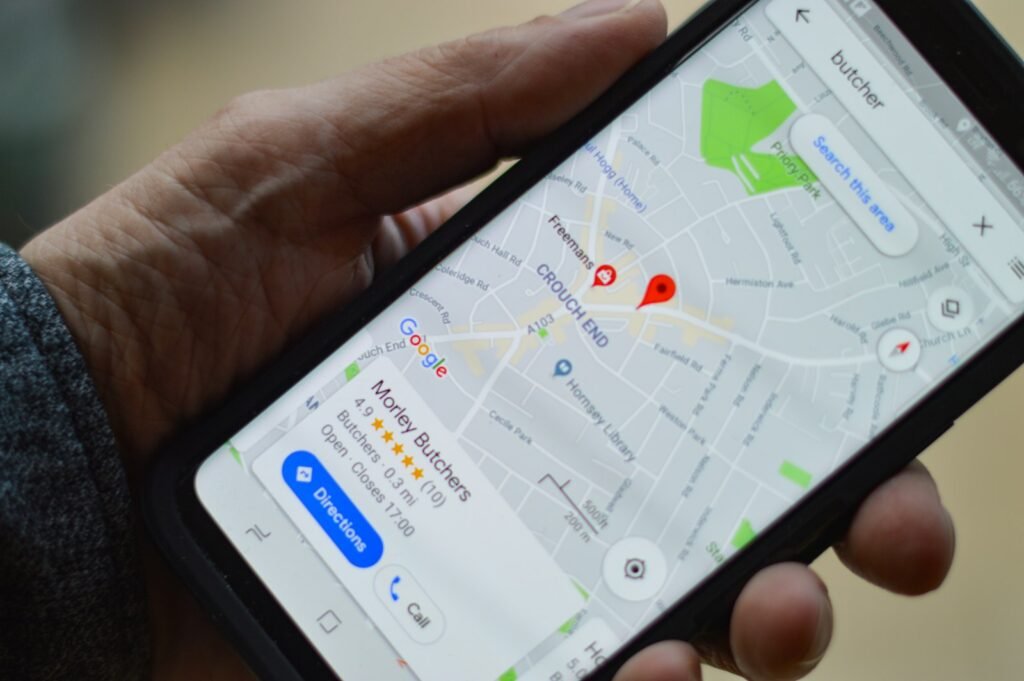
If you use Google Maps on your iPhone and have Timeline turned on, it can show a much more detailed, day-by-day history of trips and visits.
- Open the Google Maps app.
- Tap your profile picture in the top-right corner.
- Tap Your Timeline.
Google has moved Timeline data onto your device, so it’s no longer viewable in a web browser. Your history doesn’t automatically follow you to a new phone: turn on Google’s optional encrypted Timeline backup ahead of time if you want to keep it when you switch. For details about viewing, backing up and importing your Timeline, see Google’s official Manage your Google Maps Timeline guide.
iPhone location history methods compared
| Feature | Shows past places? | Shows routes? | Shows current location? |
|---|---|---|---|
| Apple Maps Visited Places | Yes, after you turn it on | No | No |
| Significant Locations & Routes | Limited summary only | No | No |
| Google Maps Timeline | Yes, if turned on | Yes, if turned on | No |
| Find My / iCloud.com | No | No | Yes (or last known) |
| Photos | Where geotagged photos were taken | No | No |
How to find where photos were taken
If your photos contain location data, the Photos app can show where they were taken on a map. Depending on your iOS version, open Photos, go to your Library and look for Show Map under Sort and Filter; on some older versions, use the Places collection instead. You can also open a single photo and swipe up or tap the Info button to see its recorded location. Only photos and videos with embedded location information appear. This is often the easiest way to answer “where was I on that day?”
How to delete your iPhone location history
- Remove one visited place: In Maps > Places > Visited Places, tap the More button on a place, then tap Remove.
- Clear all visited places: In Maps > Places > Visited Places, scroll to the bottom and tap Clear History. Future visits will still be saved unless you turn the feature off.
- Turn off Visited Places: Settings > Apps > Maps > Location > turn off Visited Places.
- Clear Significant Locations: Settings > Privacy & Security > Location Services > System Services > Significant Locations & Routes > Clear History. Apple says this clears them on every device signed in to your Apple Account. You can also turn the switch off at the top of the same screen.
Apple lays out these steps in its Personal Safety guide on keeping your location history private in Maps.
Can you see someone else’s iPhone location history?
Not legitimately without their knowledge. Visited Places and Significant Locations are tied to that person’s Apple Account and protected by their passcode and encryption. If family members choose to share their location with you through Find My, you can see where they are right now, not a history of where they’ve been. If you’re worried someone is tracking you, Apple’s Personal Safety guide explains how to review and lock down location sharing.
Frequently asked questions
Is location history stored on iPhone?
Yes, if Significant Locations & Routes or Visited Places is turned on. Apple says this data is end-to-end encrypted and can’t be read by Apple.
Can I see all my location history on iPhone?
Not a complete, minute-by-minute log. Visited Places shows places you spent time at after you turned it on. For a detailed timeline, you’d need Google Maps Timeline turned on in advance.
Why don’t I see Visited Places in Maps?
See the troubleshooting checklist above: you need iOS 26 or later, the right location settings turned on, some recorded visits and a supported region.
Can I recover location history I deleted?
Apple doesn’t offer an undo or restore option after you clear Visited Places or Significant Locations. Google Maps Timeline is separate. If you previously turned on backups, you may be able to import an earlier backup, but deleted Timeline data isn’t guaranteed to be recoverable.
How we researched this guide
We based these steps on Apple’s official Personal Safety guide on location history in Maps (which covers Visited Places and Significant Locations & Routes), Apple’s iPhone User Guide article View Visited Places in Maps on iPhone, Google’s Manage your Google Maps Timeline help page, Apple’s description of Visited Places for iOS 26 as reported by 9to5Mac, and Apple Support Community discussions about Significant Locations changes since iOS 15. Menu labels can change between iOS versions. We did not independently test every iOS version.

Louis Mugan writes how-to and troubleshooting guides for EasyTechLife, covering Android phones, iPhones, laptops, Chromebooks, headphones and everyday software.
He aims to base each guide on official manufacturer documentation and support pages, and to link the sources so readers can check the steps for themselves. Questions or corrections? Use the contact page.