
To enable motion and orientation access on iPhone, open the website in Safari, tap the button that starts its motion feature, and choose Allow when Safari asks. There is no switch for this in Settings anymore. Apple replaced the old Safari toggle with a per-website permission prompt in iOS 13.
If an app needs motion data rather than a website, such as a step counter or a driving app, the setting is in Settings > Privacy & Security > Motion & Fitness instead.
This guide covers both. It also shows how to get the prompt back if you tapped Cancel, and how to fix it when it isn’t working.
What motion and orientation access does on iPhone
Motion and orientation access lets a website read your iPhone’s movement sensors: the accelerometer, which detects movement, and the gyroscope, which detects tilt and rotation. Some sites also use the compass to know which way you are facing.
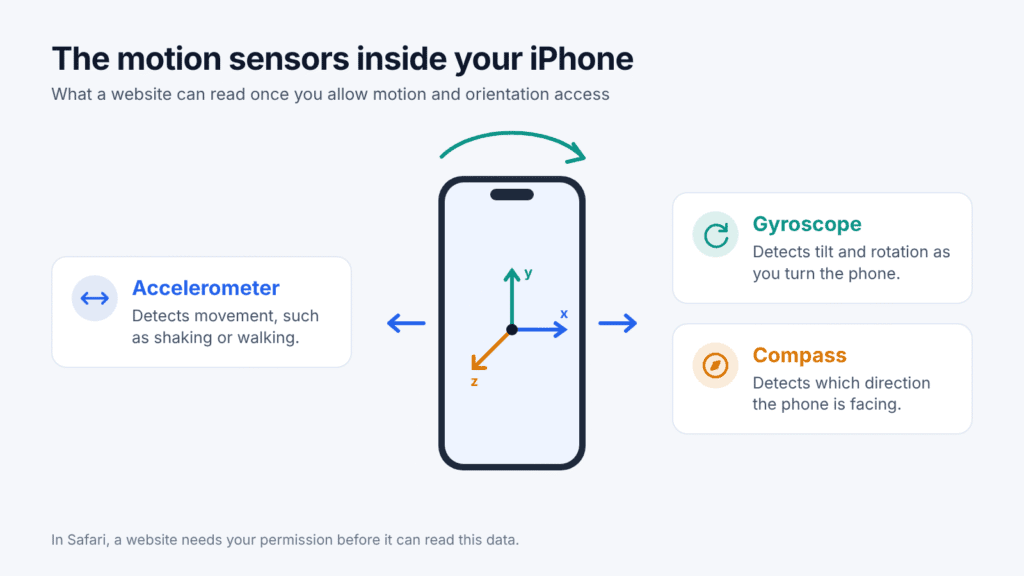
Websites use this data for features that respond when you move the phone:
- 360-degree photos, videos and panoramas you look around by turning the phone
- Augmented reality (AR) experiences in the browser
- Tilt-controlled browser games
- Interactive product demos and virtual tours
Safari requires websites to get your permission before they can read this data, because sensor readings can reveal more about you than most people expect (see the safety section below).
Three iPhone settings are easy to confuse here. The Safari permission controls websites. Motion & Fitness controls activity and step data for apps. Reduce Motion only changes on-screen animations. The comparison table later in this guide shows which one you need.
How to enable motion and orientation access in Safari
You grant this permission one website at a time, from the website itself. Here is how:
- Open the website in Safari. If you followed a link inside another app, such as Instagram, Facebook or Gmail, open it in Safari first. Look for “Open in Safari” or “Open in browser” in that app’s menu.
- Tap the button that starts the motion feature. Sites label it differently: “Enable motion”, “Tap to start”, “Look around”, a gyroscope or VR icon, or the full-screen button on a 360-degree viewer. Safari only lets a site ask for motion access after you tap something on the page, so nothing appears until you do.
- Tap Allow. Safari shows a pop-up saying the site would like to access motion and orientation, with Cancel and Allow buttons.
- Move your iPhone to test it. Turn or tilt the phone and the view should follow. If it doesn’t, tap the start button once more. Some viewers need a second tap after permission is granted.
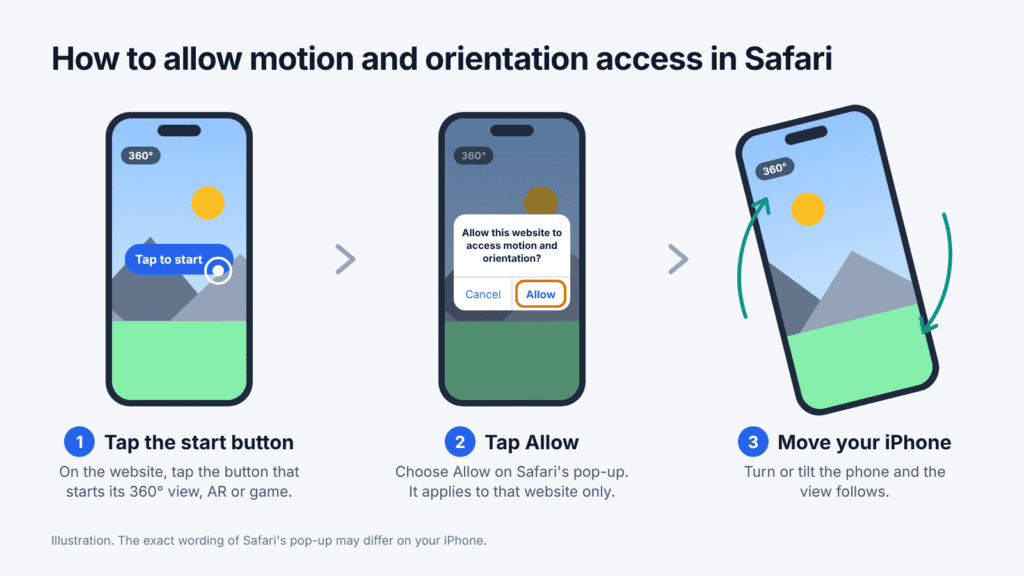
Your choice applies only to that website. Another site that needs your motion sensors will show its own prompt.
Note: The website has to request access itself. If a site doesn’t support motion controls on iPhone, tapping the page won’t bring up a prompt. Many 360-degree viewers also work without this permission: you drag with your finger instead of moving the phone.
Why there’s no Motion & Orientation Access switch in Settings
The Motion & Orientation Access switch was removed from Safari settings in iOS 13, so it doesn’t exist on any current iPhone. If a guide tells you to go to Settings > Safari > Motion & Orientation Access, it was written for iOS 12.
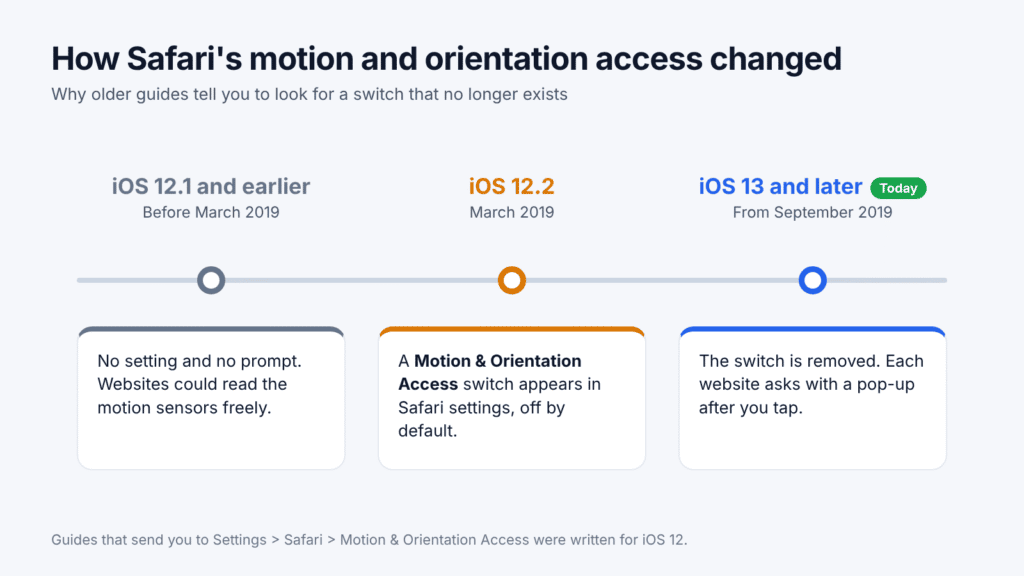
Here is what changed:
| iOS version | How Safari handled motion and orientation access |
|---|---|
| iOS 12.1 and earlier | Websites could read motion sensors freely, with no setting and no prompt. |
| iOS 12.2 and later iOS 12 updates (from March 2019) | A Motion & Orientation Access switch appeared under Settings > Safari. It was off by default, so motion features on many sites stopped working until you turned it on. |
| iOS 13 and later | The switch was removed. Each website now asks for permission with a pop-up after you tap a button on the page. |
Apple made the change for privacy. Reports at the time found that thousands of websites were reading phone sensor data without visitors knowing (Cult of Mac). Safari 13, which shipped with iOS 13 in September 2019, replaced the global switch with a permission request that each website makes (Apple Safari 13 release notes). A page can only make that request after you tap something on it (MDN).
If you still use an iPhone 5s or iPhone 6, which stopped at iOS 12, the old switch is still there: Settings > Safari > Motion & Orientation Access.
How to get the motion permission prompt back after tapping Cancel
If you tapped Cancel, Safari may not ask again on that website for a while. Apple doesn’t document exactly how long the choice lasts, so work through these steps in order and stop as soon as the prompt appears:
- Reload the page and tap its start or motion button again.
- Close Safari completely. Open the App Switcher (swipe up from the bottom of the screen and pause, or double-click the Home button), swipe Safari away, then reopen the page and tap the button again.
- Delete the site’s stored data. Open Settings, tap Apps, then Safari. Tap Advanced, then Website Data, find the site, swipe left on it and tap Delete. Go back to the page and tap the button again.
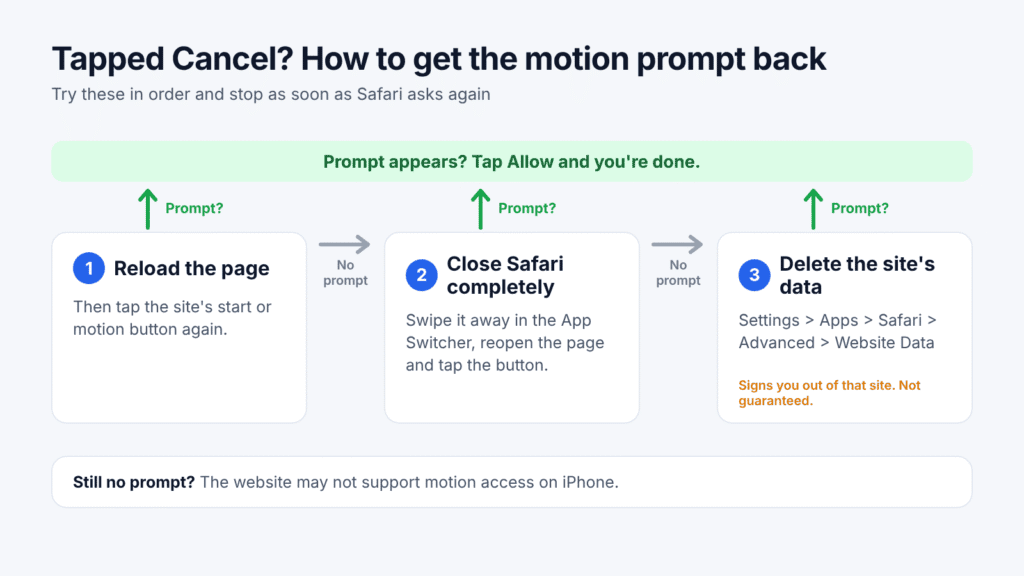
Deleting a site’s data also signs you out of that site and isn’t guaranteed to bring the prompt back, so save it for when the first two steps don’t work (Apple Support). Avoid the Clear History and Website Data button unless you’re happy to erase your browsing history and be signed out almost everywhere.
If the prompt still doesn’t appear, the website may not be requesting access correctly. Try it on another device or contact the site’s owner.
How to allow Motion & Fitness access for iPhone apps
Apps don’t use the Safari pop-up. If an app needs your activity data, such as a step counter, a running app or a driving app from your car insurer, you manage that in the iPhone Motion & Fitness settings:
- Open Settings and tap Privacy & Security.
- Tap Motion & Fitness.
- Make sure Fitness Tracking is on. When it’s off, apps that rely on your iPhone’s Motion & Fitness data may not get the activity information they need.
- Turn on the switch next to the app that needs access.
An app appears in this list only after it has asked for access. If yours is missing, open the app and use the feature that needs motion data so it can ask. If it still doesn’t appear, check the App Store for an update or contact the developer (Apple Support).
Motion & Fitness covers activity data: steps, distance, flights climbed, and whether you’re walking, running or driving. It doesn’t affect websites in Safari. It also isn’t a master switch for the motion sensors themselves. Games and other apps can still use basic tilt and movement for things like steering, and your screen still rotates.
Motion and orientation access not working? Try these fixes
Most problems come down to the pop-up never appearing or an earlier Cancel. Find your symptom below:
| What you see | Likely cause | Fix |
|---|---|---|
| No pop-up appears at all | Safari only lets a site ask after you tap something on the page | Tap the site’s start, motion, VR or full-screen button. |
| No pop-up, even after tapping | You tapped Cancel on an earlier visit | Work through the reset steps in the section above. |
| No pop-up inside Instagram, Facebook or another app | In-app browsers handle motion permission differently from Safari | Use the app’s “Open in Safari” or “Open in browser” option. |
| The address starts with http:// | Motion access only works on secure pages (MDN) | Try the https:// version of the page. If there isn’t one, the site can’t use your sensors. |
| You allowed access but the view doesn’t move | Some viewers need another tap, or the page loaded before you allowed access | Tap the start button again or reload the page. |
| You suspect Reduce Motion or Orientation Lock is blocking it | Neither setting blocks the motion sensors | Leave them as they are and work through the rows above. |
| A fitness or driving app isn’t tracking | Fitness Tracking is off, or the app isn’t allowed | Check Settings > Privacy & Security > Motion & Fitness. |
| Still not working | An old iOS version or a temporary Safari glitch | Update iOS in Settings > General > Software Update, close and reopen Safari, then restart your iPhone. |
If none of this helps, the website may not support motion on iPhone. Check whether it works in another 360-degree viewer; if it does, contact the site’s owner.
Motion access vs Reduce Motion vs Orientation Lock: which setting do you need?
Only the Safari pop-up controls whether websites can use your iPhone’s motion sensors. The other three settings do different jobs:
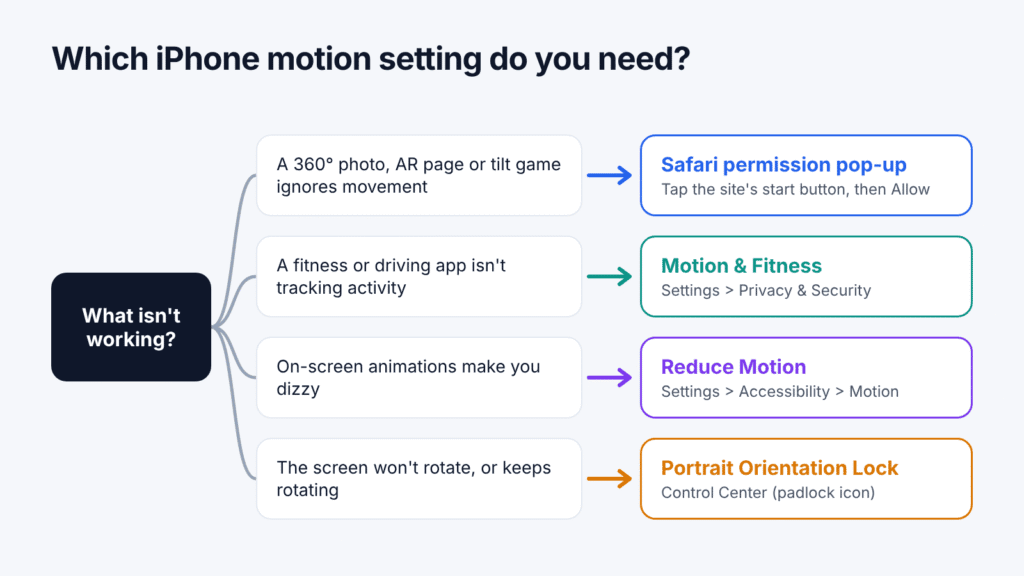
| Setting | Where to find it | What it controls | Use it when |
|---|---|---|---|
| Safari motion and orientation permission | A pop-up on the website (no switch in Settings) | Whether that one website can read the motion and orientation sensors | A 360-degree photo, AR page or tilt game doesn’t respond when you move the phone |
| Motion & Fitness | Settings > Privacy & Security > Motion & Fitness | Activity data for apps: steps, distance, walking, running, driving | A fitness, health or driving app can’t track your activity |
| Reduce Motion | Settings > Accessibility > Motion | On-screen animations, zoom transitions and the parallax effect | Animations make you dizzy or uncomfortable (Apple Support) |
| Portrait Orientation Lock | Control Center (the padlock icon) | Whether the screen rotates when you turn the phone | The screen won’t rotate to landscape, or keeps rotating when you don’t want it to |
Turning Reduce Motion or Orientation Lock on or off won’t fix a 360-degree photo that doesn’t move, because neither one touches the gyroscope or accelerometer.
Is it safe to allow motion and orientation access?
Yes, on websites you trust. The permission covers only how your phone moves and tilts. It doesn’t give the site your location, camera, microphone or files, and it applies to that one website only.
Apple still asks first for a good reason. In 2019, University of Cambridge researchers showed that tiny factory calibration differences in iPhone motion sensors could act as a unique fingerprint. A website could use it to recognise the same phone across sites, even after a factory reset. Apple responded in iOS 12.2 by adding noise to sensor readings and switching off Safari’s default access (University of Cambridge research paper).
A few simple rules:
- Allow it when you started the feature yourself, such as tapping “Look around” on a virtual tour.
- Tap Cancel when the request comes out of nowhere, for example after you tap to close an ad or a cookie banner.
- Stop access at any time by closing the page. To get a fresh prompt later, try the reset steps above.
Frequently asked questions
Where is Motion and Orientation Access in iPhone settings?
It isn’t in Settings on any iPhone running iOS 13 or later. Apple removed the switch and replaced it with a pop-up that each website shows when it needs your motion sensors. Tap the site’s start button, then tap Allow.
How do I turn on the gyroscope on my iPhone?
You don’t need to. There’s no switch for the gyroscope or accelerometer; iOS manages them for you. Websites need your permission through the Safari pop-up, and fitness apps need it under Settings > Privacy & Security > Motion & Fitness.
Does Reduce Motion turn off the gyroscope?
No. Reduce Motion only tones down on-screen animations and the parallax effect. Your iPhone’s motion sensors keep working, and websites and apps can still use them.
Why isn’t a 360-degree photo moving when I tilt my iPhone?
Usually the website hasn’t been given permission to use your motion sensors. You may have tapped Cancel earlier, opened the page inside another app, or not yet tapped the viewer’s start button. Some viewers don’t use motion at all and only respond to dragging with your finger. The troubleshooting table above covers each case.
How do I turn off motion and orientation access for a website?
Close the page to stop it receiving motion data. Safari doesn’t have a per-site switch for motion permission. To get a new permission prompt, reload the page or close Safari completely and reopen it. Deleting the site’s stored data is another option to try, but it isn’t guaranteed to reset the permission.

Louis Mugan is a seasoned technology writer with a talent for turning complicated ideas into clear, practical guidance. He focuses on helping everyday readers stay confident in a world where tech moves fast. His style is approachable, steady, and built on real understanding.
He has spent years writing for platforms like EasyTechLife, where he covers gadgets, software, digital trends, and everyday tech solutions. His articles focus on clarity, real-world usefulness, and helping people understand how technology actually fits into their lives.
Outside of his regular columns, Louis explores emerging tools, reviews products, and experiments with new tech so his readers don’t have to. His steady, friendly approach has made him a reliable voice for anyone trying to keep up with modern technology. get in touch at louismugan@gmail.com


