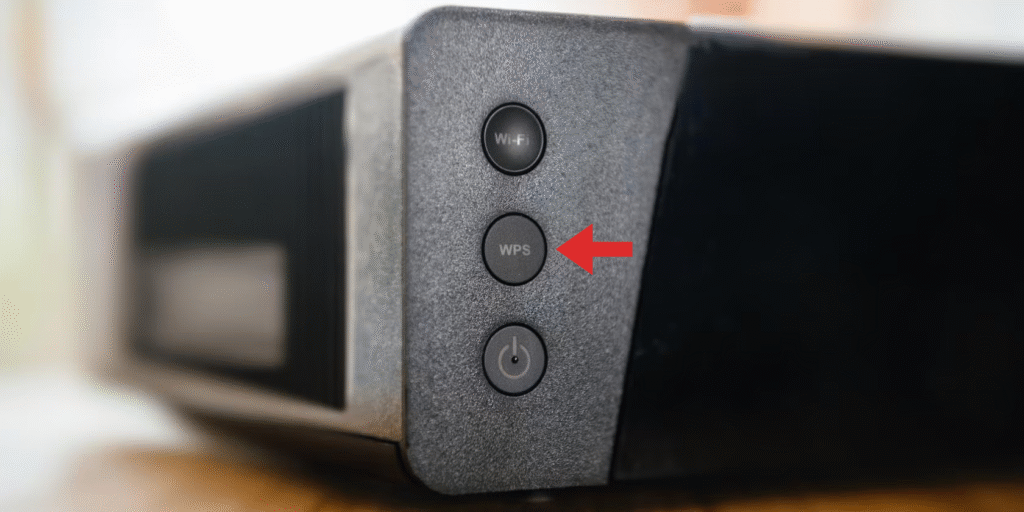
It can be really awkward when you need to enter your Wi-Fi password while connecting a printer. However, WPS (Wi-Fi Protected Setup) offers a nice shortcut for devices that are compatible. Its icon looks like curved arrows that are forming a circle.
There are some routers that use the letters “WPS,” so you should check the label too. Once you know what to look for, this guide helps you find the WPS button, check for a software option, and read your router’s status lights. You’ll also learn WPS safety tips that help protect your network.
Understand WPS before you look for the icon
You could spend ages looking for a WPS icon that your router doesn’t have. Before searching, it helps to know what WPS is. WPS stands for Wi-Fi Protected Setup, and it allows devices that are compatible to connect without you typing the Wi-Fi password.
First, check the manual of the router to see if WPS is supported. Then check out the router’s settings to see whether it is switched on. There are some routers that don’t include WPS because of security concerns. Others let you turn the feature off.
As for when to use WPS, save it for a compatible device that makes password entry awkward, such as a printer without a keyboard. If you can connect with your password, there’s no need to turn WPS on.
Recognize common WPS symbols and labels
Check the casing for a circular arrows icon, which looks like curved arrows chasing each other around a circle. It can appear on a button or beside it.
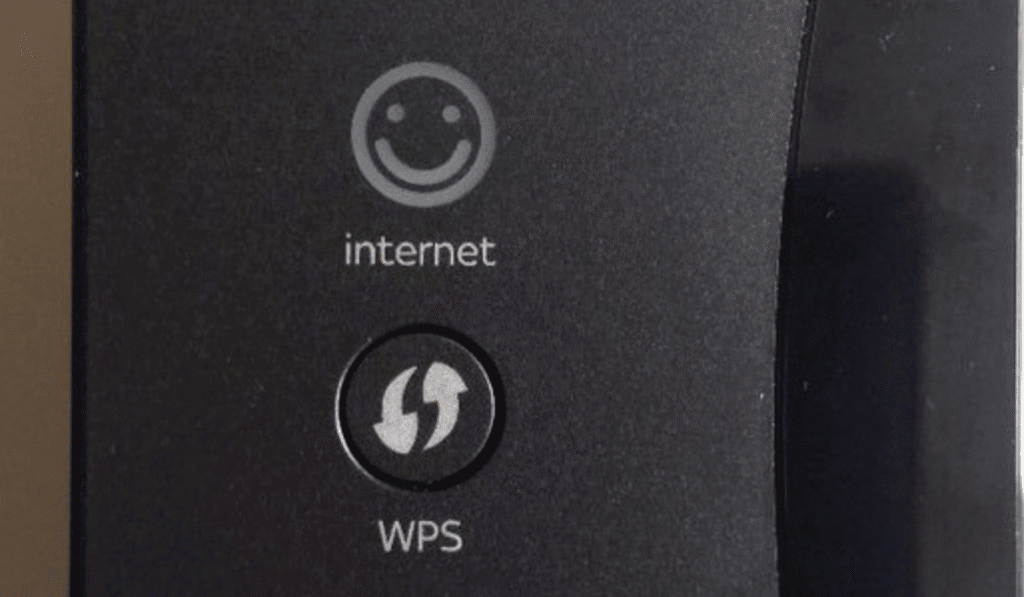
Some models use a padlock with waves instead. That small lock that has wireless signals can also mark the WPS light. This is why you should check if you’re either looking at a button or an indicator. You may also see a WPS text label, and it is sometimes written out as “Wi-Fi Protected Setup.”
Find the WPS control: hardware button vs. software toggle
A quick look around your router can save you a trip through its settings. Check the top, side, and back panels for the hardware WPS button.
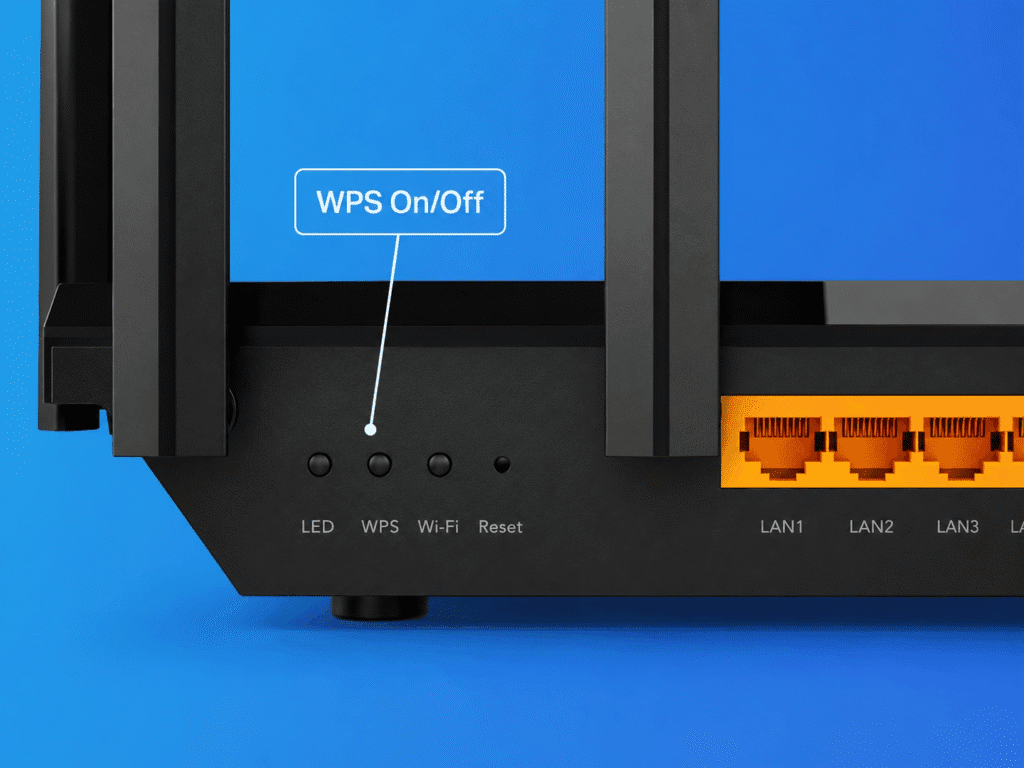
You should check the manual before pressing an unlabeled pinhole, because it could end up resetting your router.
You may also be able to find a software WPS menu in the web settings of your router or the mobile app. Check Wireless or Wi-Fi, then WPS. You can also check More as another possible app location.
Look for Push Button Configuration as the pairing method. Then go ahead to check your phone, TV, or printer’s Network settings for WPS or a similar connection option.
Read the WPS light to understand status
Your WPS light can let you know what is going on with your router. You just need to be able to tell what the light means. Start by checking the manual of your model. This is usually a great way to know the meaning of the WPS LED.
Take a look at the dedicated indicator, or the Wi-Fi light and be sure that it doubles as the WPS indicator. When you see a flashing light, it usually means that pairing is underway. While a solid light usually signals success. You can check out what slow or fast flashes mean on your model.
Color adds another clue to the router status light. Green, white, or blue can indicate success; red or amber may indicate trouble. Since amber can also mean the router is still connecting, match the color and pattern to the manual.
Distinguish WPS methods: Push-Button vs. PIN
The WPS label doesn’t tell you which connection method your router uses. You’ll have to check its WPS settings or manual to see whether it offers Push-Button, PIN, or both.
You can choose WPS PBC (Push-Button Configuration) if it is available.
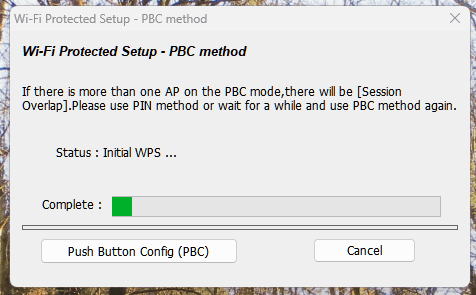
You get to activate pairing on the router and your device without entering a code. To use the button or menu option, you’ll have to follow the device’s instructions.
The WPS PIN mode is different because it uses a code instead. You should avoid it, if possible, because the PIN of the router can be vulnerable to repeated guessing attempts. Once the setup is done, you can disable the WPS PIN in the router’s admin settings if it’s switched on and that control is available. Don’t forget to save your changes.
Apply security hygiene when WPS is present
Your router can have a WPS button without needing WPS switched on all the time. You can keep your WPA2/WPA3 security active by either using WPA3 Personal or WPA2 Personal, depending on which is supported.
While you’re in the settings, replace the default admin password with a strong, unique password. This helps to protect the settings themselves, so it should differ from your Wi-Fi password. It’s also a good idea to install firmware updates, and also disable WPS after you are done using it, instead of leaving it available.
The next device can connect through Wi-Fi Easy Connect using a QR code if it is supported. Otherwise, you’ll have to choose the network name and type its strong passphrase. If you have friends that are visiting, there’s a separate guest network that allows you to share internet access with them, without sharing your usual Wi-Fi password.
Conclusion
It’s usually a lot easier to find the right button when you check your router’s guide. You can first confirm WPS support on both devices, then identify the WPS icon, which is usually shown as curved arrows, or simply find the WPS label. Pairing may actually be available through a physical button or its settings, but it all depends on the router.
Once pairing begins, you can interpret the WPS light using your model’s instructions. When you see a blinking light, it can mean that pairing is underway. So you should check if there’s a successful connection before you move on.
It is best to choose Push-Button over PIN pairing and also disable PIN access if available. For a secure Wi-Fi setup, updated router software and strong passwords are also needed.

Louis Mugan is a seasoned technology writer with a talent for turning complicated ideas into clear, practical guidance. He focuses on helping everyday readers stay confident in a world where tech moves fast. His style is approachable, steady, and built on real understanding.
He has spent years writing for platforms like EasyTechLife, where he covers gadgets, software, digital trends, and everyday tech solutions. His articles focus on clarity, real-world usefulness, and helping people understand how technology actually fits into their lives.
Outside of his regular columns, Louis explores emerging tools, reviews products, and experiments with new tech so his readers don’t have to. His steady, friendly approach has made him a reliable voice for anyone trying to keep up with modern technology. get in touch at louismugan@gmail.com