Does Google or Gmail keep sending you to your school’s login page, even when you’re trying to use your personal account? In most cases, a school account is still signed in to your browser or set as its default account. Switching accounts, or giving your personal account its own Chrome profile, usually fixes it in under a minute.
Quick fix: Click your profile picture in the top-right corner of Gmail or Google, select your personal account, and check that the address bar doesn’t contain your school’s name. If the school account keeps taking over, sign out of every account and sign back in to your personal account first.
One exception: If the account you’re signing in to was issued by your school (its address ends in your school’s domain), the school login page is supposed to appear. Schools can require their own sign-in page for the Google accounts they manage. Clearing cookies or changing browser settings won’t remove that requirement.
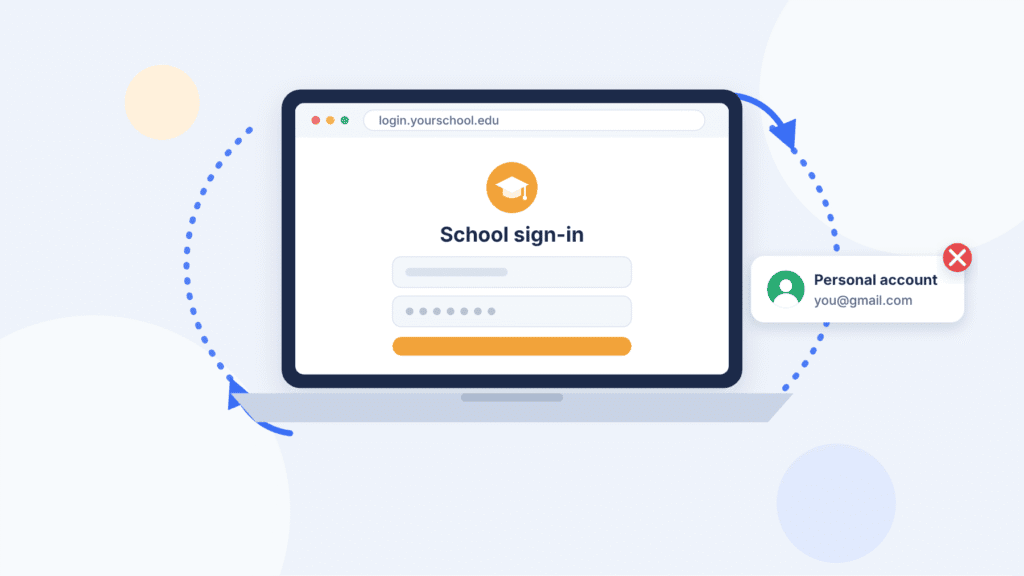
Why Does Google Keep Redirecting to My School Login?
Google sends you to your school’s login page when it thinks you’re using a school account. Many schools set up their Google accounts with single sign-on (SSO): when you enter a school address, Google finds the account and hands you over to the school’s own sign-in page to finish logging in (Google Cloud). That’s normal for a school account. It’s only a problem when it happens while you’re trying to reach your personal account.
Find your situation in the table, then jump to the matching fix.
| What you see | Likely cause | What to do |
|---|---|---|
| Personal Gmail or Google opens the school login page | The school account is still signed in, or it’s the browser’s default account | Switch accounts, or sign out of all accounts and sign in to your personal one first |
| Your school Google account always goes to a school portal | Your school uses single sign-on for its accounts | Sign in through the school’s page; contact school IT if it fails |
| The school account keeps coming back in Chrome | Chrome itself is signed in with the school account, or it’s saved in a Chrome profile | Use a separate personal profile, or remove the school one carefully |
| Chrome says “Managed by your organization” | The school controls the browser or device | Contact school IT; you can’t change these settings yourself |
| The school account appears in Windows, Edge or Office | A work or school account is connected to Windows | Disconnect it, but only on a device you own |
Quick Fix: Switch to Your Personal Google Account
If you’re signed in to both accounts, you don’t need to sign out. Google lets you switch between signed-in accounts from the profile menu (Google Account Help).
- Open Gmail or Google.
- In the top-right corner, select your profile picture or initial.
- Select your personal account from the list.
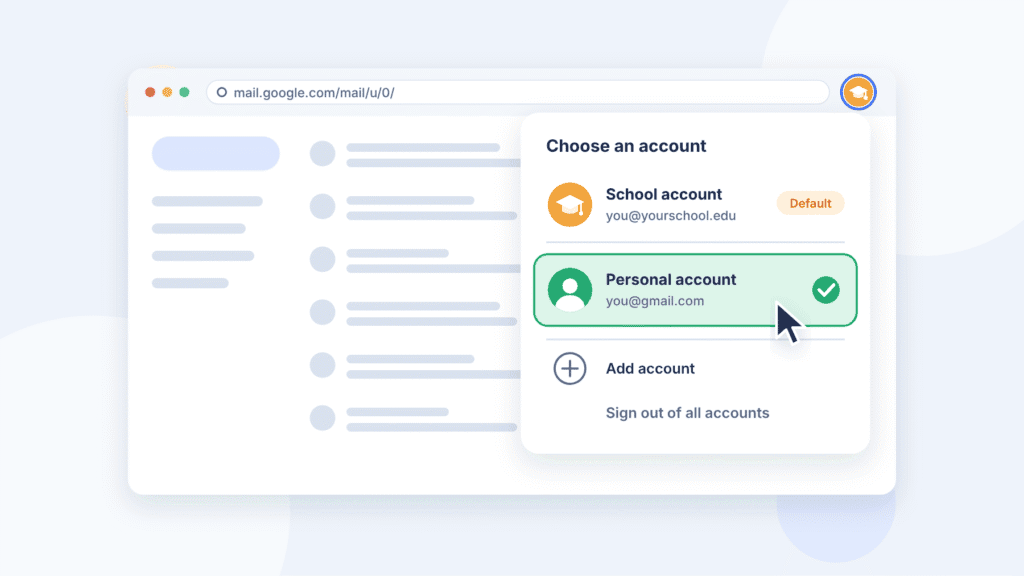
Check your bookmarks too. Gmail’s address shows which signed-in account you’re using: mail.google.com/mail/u/0/ is the first account, u/1 the second, and so on. If your Gmail bookmark was saved while the school account was active, it can keep opening the school inbox. Switch to your personal account, then save the bookmark again.
Make Your Personal Account the Default
If Google keeps opening your school account first, make your personal account the default. Google says your default account is usually the one you signed in with first (Google Account Help). There’s no setting to change it, so you reset the order instead.
Before you start, make sure your personal account has a backup phone number or recovery email, in case you have trouble signing back in.
- Go to google.com, select your profile picture, and choose Sign out of all accounts.
- Optional: to remove the school account from the sign-in list, go to myaccount.google.com, select your profile picture, choose Sign out of all accounts, then Remove an account, and select Remove next to the school account.
- Sign in to your personal account first.
- If you still need the school account, add it afterwards: select your profile picture, then Add account.
Repeat these steps in each browser you use. If the school account comes back on its own after this, Chrome itself is probably signed in with it. The next two sections cover that.
Give Your Personal Account Its Own Chrome Profile
The most reliable long-term fix is to keep school and personal accounts in separate Chrome profiles. Each profile has its own sign-ins, bookmarks, history and passwords, so the school account can’t take over your personal browsing (Chrome Help).
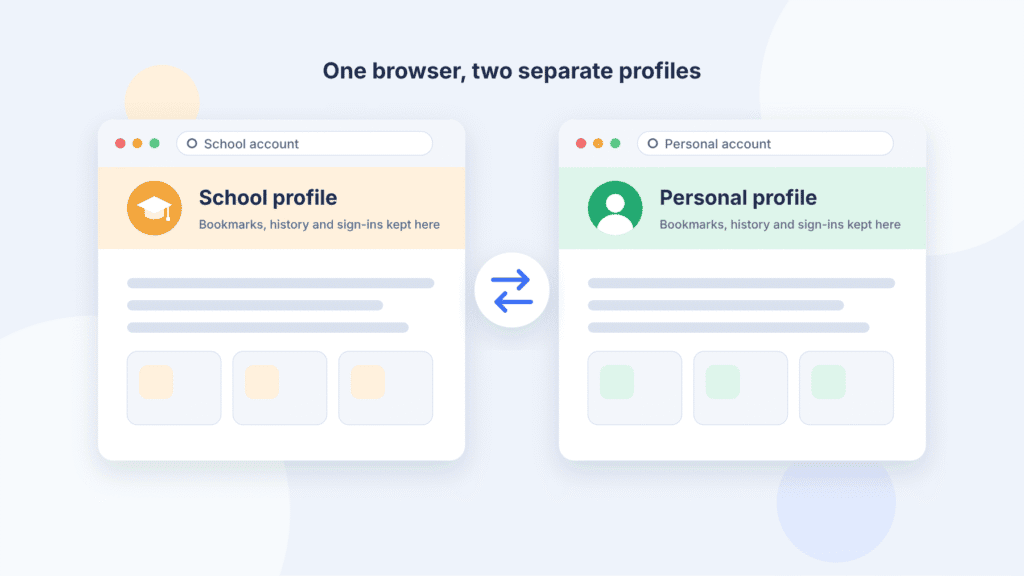
- Open Chrome. In the top-right corner, select your profile icon, then Add Chrome profile.
- Sign in with your personal Google account.
- Pick a name and color so you can tell the profiles apart at a glance.
To move between them, select your profile icon and choose the other profile. If you want Chrome to ask which profile to use every time it opens, go to Manage Chrome profiles and check Show on startup.
Only need your personal email once? Open a Guest window instead: select your profile icon, then Guest profile. Your browsing history, cookies and site data are deleted when you close it (Chrome Help). On your own computer, an Incognito window (Ctrl+Shift+N on Windows, Cmd+Shift+N on Mac) works too, because it starts without your existing Google sign-ins. Schools sometimes turn off Guest and Incognito on devices they manage.
How to Remove an Old School Account From Chrome
Start by signing the school account out of Chrome, which keeps your bookmarks and history on the computer. Delete the whole profile only if you don’t need anything saved in it. Neither option deletes the school account itself.
Option 1: Sign the school account out of Chrome (keeps your data)
- Open Chrome. In the top-right corner, select your profile icon, then Sign out of Chrome.
- If you’ve already signed out of Gmail, you may see Remove Account from Chrome instead. Select that.
Chrome can sign itself back in whenever you log in to Gmail. To stop that, select your profile icon, then Google Services Settings. Under “Other Google services,” choose Don’t sign in or Ask every time (Chrome Help).
Option 2: Delete the school profile (erases its data)
Before you delete: Google warns that removing a profile erases its bookmarks, history, passwords and other settings from the computer (Chrome Help). Export anything you want to keep first.
- Switch to your personal profile.
- Select your profile icon. Under “Other Chrome profiles,” select Manage Chrome profiles.
- On the school profile, select More (the three dots), then Delete.
- Select Delete again to confirm.
How to Clear School Login Cookies Without Deleting Everything
Clearing cookies signs you out of a site. It doesn’t unlink or delete any account, but it does clear out an old school session that keeps loading. You don’t need to wipe your whole browser: clear only the sites involved.
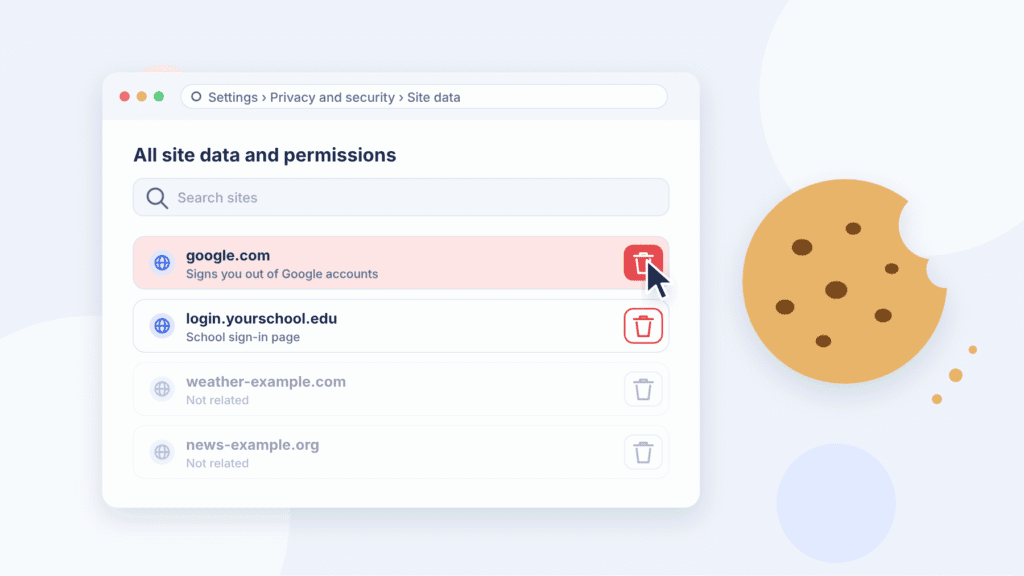
- Open Chrome. In the top-right corner, select More (the three dots), then Settings.
- Select Privacy and security, then Third-party cookies.
- Select See all site data and permissions.
- Use the search box at the top right to find
google.com, then your school’s sign-in site (the web address shown on the school login page). - Select Delete (the trash icon) next to each site, then Delete again to confirm.
These steps come from Chrome Help. Deleting google.com data signs you out of every Google account in that Chrome profile, and Google notes it can also reset saved site preferences. When you sign back in, use your personal account first so it becomes the default.
How to Remove a School Account From the Gmail App
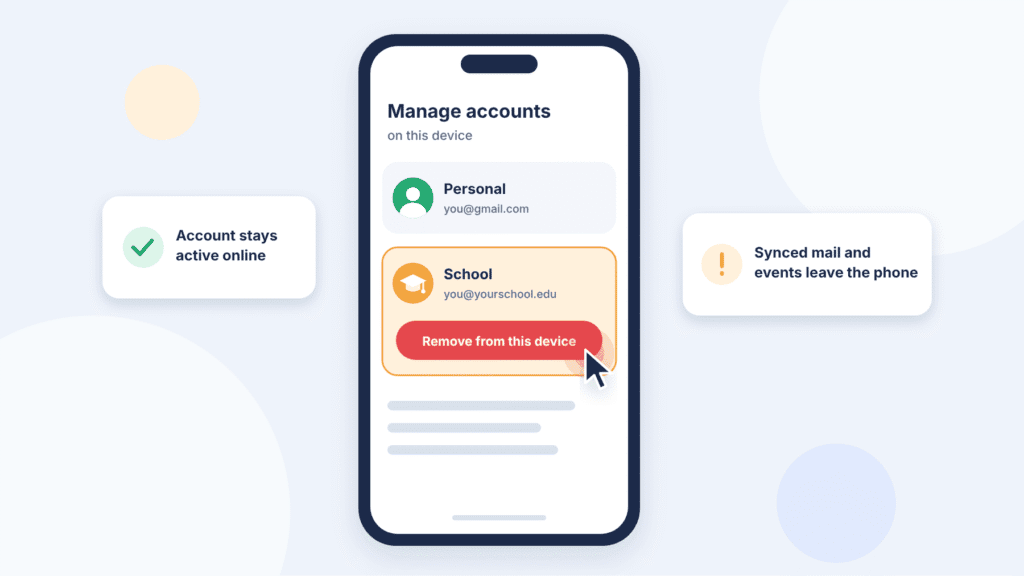
To stop your school inbox from appearing in the Gmail app, remove the school account from the app or the phone. Removing it doesn’t delete the account; you can still use it in a browser or add it back later.
You may see older guides that tell you to tap Linked account and then Unlink account. That option belongs to Gmailify, which connected non-Google email like Yahoo or Outlook to Gmail, and it was never the way to remove a school Google account. Google is also retiring Gmailify: it stopped accepting new users after the first quarter of 2026, and existing users can keep using it only until January 2027 (Gmail Help).
Android
- Open the Gmail app and tap your profile picture in the top-right corner.
- Tap Manage accounts on this device.
- Tap the school account, then Remove account, and confirm.
You can also do this from your phone’s Settings app: tap Passwords and accounts (or Users and accounts), tap the school account, then Remove account (Android Help).
Know what this removes: On Android, there’s no way to sign out of just the Gmail app. Removing the account takes it off the whole phone, so the school account is also signed out of every other Google app on that phone (Gmail Help). Mail, contacts and calendar events synced from that account are removed from the phone too.
iPhone and iPad
- Open the Gmail app and tap your profile picture in the top-right corner.
- Tap Manage accounts on this device.
- Under the school account, tap Remove from this device.
If you added the school account to Apple’s Mail app as well, remove it there separately in the iPhone’s Settings app.
If the account won’t remove, or the phone says it’s managed by your school, the school controls that device. Contact school IT rather than trying to work around it.
What if Chrome Says “Managed by Your Organization”?
If your school manages the browser or device, its settings can force the school login, and nothing else in this guide will override them. Check this before you spend time on other fixes.
How to check: Open Chrome, select More (the three dots), and look at the bottom of the menu. If you see “Managed by your organization,” the browser is managed. You can also type chrome://management in the address bar to see who manages it, or chrome://policy to see the settings applied (Chrome Help). Google notes that administrators of a managed browser can restrict features, install extensions and monitor activity.
What to do next:
- School-owned laptop or Chromebook: Use it for school work and use your own device for your personal account. If you need personal access on the school device, ask your school’s IT team.
- Your own computer, only the school profile managed: This usually means you signed in to Chrome with your school account. Keep your personal account in its own profile. Removing the school profile (see the Chrome section above) removes the management attached to that profile, but not settings applied to the whole browser or computer. Check chrome://management again afterwards, and contact school IT if it still shows management.
- Your own computer, whole browser managed: Ask school IT how to remove the management. Avoid registry edits or “policy remover” tools: they can break other software, and on a school-enrolled device they may break school rules.
School Login Redirects in Microsoft Edge and Windows
Edge and Windows matter here mainly when your school’s login page is a Microsoft sign-in page. If a school account is connected to Windows, Edge can use it to sign you in to school sites automatically, so the school login seems to complete itself before you can switch accounts.
Microsoft Edge
- Open Edge and go to Settings, then Profiles, then Profile preferences.
- Turn off Allow single sign-on for work or school sites using this profile. This setting lets a personal Edge profile use the work or school sign-in stored on the computer (Microsoft Learn).
- For a cleaner fix, give the school account its own Edge profile, just as with Chrome.
If your school manages Edge on that computer, this setting may be locked.
Windows
Do this only on a computer you own. On a school-owned PC, the connection is the school’s to manage.
- Open Settings, then Accounts, then Access work or school.
- Select the school account, then Disconnect, and confirm.
Microsoft notes this removes the account’s access from your PC without deleting the account itself (Microsoft Support).
Before you disconnect: If you sign in to Windows with the school account, you can’t disconnect it while you’re using it. You’ll need another administrator account on the PC first; if you don’t have one, ask school IT before you go further. Apps you use with the school account, like Teams or Office, may also ask you to sign in again.
Why Does Google Still Redirect After Clearing Cookies?
If the school login keeps coming back after you’ve cleared cookies, something is signing the school account back in or sending you straight to it. Check these in order:
- Chrome is signed in with the school account. Chrome can restore that sign-in on its own. Sign the school account out of Chrome, or move your personal account to its own profile (see the Chrome sections above).
- You’re typing, or autofilling, the school address. Look at the email on the Google sign-in screen. Your browser’s password manager may be filling in the school address without you noticing. If it ends in your school’s domain, the school login is expected.
- A bookmark points to the school. Addresses that include your school’s domain name, such as
mail.google.com/a/yourschool.edu, go straight to the school’s sign-in. So does a Gmail bookmark saved while the school account was active. Replace them with plainmail.google.com. - The browser or device is managed. School settings override anything you change yourself. See the “Managed by your organization” section above.
- Another browser or device is involved. Google sign-ins are separate in each browser. Repeat the sign-out steps in every browser you use, and check the Gmail app on your phone.
Frequently Asked Questions
Does clearing cookies unlink my Google account from my school?
No. Clearing cookies only signs you out of websites in that browser. A school Google account stays connected to the school’s sign-in system no matter what you do in your browser.
Can I turn off my school’s single sign-on?
No. Single sign-on for school Google accounts is set up by the school’s administrators. If the school login page fails or loops, contact your school’s IT help desk.
Will deleting my Chrome profile delete my Google account?
No. It erases that profile’s bookmarks, history, passwords and settings from the computer, but the Google account itself is untouched. You can still sign in to it anywhere.
Does turning off Chrome’s “Pop-ups and redirects” setting stop the school login?
No. That setting controls pop-up windows and is already set to block them by default. Sign-in redirects are normal page loads, so it has no effect on them.
My personal Gmail address goes to the school page. Why?
Check the address on the sign-in screen first. If it ends in your school’s domain, it’s a school account, and the school login is expected. If it ends in @gmail.com, check which Google account and Chrome profile are active, and look at the exact web address you opened. For a clean test, open your personal Chrome profile and sign in at accounts.google.com. If the redirect still happens there, work through the checklist in “Why Does Google Still Redirect After Clearing Cookies?” above

Louis Mugan is a seasoned technology writer with a talent for turning complicated ideas into clear, practical guidance. He focuses on helping everyday readers stay confident in a world where tech moves fast. His style is approachable, steady, and built on real understanding.
He has spent years writing for platforms like EasyTechLife, where he covers gadgets, software, digital trends, and everyday tech solutions. His articles focus on clarity, real-world usefulness, and helping people understand how technology actually fits into their lives.
Outside of his regular columns, Louis explores emerging tools, reviews products, and experiments with new tech so his readers don’t have to. His steady, friendly approach has made him a reliable voice for anyone trying to keep up with modern technology. get in touch at louismugan@gmail.com