
Your iPhone bookmarks are in Safari’s Bookmarks list, or in Chrome’s Bookmarks menu if you saved them in Chrome. Where Safari’s Bookmarks button sits depends on your iOS version and which Safari layout you use.
This guide shows where to find bookmarks in Safari and Chrome, how to search and organize them, and what to do when they go missing. It covers iOS 26 and iOS 27, with notes for older versions.
Where are bookmarks on an iPhone?
Each browser keeps its own bookmarks. Safari bookmarks live in Safari and Chrome bookmarks live in Chrome; one doesn’t show up in the other.
- Safari: open the Bookmarks list from the toolbar, the ••• (More) menu, or the Start Page, depending on your setup. The next section shows which.
- Chrome: tap ••• (More), then Bookmarks.
If Safari syncs with iCloud, the same bookmarks appear on your other Apple devices signed in to the same Apple Account.
How to find bookmarks in Safari
Open Safari, then follow the route for your setup. To check your layout, go to Settings > Apps > Safari and look under Tabs for Compact, Bottom or Top.
| Your setup | How to open bookmarks |
|---|---|
| iOS 27, Compact layout | Go to the Start Page (or tap Tabs, then + to open a new tab), then tap the Show Bookmarks button. |
| iOS 26, Compact layout (the default) | Tap ••• (More) at the bottom right, then tap Bookmarks. |
| iOS 26 or 27, Bottom or Top layout | Tap the Show Bookmarks button (an open book) in the toolbar. |
| iOS 18 or earlier | Tap the Bookmarks button (an open book) in the toolbar. |
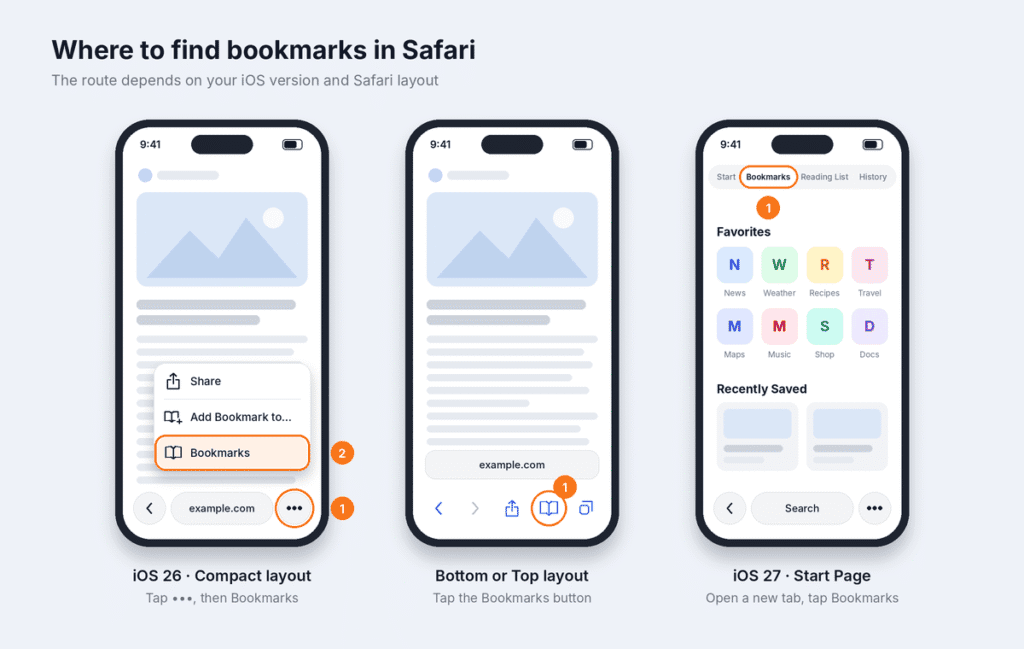
The Bookmarks screen also holds your Reading List and History. Tap a bookmark to open it, or tap a folder to see what’s inside.
Tip: If you want a one-tap Bookmarks button, switch to the Bottom or Top layout in Settings > Apps > Safari.
How to search for a saved bookmark
Open your Bookmarks list and swipe down on it to reveal the search field. Type part of the site’s name or address, and Safari shows the matching bookmarks.
You can also type in Safari’s address bar. Matching bookmarks appear in the suggestions as you type, which is often the fastest way to reopen a saved site.
How to find Chrome bookmarks on iPhone
- Open the Chrome app.
- Tap ••• (More) at the bottom right.
- Tap Bookmarks.
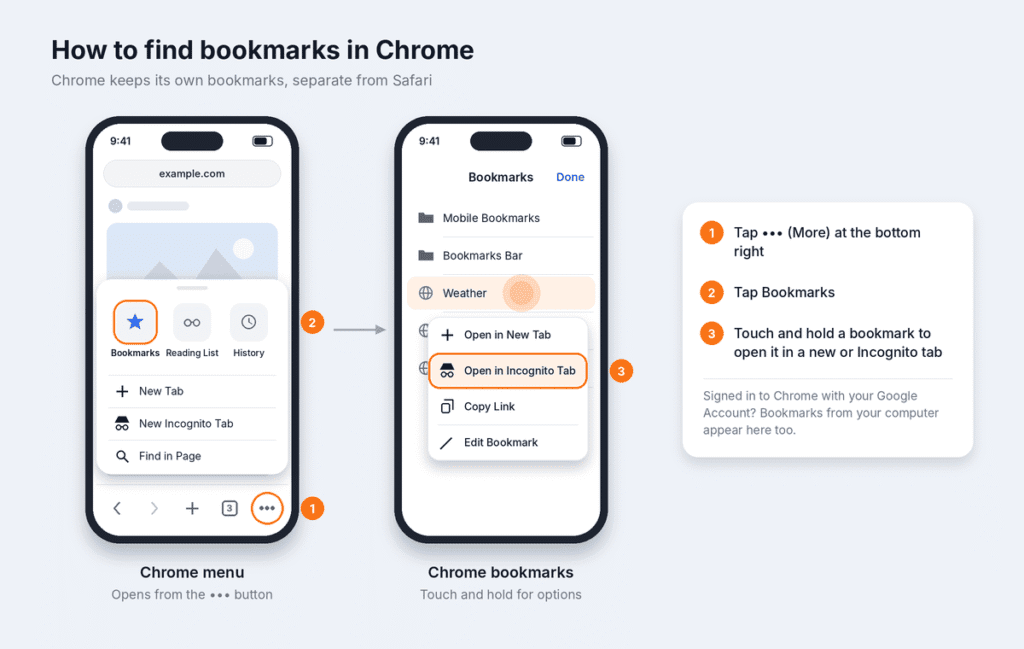
To open a bookmark in a new tab or an Incognito tab, touch and hold it. To see bookmarks you saved in Chrome on a computer, sign in to Chrome on your iPhone with the same Google Account and make sure bookmarks are included in sync.
Chrome bookmarks don’t appear in Safari automatically, and Safari bookmarks don’t appear in Chrome.
Looking for “Google Bookmarks”? That was a separate Google service, and it shut down in 2021. On an iPhone today, Google bookmarks means your Chrome bookmarks.
How to add and organize Safari bookmarks
You can save websites from Safari’s menu, organize them into folders, and add your most-visited pages to Favorites.
Add a bookmark
- Open the page in Safari.
- Tap ••• (More) on iOS 26, or the Page Menu button on iOS 27.
- Tap Add Bookmark to, choose a location, then tap Save.
Bottom or Top layout: Touch and hold the Show Bookmarks button, then tap Add Bookmark.
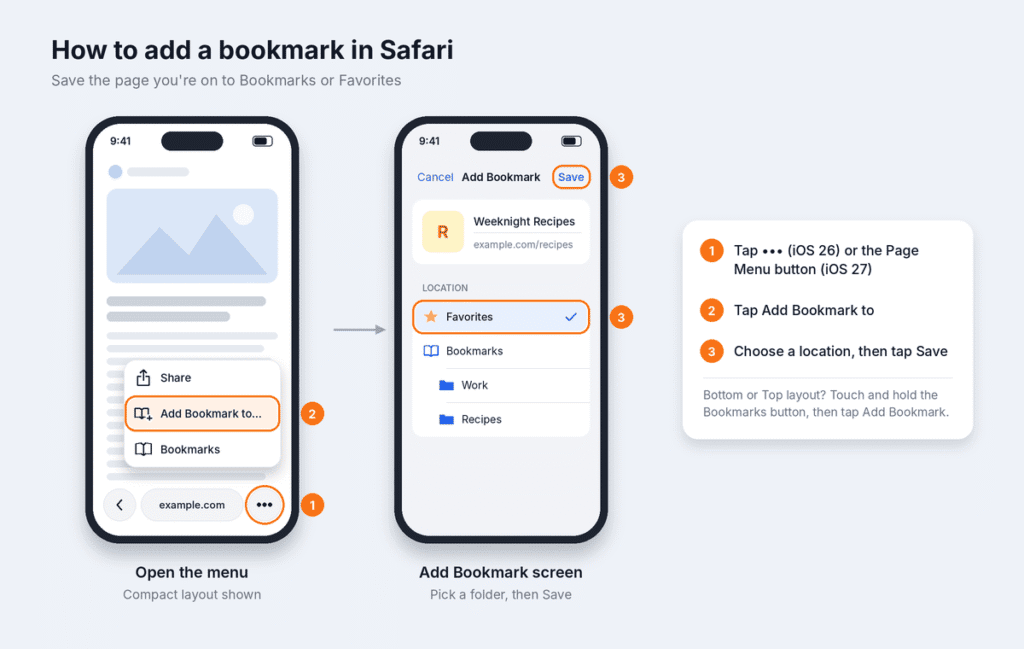
Add a site to Favorites
When you add a bookmark, choose Favorites as its location. Favorites appear on Safari’s Start Page each time you open a new tab.
Create a folder
- Open your Bookmarks list.
- Tap ••• (More), then tap New Folder.
- Type a name, then tap Save.
Move or rename a bookmark
- Touch and hold the bookmark, then tap Edit.
- To rename it, type a new name. To move it, tap below Location and choose a folder.
- Tap Save.
To reorder bookmarks, open your Bookmarks list, tap ••• (More), then tap Select Bookmarks. Touch and hold the reorder handle beside a bookmark and drag it.
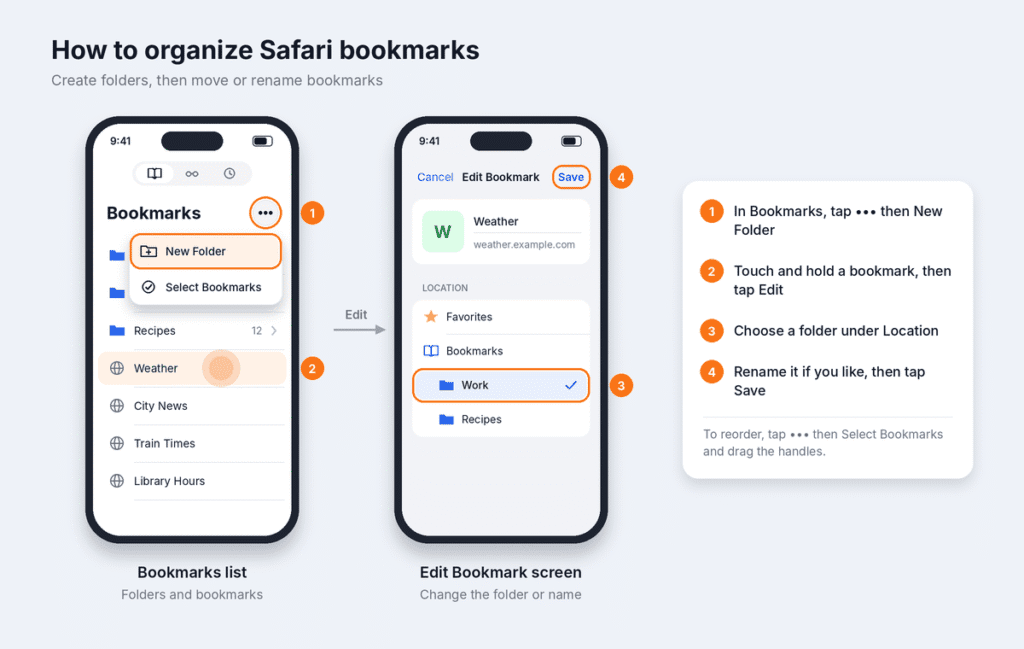
Delete a bookmark
Touch and hold the bookmark, then tap Delete. If Safari syncs with iCloud, the bookmark is removed from all your devices.
Why are my Safari bookmarks missing?
Missing bookmarks are usually in a moved menu, filed in a folder, or not syncing. Work through these checks in order:
- Look in the new place. After updating to iOS 26 or 27, the Bookmarks button may have moved. See the table in How to find bookmarks in Safari.
- Check your folders. A bookmark saved in a subfolder or in Favorites won’t appear at the top of the list. Search for it instead.
- Check the browser. Bookmarks saved in Chrome or another browser only appear in that browser.
- Check your Apple Account. Open Settings and tap your name at the top. Make sure it’s the account you use on your other devices.
- Check iCloud sync. Make sure Safari is turned on in iCloud (next section).
- Restart Safari and your iPhone. This can clear a display or sync glitch, but it won’t bring back deleted bookmarks.
- Restore from iCloud. If the bookmarks were deleted, use iCloud Data Recovery (see How to restore deleted Safari bookmarks).
Don’t reset or erase your iPhone to fix missing bookmarks. Reset All Settings doesn’t restore them, and erasing the phone can lose other data.
How to sync Safari bookmarks with iCloud
Turn on Safari in iCloud to keep the same bookmarks on your iPhone, iPad and Mac.
- Open Settings and tap your name at the top.
- Tap iCloud.
- Tap See All.
- Turn on Safari.
- Do the same on your other devices, signed in to the same Apple Account.
Warning: Be careful when turning Safari off. Your iPhone asks whether to keep the synced Safari data on the phone or delete it. If you’re only troubleshooting, choose Keep on My iPhone.
How to restore deleted Safari bookmarks
You restore deleted bookmarks on iCloud.com, not in the iPhone’s Settings app. It works only if Safari was syncing with iCloud before the bookmarks were deleted.
- In any web browser, go to icloud.com/recovery and sign in with your Apple Account.
- Tap Restore Bookmarks.
- Find the bookmarks or version you want. You can sort by date deleted, name or folder.
- Tap Restore next to that version.
- Wait for the restore to finish before you change any bookmarks. Changes made during a restore aren’t saved.
- Open Safari on your iPhone and check your Bookmarks list.
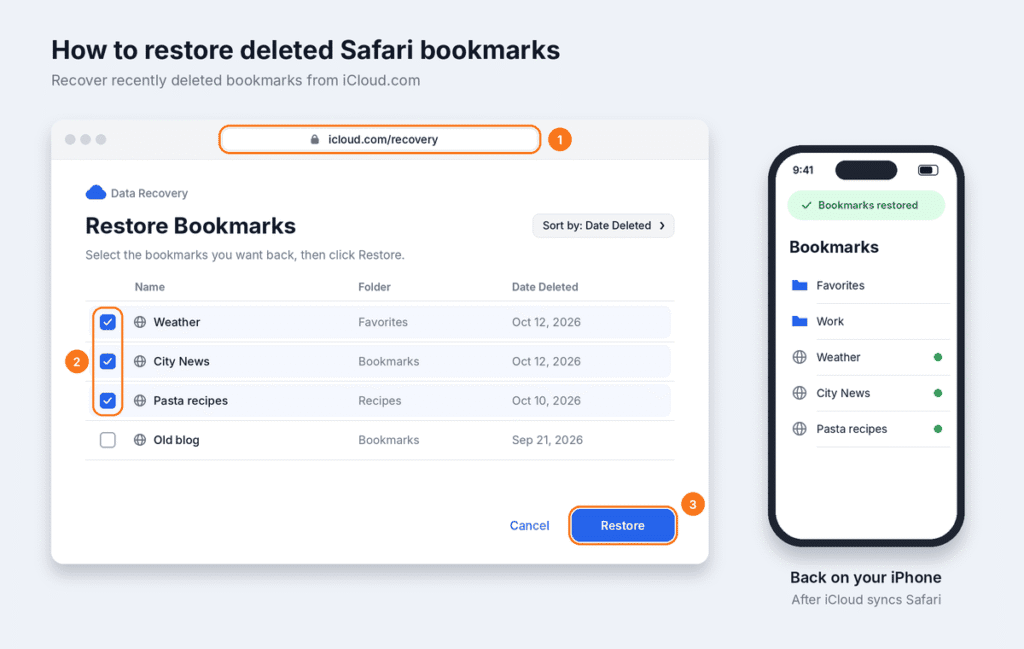
Good to know:
- You can undo it. iCloud archives your current bookmarks before restoring, so you can switch back.
- It covers recent deletions only, generally about the last 30 days.
- “No Bookmarks” means nothing was archived. Safari probably wasn’t syncing with iCloud on that account.
- Using Advanced Data Protection? Safari bookmarks are end-to-end encrypted, so some iCloud.com recovery options may not be available. Check Apple’s current guidance before changing any security settings.
- An iPhone backup is a last resort. Restoring one replaces everything on the phone, not just Safari.
Safari bookmarks vs. Favorites vs. Reading List
In Safari, Favorites are a kind of bookmark, while Reading List is a separate list of pages to read later.
| Feature | What it is | Where you find it |
|---|---|---|
| Bookmarks | Links to sites you want to keep | Bookmarks list |
| Favorites | A built-in bookmarks folder for your top sites | Start Page (new tab) and Bookmarks list |
| Reading List | Pages saved to read later, which can be saved for offline reading | Reading List, next to Bookmarks |
In some other browsers, such as Microsoft Edge, “Favorites” is simply the name for all bookmarks.
Frequently asked questions
Why can’t I see the Bookmarks button in Safari?
On iOS 26, the default Compact layout puts Bookmarks inside the ••• (More) menu. On iOS 27 in the Compact layout, go to the Start Page and tap the Show Bookmarks button. For a toolbar button, switch to the Bottom or Top layout in Settings > Apps > Safari.
Can I see my Chrome bookmarks in Safari?
Not automatically. Each browser keeps its own bookmarks, so open Chrome to see bookmarks you saved there.
Do Safari bookmarks sync between my iPhone and Mac?
Yes, if Safari is turned on in iCloud on both devices and both use the same Apple Account.
Can I recover bookmarks I deleted months ago?
Usually not. iCloud Data Recovery covers recent deletions, generally about the last 30 days.
Is “Add to Home Screen” the same as a bookmark?
No. Add to Home Screen puts an icon on your Home Screen. A bookmark is saved inside Safari’s Bookmarks or Favorites.

Louis Mugan is a seasoned technology writer with a talent for turning complicated ideas into clear, practical guidance. He focuses on helping everyday readers stay confident in a world where tech moves fast. His style is approachable, steady, and built on real understanding.
He has spent years writing for platforms like EasyTechLife, where he covers gadgets, software, digital trends, and everyday tech solutions. His articles focus on clarity, real-world usefulness, and helping people understand how technology actually fits into their lives.
Outside of his regular columns, Louis explores emerging tools, reviews products, and experiments with new tech so his readers don’t have to. His steady, friendly approach has made him a reliable voice for anyone trying to keep up with modern technology. get in touch at louismugan@gmail.com


