
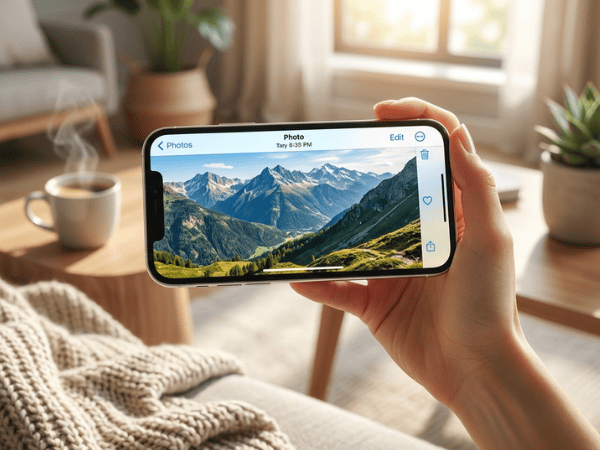
If pictures aren’t rotating on your iPhone, try turning off the Portrait Orientation Lock by opening the Control Center and rotating the device to the left or right side while using an application that supports landscape orientation. If the problem only happens in one app, close and reopen that app. Otherwise, restart your iPhone and check whether an iOS update is available.
It can be very confusing why the iPhone is failing to rotate, as sometimes it can seem to be an issue with the photos, but it may be something else. For instance, you might open the photo in the Photos application and then turn the iPhone on its side, expecting the image to occupy most of the screen. However, the screen will remain upright.
However, the main reason for the problem can be the activation of Portrait Orientation Lock, but this is not the only reason for this behavior of the iPhone. Sometimes some applications fail to support landscape orientation on all screens, and temporary problems with some applications or the iOS system can also contribute to the issue. Therefore, you should solve the problem step by step.
Why Are Pictures Not Rotating on iPhone?
There are multiple reasons why an iPhone might not be rotating.
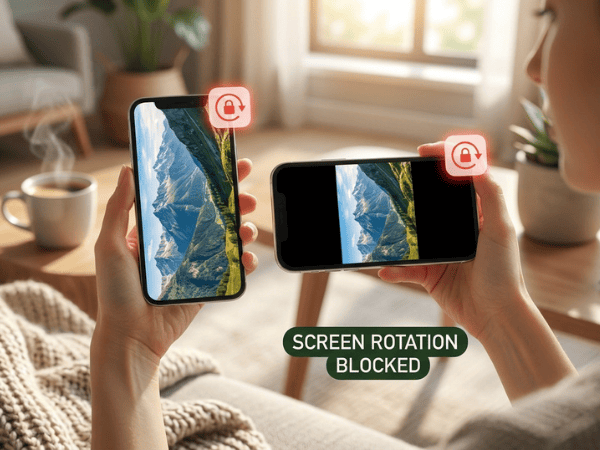
First of all, it might happen due to Portrait Orientation Lock, which purposefully locks the screen in portrait orientation while you turn the device. It may also happen because the app or the screen you use does not have landscape orientation support. Not all applications for iPhone allow the screen to rotate.
Sometimes, it might happen temporarily due to a software glitch; if the application normally allows the screen to rotate but suddenly it stopped, you might need to close the app or restart your device. Finally, you should understand the difference between screen rotation and photo orientation.
Screen rotation is the way the application looks when you physically turn your phone. Photo orientation means the way the photo itself is oriented, and if the photo is taken sideways, simply turning off Rotation Lock will not help; you will need to change the orientation in the Photos app.
How Can You Check Portrait Orientation Lock?
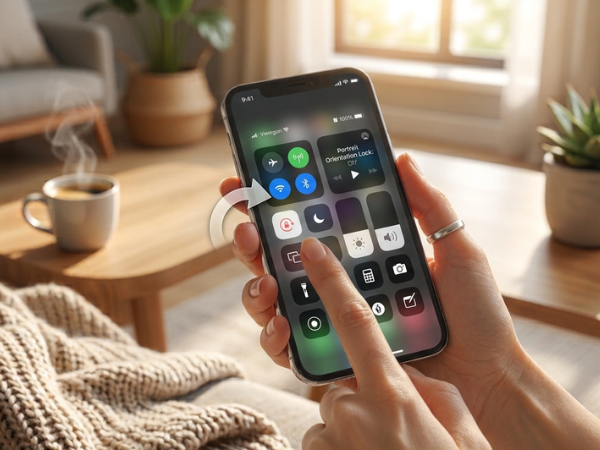
The first step you need to take is to check Portrait Orientation Lock. On modern iPhones with Face ID, swipe down from the top-right corner of your iPhone’s screen to access Control Center. Find the icon representing a padlock with a circular arrow around it.
If the portrait orientation lock is on, tap it. After doing that, close Control Center, go to Photos or any other application supporting landscape orientation, and rotate your iPhone. If the screen rotated, the problem lies only in Orientation Lock. Some older iPhones without Face ID might require accessing Control Center via another method, like swiping up from the bottom edge of the screen.
Check the Simplest Setting First
Before you restart your phone or change anything else, make sure that Portrait Orientation Lock is turned off. This is the quickest solution and does not impact any other settings on your iPhone.
How Can You Check Whether an App Supports Rotation?
Disabling Portrait Orientation Lock does not necessarily mean that all the apps on your iPhone will be able to rotate. There are some iPhone apps that do not have rotation capabilities by design. There are others that are set to be used in landscape view just for certain sections within the app.
To find out whether the problem is with your iPhone, test rotation in a few different apps.
For example, you may try rotating the phone and opening an app that usually allows viewing in landscape mode, such as Photos. If Photos rotates, but other apps remain fixed in portrait view, then you know there’s an issue with that particular app.
How Can You Restart the Affected App?
If the rotation problem only happens in one app, close and reopen it. For an iPhone that lacks a Home button, simply drag up from the bottom of the screen to get into the App Switcher and swipe up on the preview of the problematic app.
On iPhones with a Home button, you can access the App Switcher by double-clicking the Home button. Next, you can restart the app and see if the issue of rotation persists. As mentioned in Apple’s official recommendations, you should close an application when it does not respond properly or works unexpectedly. However, according to Apple, it is not necessary to forcibly close applications if everything works fine with them.
How Can You Restart Your iPhone?
If closing and reopening the app doesn’t help, restart your iPhone. Restarting your iPhone doesn’t erase your personal data. It simply turns the iPhone off and back on. . If your iPhone is any of the modern iPhones (iPhone X or above):
- Push and hold the side button and one of the volume buttons till the slider pops up.
- Slide it.
- Wait for about 30 seconds while the phone is powering down.
- Hold down the side button till you see the Apple logo.
This procedure is officially recommended by Apple as the standard way to restart the iPhone.
If the device has frozen and cannot be controlled, a force reboot is performed differently. Press the volume up button briefly, then the volume down button briefly, and then hold the side button till the Apple logo shows up on supported Face ID devices. You should use the force reboot only when the device is frozen. Then open Photos again and test screen rotation.
Learn about How to Enable Camera Access on Your iPhone?
How Can You Update iOS?
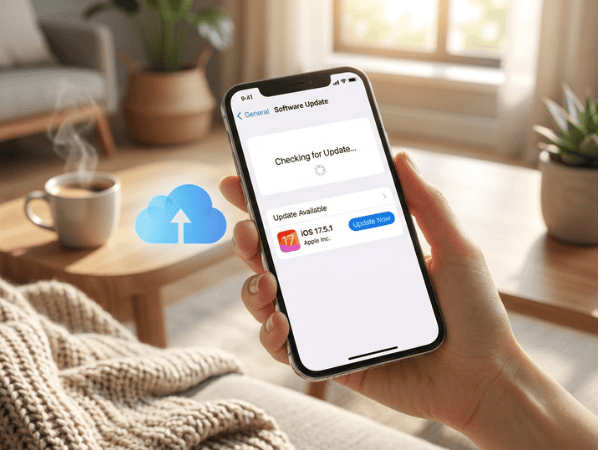
If the problem persists in several applications, then see if there is an available iOS update. Apple constantly provides updates for its system, which include fixes and modifications to the software. Updating your iPhone may fix a software problem that’s affecting rotation. Before you proceed with updating, always back up your iPhone either via iCloud or a computer.
After that, access:
Settings → General → Software Update
If a new update is available, just follow the instructions on your screen. At present, Apple recommends powering the device during a wireless update. However, it doesn’t mean that every rotation problem is caused by outdated software. If the problem is limited to one particular application, then this app should be updated rather than the entire operating system.
How Can You Tell Whether the Problem Is App-Specific?
Testing rotation in several apps is one of the easiest ways to find out what’s causing the problem.
Consider this comparison of tests and their likely causes:
| Test result | Likely cause |
| Photos rotates, another app doesn’t | App-specific behavior or bug |
| No supported apps rotate | Orientation Lock or system issue |
| The screen rotates after restarting | Temporary software problem |
| Photo itself stays sideways | Image orientation needs editing |
| Rotation fails after update/restart | Further troubleshooting may be needed |
If a single application does not support rotation, you may want to consider if there is any update available for it via the App Store. Also, you need to find out if this particular application can rotate. Being unable to rotate doesn’t necessarily mean there is a problem with your iPhone.
How Can You Rotate a Photo Manually?
Sometimes your iPhone’s screen rotates normally, but one picture is sideways. This is another issue entirely.
In that case, edit the picture in the Photos app. Access the picture, tap on Edit, select the Crop tool, and rotate the image until it is properly oriented. Once done, save your work.
This will ensure that the way you view the picture stays like that permanently without affecting the orientation of the phone screen. The difference can come in handy when diagnosing issues:
Screen won’t rotate: Check Orientation Lock and apps’ behavior.
Photo itself is sideways: Edit and rotate the picture.
When Should You Contact Apple Support?
If rotation doesn’t work in multiple apps after you turn off Portrait Orientation Lock, restart your iPhone, and install the latest iOS update, you may need further troubleshooting. Prior to calling for assistance, determine what apps the issue affects and whether the problem appeared after dropping, repairing, updating the phone’s software, or making some other change.
Do not automatically blame dust inside the device as an obstruction for the accelerometer or gyroscope. These sensors are built-in parts of your iPhone, so cleaning the phone and taking off a regular case cannot solve an orientation-related issue. If you believe that there is a hardware issue at hand (other motion-dependent functions exhibit similar abnormal behavior), contact Apple Support or a certified service center.
Having Other Touchscreen Problems?
If the rotation is not the sole problem and you are also facing difficulties with touch input, check out guide on Reliable Ways to Fix Tablet Touchscreen Problems on Android and iPad.
Which Fix Should You Try First?
In most cases, it is recommended to troubleshoot the problem in the following way:
- Disable Portrait Orientation Lock.
- Rotate in an application that allows landscape rotation.
- Restart the problematic app.
- Restart the iPhone itself.
- Upgrade the problematic app.
- Upgrade iOS.
- If nothing helps, call Apple.
That approach will make the troubleshooting process easier and will not lead to any unnecessary resets.
Recommendation: Do not reset your iPhone if a particular image or a particular application does not want to rotate. At first, determine whether the problem occurs across the entire device or with one particular image or application.
Conclusion
If the pictures do not rotate on the iPhone, you should first try to disable Portrait Orientation Lock. To access the Control Center, swipe down from the top-right corner of the screen and then disable Portrait Orientation Lock. Next, try the phone with an application supporting the landscape orientation.
If rotation is performed successfully in Photos but not in any other application, the issue is most likely application-specific. Otherwise, restart the iPhone and update its software. But also bear in mind that screen orientation and picture orientation are two different things. In case the pictures do not rotate but only one photo appears sideways, you can rotate it using the Photos editor. If the problem persists, please contact Apple Support for further advice.
Frequently Asked Questions
Why are pictures not rotating on my iPhone?
Orientation lock for portraits could be turned on, or the app itself could be unable to support landscape orientation, and the problem might simply be temporary. First, disable Orientation Lock and try rotating your device in Photos or any other app that allows landscape orientation.
How do I turn on auto-rotate on an iPhone?
There is no separate option called Auto Rotate on an iPhone. Just go to Control Center and make sure that Portrait Orientation Lock is switched off. Supported applications can automatically rotate with the rotation of the device.
Why won’t my iPhone rotate even when Rotation Lock is off?
It could be that the application you are using does not have support for landscape mode, or there might be an issue with either the application or the iOS operating system itself. Try opening other applications that are supported.
Will restarting my iPhone delete my photos?
No. A regular reboot simply powers the iPhone down and then back up again and doesn’t erase your pictures, apps, account info, or settings.
How do I fix one picture that is sideways on my iPhone?
Open the picture in Photos, go to Edit, select the Crop tool, and rotate the image using the rotation slider. This helps to correct the image, not the screen orientation of the iPhone.
Should I reset my iPhone if the screen won’t rotate?
Not usually as the first course of action. Try Portrait Orientation Lock, application compatibility, application functionality, restarting, and updates before any further troubleshooting.

Louis Mugan is a seasoned technology writer with a talent for turning complicated ideas into clear, practical guidance. He focuses on helping everyday readers stay confident in a world where tech moves fast. His style is approachable, steady, and built on real understanding.
He has spent years writing for platforms like EasyTechLife, where he covers gadgets, software, digital trends, and everyday tech solutions. His articles focus on clarity, real-world usefulness, and helping people understand how technology actually fits into their lives.
Outside of his regular columns, Louis explores emerging tools, reviews products, and experiments with new tech so his readers don’t have to. His steady, friendly approach has made him a reliable voice for anyone trying to keep up with modern technology. get in touch at louismugan@gmail.com


