
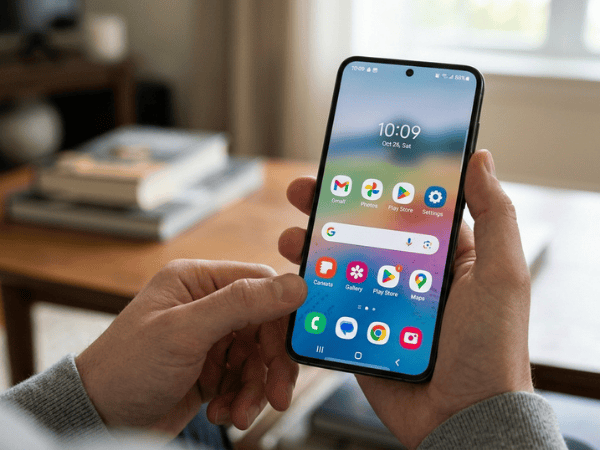
How to Restore the Google Search Bar on Your Android Device
To get the Google Search bar back on Android, touch and hold a blank part of your home screen, press Widgets, go to Google, and touch and hold the Search widget and drag it to your home screen. If the Google widget is missing, make sure that the Google app is installed and activated, and update the app or reboot your phone. Google Search bar is the fastest way to search the Web directly from your home screen on Android, which makes its sudden disappearance annoying and confusing.
The good news is that a missing Search bar doesn’t necessarily mean that something is wrong with your smartphone. In most cases, the widget is simply removed accidentally during the rearrangement of your home screen or got lost due to changes in the layout. Although some menu names may differ depending on your phone maker and Android launcher you use, the overall procedure is similar for most Android phones.
This article explains how to get back the Google Search bar, adjust its size or location, and deal with problems related to the widget if there is no Google widget available.
What Is the Google Search Bar?
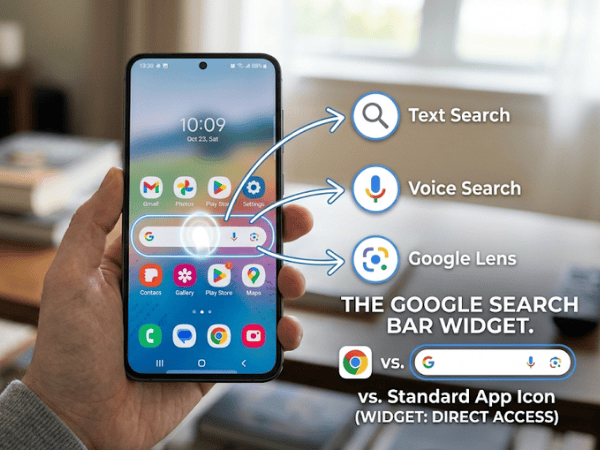
The Google Search bar widget is a widget that can be added to the Android home screen. As compared to a regular app icon, a widget allows users to access its features without having to open up the actual app. So in the case of the Search bar widget, tapping on it would take you to Google Search, with some versions allowing shortcuts such as voice search and Google Lens.
According to the Google Android Help guide, widgets are home screen items that allow the user to get information or features without first opening the full app. This is helpful while troubleshooting. By removing the Search bar widget from your home screen, you have just removed the widget and not the actual Google app. This is clearly distinguished by Google’s Android documentation as well.
How Do You Restore the Google Search Bar on Android?
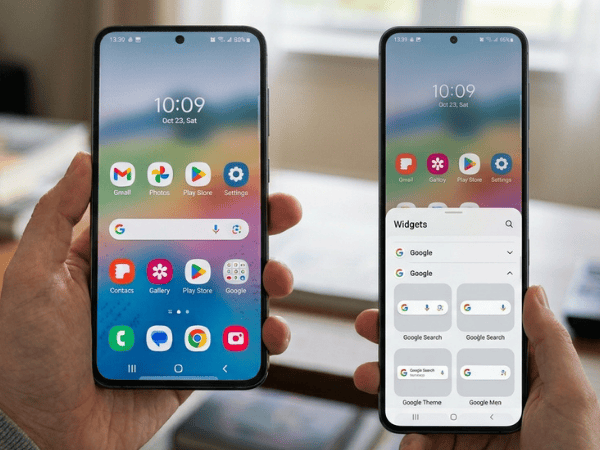
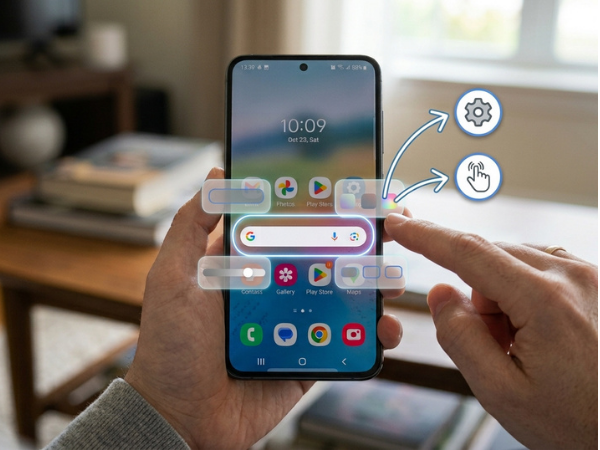
The quickest way to fix the Google Search bar is by utilizing the Widgets feature of your phone. The instructions to add a widget provided by Google at present are:
Tap and hold on an empty spot on the Home screen.
- Select Widgets.
- Look for the app providing the widget.
- Select the available widgets for that app.
- Tap and hold the widget.
- Move it to the Home screen.
- Let go to place it.
If you want to place the Google Search bar, select the Google category and then select the Search widget. Some devices require scrolling through the widget menu or even using widget search if the launcher offers this feature.
The text and design could be different on Pixel Launcher, Samsung One UI, Motorola, Xiaomi, OnePlus, and other third-party launchers, but there is no need to get worried about this, as all Android phones will look a bit different from one another.
Restore the Search Bar Before Changing Other Settings
If the Google Search box disappears and everything else in the Google app remains functioning, it might help to install the widget again prior to cache-clearing and launcher resets. This usually does the trick.
How Do You Resize or Move the Google Search Bar?
Android lets many widgets be moved and resized even after their initial placement on the device. To move the Search bar, press down on it and drag it to a new location on the Home screen.
To resize it, simply press down on it and let go.
If your widget can be resized, according to Google, an outline of the widget with sizing adjustment handles will appear around it. Drag those handles until you are satisfied, then press down outside the widget. Each launcher application may deal with resizing somewhat differently.
On some Android devices, there will be fewer available sizes, but others will let you stretch out the Search bar to almost cover the entire Home screen. If no sizing handles appear at all, it means that either the particular launcher you are using or the particular widget layout you have set up does not support such an action.
Why Did the Google Search Bar Disappear?
The reasons for a missing Google Search widget can be quite understandable.
You May Have Removed the Widget Accidentally
This is possibly the easiest reason.
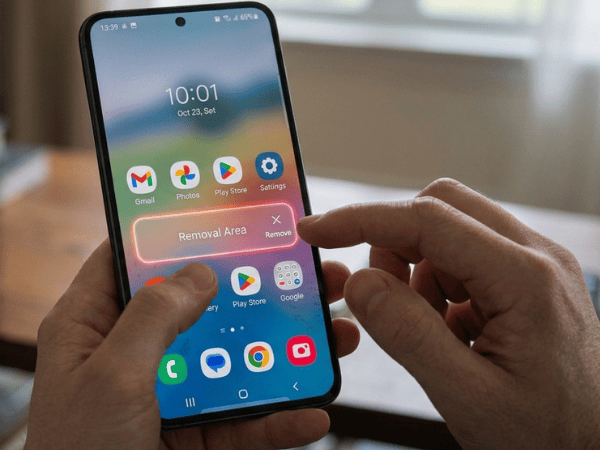
The Android OS allows for the removal of Home screen widgets without having to uninstall the associated app. If you had pressed the Search bar while arranging your Home screen, then this may be why you dragged the widget into a Remove area.
Google acknowledges that the removal of something from the Home screen doesn’t automatically mean it will uninstall the app. All you need to do is re-add the widget.
Your Home Screen Layout May Have Changed
Your Android Home screen appearance and functionality are determined by the launcher. If you change launchers, restore the Home screen appearance, alter the themes, reset the phone, or apply an OS update, the widgets will have to be reinstalled. The Google application can be installed and operational even if the Search widget isn’t currently located on your Home screen.
The Google App May Be Disabled or Unavailable
The Search widget works by using the Google application. If Google is not available in the list of Widgets, then it is important to ensure that the Google app is installed and activated on the phone. It should be noted that not every Android smartphone comes with the same set of default apps.
The Google App or Launcher May Have a Temporary Problem
The widget can simply disappear or fail to load appropriately due to a temporary issue with either the Google application or the home screen application. It would be a sensible initial troubleshooting measure to restart your phone since there is little risk involved and you will not lose any data.
What Should You Do If the Google Widget Is Missing?
In case opening Widgets fails to locate Google Search, start by checking if the Google app is installed on your phone. Launch your app drawer and try finding the Google app there. If it works fine, then go back to the Widgets screen and try searching for Google there.
In case you don’t have this app on your phone, go to Google Play and search for the official Google app. In some cases, depending on the specific model, there will be an option to install or re-enable this app. You may even restart your phone after making sure that the Google app is there. In case the problem persists, this is probably launcher-related and not Google Search-related.
How Can You Update the Google App?
A problem with the Google application may interfere with its widgets on occasion. Updates for Android apps are recommended by Google as they bring along new features, as well as security upgrades.
To check for updates:
Google Play Store > profile icon > Manage apps & device > Updates available
Select the Google app and click Update when it’s available. Once you’ve done that, go back to the Home screen and look through the list of Widgets. You can also restart your phone after the update if the Search widget is still not there.
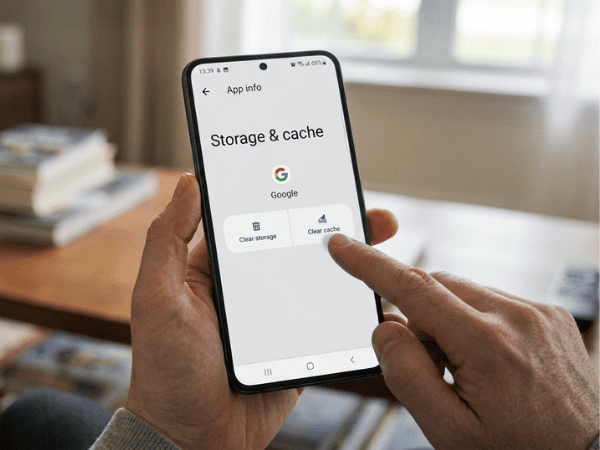
How Can You Clear the Google App Cache?
If Google is already installed and updated yet displays problems, then it may make sense to clean the cache. Android uses cache for storing temporary data of applications. According to Google, cleaning an app’s cache deletes temporary files, while cleaning storage deletes files from the app in general. The route will be different depending on the manufacturer of the device, but usually, it looks like this:
Settings → Apps → Google → Storage & Cache → Clear Cache
After that, you should open the Google app and check if the widget has appeared. It is better not to go straight into Clear storage or Clear data, because these options affect more files and can reset app information or settings.
Fix Google App Problems Before Resetting Everything
If the Google Search bar is the only missing component, don’t reset your Android phone entirely. Try the widget, Google application, update, reboot, and cache methods first. They are far less intrusive and often contain sufficient data to diagnose the issue.
How Can You Fix a Launcher Problem?
If the Google app is functioning well and the Search widget is still not showing up, then there might be a need to pay more attention to your Home screen launcher.
The Home screen launcher is the application that makes the Home screen, icons, folders, widgets, and other layout components function. Google Pixel phones use Pixel Launcher, while Samsung phones use One UI Home. Other manufacturers and alternative launchers use their respective programs.
First, reboot the phone.
Second, long-press on an empty Home screen and go to the Widgets menu once again.
Lastly, if you have just downloaded another launcher application, revert to your device’s default launcher to see if the Google Search widget will appear. Take note that clearing the data from your launcher application can change the layout of your Home screen and widgets. So, proceed with caution when doing that.
Want Your Original Android Home Screen Back?
If you no longer have the Search box available after changing your Home screen, then the issue might be with the launcher and not with the Google application.
Learn about Android Customization Tricks Most People Never Try.
Should You Clear Google App Data?
Not usually, not right away. The conventional wisdom on clearing both cache and data all at once is too drastic an approach when dealing with a Home screen widget problem.
This is why Google differentiates between the two options:
- Clear cache deletes the temporary data,
- clearing the storage/data deletes the data of the app overall.
It’s for this reason that clearing data should come as a last resort after simpler measures have been tried and you’ve considered what data will be lost. In order, one might start by adding the widget again, rebooting the phone, updating the Google app, and clearing the cache.
How Can You Reset the Search Widget’s Appearance?
Fixing the loss of the Google Search bar and configuring its look are two different processes. If the Search bar is installed on your Home screen, but you do not like how it looks or where it is placed, you can try moving or adjusting the bar using the launcher.
There are some updates made to the Google Search interface and customization tools, so you cannot assume that the menu Google app → Settings → Search widget → Customize widget works for all existing devices. If there is a menu for customization of widgets present on your device, use it; if not, configure the widget through Home screen settings of your launcher.
Which Fix Should You Try First?
The best troubleshooting sequence is the one that makes the fewest unnecessary changes.
| Situation | Best first action |
| Search bar disappeared | Add it again from Widgets |
| Google widget not listed | Check the Google app |
| Google app installed but widget missing | Restart and update Google |
| Widget appears but behaves incorrectly | Clear Google app cache |
| Problem started after launcher change | Check Home screen launcher |
| Only size/position is wrong | Move or resize the widget |
| Everything else fails | Check device-specific support |
Our recommendation: Before resetting the app data, launcher, or device, make sure that the problem is not due to the deletion of the Search widget on the Home screen.
Conclusion:
When you no longer have your Google Search box on your Android Home screen, the answer to this problem is usually easy. Simply long-press an open space on the Home screen, select Widgets, locate Google, and then place the Search widget on the Home screen again.
In case Google doesn’t appear in the list of widgets, check if the Google application is installed and working on your phone and, if necessary, reboot your phone, update the application, and clear the cache.
However, if the Google application functions well, but there are no widgets available, look into the Home screen launcher application. Most importantly, do not perform excessive resets. A lack of widgets is rarely a reason to clear all app data or reset the whole Android device.
If you’re also experiencing touchscreen issues on your Android tablet or iPad, check out our guide on Reliable Ways to Fix Tablet Touchscreen Problems on Android and iPad for practical troubleshooting tips.
Frequently Asked Questions
How do I restore the Google Search bar on Android?
Tap and hold any blank space on the Home screen, choose Widgets, tap Google, then tap and drag the Search widget to the Home screen. The interface might differ from what you see here, depending on your phone and launcher software.
Why did my Google Search bar disappear?
Perhaps it could have been removed by mistake, or maybe your Home screen layout was changed, or perhaps the Google app itself could be disabled or uninstalled.
Why can’t I find the Google Search widget?
Check if the Google application is installed and turned on. If yes, then try rebooting your phone and updating the Google app. If Google does not show up even after that in Widgets, then you should check out your home-screen launcher.
Can I resize the Google Search bar?
Typically, yes, but it depends if you have a resizable widget and launcher. Press and hold on the widget. If resize handles are available, drag them to resize the widget. According to Google, not all resizable widgets will have these options.
Will clearing the Google app cache delete my account?
Cache clearing is the removal of data stored temporarily by apps, and not your Google account. The other option, which is storage and app data clearance, is more intrusive than cache clearing.
Do I need internet access to restore the Google Search widget?
Internet is not required to put an existing widget back on the Home screen, but it is required for searches, app downloads, and updates.

Louis Mugan is a seasoned technology writer with a talent for turning complicated ideas into clear, practical guidance. He focuses on helping everyday readers stay confident in a world where tech moves fast. His style is approachable, steady, and built on real understanding.
He has spent years writing for platforms like EasyTechLife, where he covers gadgets, software, digital trends, and everyday tech solutions. His articles focus on clarity, real-world usefulness, and helping people understand how technology actually fits into their lives.
Outside of his regular columns, Louis explores emerging tools, reviews products, and experiments with new tech so his readers don’t have to. His steady, friendly approach has made him a reliable voice for anyone trying to keep up with modern technology. get in touch at louismugan@gmail.com


