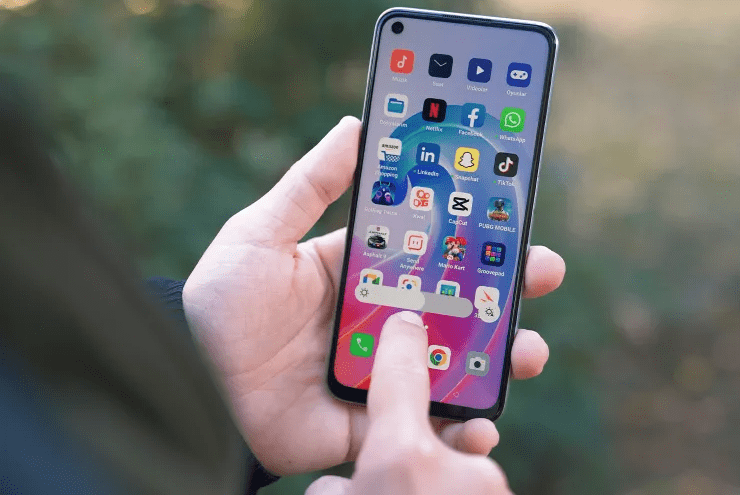
Android phones are built around touch. Instead of tiny buttons and menus, you use gestures, such as taps, swipes, and pinches, to tell your phone what to do. These simple movements can open apps, move around screens, zoom photos, switch between apps, and much more.
When you understand Android gestures clearly and practice them a little, everyday tasks such as checking notifications, reading, browsing, and using maps become faster and much less frustrating. In this guide, you will learn what the most important Android gestures are, how to use them step by step, and how to apply them in real situations on any modern Android phone.
Key Takeaways
- Android supports many gestures, including tap, swipe, drag, pinch, spread, double tap, and long press, and most of them work in many apps.
- System navigation gestures, such as swiping from the bottom or side to go home or back, can replace the classic three button navigation on many phones and help you move around more quickly.
- Multi finger gestures such as pinch open, pinch closed, rotate, and tilt are especially useful in maps, photos, and other content that you need to zoom and adjust.
- You can usually change or turn gestures on or off in Settings, under System then Gestures, although the exact menu names vary by device maker.
- Learning a few core gestures and practicing them in low risk apps, such as the home screen or a browser, gives you more speed, comfort, and confidence on any Android device.
Insight into Android Gestures Which Every User Should Know
In simple terms, Android gestures are movements of your fingers on the screen that the system understands as commands. A single light touch is a tap, sliding your finger is a swipe, pressing and holding is a long press, and using more than one finger at once is called multi touch. According to Android developer documentation, touch gestures are one of the main ways users interact with apps and content. Android Developers
This article focuses on a few main categories:
- Basic one finger gestures such as tap, double tap, swipe, drag, and long press
- Multi finger gestures such as pinch open, pinch closed, rotate, and tilt
- System navigation gestures to go back, home, and open recent apps
- Common app gestures such as pulling down to refresh, swiping cards or notifications away, and using long press shortcuts
Gestures matter because they reduce the number of buttons you need to press and the number of menus you need to open. For many people they also improve accessibility, especially when combined with features like TalkBack, which adds screen reader style gestures for users with vision needs. Google Help
Step by Step Guide to Using Core Android Gestures
Below you will find each core gesture explained with a simple definition, clear steps, and everyday examples. Behavior can vary slightly by brand and Android version, so if something does not work exactly as described, check your phone settings under System and Gestures and your device maker help pages. Google Help
1. Tap, Click, or Touch
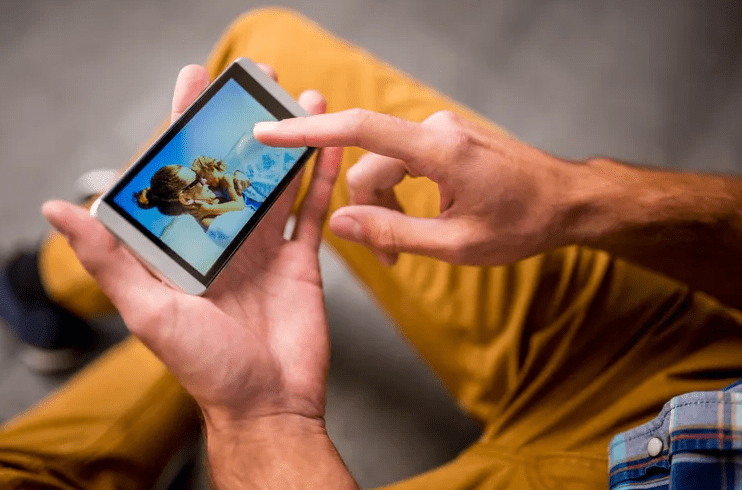
What it is: A quick, light touch of one finger on the screen.
How to do it
- Rest one fingertip lightly on the screen.
- Touch the item once and lift your finger right away.
- You should see a visual response, such as a button changing color, an app opening, or a key appearing in a text field.
Everyday examples
- Tap an app icon to open it from the home screen or app drawer.
- Tap letters on the keyboard while typing a message.
- Tap Play or Pause in a media app.
Developers often call this action a click because the underlying event in many Android apps uses a method named onClick, but for normal users it is simply a tap. Android Developers
2. Double Tap or Double Touch
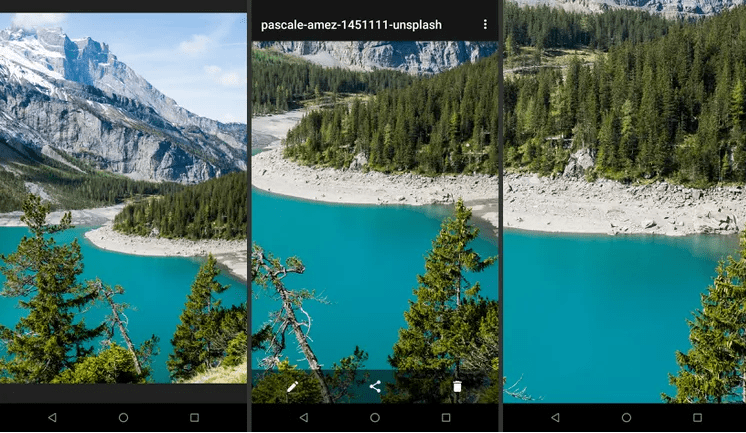
What it is: Two quick taps in the same spot, one right after the other.
How to do it
- Place one finger on the area you want to zoom or select.
- Tap the same spot twice quickly.
- Many apps zoom in toward that spot or highlight an item, and some browsers and reading apps reflow text to make it easier to read. guides.codepath.com
Everyday examples
- Double tap a photo in the gallery or in many social apps to zoom in on faces or small details.
- Double tap in map apps to zoom in on a street or landmark.
- Double tap in some reading apps to zoom in on a column of text.
If you often zoom into photos or maps, double tap can be faster and more precise than repeated pinch gestures.
3. Long Press, Long Click, or Long Touch
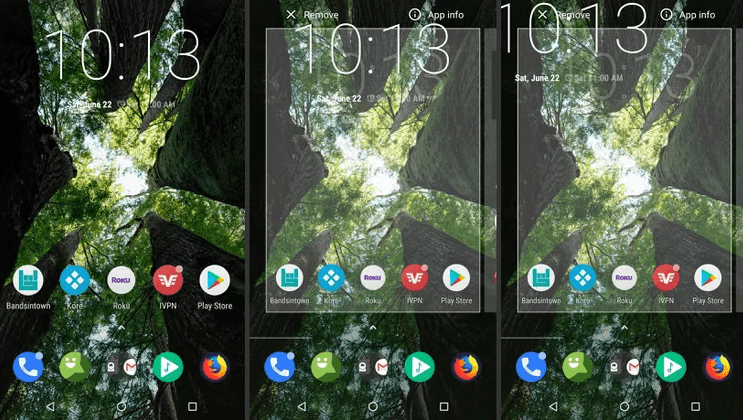
What it is: Touching and holding a finger on the screen for a few seconds without sliding it.
How to do it
- Place one finger on the item you want to act on, such as an app icon or widget.
- Keep your finger pressed down for about two to three seconds.
- When the long press is recognized, you may feel a small vibration, see the item lift, or see a small menu appear. Android Developers
Everyday examples
- Long press an app icon on the home screen to reveal shortcuts, such as direct navigation to a folder in a mail app or opening the camera in selfie mode, depending on the app.
- Long press a blank area of the home screen to open options to change wallpapers, add widgets, or adjust layout.
- Long press text in a message or web page to select it, then drag the selection handles to choose more or less text.
Long press drag variation
For some tasks, Android uses a long press followed by a drag.
- Long press an app icon or widget until it lifts or a frame appears around it.
- Without lifting your finger, slide the icon to a different location or onto another home screen.
- Release your finger to drop it into place.
If you like a tidy and personalized home screen, long press drag is the fastest way to rearrange icons and widgets.
4. Swipe, Scroll, or Fling
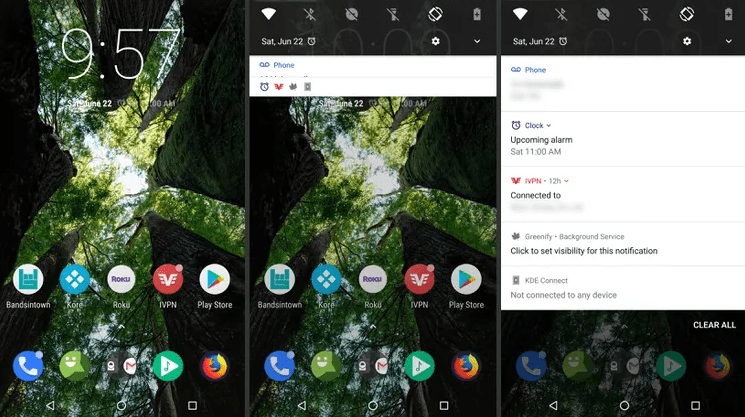
What it is: Sliding one finger quickly or steadily across the screen. A scroll is a longer, more controlled swipe. A fling is a faster, more energetic swipe.
Basic vertical scroll
- Place one finger on the screen, such as over a list or article.
- Slide your finger up to scroll down the page, or slide your finger down to scroll up the page.
- Lift your finger when you reach the area you want to read.
Horizontal swipe
- Place one finger near the left or right side of the content.
- Slide your finger left or right to move between panels or items.
- Lift your finger once the new screen or panel appears.
Everyday examples
- Swipe up or down in a browser, news app, or social app to scroll through long pages.
- Swipe left or right on the home screen to move between different home panels.
- Swipe vertically in app stores or playlists to browse options.
Swiping from the top for notifications and quick settings
Most devices use swipes from the top edge for system panels. Google Help
- Place one finger at the very top edge of the screen.
- Drag your finger downward toward the middle of the screen.
- A notification shade opens. Drag again or use a second downward swipe to reveal quick settings such as Wi Fi, Bluetooth, and brightness on many phones.
If you often check alerts or toggle Wi Fi and Bluetooth, learning the exact motion of this downward swipe can save many trips into the main Settings app.
Pull to refresh
Many apps use a drag from the top of a list to refresh content.
- Scroll to the top of a list or feed.
- Place one finger near the top of the content area.
- Drag downward until you see a refresh icon or animation, then release.
- The app reloads content such as mail, messages, or news.
5. Drag
What it is: Moving an item by touching it and sliding it to a new position without lifting your finger until you are done.
How to do it
- Long press the object, such as an app icon, widget, or selected file, until it lifts or highlights.
- Slide your finger slowly to the new location.
- Release your finger to drop the item there.
Everyday examples
- Drag app icons on the home screen to rearrange them or drop them into folders.
- Drag widgets to customize your home screen layout.
- Drag and drop files in some file manager apps.
Drag gestures work closely with long press, and together they give you fine control over your home screen and layout.
6. Pinch Open and Pinch Closed
What it is: A multi finger gesture where you move two fingers closer together or farther apart to zoom in or out. Android developer guides classify this as a common multi touch gesture. Android Developers
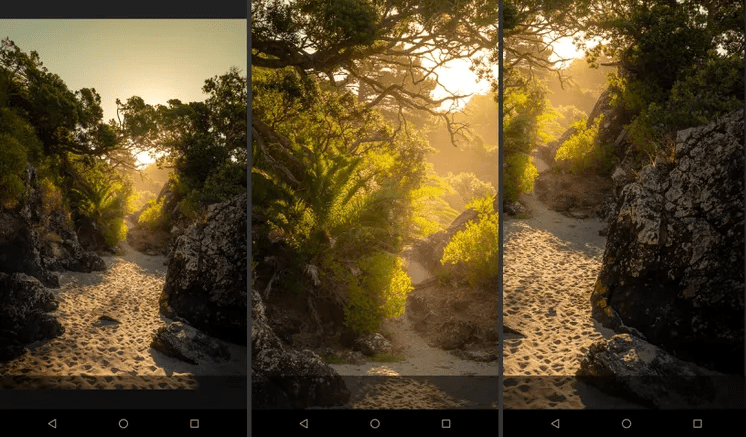
Pinch closed, sometimes called pinch in
- Place two fingertips slightly apart on the screen.
- Slowly move your fingers toward each other.
- The content usually zooms out, letting you see a larger area at once.
Pinch open, sometimes called spread
- Place two fingertips close together on the area you want to zoom in on.
- Slowly move your fingers away from each other.
- The content usually zooms in, making details larger and easier to see.
Everyday examples
- Pinch open on a photo to zoom in on faces or text.
- Pinch closed in a map app to zoom out and see an entire neighborhood or city.
- Pinch open when reading a PDF to enlarge small print, then pinch closed to fit the whole page on screen.
If you often read documents or use maps, learning smooth pinch gestures reduces eye strain and makes it easier to move between big picture and fine detail.
7. Twirl, Rotate, or Tilt
Some apps support two finger twisting or tilting, especially in maps, photos, and games.
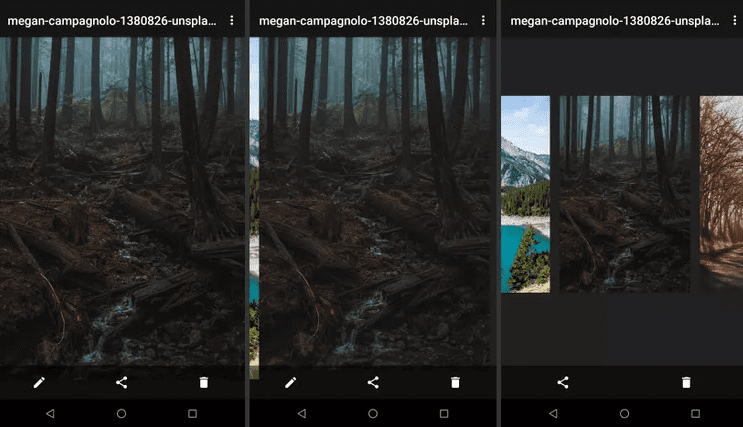
Rotate or twirl
- Place two fingertips on the same object or area, such as a map.
- Keep both fingers on the screen and gently turn them around a center point, as if you are turning a physical knob.
- The object rotates, often changing the direction of north in map apps or rotating a photo where supported. Android Developers
Tilt or two finger drag
- Place two fingertips on the map or object.
- Drag both fingers up or down at the same time.
- In some map apps, the view tilts between a straight overhead view and a more three dimensional perspective so that buildings and terrain stand up more clearly. Google Help
These gestures are useful if you travel often or use map apps for navigation and exploration, because they help you better understand direction and terrain.
8. System Navigation Gestures
Modern Android versions let you choose between classic three button navigation and full gesture navigation. According to official Android help pages, gesture navigation without buttons became a system option starting with Android ten. Android Developers
You can usually switch between options by opening Settings, going to System, then Gestures, then System navigation, and choosing gesture navigation or three button navigation. Names can differ slightly on Samsung, Pixel, and other brands.
Below are the typical system gestures when gesture navigation is active.
Go home
- Place one finger at the very bottom center of the screen.
- Swipe your finger upward toward the middle of the screen.
- Release your finger. You return to the home screen. guidebooks.google.com+1
View recent apps
- Place a finger at the bottom center of the screen.
- Swipe up a short distance and hold for a moment until the recent apps screen appears.
- Release your finger, then swipe left or right to browse open apps, and tap the one you want. Google Help+1
Go back
- Place a finger near the left or right edge of the screen, about halfway up.
- Swipe inward toward the center.
- The current app usually goes back one step, such as closing a menu, going back to the previous page, or exiting the app to the home screen.
If you prefer classic three button navigation, you can switch back, and the system shows icons for Back, Home, and Recent apps at the bottom of the screen instead of relying on edge swipes.
9. Special and Brand Specific Gestures
Different device makers add their own gestures on top of the standard ones.
Examples include
- Double pressing the power button to open the camera or wallet on Pixel phones.
- Back tap features, where tapping the back of the phone runs an action, on some devices.
- One handed gesture controls, such as pulling down the notification shade with a gesture from the middle of the screen, on certain brands and launchers. Lenovo Support
Because these options vary widely, it is always a good idea to explore the Gestures section in Settings and your phone maker support pages when you get a new device.
10. Accessibility Gestures with TalkBack
For users who rely on spoken feedback or have difficulty seeing the screen, Android offers TalkBack. When TalkBack is on, gestures have different meanings, such as using one finger swipes to move focus and multi finger gestures to control reading.
Basic ideas include
- A single tap reads the item under your finger instead of activating it immediately.
- Double tap usually activates the focused item.
- Specific multi finger swipes can move through pages, notifications, or controls.
If you or someone you know needs these features, visit Android Accessibility settings or official Android Accessibility Help guides and follow their step by step explanations.
Key Benefits and Advantages of Knowing These Android Gestures
Understanding and using Android gestures brings several clear benefits.
Faster navigation in daily use
- Swipe gestures for back, home, and recent apps reduce the need to find and tap small buttons, especially on large screens. Android Developers
- Once you build muscle memory, moving around your phone feels more natural, like flipping pages in a book rather than operating a control panel.
Fewer taps and less menu hunting
- Pull to refresh replaces the need to find a refresh button in many apps.
- Long press icons and widgets to access shortcuts directly, such as starting navigation to home or calling a frequent contact from an app shortcut.
Better control over content
- Pinch and spread gestures make it easier to read small text or see the whole picture in photos, maps, and documents.
- Rotate and tilt gestures in maps help you understand routes, intersections, and terrain more clearly.
Cleaner and more personalized screens
- Dragging icons and widgets allows you to build a home screen layout that matches the way you think, putting important apps under your thumb and tucking less used ones into folders.
- Long press actions often reveal options to remove objects from the home screen without uninstalling them, so you can declutter safely.
Accessibility and comfort
- Gestures can support one handed use, which reduces strain when you need to operate your phone while standing or holding something else.
- TalkBack and similar accessibility gestures give users with vision differences full control of Android devices.
Mistakes to Avoid
Even experienced Android users run into issues with gestures. Here are common mistakes and how to avoid them.
Accidental edge swipes when trying to scroll
On phones with gesture navigation, a vertical scroll near the left or right edge can sometimes be misread as a back gesture.
How to avoid it
- Try to start vertical scrolling from closer to the center of the screen when possible.
- If you frequently mis trigger the back gesture, consider adjusting gesture sensitivity in System navigation settings if your device offers this option, or switch back to three button navigation.
Long pressing without understanding what will move or change
Long press can rearrange or remove items. If you are not ready for that, it can be confusing.
How to avoid it
- Practice long press actions on a blank area of the home screen to see how your launcher behaves before doing it on important icons or widgets.
- If you move something by accident, use drag to place it back or look for an undo option when available.
Confusing system navigation gestures with in app gestures
Sometimes a horizontal swipe is meant to move between photos or cards in an app, and sometimes a similar movement triggers the back gesture.
How to avoid it
- Learn where the app content area ends and where the navigation edge begins. Swiping from a little inside the app window usually affects the app, while swiping right from the very edge often means back. guidebooks.google.com
Turning off helpful gestures without realizing the impact
Some users switch off gesture navigation or disable special gestures when exploring settings, then feel something is missing.
How to avoid it
- Before changing a gesture setting, read the description on the settings screen and, if available, tap the small help icon for more detail.
- If something feels wrong after a change, go back to System then Gestures and restore defaults where possible.
Ignoring device specific gesture options
Many modern phones ship with additional gesture features that are disabled by default. Ignoring them means missing potential time savers.
How to fix it
- After setting up a new Android phone, explore the Gestures section in Settings and the device maker help app or website.
- Try one new gesture at a time, such as a camera shortcut, and keep it only if it actually makes your daily use easier.
Expert Tips and Real Life Examples
Over time, Android trainers and support professionals notice patterns in how people learn gestures. Here are practical tips and examples inspired by those observations, based on general behavior described in Android and manufacturer guidance.
Start with a few high impact gestures
Instead of trying to memorize everything at once, focus on a small set that gives big results. For example
- Swipe from the bottom to go home and swipe and hold to view recent apps.
- Swipe from the top for notifications and quick settings.
- Use pinch open and pinch closed in photos and maps.
- Use long press on app icons for quick shortcuts.
Once these feel natural, add more advanced gestures such as rotate, tilt, and brand specific options like double pressing the power button for the camera.
Practice slowly first, then speed up
If gesture navigation feels unreliable, slow down the motion and exaggerate it a little at first.
- For example, when learning the back gesture from the side edge, start with a clearly visible swipe inward and pause before lifting your finger.
- As you become more accurate, you can shorten the distance and speed up the movement.
This approach mirrors how many users successfully adapt to gesture navigation over time.
Use safe places to experiment
Practice gestures in areas where mistakes are harmless.
- On the home screen, practice swipe, long press, and drag with icons you do not mind moving.
- Inside a browser, practice double tap and pinch gestures on a test article.
- In a map app, explore pinch, rotate, and tilt while you are at home rather than while actively navigating a route.
Real life scenario – triaging notifications quickly
If you receive many notifications each day, swipes and long presses help you manage them faster.
- Swipe down from the top to open the notification shade.
- Swipe a notification left or right to dismiss it.
- Long press a notification to see options such as muting a channel or changing how often that app can alert you.
Over time, you spend less time opening every app and more time seeing only what matters.
Real life scenario – reading long articles comfortably
While reading a long article
- Use vertical swipes to scroll smoothly.
- Double tap or pinch open to zoom slightly if the text feels small.
- Rotate the device to landscape and combine it with pinch gestures if that gives a more comfortable layout.
This combination reduces eye strain and can keep you focused longer.
Real life scenario – using maps while traveling
When planning a trip in a map app
- Pinch closed to zoom out and see the overall route.
- Pinch open and drag to zoom in on key turns or landmarks.
- Rotate and tilt the map to match the direction you will walk or drive, which can make complex intersections easier to understand.
These gestures together turn your phone into a more intuitive navigation tool.
Frequently Asked Questions
Are gestures the same on all Android phones
No. The basic ideas of tap, swipe, pinch, and long press are shared across almost all Android devices, but details such as system navigation gestures, sensitivity, and brand specific gestures can differ. Official Android help covers general behavior, while device maker support pages explain brand specific features.
What should I do if a gesture is not working as expected
First, check if the feature is turned on. Go to Settings, then System, then Gestures or similar, and look for options like System navigation, Double tap power button, or Quick tap on the back. Make sure they are enabled. If the gesture still fails or behaves oddly, restarting the phone and installing system updates may help, especially if you know that navigation bugs have been fixed in recent updates.
How can I turn gesture navigation on or off
On many phones
- Open Settings.
- Go to System, then Gestures.
- Tap System navigation.
- Choose gesture navigation or three button navigation.
If you do not see these exact options, your phone maker may use a slightly different path, so you may need to check their help site.
Do gestures affect battery life or performance
There is no clear evidence in official documentation that everyday gestures such as swipe or pinch significantly affect battery life by themselves. Gestures mainly change how you interact with the system, not how much the processor works overall. Very heavy use of screen on time or animation rich apps can affect battery life, but that is due to usage time and graphics, not the gestures themselves.
How can I practice Android gestures without changing important settings
You can practice most gestures on the home screen or in simple apps such as a browser or gallery. To practice system navigation gestures without changing anything permanent, open a non critical app, then practice going back, going home, and opening recent apps until it feels natural. Nothing important will be altered, and you can always return to the home screen if you feel lost.
Conclusion
Android gestures turn your phone from a device full of tiny buttons into something that feels more like a natural extension of your hand. By learning simple actions such as tap, swipe, pinch, and long press, and by adding system navigation gestures and multi touch moves over time, you can move around your phone more quickly and comfortably.
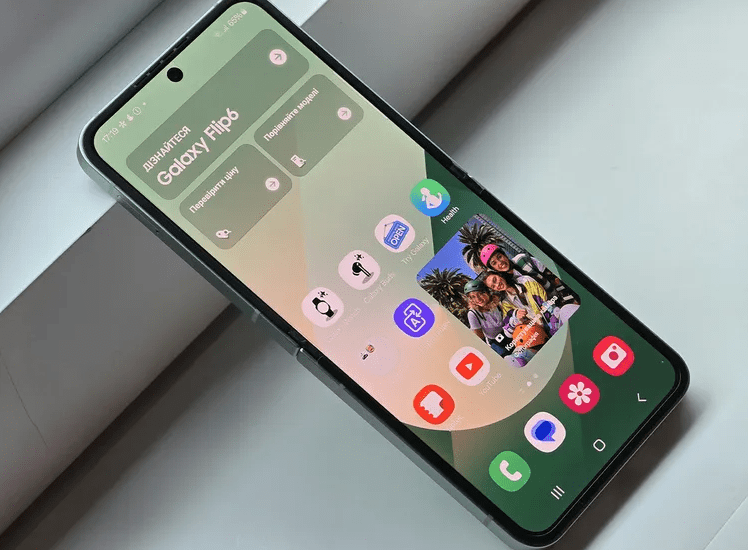
Remember that behavior can vary between devices, Android versions, and navigation styles, so it makes sense to explore the Gestures section in Settings and your phone maker support pages whenever you switch phones or after a major system update.
If you begin with a few high impact gestures and practice them in safe places, you will quickly build confidence. From there, you can explore more advanced or brand specific gestures that match your daily habits.
Finally, keep an eye on official Android help pages and your device maker documentation, because new gestures and options often arrive with major Android releases and custom interface updates.

Louis Mugan is a seasoned technology writer with a talent for turning complicated ideas into clear, practical guidance. He focuses on helping everyday readers stay confident in a world where tech moves fast. His style is approachable, steady, and built on real understanding.
He has spent years writing for platforms like EasyTechLife, where he covers gadgets, software, digital trends, and everyday tech solutions. His articles focus on clarity, real-world usefulness, and helping people understand how technology actually fits into their lives.
Outside of his regular columns, Louis explores emerging tools, reviews products, and experiments with new tech so his readers don’t have to. His steady, friendly approach has made him a reliable voice for anyone trying to keep up with modern technology. get in touch at louismugan@gmail.com