Want better home security without drilling holes, running cables, or buying an expensive full system? You are not alone. Many people would rather reuse a spare phone or tablet than invest in a full kit that ties them to one brand.
Home security camera apps let you turn old smartphones, tablets, computers, and even an Xbox One with Kinect into powerful security cameras. With the right app, you get motion detection, alerts, recording, and remote viewing with very little hardware cost.
In this guide, you will learn how these apps work, how to build a simple setup, and how four must have camera apps for 2025 compare. You will also see privacy tips, real life examples, and answers to common questions, so you can upgrade your home security with confidence.
Key Takeaways
- You can build a flexible home security system with old phones, tablets, computers, and even an Xbox One Kinect using dedicated home security camera apps.
- Alfred Home Security Camera, AtHome Video Streamer, Viewer for Baby Monitor for Kinect, and Manything each suit slightly different users and devices.
- Privacy and security are just as important as convenience, so you should use strong passwords, turn on two factor authentication, and place cameras only in appropriate rooms.
- Free plans can be enough for basic monitoring, but cloud recording, longer storage, and advanced features like facial recognition usually require a subscription.
- Before you rely on any home surveillance setup, you should test motion detection, notifications, and video playback several times to make sure everything works the way you expect.
Insight into Home Security Updated Camera Apps
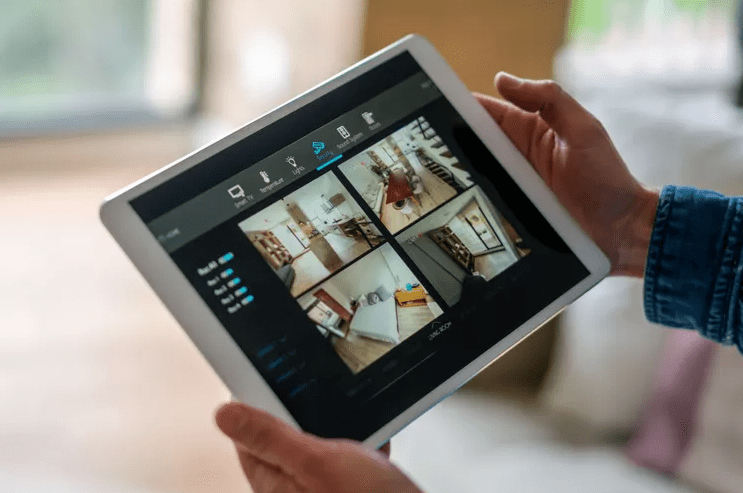
Home security camera apps are mobile and desktop applications that turn existing devices into internet connected cameras and viewers. Instead of buying a dedicated camera, you log in to an app on a spare phone or tablet and set that device in a fixed position. Then you install the same app on another phone, tablet, or computer to watch the video feed and manage settings.
Most home security camera apps share a similar basic structure:
- A camera device that stays in one place and streams video.
- A viewer device that you keep with you to watch live video, get alerts, and manage settings.
- A network connection, either over the internet or your local Wi Fi.
- Storage, either in the cloud or on the device itself.
- Notifications for motion or human detection events.
These apps are attractive in 2025 for three main reasons. First, they are low cost compared with buying a full multi camera system. Second, they let you reuse older phones and tablets that no longer feel fast enough for daily use but still have working cameras. Third, they offer flexibility for renters and frequent movers who want cameras they can pack in a bag. Consumer tech guides now routinely list camera apps like Alfred among top options for turning old devices into makeshift security cameras. backstreet-surveillance.com
Here are the four main apps this guide will cover and what makes each one stand out, based on current app store descriptions and developer information.
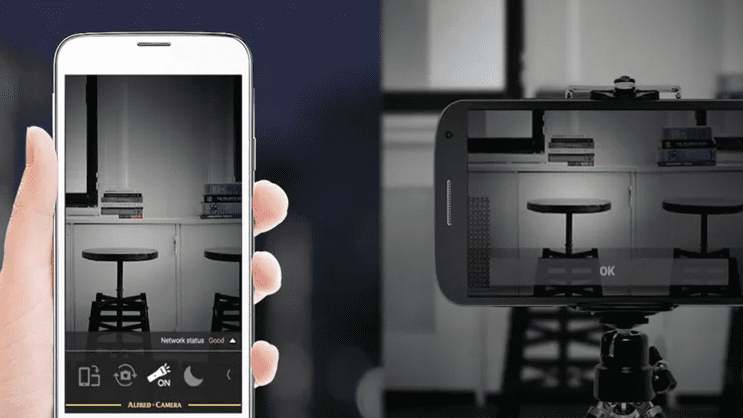
- Alfred Home Security Camera is a very popular free security camera app for iOS and Android that offers live view, motion alerts, two way audio, and cloud recording. Google Play
- AtHome Video Streamer belongs to the AtHome ecosystem and focuses on features like human detection, facial recognition alerts, animated notification clips, and support for many device types including computers. athome.en.aptoide.com
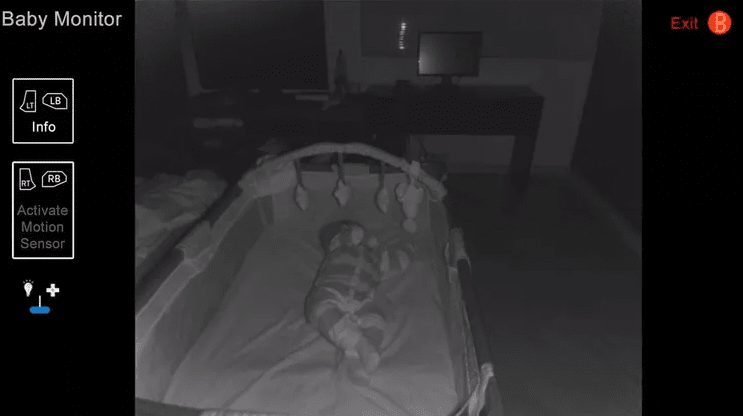
- Viewer for Baby Monitor for Kinect lets you use an Xbox One with Kinect as a local baby monitor or room camera with infrared night vision and motion sensing, streaming privately within your home network. App Store
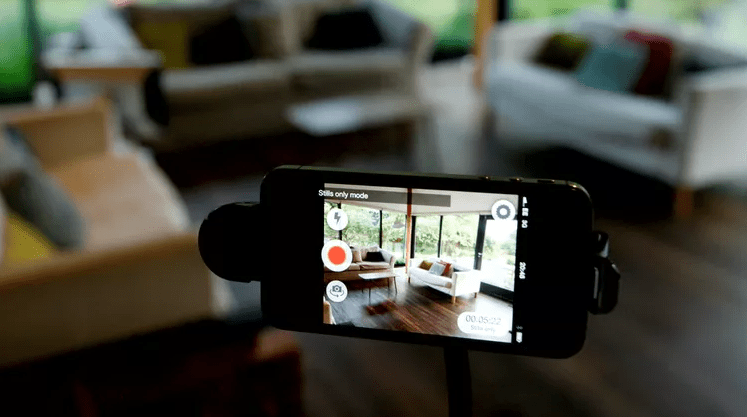
- Manything focuses on turning spare iOS devices into cloud connected security cameras, with live viewing and recording through its cloud service and support for remote access.
Together, these four options cover common scenarios, from simple front door monitoring with a phone to a private local baby monitor using your game console.
Step by Step Guide to Building a Simple App Based Home Security Setup
You do not need a background in networking to build an app based home security system. Start small and follow these steps.
1. Decide what you want to monitor
Think about why you want a security camera app in the first place. Typical examples include:
- Front door or entryway to see visitors and deliveries.
- Living room or common area while you are away.
- Nursery or child playroom.
- Pet area when you are at work.
Write down one or two main camera locations so you do not try to monitor everything on day one.
2. Choose your spare devices
Next, look at the devices you already have. Good candidates are:
- An older iPhone or Android phone with a working camera and Wi Fi.
- An unused iPad or Android tablet.
- A laptop near a window or facing a room.
- An Xbox One with Kinect sensor in the living room, if you plan to try Viewer for Baby Monitor for Kinect.
Make sure each device can stay plugged in and has a fairly stable Wi Fi signal where you want to place it. This matters for both video quality and reliability. Consumer Reports recommends checking Wi Fi signal strength where you mount any security camera and adjusting your router position if needed. Consumer Reports
3. Pick the right home security camera app
Now match your devices to the apps.
- If you have both Android and iOS devices and want a polished free security camera app with cloud recording, Alfred Home Security Camera is a strong starting point. It supports both platforms, offers live view, motion alerts, two way audio, and cloud storage for motion events on its free plan, with paid plans adding higher resolution and retention. Google Play
- If you care about human sensing, facial recognition alerts, and animated GIF notifications, and you have phones, tablets, or computers to mix and match, AtHome Video Streamer plus the companion AtHome Camera viewer app is designed for that scenario.
- If you already have an Xbox One with Kinect connected to a television in a child play area, Viewer for Baby Monitor for Kinect lets you reuse that sensor for infrared night vision and motion based monitoring with a local connection. App Store
- If you are mainly an iOS user and prefer a cloud based service that turns spare iPhones or iPads into cameras with remote access, Manything is worth considering. It runs on iOS devices and streams to the Manything cloud so you can view from a second device or via the web.
When you compare, look at:
- Supported platforms and minimum versions.
- Whether the app needs a subscription for cloud recording.
- How long recorded clips are stored.
- Whether two way audio, high resolution, and multiple cameras require a paid plan.
App store listings and official developer pages are your most reliable sources for current plan details and technical limits.
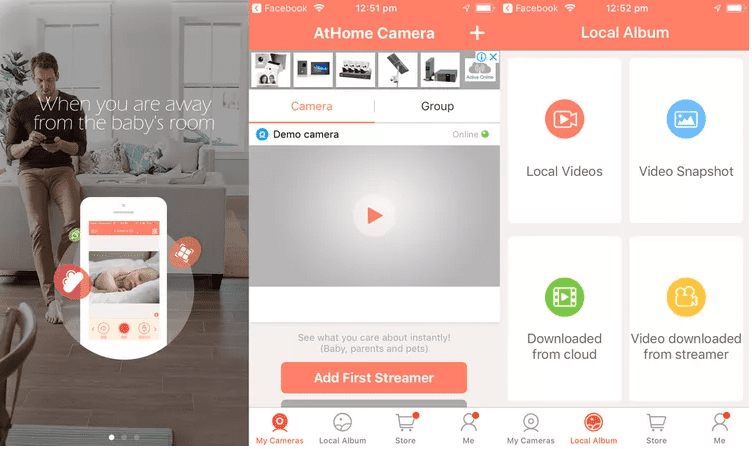
4. Install and set up the app on your camera device
Once you choose an app, follow these typical steps on the device that will act as the camera.
- Install the app from the official store, such as the Apple App Store, Google Play, Microsoft Store, or Xbox Store, depending on the app.
- Open the app and either create an account or sign in. Use a strong, unique password that you do not reuse elsewhere, as recommended by consumer privacy and security experts. Consumer Advice
- Choose the mode that marks this device as a camera or broadcaster. Alfred, AtHome, Manything, and the Kinect broadcaster all let you choose between camera and viewer modes.
- Grant the app permission to use the camera, microphone, and send notifications.
Position the device where you want it to monitor, connect it to power, and angle the camera so it covers your target area without pointing into private spaces like bathrooms or bedrooms.
5. Install and configure the viewer app
On your main phone, tablet, or computer, install the same app or the matching viewer.
- Sign in with the same account you used on the camera device.
- Select viewer mode.
- Confirm that the camera appears in the device list and that you can see a live feed.
For Viewer for Baby Monitor for Kinect, you use the Kinect app on the Xbox One as the broadcaster and the viewer app on Windows or iOS as the receiver.
6. Turn on motion detection and alerts
Most home security camera apps let you enable motion detection or human sensing and adjust sensitivity.
- Alfred offers motion detection alerts and can record when movement is detected, supported by its own moving object detection system.
- AtHome Video Streamer supports human sensing and face detection and can send notifications with animated GIF clips when a person appears.
- Viewer for Baby Monitor for Kinect uses motion sensing in the Kinect hardware, and the stream remains local in your home network without servers or cloud.
- Manything can send motion alerts and record to the cloud for later viewing.
Turn notifications on, start with a medium sensitivity level, and then adjust after your first test runs so that normal shadows and light changes do not constantly trigger alarms.
7. Set recording quality and storage
In each app, check settings for:
- Video resolution. Higher resolution uses more bandwidth and storage but makes faces and details easier to see.
- Recording mode. For example, continuous recording, motion only, or human only.
- Storage location. Cloud recording through the app service or local recording on the phone or computer.
Alfred, AtHome, and Manything all offer cloud recording on various subscription tiers, while Viewer for Baby Monitor for Kinect focuses on local streaming with no cloud component.
8. Apply privacy and safety best practices
Strong security settings help prevent the kind of hacking incidents that have affected some baby monitors and home cameras in recent years.
Follow privacy and security guidance from trusted organizations such as the Federal Trade Commission, Consumer Reports, and national privacy regulators. Penn State Open Resource Publishing
Key steps include:
- Change any default passwords and use long, unique passwords for each account.
- Turn on two factor authentication whenever the app or service offers it. Consumer Advice
- Make sure your router uses WPA two or WPA three and that its firmware is updated regularly.
- Place cameras only in common areas and avoid private places such as bathrooms and bedrooms, as legal experts and privacy advocates warn that monitoring in those areas can raise serious legal and ethical issues.
Because privacy laws differ a lot between countries and even between states, you should always check local rules before you rely on hidden camera apps, especially if you plan to record visitors, caregivers, tenants, or staff.
9. Run test scenarios
Before you trust this setup, run several tests.
- Walk in front of the camera and confirm you receive notifications.
- Review the recorded clips and check whether faces and details are clear enough.
- Turn your Wi Fi router off briefly to see how the app behaves with an outage, then turn it back on. Some apps will buffer locally and upload later, while others may simply skip recordings during outages.
If anything feels unreliable, adjust camera position, resolution, or app settings until you are comfortable.
10. Consider multi camera and mixed setups
Once your first camera works, you can expand, but pay attention to subscription limits. For example, Manything and similar cloud based services often require paid plans to use more than one camera or to extend storage time.
Some households mix options. For example, you might use Alfred on a spare Android phone for the front hall, AtHome on an old tablet for detailed human detection in the kitchen, and Viewer for Baby Monitor for Kinect only at night when your Xbox One is idle in the nursery.
Key Advantages of Knowing The Must Have Home Security Camera Apps
Understanding these apps and how they compare gives you several advantages.
Cost savings and reuse
- You save money by reusing devices instead of buying new cameras, especially when old phones still have decent cameras and Wi Fi.
- These apps delay e waste and give older electronics a second life as security tools.
Flexible viewing and remote access
- Alfred, AtHome, and Manything all support remote viewing on your phone or tablet so you can check in on your home from work, school, or travel.
- Viewer for Baby Monitor for Kinect focuses on a local home network feed, which some users prefer because no video leaves the house.
Ideal for renters and temporary setups
- Because these apps only need power and Wi Fi, renters can set up cameras without drilling walls or signing long contracts.
- Devices can be moved quickly when you reorganize rooms or move to a new place.
Extra features beyond basic recording
These four apps go beyond just video recording. For example:
- Alfred offers motion detection alerts, two way audio, and continuous live view. Google Play
- AtHome Video Streamer supports human detection, face recognition alerts, enhanced night vision, time lapse recording, and animated GIF notifications in its ecosystem.
- Viewer for Baby Monitor for Kinect uses the Kinect infrared camera and motion sensor for low light monitoring with private local streaming.
- Manything emphasizes cloud recording, remote access, and integration with some existing CCTV systems, which can help small businesses or serious hobby users.
Better understanding of cloud and local storage trade offs
Learning how these apps work also teaches you about the trade offs between local and cloud recording.
- Cloud storage is convenient and keeps recordings safe if a camera is stolen, but it depends on a good internet connection and careful account security.
- Local storage keeps data within your network, as with Viewer for Baby Monitor for Kinect, but may be lost if the device fails or is removed.
Mistakes to Avoid
Even a good free security camera app can cause problems if you set it up badly. Here are common mistakes and quick fixes.
Using outdated or unsupported apps
If an app has not received updates in a long time, it may have unresolved bugs or security holes. Always check the last update date in the app store and read recent reviews to see whether users report crashes or compatibility problems.
Ignoring privacy and consent
Placing cameras in bathrooms, bedrooms, or other private spaces can cross legal or ethical lines, and some regions require you to disclose hidden cameras to guests or caregivers.
Fix
Focus on common areas such as entrances and living rooms, avoid private rooms, and research local laws before you install hidden camera apps.
Weak passwords and shared logins
If you keep default credentials or reuse passwords, attackers may gain access and watch your cameras.
Fix
Use strong, unique passwords and turn on two factor authentication where available. Only share access with people you fully trust.
Underestimating bandwidth and storage needs
High resolution video and multiple cameras can quickly consume bandwidth and storage, leading to choppy video or missing recordings.
Fix
Start with one camera and moderate resolution, then add more cameras or quality only if your network and storage can handle it.
Not testing motion detection before leaving home
It is easy to assume motion alerts will work, only to discover later that sensitivity was too low or alerts were turned off.
Fix
Walk through the monitored area, check notifications on your viewer device, and review recorded clips. Repeat several times at different times of day.
Assuming apps replace all other security measures
Camera apps are one part of a broader safety plan. Good locks, lighting, neighbor awareness, and common sense still matter. Security experts have long warned that over reliance on a single technology can create a false sense of safety.
Expert Tips and Real Life Examples
To make this more concrete, here are a few example setups and practical tips.
Example one: Alfred on a spare Android at the front door
Imagine you have an old Android phone with a cracked screen that still connects to Wi Fi. You install Alfred, sign in with a new account, and mount the phone near your apartment door.
You set motion detection to medium sensitivity, turn on two way audio, and enable cloud recording for motion events. During a week of testing, you learn that afternoon sunlight through the hallway window causes too many alerts, so you slightly adjust the angle and sensitivity. Over time, Alfred becomes your reliable visitor log for deliveries and maintenance visits, just as reviewers describe using it to monitor entries and small spaces.
Example two: AtHome Video Streamer for facial recognition alerts
Suppose you have a home office near your front door and want to know specifically when family members arrive. You install AtHome Video Streamer on an old iPad facing the door and use the AtHome Camera app on your main phone.
You enable face recognition alerts and train it with family faces. When the app detects someone it knows, it sends a notification with an animated GIF clip so you can quickly see who came in without opening the app fully.
Example three: Viewer for Baby Monitor for Kinect in a nursery
If you own an Xbox One with a Kinect sensor, you can use it as a night vision baby monitor. You install the Baby Monitor for Kinect app on the console and the Viewer app on a Windows laptop or iOS device.
The Kinect camera provides infrared night vision and motion sensing and streams video privately within your home network with no cloud servers. Parents who worry about internet connected baby monitors sometimes prefer this kind of local only setup.
Example four: Manything as a simple iOS monitoring setup
For a mostly Apple household, you might install Manything on an old iPhone in the living room and set it to camera mode. Then you install Manything on your everyday iPhone or iPad as a viewer.
The app sends motion alerts and records clips to the cloud so you can check on pets or house sitters when you travel. Manything is designed specifically to turn spare devices into cloud connected cameras, and some versions integrate with existing CCTV equipment through the Videoloft platform.
Placement and evaluation checklist
For best results, use the same placement principles that hardware camera guides recommend.
- Place cameras slightly above eye level and angle them downward to capture faces and the area directly in front of doors.
- Avoid pointing cameras directly at bright windows to reduce glare and backlighting.
- Keep camera devices close enough to your Wi Fi router or access point to maintain a strong signal.
- After one week, review recordings to see whether you missed any important events and whether any camera needs to be moved or settings changed.
Frequently Asked Questions
Q1: Can I use an old phone as a security camera without paying for a subscription?
Yes, most hidden camera apps and home security camera apps, including Alfred, AtHome, and Manything, offer free tiers that allow live viewing and motion triggered recording, sometimes with limited storage time, resolution, or number of cameras.
However, you usually need a subscription for longer cloud storage, higher resolution, or more cameras. Always confirm current limits on the official app pages because pricing and features can change.
Q2: Are hidden camera apps legal in my home and what privacy rules should I know?
In many places, it is legal to record video inside your own home, especially in common areas, but laws vary by country and region. In the United States, some states require you to inform guests if you use hidden cameras, and recording in private spaces such as bathrooms or bedrooms can be illegal or result in civil claims.
Audio recording often has stricter rules than video and may require at least one party to consent. Because the legal landscape is complex, you should treat this article as general information only and check local regulations or obtain legal advice before relying on hidden cameras.
Q3: Which of these apps works best with very old devices?
Apps like Alfred and AtHome are designed to run on a wide range of devices, including some older Android and iOS models, and AtHome Video Streamer also supports older computers as cameras.
However, very old hardware may experience crashes, lower performance, or limited support. Check the minimum version requirements in the app store listing and start with one camera to see how well the app runs before building a larger system.
Q4: What happens if my internet goes out while the camera is recording?
The behavior depends on the app. Some services that rely on cloud recording may stop uploading and either pause recording or store video locally until the connection returns, while local only solutions such as Viewer for Baby Monitor for Kinect keep working as long as your home network and console remain powered.
To understand the exact behavior, look for details in the app documentation and test by briefly turning off your router while the app is running, then review recordings afterward.
Q5: How safe is cloud storage for security camera footage?
Cloud storage can be safe if the provider follows strong security practices and if you secure your account properly, but it always adds some risk because data leaves your home. Consumer Reports and other organizations recommend changing default passwords, using unique credentials, and enabling two factor authentication to reduce the chance of unauthorized access to your cameras and cloud accounts.
If you are uncomfortable with cloud storage, consider local only options or services that let you store recordings on local devices or network storage.
Conclusion
Home security camera apps give you a powerful way to upgrade your home awareness using devices you already own. By turning spare phones, tablets, computers, or even an Xbox One Kinect into cameras, you can build a flexible security setup that fits your home and budget.
Alfred, AtHome Video Streamer, Viewer for Baby Monitor for Kinect, and Manything each bring different strengths, from simple free security camera app features to advanced facial recognition, night vision, and private local streaming. When you combine them with strong passwords, careful placement, and thoughtful respect for privacy, they can significantly improve peace of mind.
The best way to begin is with one spare device and one app. Set it up, test it thoroughly, compare at least two of the featured apps, and adjust based on how they work in your real home. With a small start and a careful eye on privacy and security, you can turn everyday gadgets into a practical home surveillance system instead of worrying about buying a complex professional kit.

Louis Mugan is a seasoned technology writer with a talent for turning complicated ideas into clear, practical guidance. He focuses on helping everyday readers stay confident in a world where tech moves fast. His style is approachable, steady, and built on real understanding.
He has spent years writing for platforms like EasyTechLife, where he covers gadgets, software, digital trends, and everyday tech solutions. His articles focus on clarity, real-world usefulness, and helping people understand how technology actually fits into their lives.
Outside of his regular columns, Louis explores emerging tools, reviews products, and experiments with new tech so his readers don’t have to. His steady, friendly approach has made him a reliable voice for anyone trying to keep up with modern technology. get in touch at louismugan@gmail.com