How to Format & Optimize Your Camera’s SD Card – Updated Guide
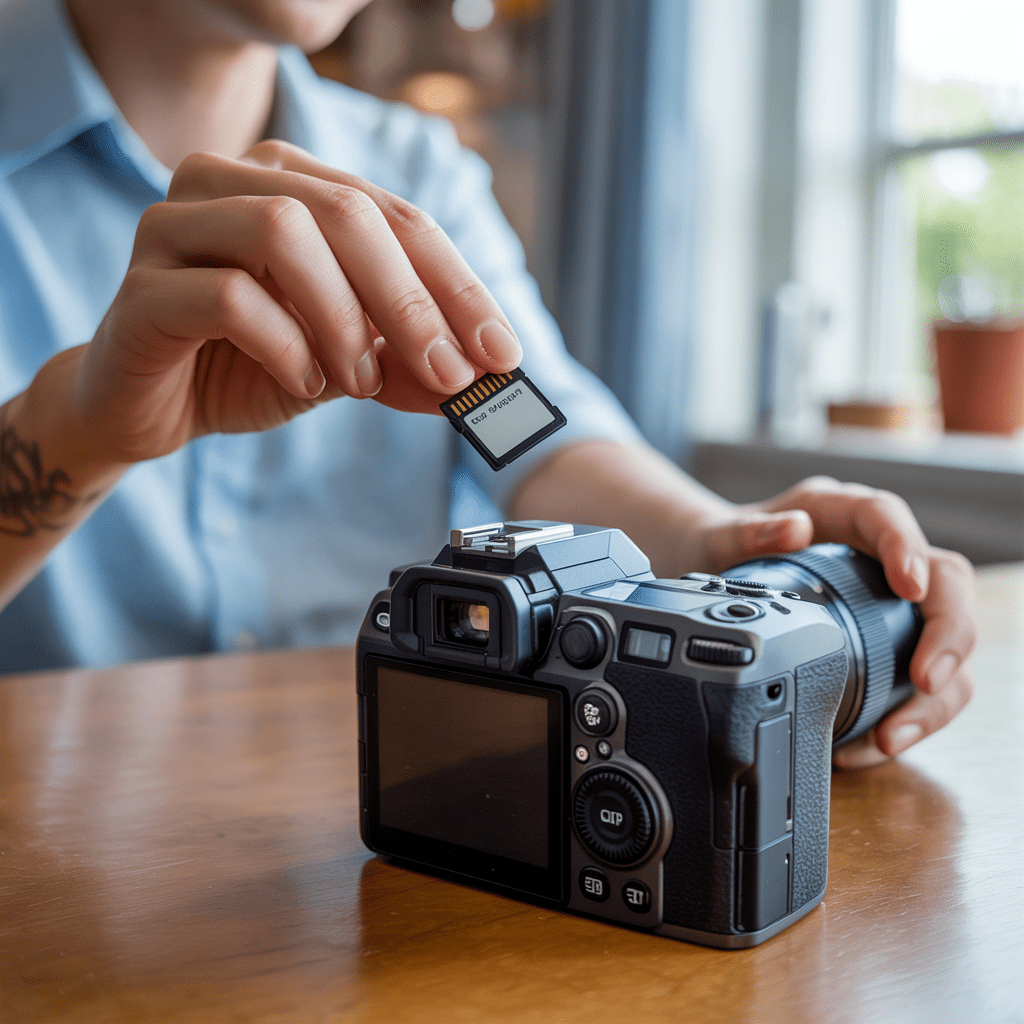
Formatting an SD card wipes bad or corrupt data and creates a fresh, reliable medium for writing.You can format it in-camera, or on a Windows PC, Mac and Android device. Best practice: Introduction Even the best SD cards break down over time: corrupt files, fragmentation, and performance grumpiness are irrevocable byproducts of normal wear and tear.When you reformat, the file system will be rebuilt and also repair a lot of this. No matter if you’re shooting weddings, travel blogs, or family photos and videos, maintaining a healthy SD card is important to successful photography and videography on your camera. The Importance of Formatting Your SD Card (Fact-checked 2025: All major camera brands – Canon, Nikon, Sony, Fujifilm, Panasonic – still advise in-camera formatting after big shoots.) How to Properly Format an SD Card Using Your Camera (It’s the Best Way) Pro Tip: Only ever delete on-camera when absolutely necessary – always opt for a full in-camera format after transferring. How to Format an SD Card on Android (Phones & Action Cams) How to Format SD Card on Windows PC Pro Tip: If Windows doesn’t recognize the card, open Disk Management → Right Click/Delete Volume → New Simple Volume before formatting. How to Format an SD Card on Mac (Disk Utility) Pro Tip: macOS 13+ uses exFAT for cards > 32 GB – perfect for recording in XAVC S format and using with Windows. Formatting vs Reformatting – What Does That Mean? When to reformat: Note: Formatting removes directory pointers, but the data remains on the drive.Recovery software such as PhotoRec or Recuva may still recover files unless securely erased. FAT32 vs exFAT (Which Is the Better Format?) File System Best For Max File Size Typical Use Case FAT32 Cards ≤ 32 GB 4 GB Older cameras, dash cams, game console exFAT Cards ≥ 64 GB Almost unlimited (> 4 GB) 4K/8K video, modern DSLRs, Android, computers FAQs Q1. How do I transfer apps to SD card on Android? Settings > Apps > Select App > Storage → Change > SD Card. (Some apps don’t work with external storage.) Q2. How do I consolidate my photos to an SD card? Using “My Files” or “Files by Google” → Internal Storage → Choose Photos folder → Move → SD Card. Q3. How can you repair a damaged SD card? Re-set the card, check the lock switch, or format it.If errors persist, run chkdsk /f X: on Windows or First Aid in Mac’s Disk Utility. Q4. How frequently should I format my SD card? Monthly or after each project for professional use; every 2 to 3 months for general use. Q5. Does formatting delete everything permanently? Not immediately. It removes file references.Data can still exist until rewritten.If privacy is an issue, use secure-erase tools. Louis MuganLouis Mugan is a seasoned technology writer with a talent for turning complicated ideas into clear, practical guidance. He focuses on helping everyday readers stay confident in a world where tech moves fast. His style is approachable, steady, and built on real understanding. He has spent years writing for platforms like EasyTechLife, where he covers gadgets, software, digital trends, and everyday tech solutions. His articles focus on clarity, real-world usefulness, and helping people understand how technology actually fits into their lives. Outside of his regular columns, Louis explores emerging tools, reviews products, and experiments with new tech so his readers don’t have to. His steady, friendly approach has made him a reliable voice for anyone trying to keep up with modern technology. get in touch at louismugan@gmail.com