JBL makes dozens of earbud models, and they don’t all pair the same way. Some connect the moment you open the case, others need a button press, and a few need a reset before a new phone will see them. The good news is that most JBL true wireless earbuds follow the same basic pattern.
Quick answer: To pair JBL earbuds, charge the case, open it and take both earbuds out. Most JBL true wireless models power on and enter pairing mode automatically during first-time setup, usually with a flashing light. Earbuds that were paired before may need a model-specific pairing gesture. Then open Bluetooth settings on your phone, tablet or computer and choose your JBL model. If they don’t appear, put them back in the case, wait a few seconds and try again, or reset the earbuds and pair from scratch.
How to put JBL earbuds in pairing mode
- Make sure the charging case has power. Low batteries are a common reason earbuds won’t pair.
- If they’re brand new, remove any protective film from the earbuds’ charging contacts.
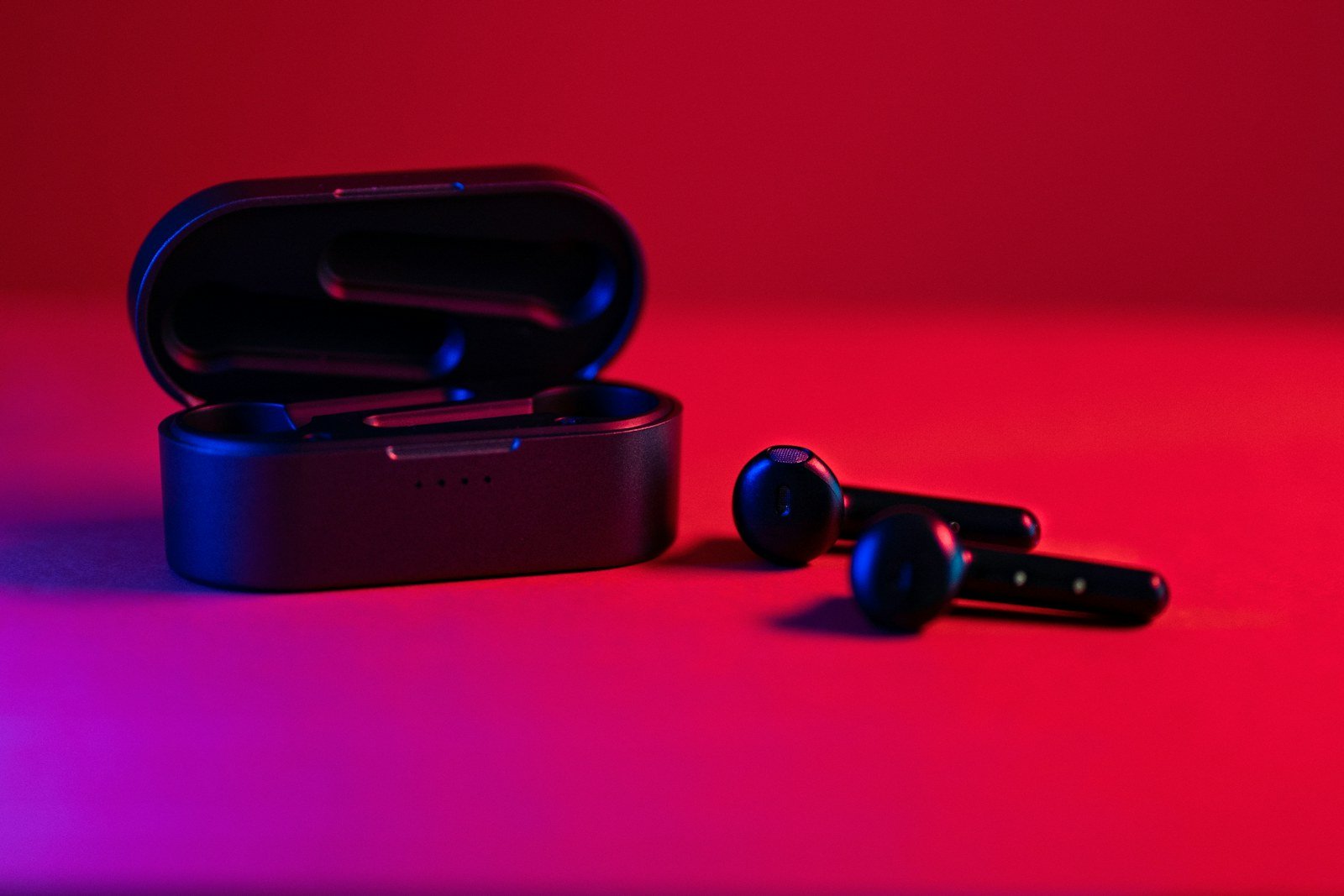
- Open the case and take both earbuds out. Most models power on automatically and, during first-time setup or when they aren’t connected to another device, enter pairing mode.
- Look for a flashing light, often blue or white, which usually means pairing mode.
- If the earbuds connect to a phone they were paired with before, turn off Bluetooth on that phone first so they become available for a new device.
Some JBL models also have a pairing method in the JBL Headphones app or a specific touch or button gesture. Check your model’s quick start guide if the steps above don’t work.
How to pair JBL earbuds with your device
iPhone or iPad
- Open Settings > Bluetooth and make sure Bluetooth is on.
- Wait for your JBL model to appear under Other Devices.
- Tap its name to connect.
Android phone or tablet
- On Pixel and many other Android phones, open Settings > Connected devices > Pair new device. On Samsung Galaxy phones, open Settings > Connections > Bluetooth.
- Tap your JBL model when it appears.
- On many JBL models, Google Fast Pair shows a pop-up as soon as you open the case near your phone. Tap Connect to pair in one step.
Windows PC
- Open Settings > Bluetooth & devices on Windows 11 (or Settings > Devices > Bluetooth & other devices on Windows 10).
- Select Add device on Windows 11 (or Add Bluetooth or other device on Windows 10), then select Bluetooth.
- Choose your JBL earbuds from the list.
Mac
- Open System Settings > Bluetooth.
- Find your JBL earbuds in the nearby devices list and click Connect.
JBL earbuds not showing up or won’t pair?
- Charge everything. Put both earbuds in the case, connect the case to power and let them charge before trying again.
- Disconnect from the old device. If the earbuds automatically reconnect to another phone, turn off Bluetooth on that phone or remove the earbuds from its Bluetooth list.
- Forget and re-pair. On your device, remove the JBL earbuds from the Bluetooth list, then pair them again.
- Restart Bluetooth. Turn Bluetooth off and on, or restart your phone or computer.
- Move closer. Keep the earbuds within a few feet of the device while pairing.
- Update the earbuds. If your model works with the JBL Headphones app, connect the earbuds and check for firmware updates.
Only one earbud works
If audio plays from just one side, the earbuds may have lost their connection to each other. Put both back in the case, close the lid for a few seconds, then take them out together. If that doesn’t help, make sure both earbuds are charged, wipe their charging contacts with a dry cloth and check your device’s left-right audio balance before resetting them.
How to reset JBL earbuds
A factory reset clears saved pairings and may restore other settings to their defaults. It can fix persistent connection problems. The exact steps depend on your model, so check JBL’s support page for it. JBL’s general reset instructions for many true wireless models are:
- Make sure both earbuds are out of the case, turned on and connected to each other.
- Double-tap the button on the right earbud, then on the third tap, press and hold for more than five seconds, until it turns off.
- Put the earbuds back in the case.
- Remove them from your device’s Bluetooth list, then pair them again.
Some models can also be reset from the JBL Headphones app, and some older models can only be reset while they’re charging.
Want to use your earbuds with your TV next? See our guide to connecting Bluetooth headphones.
Frequently asked questions
How do I put my JBL earbuds in pairing mode?
On most models, open the charged case and take both earbuds out. During first-time setup they usually enter pairing mode automatically, often with a flashing light. Earbuds that were paired before may need a model-specific pairing gesture.
How do I pair JBL earbuds without a pairing button?
Many JBL earbuds enter pairing mode automatically when you take them out of the case. Models with touch controls may use a tap-and-hold gesture instead of a button. Check your model’s quick start guide for the exact gesture.
Why won’t my JBL earbuds show up in Bluetooth?
They may be connected to another device, low on battery or not in pairing mode. Disconnect them from other devices, charge them and try again.
Can JBL earbuds connect to two devices?
Some newer models support multipoint connections to two devices at once. Check your model’s specifications.
How do I reset my JBL earbuds?
On many models, double-tap the right earbud, then on the third tap, hold for more than five seconds. Steps vary, so check your model.
Do I need the JBL app to pair?
No. You can pair through your device’s Bluetooth settings. For compatible models, the JBL Headphones app adds firmware updates and extra settings.
How we researched this guide
We based this guide on JBL’s support pages for resetting true wireless earbuds and pairing issues, plus Apple, Google and Microsoft’s Bluetooth setup instructions, read on November 27, 2026. Steps vary by JBL model. We did not perform hands-on device testing for this guide.

Louis Mugan writes how-to and troubleshooting guides for EasyTechLife, covering Android phones, iPhones, laptops, Chromebooks, headphones and everyday software.
He aims to base each guide on official manufacturer documentation and support pages, and to link the sources so readers can check the steps for themselves. Questions or corrections? Use the contact page.