Removing an app icon from your Android Home screen takes a few seconds and doesn’t delete the app. The one thing to watch for: Remove and Uninstall often appear side by side, and only Remove keeps the app on your phone.
This guide covers Google Pixel and Samsung Galaxy phones, what to do when Remove is missing, and how to get an icon back if you change your mind.
Quick Answer: Remove an App Icon Without Deleting the App
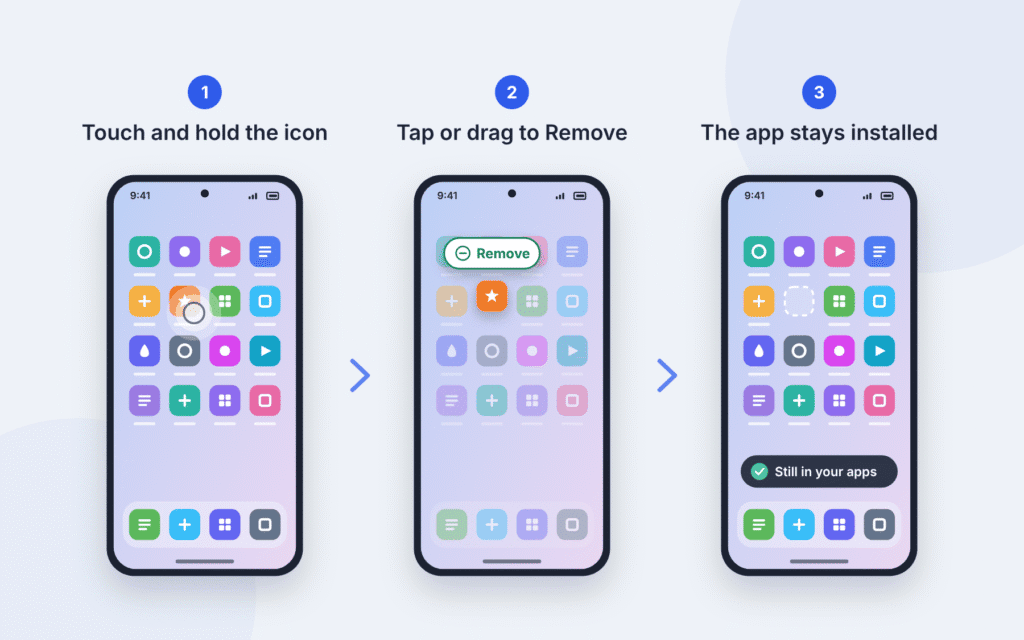
- Touch and hold the app icon on your Home screen.
- On a Google Pixel, drag it up to Remove and lift your finger. On a Samsung Galaxy, tap Remove in the menu that appears.
- The icon disappears from the Home screen, but the app stays installed. On phones with an app drawer, swipe up from the bottom of the screen to find it. Samsung phones set to the Home screen only layout have no separate drawer, so you may need to switch to Home and Apps screens (see troubleshooting below).
Avoid Uninstall. It deletes the app from your phone, not just the icon.
How to Remove an App From the Home Screen on Google Pixel
Pixel phones use a drag-and-drop target at the top of the screen. Many phones with a near-stock Android launcher work the same way, though labels can differ slightly.
- Go to the Home screen that has the icon. Most current phones use gestures, so swipe up from the bottom edge to get there.
- Touch and hold the app icon.
- Drag it up toward the top of the screen. You’ll see Remove, Uninstall, or both.
- Drop the icon on Remove and lift your finger.
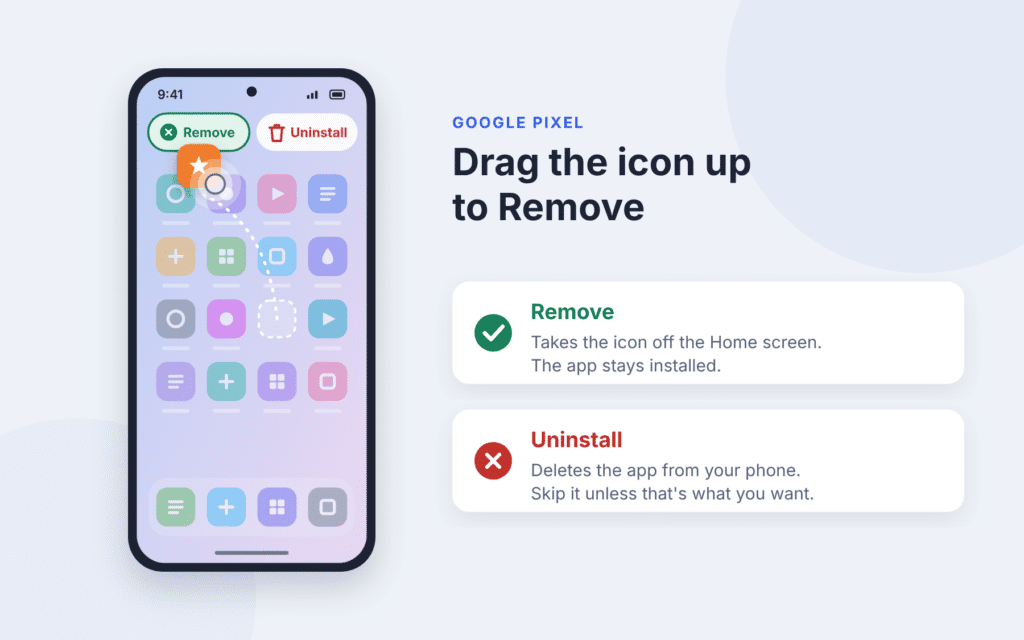
Google’s help page puts the difference plainly: Remove takes the app off your Home screen only, while Uninstall takes it off your device. The same steps work for shortcuts, widgets and folders, which Pixel calls groups. Some of these steps need Android 14 or later.
Apps in the favorites row at the bottom of the screen work differently. Touch and hold the app and drag it to another part of the screen to take it out of the row.
How to Remove Home Screen Apps on Samsung Galaxy
Samsung’s One UI Home shows a menu when you long-press an icon, rather than a drag target.
- Touch and hold the app icon on the Home screen.
- Tap Remove in the menu that appears.
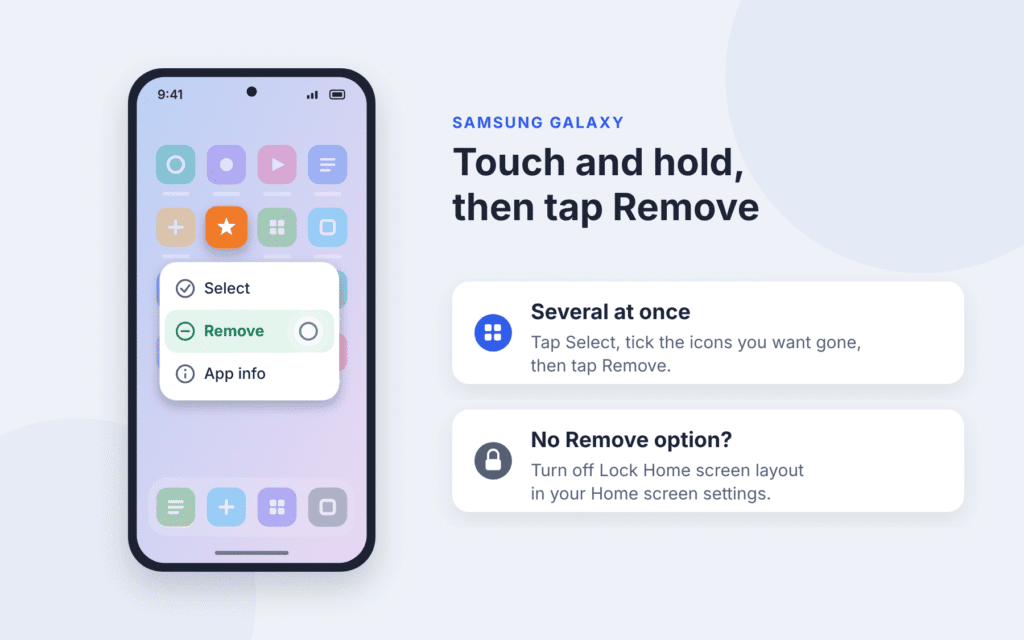
The icon leaves the Home screen, but the app stays installed. If your phone uses the Home and Apps screens layout, swipe up to find it on the Apps screen. If the menu also shows Uninstall, skip it unless you want the app gone from your phone entirely.
To remove several icons at once: touch and hold one icon, tap Select, tick the other icons you want gone, then tap Remove.
No Remove option, or no separate Apps screen? Your layout may be locked or set to Home screen only. The troubleshooting section below covers both.
Remove vs. Uninstall vs. Disable: What’s the Difference?
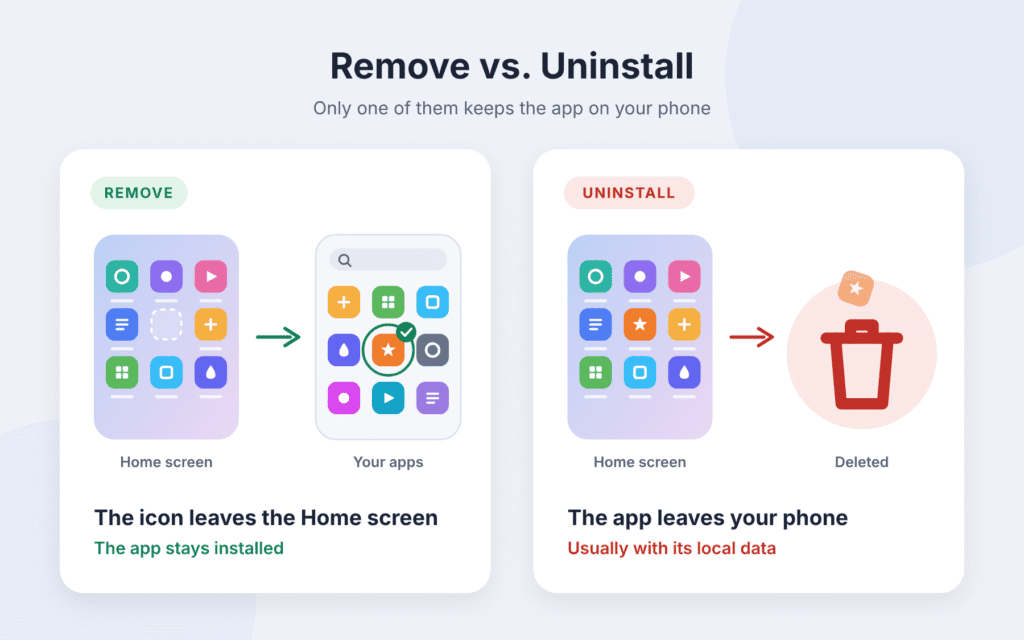
Remove and Hide change where an app appears without uninstalling it. Uninstall deletes the app, and Disable turns off an installed app where that option is available.
| Action | What happens | App still on your phone? | Use it when |
|---|---|---|---|
| Remove | The icon leaves the Home screen | Yes, still installed | You want a tidier Home screen |
| Uninstall | The app is deleted, usually with its local data. Cloud-synced data and backups may remain | No | You don’t use the app anymore |
| Disable | The app is turned off without being uninstalled. It may disappear from the app list, depending on the phone | Yes, but switched off | The app came with the phone and can’t be uninstalled |
| Hide (Samsung) | The app’s icon is hidden from the Home and Apps screens, without uninstalling the app | Yes, still installed | You want an app out of sight without removing it |
To uninstall an app, drag it to Uninstall on a Pixel, or open Settings > Apps, pick the app and tap Uninstall. To disable one, open Settings > Apps > All apps, pick the app and tap Disable. On Samsung, hiding lives under Settings > Home screen > Hide apps on Home and Apps screens, though the exact label varies by One UI version.
What to Do if You Can’t Remove an App From the Home Screen
Most problems come from a locked layout, a setting that keeps adding icons, or a launcher that labels things differently.
- Remove is missing on a Samsung Galaxy. The layout is probably locked. Touch and hold an empty spot on the Home screen, tap Settings, and turn off Lock Home screen layout.
- There’s no separate Apps screen on your Samsung. Your phone may use the Home screen only layout, which shows apps on Home screen pages instead of a separate Apps screen. To get one, open Settings > Home screen > Home screen layout, choose Home and Apps screens and tap Apply. Menu names can vary by One UI version.
- New apps keep landing on your Home screen. On Samsung, go to Settings > Home screen and turn off Add new apps to Home screen. On a Pixel, touch and hold an empty space, tap Home settings, and turn off Add app icons to Home screen if your version shows it.
- An app keeps reappearing in the bottom row on a Pixel. That’s a suggested app filling an empty favorites slot. Touch and hold an empty space, tap Home settings > Suggestions, and turn off Suggestions on Home screen.
- The steps don’t match your phone. You may be using another brand’s launcher or a third-party launcher app. Touch and hold the icon and look for Remove, Remove from Home or a similar option. Avoid anything labeled Uninstall or Delete.
- You can’t uninstall an app that came with the phone. You can still remove its icon from any Home screen. To stop it running, disable it instead, as described in the table above.
How to Restore an App Icon You Accidentally Removed
Because Remove doesn’t uninstall anything, putting an icon back takes a few seconds.
- Google Pixel: Swipe up from the bottom of the Home screen to open your apps. Touch and drag the app, slide it to where you want it, and lift your finger.
- Samsung Galaxy: Swipe up to open the Apps screen, touch and hold the app, and tap Add to Home.
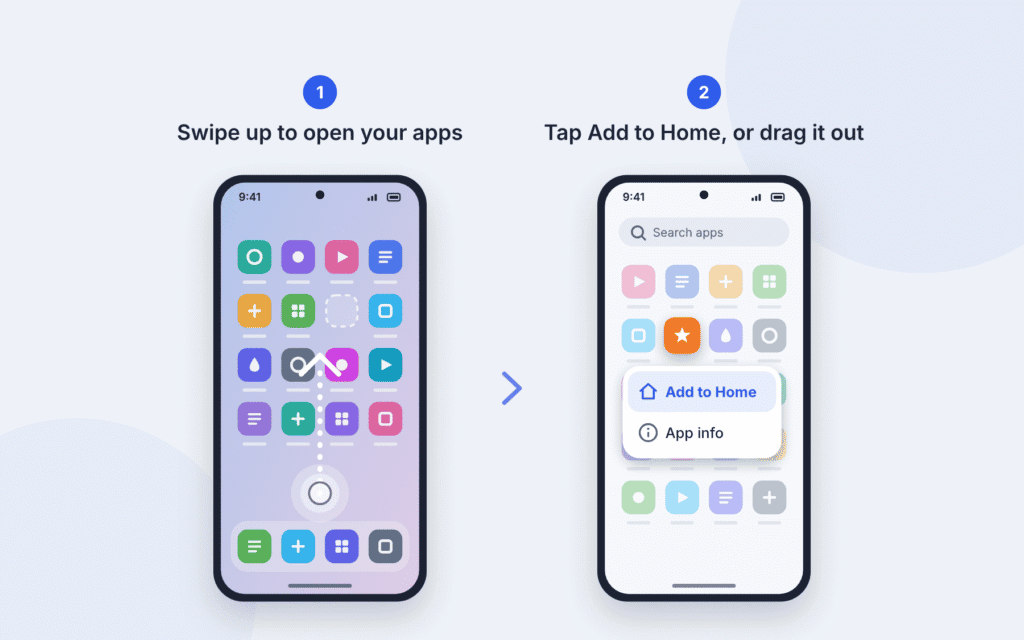
Can’t find the app in the list? On Samsung, check whether it’s hidden under Settings > Home screen > Hide apps on Home and Apps screens. If you still can’t find it, search for it under Settings > Apps or in the Google Play Store. It may be disabled, hidden or uninstalled. If it was uninstalled, you can reinstall it from Google Play. Whether your data comes back depends on the app and your backup settings.
How to Organize Your Android Home Screen
Removing icons is only one way to cut clutter. These keep your apps close without filling every page.
- Group apps into folders. Drag one icon on top of another to make a folder. On a Pixel, tap the folder to name it.
- Cut down on pages. On a Pixel, a Home screen disappears once you move its last item off. On Samsung, touch and hold an empty spot, swipe to the page, and tap the trash-can icon at the top.
- Search instead of scrolling. Apps you rarely open don’t need an icon. Swipe up and type the app’s name to find it.
- Lock the layout when you’re done (Samsung). Turn on Lock Home screen layout so icons can’t be moved or removed by accident. Turn it off again before your next clean-up.
Frequently Asked Questions
Does removing an app from the Home screen delete it?
No. Remove only takes the icon off the Home screen. The app, its data and its settings stay on your phone.
Why did an app I removed come back?
Usually a setting is adding new apps automatically, or, on a Pixel, a suggested app filled an empty favorites slot. The troubleshooting section above shows how to turn both off.
Can I remove apps that came with my phone?
You can remove the icon of any app from your Home screen. Many preinstalled apps can’t be uninstalled, but most can be disabled.
How do I remove a widget?
The same way as an app icon: drag it to Remove on a Pixel, or touch and hold it and tap Remove on Samsung. The app behind the widget stays installed.
Is it the same on an iPhone?
No. On an iPhone, touch and hold the app, tap Remove App, then tap Remove from Home Screen. Choosing Delete App instead uninstalls it.

Louis Mugan is a seasoned technology writer with a talent for turning complicated ideas into clear, practical guidance. He focuses on helping everyday readers stay confident in a world where tech moves fast. His style is approachable, steady, and built on real understanding.
He has spent years writing for platforms like EasyTechLife, where he covers gadgets, software, digital trends, and everyday tech solutions. His articles focus on clarity, real-world usefulness, and helping people understand how technology actually fits into their lives.
Outside of his regular columns, Louis explores emerging tools, reviews products, and experiments with new tech so his readers don’t have to. His steady, friendly approach has made him a reliable voice for anyone trying to keep up with modern technology. get in touch at louismugan@gmail.com